A Complete Guide to LionPATH
Navigating university administrative systems can often feel overwhelming, but for students at Pennsylvania State University, LionPATH is the central hub for everything related to academic life. Whether you are an incoming freshman registering for your very first semester or a graduating senior checking your final degree audit, understanding how to use this platform efficiently is essential to your success at PSU.

This comprehensive guide covers everything you need to know about accessing LionPATH, managing your class schedule, handling tuition payments, and troubleshooting common issues.
What Is LionPATH?
LionPATH is Penn State's enterprise-wide student information system. Powered by Oracle PeopleSoft, the platform serves as the single source of truth for student records, financial aid, billing, course catalog browsing, and enrollment. Every student, faculty member, and authorized parent or guardian interacts with the system throughout the academic year.
The system replaced older legacy systems to provide a unified experience across all Penn State campuses, from University Park to the commonwealth campuses and World Campus. Because it houses your entire academic history, getting comfortable with its layout early on will save you significant stress during enrollment periods.
Getting Started and Logging In
To access your account, you will need your Penn State Access Account User ID (e.g., xyz123) and password, along with your multi-factor authentication (MFA) device via WebLogin.
- Navigate to the official website at lionpath.psu.edu.
- Click the prominent "Log In to LionPATH" button.
- Authenticate using your PSU credentials and complete your MFA prompt.
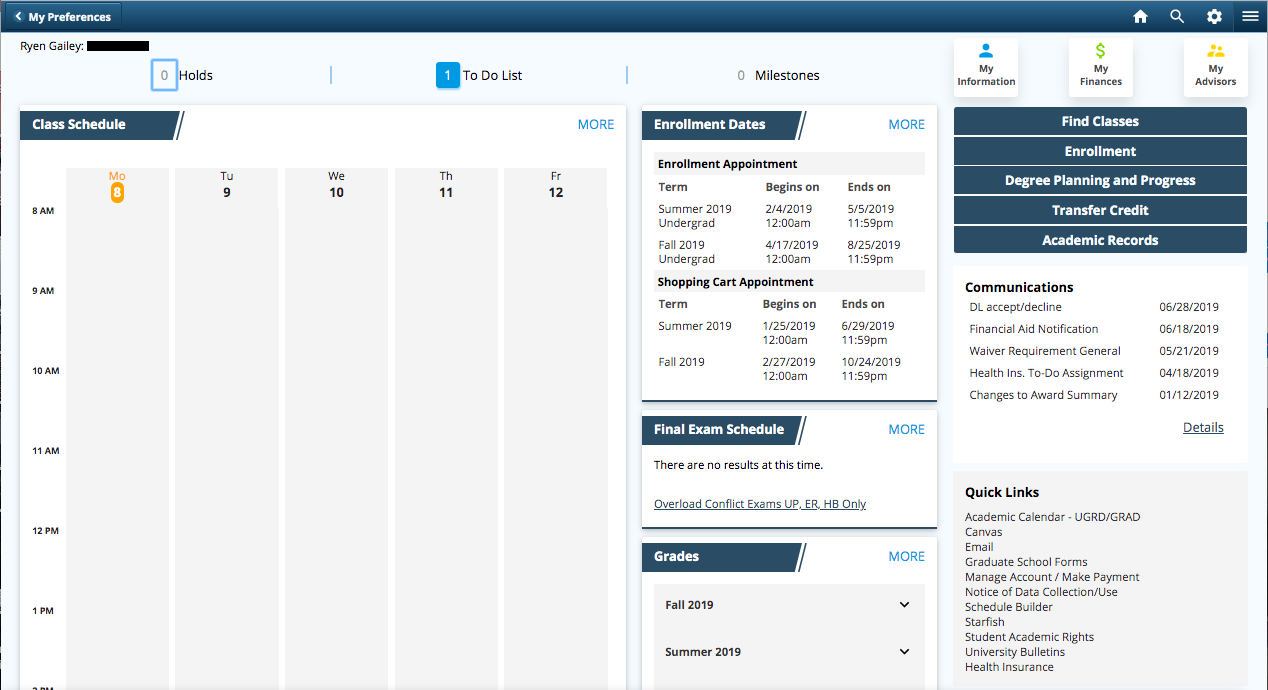
- You will arrive at your Student Home page, which features a customizable dashboard of tiles.
If you are a parent or guardian who needs access to view grades or pay bills, the student must set you up with delegated access within the portal.
Core Features of the Student Center
Once logged in, the Student Center is your primary operational dashboard. It is organized into several key modules designed to handle different aspects of your university career.
Class Registration and Enrollment
Video: Shimifari – Lion Path (Roots Reggae 2025)

One of the most frequent uses of the portal is building your semester schedule. Before your designated enrollment appointment time, you should use the Class Search feature to find open sections.
- Shopping Cart: Add prospective classes to your shopping cart ahead of time. This functions like an online retailer's cart, allowing you to validate prerequisites and schedule conflicts before officially enrolling.
- Enrollment Wizard: When your registration window opens, you can execute the contents of your shopping cart to officially secure your seats.
- Swap and Drop: If you need to change sections or drop a course during the add/drop period, use the swap feature to ensure you don't accidentally drop a required class without securing a replacement.
Academics and Records
Keeping track of your academic progress is straightforward using the built-in tracking tools.
- Degree Audit (Academic Requirements): This tool maps your completed and in-progress coursework against your major requirements. It highlights what you still need to take to graduate.
- Unmodifiable Transcripts and Grades: At the end of every semester, final grades are posted directly to your grade report. You can also request official or unofficial transcripts through the portal.
- Enrollment Verification: If you need proof of enrollment for insurance companies, employers, or loan deferment, you can generate official enrollment verification certificates instantly.
Finances and Tuition
Tuition bills, financial aid awards, and payment plans are all managed within the financial section of the dashboard.
- Account Inquiry: View your current itemized charges, pending financial aid credits, and payment history.
- Make a Payment: Access the payment gateway to settle your term bill using checking/savings accounts or credit cards (note that credit card payments typically incur a processing fee).
- Financial Aid: Accept or decline federal loans, grants, and work-study awards, and submit any requested verification documents.
Tips for Navigating LionPATH Successfully
While the system is robust, it does have quirks. Keep these best practices in mind to avoid common pitfalls:
- Clear Your Browser Cache: Many unexpected errors, freezing screens, or login loops can be resolved by clearing your browser's cache and cookies or trying an incognito window.
- Check Holds Early: Always check your "Holds" tile before your enrollment window opens. Financial, academic, or health immunization holds will block you from registering for classes.
- Watch the Time Zone: All deadlines and enrollment times are listed in Eastern Time (ET). Make sure you note your exact minute-by-minute appointment time if you are studying remotely from another time zone.
- Use the Search Function: If you cannot find a specific menu item, use the global search bar within the portal or the comprehensive A-Z student guide provided by Penn State IT.
Troubleshooting and Support
If you encounter technical issues, error codes, or problems logging in, do not panic. The Penn State IT Service Desk is available to assist students.
You can contact the IT Help Desk via phone, submit a support ticket online, or visit the designated IT service desk located at your specific campus. When reporting an issue, take a screenshot of any error codes that appear on your screen, as this helps support technicians diagnose the problem much faster.
By mastering the platform early in your academic journey, you can spend less time wrestling with administrative hurdles and more time focusing on your studies and campus life at Penn State.