A Guide to the Intune Admin Portal
Microsoft Intune has become the cornerstone of modern cloud-based endpoint management. Whether you are managing corporate laptops, BYOD smartphones, or specialized kiosks, everything runs through a single web-based management hub. Navigating the Intune admin portal efficiently is an essential skill for IT administrators looking to secure corporate data and streamline device provisioning.
This guide breaks down how to access the portal, explores its core navigation pillars, and highlights actionable best practices to help you manage your organization's device fleet like a pro.
Accessing and Navigating the Intune Admin Portal
To begin managing endpoints, you must first know how to reach your administrative workspace. The portal is integrated directly into Microsoft's unified cloud ecosystem, meaning it shares infrastructure with Microsoft Entra ID (formerly Azure AD).
How to Log In
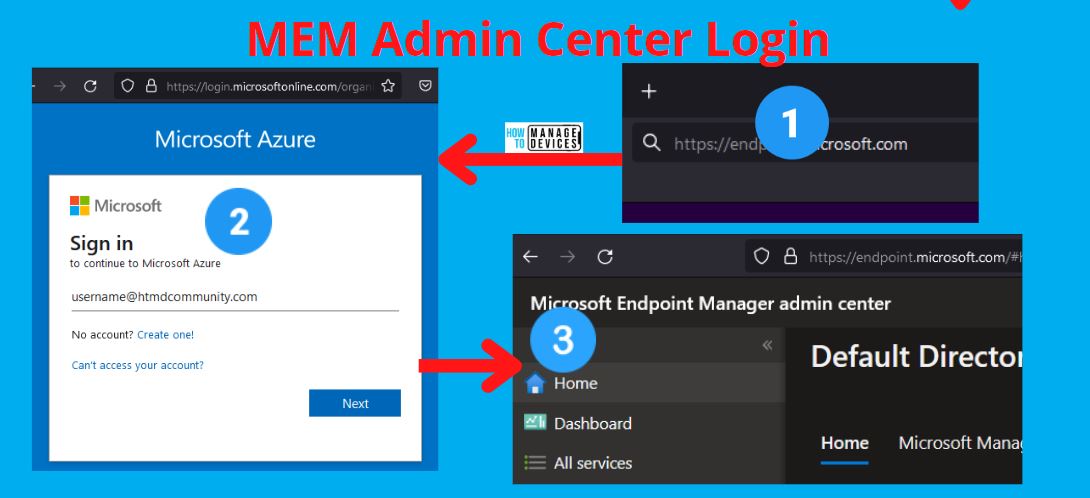
To access the administrative interface, open your web browser and navigate to intune.microsoft.com. You will need an account with appropriate administrative privileges, such as an Intune Administrator, Global Administrator, or a custom role with scoped permissions. Multi-factor authentication (MFA) is typically enforced to protect your tenant's security posture.
The Home Dashboard Overview
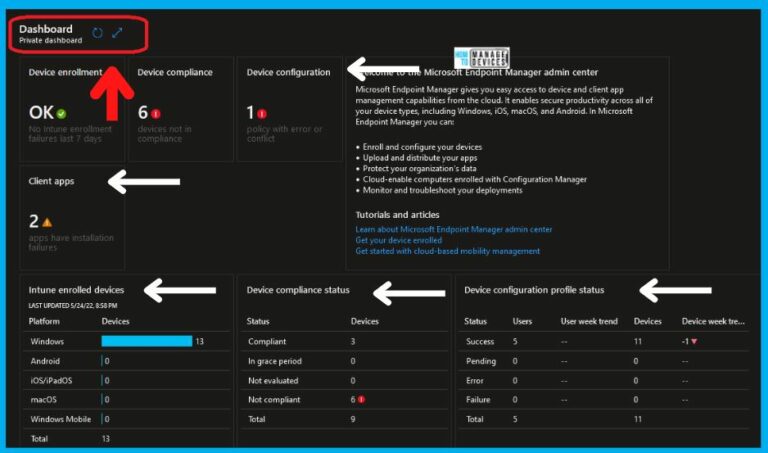
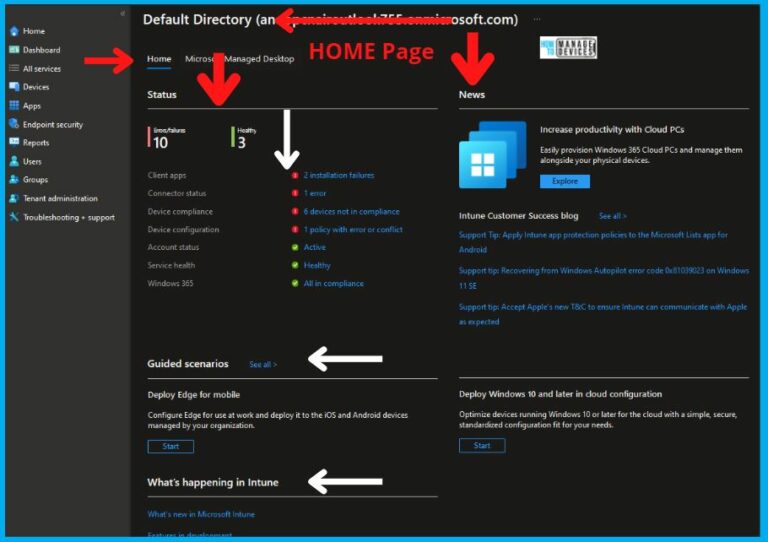
Once logged in, the home screen provides an immediate snapshot of your tenant's health. The dashboard highlights critical metrics, including:
- Device compliance status and non-compliant device warnings.
- App installation failures and success rates.
- Client app protection status across platforms.
- Tenant status alerts and service health advisories.
You can customize this dashboard by pinning your most-used widgets, ensuring you see the metrics that matter most to your day-to-day operations.
Core Workloads in the Intune Admin Portal
The left-hand navigation menu is your primary map for managing endpoints. It is organized into distinct workloads, each dedicated to a specific aspect of device and application lifecycle management.
1. Devices
The Devices blade is where you monitor and manage enrolled hardware. Here, you can view a comprehensive inventory of Windows, macOS, iOS, and Android endpoints. Selecting an individual device allows you to execute remote actions such as:
Video: What is Microsoft Intune?
- Retiring or wiping corporate data from a lost device.
- Restarting the operating system remotely.
- Syncing policies immediately to force a check-in.
- Locating physical hardware coordinates for mobile devices.
2. Apps
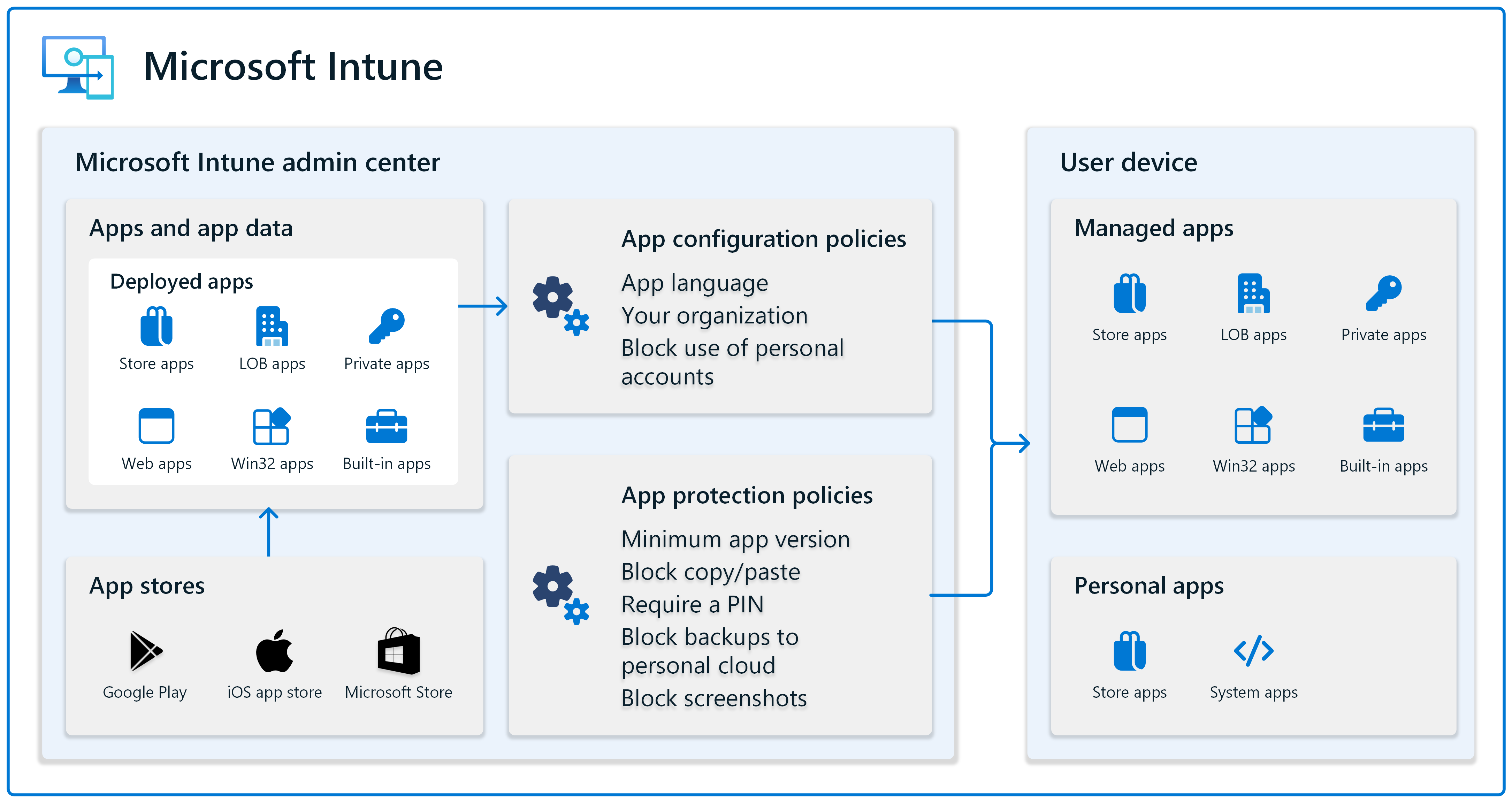
Modern endpoint management goes beyond hardware; delivering software securely is equally critical. The Apps workload lets you package, assign, and monitor software deployments. You can manage Line-of-Business (LOB) apps, integrate the Apple Volume Purchase Program (VPP), and deploy Microsoft 365 Apps directly to endpoints without user intervention.
3. Users and Groups
While user identities originate in Microsoft Entra ID, the Intune admin portal allows you to view user assignments, check group memberships, and troubleshoot targeted policy deployments. Most Intune configurations are assigned to user or device groups rather than individual entities, making group management crucial for scalable deployments.
Enforcing Security and Compliance
Securing corporate data on personal and corporate devices is a primary use case for Microsoft Intune. The portal provides robust tools to establish security baselines and conditional access guardrails.
Compliance Policies
Compliance policies define the rules a device must meet to be considered secure. Common requirements include enforcing BitLocker encryption on Windows, requiring a minimum operating system version, or checking if a device is jailbroken or rooted. If a device falls out of compliance, you can configure automated remediation actions, such as notifying the user or blocking access to corporate resources.
Endpoint Security
The Endpoint Security node consolidates granular security settings into dedicated sub-nodes. Instead of hunting through thousands of generic configuration profile settings, admins can directly manage:
- Antivirus configurations (Microsoft Defender).
- Disk encryption (BitLocker and FileVault).
- Firewall rules and attack surface reduction (ASR) rules.
- Endpoint privilege management (EPM).
Best Practices for Intune Administrators
To keep your administrative environment clean, secure, and performant, follow these proven best practices:
- Implement Role-Based Access Control (RBAC): Avoid sharing Global Admin accounts. Assign granular Intune roles to help desk staff, security teams, and device deployment engineers based on the principle of least privilege.
- Test Policies in Pilot Groups: Before deploying a strict security baseline or major operating system update to the entire organization, target a pilot group of IT staff or early adopters to catch unexpected issues.
- Leverage Autopilot for Provisioning: Utilize Windows Autopilot within the portal to ship devices directly to remote users. Out-of-the-box, the device will automatically enroll, apply configurations, and install required apps upon first boot.
- Monitor Audit Logs: Regularly review the tenant administration audit logs to track who made changes to policies, apps, or device groups. This is invaluable for troubleshooting and compliance auditing.
Conclusion
The Intune admin portal serves as the command center for modern, cloud-first endpoint administration. By mastering its navigation, understanding core workloads like devices and apps, and implementing strict security baselines, IT teams can maintain a secure and productive environment for all users, regardless of where they work.