Albertsons Schedule Login: Employee Portal Guide
Keeping track of your shifts as a retail grocery associate requires fast, reliable access to your store's workforce management system. Whether you work in front-end checkout, deli, meat, pharmacy, or the stockroom, completing your albertsons schedule login allows you to verify upcoming work hours, manage availability, request time off, and pick up open shifts from any device.
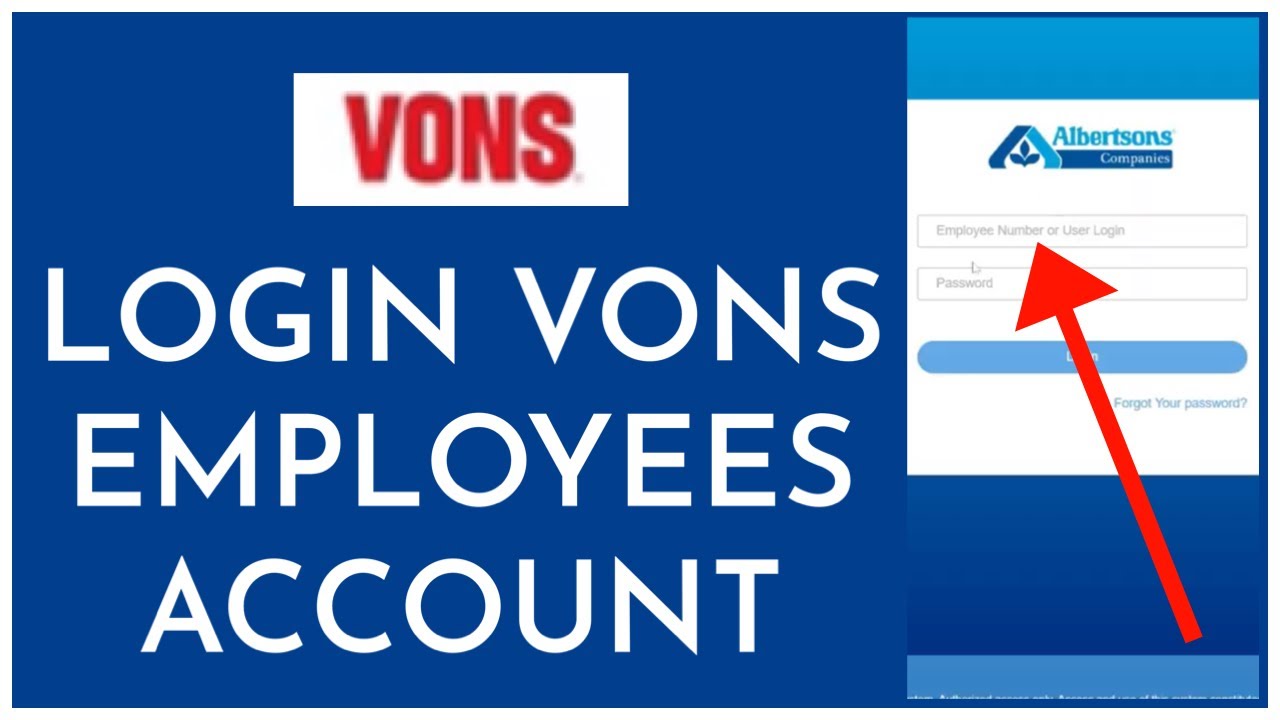
Albertsons Companies operates across dozens of states under multiple banners. Because the company uses a centralized human resources and scheduling framework, this login process applies not only to Albertsons employees but also to associates at Safeway, Vons, Jewel-Osco, Shaw's, Acme, Tom Thumb, Randalls, and United Supermarkets.
The Primary Systems Used for Albertsons Scheduling
Depending on your store location, department, and whether you are accessing your profile from a mobile device or a desktop computer, your schedule is hosted on one of two interconnected platforms:
- myACI / Direct2HR: The enterprise-level employee self-service hub. Here, associates can view pay stubs, update W-4 tax details, verify direct deposit, review company benefits, and view shift rosters. Direct2HR web links typically redirect to the unified
myaci.albertsons.comlogin page. - WorkJam: The mobile-first digital workplace application adopted widely across Albertsons stores. WorkJam handles daily schedule viewing, shift trades, shift pickups, and internal team communications directly from your smartphone.
Step-by-Step Albertsons Schedule Login Guide
To view your weekly roster from home or your mobile browser, follow these steps to access the web portal:
- Navigate to the Official Portal: Open your web browser and go to the official myACI portal (
myaci.albertsons.com) or the legacy Direct2HR URL (direct2hr.albertsons.com). - Enter Your Enterprise ID: Input your employee ID number. For most associates, this is an 8-digit numeric ID assigned during your onboarding orientation.
- Enter Your Network Password: Type in your enterprise password. Note that this password expires periodically per company security policy.
- Complete Multi-Factor Authentication (MFA): If you are logging in from an external, non-company device, you must verify your identity through the company's designated security tool (such as Okta Verify, Microsoft Authenticator, or an SMS verification code).
- Access the Schedule Module: Once authenticated, locate the "My Schedule," "Time & Attendance," or "Workforce Management" tile on your dashboard to see your published shifts.
Viewing Your Schedule via the WorkJam Mobile App
Most store-level associates prefer checking shifts on mobile rather than navigating web browsers. Albertsons integrates its scheduling engine directly into the WorkJam app.
Setting Up the App for First-Time Use
- Download WorkJam from the Apple App Store (iOS) or Google Play Store (Android).
- Launch the app and select the option to log in with company credentials (Single Sign-On).
- Enter your Albertsons email address or username (format is typically
EmployeeID@albertsons.comor your store-provided enterprise username). - You will be redirected to the Albertsons authentication page. Enter your password and complete your MFA prompt.
Once logged in, the app home screen presents your upcoming shifts for the current workweek. You can swipe across dates to see published schedules up to two weeks in advance, depending on your local union contract or store posting policy.
Banner Companies Sharing the Same System
Albertsons is one of the largest food and drug retailers in the United States. If you work for any banner within the Albertsons Companies family, you use the exact same scheduling backend and login credentials:
- Safeway
- Vons
- Jewel-Osco
- Shaw's and Star Market
- Acme Markets
- Tom Thumb
- Randalls
- Pavilions
- Carrs
- United Supermarkets, Market Street, and Amigos
If you transfer between banners or pick up hours at a nearby sister store, your login ID and password remain unchanged.
How to Trade Shifts and Request Time Off
The scheduling portal is not just a passive calendar; it allows you to manage your work-life balance proactively.
Submitting a Shift Swap
If you cannot work an assigned day, you can swap with a qualified peer via WorkJam without incurring an unexcused absence:
- Navigate to the shift you wish to trade.
- Select Offer Shift or Swap Shift.
- Choose an eligible coworker in your department or open it up for broadcast to all qualified associates.
- Once your coworker accepts the swap, the request routes to your Department Manager or Assistant Store Director (ASD) for final sign-off.
Submitting Availability Changes and Paid Time Off (PTO)
Requests for vacations, medical appointments, or recurring availability adjustments should be submitted at least two to three weeks before the schedule for that period is generated. Within myACI, click on Time Off Request, select the appropriate bucket (Vacation, Personal Day, or Unpaid Time Away), and submit it to your department lead for review.
Troubleshooting Common Login Problems
Access errors can leave you guessing when your next shift starts. Here is how to resolve the most frequent account roadblocks:
1. Forgotten or Expired Password
Albertsons mandates periodic password updates. If your password expires while you are off the clock, you will be blocked from logging in. Navigate to the self-service password reset portal (SSPR) from the myACI login screen. Click "Need help signing in?" or "Forgot Password" and follow the prompts to reset your credentials using your registered recovery phone number or secondary email.
2. Multi-Factor Authentication (MFA) Failures
If you get a new mobile device or change phone numbers, your MFA prompts may fail to deliver. Because MFA changes require identity confirmation, you must contact your store's scan coordinator, bookkeeper, or the enterprise IT help desk to reset your authentication tokens.
3. Blank Pages or Endless Redirect Loops
The myACI portal frequently encounters session conflicts if stale cookies are stored in your browser. To fix this:
- Open an Incognito / Private Browsing window and navigate directly to
myaci.albertsons.com. - Clear your browser's cookies and cached images for all Albertsons domains.
- Disable aggressive ad-blockers or browser extensions that might block corporate authentication scripts.
4. New Hire Access Delays
If you completed orientation recently, your profile may still be processing through corporate payroll systems. It can take 24 to 72 hours following orientation for your Employee ID to activate across WorkJam and myACI. Check the physical paper schedule posted in your store's breakroom or speak with your department head until your digital profile is fully live.
Important Internal Contacts
If you are locked out of your account and self-service tools do not resolve the issue, use these internal resources for direct support:
- Store Bookkeeper / ASD: Can verify your active Enterprise ID and check schedule details directly on the in-store portal.
- Albertsons Enterprise Service Desk (IT Help Desk): Call 1-877-286-3200 for technical account unlocks, password resets, and MFA reconfiguration.
- HR General Inquiries (Direct2HR Support): Contact 1-877-729-2722 for questions regarding employment status, benefits records, and leave management.