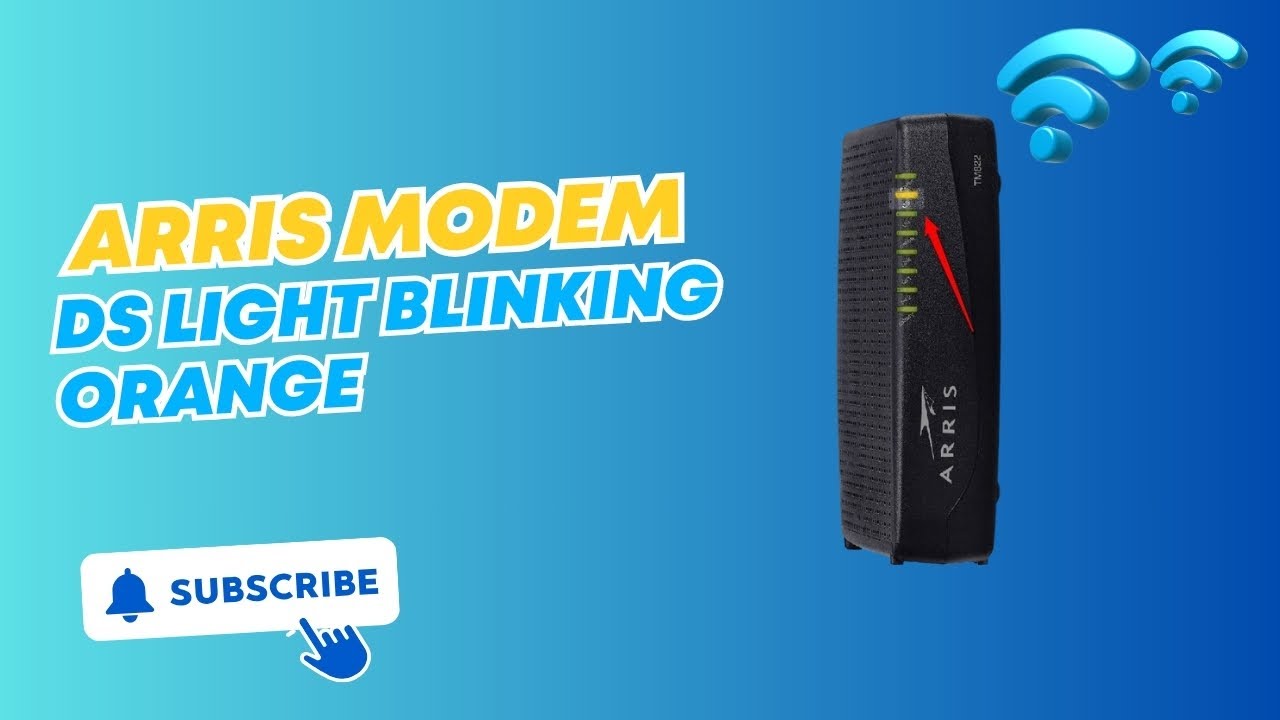
Arris Modem Online Light Blinking: How to Fix It
Dealing with internet connectivity issues can be intensely frustrating, especially when you rely on your network for work, school, or entertainment. If you glance at your hardware and notice your Arris modem online light blinking, it means your device is currently struggling to establish a stable connection with your internet service provider (ISP).

Understanding what this flashing light communicates is the first step toward getting your home network back up and running. Whether it is a slow blink indicating a scanning process or a rapid flash signaling a synchronization failure, this guide will walk you through the exact steps required to diagnose and resolve the issue.
Understanding Your Arris Modem Lights
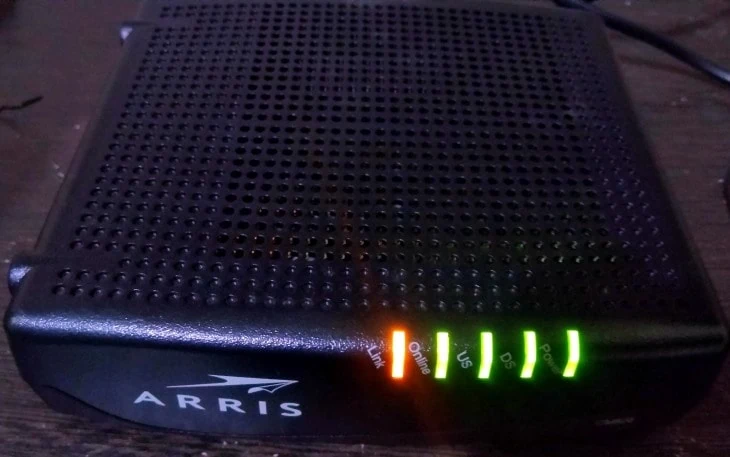
Before diving into troubleshooting, it helps to know how Arris Surfboard modems communicate status. Most models feature a series of LED indicators representing Power, Receive (Downstream), Send (Upstream), and Online.
When your network functions normally, the Online light remains solid. A blinking Online light typically means the modem is attempting to lock onto the cable signal and register with the ISP's CMTS (Cable Modem Termination System). If it cannot complete this handshake successfully, the light continues to flash indefinitely.
Why Is Your Arris Modem Online Light Blinking?
Several distinct factors can cause your modem to lose its connection to the internet service provider. Identifying the root cause narrows down your troubleshooting steps:
- Loose Cable Connections: Coaxial cables can vibrate loose over time due to temperature changes or physical bumps.
- ISP Outages: Maintenance, damaged neighborhood lines, or local power outages can sever your connection upstream.
- Outdated Firmware: Occasionally, a bad firmware update can disrupt the modem's ability to communicate with the ISP.
- Hardware Failure: Modems degrade over time. Overheating or internal component failure can prevent proper signal processing.
- Splitter Issues: Faulty or low-quality coaxial splitters degrade signal strength before it reaches the modem.
Step-by-Step Troubleshooting Guide
Most blinking light issues do not require a technician visit. You can resolve the vast majority of connectivity problems using the following systematic approach.
1. Check All Physical Connections
Signal integrity depends entirely on secure cabling. Go behind your modem and check every wire.
- Unscrew the coaxial cable coming from the wall outlet into the back of the Arris modem.
- Inspect the copper pin inside the cable connector to ensure it is straight and undamaged.
- Firmly hand-tighten the coaxial cable back into the modem. If you use a splitter, ensure all connections on the splitter are equally tight.
- Ensure the power adapter is securely plugged into both the back of the modem and a functioning wall outlet.
2. Perform a Power Cycle
A simple restart clears the modem's temporary memory, forces it to clear corrupt network states, and initiates a fresh handshake with your ISP.
- Unplug the power cord from the back of your Arris modem. (If you have a separate Wi-Fi router, unplug that as well).
- Wait a full 60 seconds to allow the internal capacitors to drain completely.
- Plug the power cord back into the modem first.
- Allow the device 3 to 5 minutes to boot up, scan frequencies, and attempt to lock onto the downstream and upstream channels.
- Once the Online light turns solid, plug in your separate wireless router if applicable.
3. Bypass Coaxial Splitters

Splitters degrade signal strength (measured in dBmV). If you have multiple splitters daisy-chained together, your modem may not receive enough signal to lock on.
Temporarily remove any splitters and connect the wall coaxial cable directly to the back of your Arris modem. If the blinking stops and the light turns solid, your splitter is faulty or the signal quality is too low to support splitting.
4. Inspect for Service Outages
Sometimes the issue has nothing to do with your home hardware. Local infrastructure damage or scheduled maintenance by your provider will cause the online light to blink.
Check your smartphone using mobile data to see if your ISP (such as Xfinity, Spectrum, Cox, or Mediacom) has reported an outage in your area. Most major providers feature status checkers on their mobile apps or official websites where you can view local network health.
5. Factory Reset the Modem
If basic reboots fail, restoring the modem to its factory default settings can clear stubborn configuration glitches.
Locate the small recessed reset button on the back panel of your Arris modem. Using a paperclip or a SIM card ejector tool, press and hold the button for approximately 15 to 30 seconds. The front panel lights will cycle off and on as the device reboots into its original factory state. Allow up to 10 minutes for it to re-download configuration files from your ISP.
When to Contact Your ISP
If you have checked your cables, bypassed splitters, power cycled the hardware, and verified there is no local outage, but the Arris modem online light is still blinking, the problem likely originates outside your home.
Reach out to your internet service provider's customer support line. Inform them that your modem is unable to lock onto the channel and provide your MAC address (located on the sticker at the bottom of the device). They can run remote diagnostic tests on your line to check signal levels, detect upstream noise, or dispatch a field technician to inspect the physical drop line outside your house.
Summary
An Arris modem online light blinking signals a communication breakdown between your home hardware and your internet provider. By systematically verifying your coaxial connections, performing a proper power cycle, eliminating faulty splitters, and checking for regional outages, you can quickly identify the source of the problem and restore full internet access to your home.