Astro A50 Software Update: Step-by-Step & Fixes
Keeping your headset firmware current is vital for maintaining reliable wireless connectivity, crisp sound profiles, and accurate battery monitoring. If you are experiencing sudden audio cutouts, charging dock glitches, or balance issues between voice and game channels, running a routine astro a50 software update can resolve common bugs and optimize acoustic performance across PC and consoles.

However, Astro's update ecosystem can be confusing due to multiple software versions, legacy apps, and occasional update loops. This guide breaks down the update process for all generations, outlines manual flashing methods, and provides concrete fixes if your update stalls midway.
Which Software Do You Need for Your Astro A50?
Before plugging in your hardware, ensure you are using the correct software platform for your specific headset model:
- Astro A50 Gen 3 & Gen 4: These require the Astro Command Center (ACC). For Windows users, the version distributed through the Microsoft Store is significantly more stable than the older standalone installer previously hosted on Astro's website. Mac users should download the ACC direct DMG installer from Logitech's official support portal.
- Astro A50 X (Gen 5): The A50 X operates on Logitech's Lightspeed architecture and uses Logitech G HUB (desktop) or the Logitech G mobile app (iOS/Android via Bluetooth), rather than the legacy Astro Command Center.
Step-by-Step Astro A50 Software Update Guide
For Gen 3 and Gen 4 models, the base station manages firmware delivery to both the transmitter dock and the headset itself. Follow these steps to perform an automated update safely:
- Set to PC Mode: Slide the toggle switch on the back of the Astro A50 Base Station to PC. Do not attempt to update while in Xbox or PlayStation mode.
- Direct USB Connection: Connect the base station directly to a motherboard USB port (preferably a USB 2.0 or standard USB 3.0 port). Avoid unpowered USB hubs, keyboard passthroughs, or front-panel case ports, as micro-drops in power can interrupt the update process.
- Seat the Headset: Place the headset securely in the base station cradles. Ensure the four gold contact pins align properly. The battery status LEDs on the dock should begin pulsing or displaying charge status.
- Power On: Make sure the headset's power switch is flipped to the ON position while docked.
- Launch Astro Command Center: Open the software. If a new firmware version is available, an automated prompt will appear showing both the Headset FW and Base Station FW versions.
- Confirm the Update: Click Update and leave the headset completely undisturbed. Do not remove the headset, close the app, or unplug the cable until the progress bar reaches 100% and displays a confirmation message.
How to Manually Update Astro A50 Firmware
If the Astro Command Center fails to detect an update automatically, or if the download stalls, you can manually load an official firmware image (a .afw file).
1. Obtain the Firmware File
Official firmware binaries are often archived on Logitech G/Astro community support forums or direct Logitech support tickets. Verify the file version matches your generation (Gen 3 and Gen 4 files are not interchangeable).
2. Access Manual Update Mode
- Open the Astro Command Center.
- Click the Settings icon (gear cog) located in the upper right-hand corner.
- Select Update firmware manually.
- Navigate to the directory where you saved the downloaded
.afwfile and click Open. - Allow the utility to write the image to both the base station and the headset. The base station lights will alternate while flashing.
Troubleshooting Failed Updates and Bootloader Errors

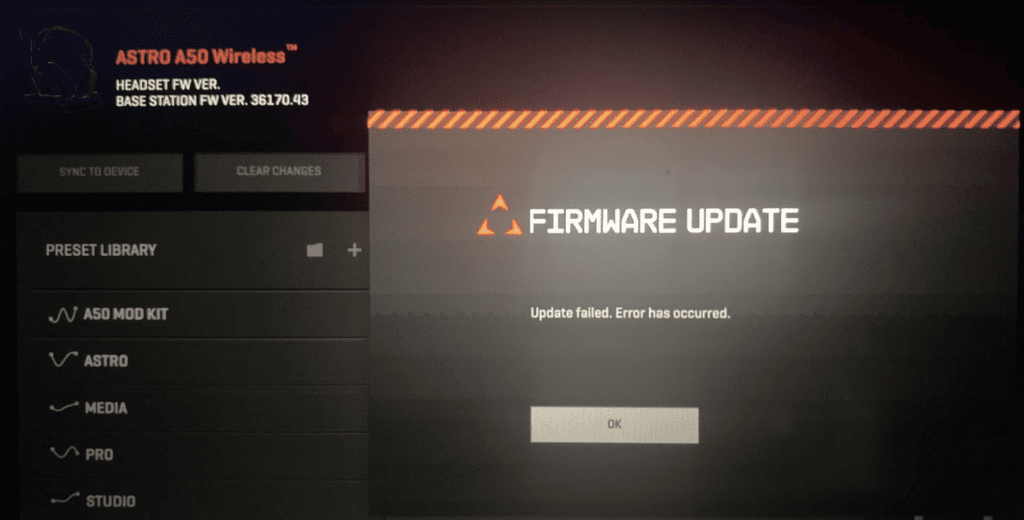
A failed update can leave the headset unresponsive or stuck in a state where the base station LEDs blink erratically. Here is how to recover your hardware from common errors.
Stuck at 0%, 25%, or 75%
If the update freezes midway through the write cycle, it is usually caused by Windows communication timeouts or driver conflicts:
- Switch to the Microsoft Store Version: If you are using the Win32 executable downloaded from a browser, uninstall it completely. Install the Astro Command Center app directly from the Microsoft Store, restart your PC, and retry.
- Change USB Ports: Disconnect the dock and plug it into a rear USB 2.0 port. Modern USB 3.1/3.2 controllers occasionally drop low-level data packets required during firmware writes.
- Disable Conflicting Software: Temporarily close background RGB controllers (like Corsair iCUE or Razer Synapse) and third-party antivirus shields that might intercept low-level USB drivers.
Recovering from "Device Stuck in Bootloader Mode"
If an update fails, the Command Center may display a prompt stating the device is in Bootloader Mode and ask to reinstall the firmware. If clicking "Yes" repeatedly loops back to the same error:
- Perform a hard reset while the headset is off the dock: Press and hold the Dolby button and the Game button (located on the outside of the right ear cup) together for 15 to 20 seconds.
- Release both buttons. The headset will reboot.
- Seat the headset firmly back into the base station.
- Open the Command Center and load the firmware manually using the gear icon method described above.
The Headset Pins Are Not Making Contact
A frequent point of failure during flashing is a brief disconnection between the headset contacts and the base pins. If the headset wiggles or sits unevenly, the updater loses connection to the headset while updating the base station.
Clean the gold contact points on both the base station and the bottom of the ear cups with a dry microfiber cloth or a cotton swab lightly dampened with 90%+ isopropyl alcohol. Ensure both ear cups are fully retracted or evenly adjusted so the unit sits flush against the magnetic alignment guides.
How to Verify Your Current Firmware Version
To confirm whether your update was successful, review the numbers displayed at the top of the Astro Command Center or Logitech G HUB main screen.
- Astro A50 Gen 4: Stable baseline firmware generally sits at version 39964.43 (Headset) and 40372.43 (Base Station), or higher depending on the latest regional revisions.
- Astro A50 Gen 3: The final stable maintenance firmware rests near 36154.42 (Headset) and 36793.42 (Base Station).
If both the Headset and Base Station report their respective version numbers clearly—and no longer display 0.0—the device is fully restored, synchronized, and ready for use.