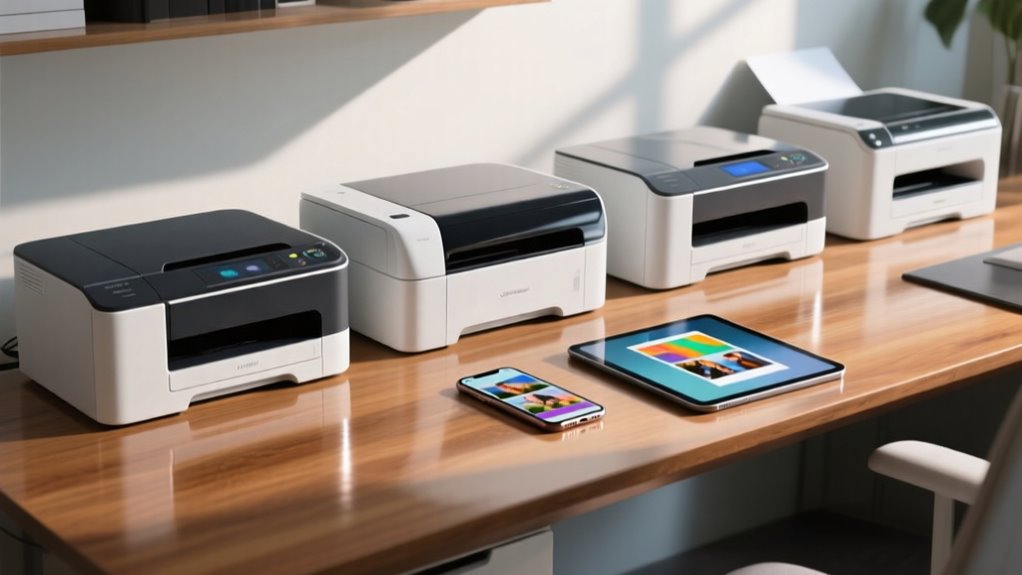
Best Apple Printer for iPad: Complete Setup Guide
Finding the right apple printer for ipad usage can transform how you handle documents, homework, photos, and shipping labels directly from your tablet. Unlike the early days of mobile computing, modern iPads make printing remarkably simple thanks to Apple's built-in AirPrint technology. You do not need to install complex drivers, plug in USB cables, or download sketchy third-party apps to get your work onto paper.
Whether you need a heavy-duty home office machine or a compact inkjet for occasional boarding passes and family photos, choosing a compatible device ensures a seamless printing experience. This guide covers how iPad printing works, what features to look for, and the top printer recommendations available today.
Understanding AirPrint: The Key to iPad Printing
Before shopping for a printer, it helps to understand how Apple devices communicate with hardware. Apple's native printing protocol is called AirPrint. Almost every modern wireless printer manufactured by major brands like HP, Brother, Canon, and Epson comes with AirPrint built right in.
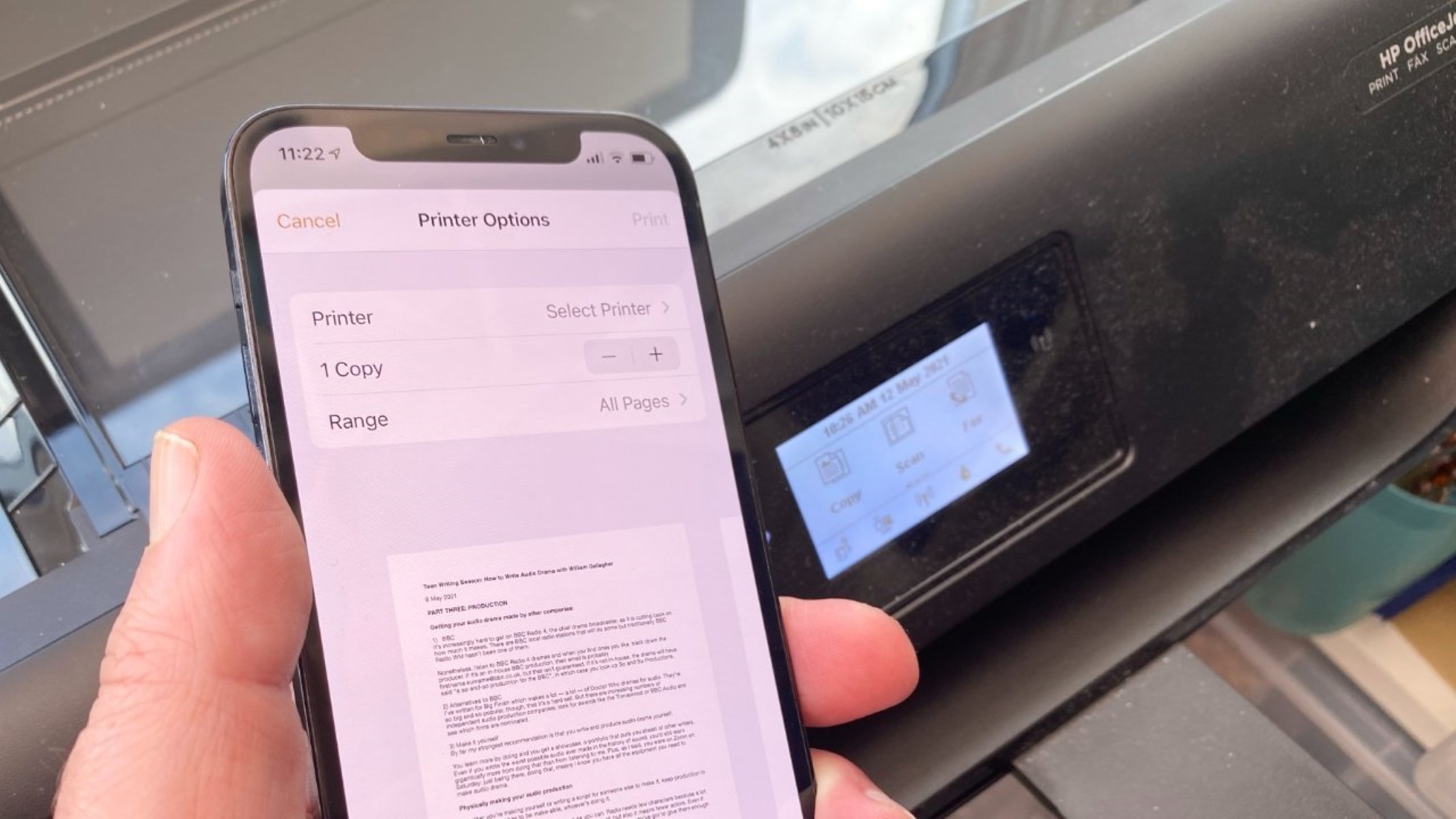
When your iPad and your printer are connected to the same Wi-Fi network, your tablet automatically detects the printer. You simply tap the share icon in apps like Safari, Mail, Pages, or Photos, select "Print," choose your device, and hit send. Because the protocol is integrated into iPadOS, there is zero configuration required on the operating system level.
Top Printer Brands and Models for iPad Users
When selecting an apple printer for ipad compatibility, certain brands consistently deliver reliable hardware and robust iOS integration. Here are the top categories and models to consider for your setup.
1. Best All-In-One Inkjet: HP Envy Inspire Series
HP’s Envy line is designed specifically for modern homes and creative users. These printers handle everyday document printing, high-quality borderless photo printing, scanning, and copying.
- Key Features: Automatic AirPrint support, dual-band Wi-Fi for stable connectivity, and integration with the HP Smart app for remote management.
- Best For: Families, students, and casual creators who need a versatile machine that prints sharp text and vibrant photos from an iPad.
2. Best Monochrome Laser: Brother HL-L2350DW
Video: Top 5 Best Printers for iPad of 2026 | Best Printers That Work Perfectly With iPad!

If you primarily print text documents, essays, contracts, or tax forms, a black-and-white laser printer is far more cost-effective than an inkjet.
- Key Features: Lightning-fast printing speeds, high-capacity toner cartridges that don't dry out, and native AirPrint capability.
- Best For: Home offices, remote workers, and students who print hundreds of text pages a month and want low per-page operating costs.
3. Best Color Laser: Brother HL-L3210CW
For those who want the speed and smudge-proof reliability of laser technology combined with color output for charts, graphs, and presentations, color LED/laser printers are ideal.
- Key Features: Crisp color graphics, wireless connectivity, and dependable AirPrint performance across multiple iOS devices.
- Best For: Small business owners and home offices needing professional-grade color documents without the maintenance hassle of inkjet nozzles.
How to Connect and Print from Your iPad
Setting up your new printer to work with your iPad takes only a few minutes. Follow these simple steps to get started:
- Unbox and Power On: Follow the manufacturer instructions to unpack your printer, install the ink cartridges or toner, and load paper into the tray.
- Connect to Wi-Fi: Use the printer's touchscreen or companion mobile app to connect it to your home or office Wi-Fi network. Ensure your iPad is connected to that exact same Wi-Fi network (and the same frequency band, usually 2.4GHz or 5GHz depending on the printer).
- Open a Document: Open a PDF, photo, or document on your iPad. For example, open the Photos app and select a picture.
- Tap Share and Print: Tap the Share button (the square with an upward arrow), scroll down through the options, and tap the Print icon.
- Select Printer: Tap on "Printer" at the top of the print options screen. Your iPad will search the network and display all available AirPrint printers. Select yours.
- Adjust Settings and Print: Choose your number of copies, specific page ranges, or double-sided printing if supported. Finally, tap Print in the top-right corner.
Troubleshooting Common iPad Printing Issues
Even with AirPrint's user-friendly design, minor network hiccups can occasionally prevent your iPad from finding the printer. Here is how to quickly resolve the most common issues:
- Ensure Same Network Connection: The single most common issue is the iPad being on a guest network, a 5GHz band while the printer is on 2.4GHz, or a VPN blocking local network discovery. Turn off your VPN temporarily and verify Wi-Fi SSIDs match.
- Restart Everything: Turn off your iPad, unplug your printer for 30 seconds, and reboot your Wi-Fi router. This clears out temporary IP conflicts that block device discovery.
- Check for Firmware Updates: Outdated printer firmware can cause compatibility glitches with newer iPadOS updates. Check your printer's control panel or mobile app for available updates.
Summary
Investing in a reliable apple printer for ipad integration makes working, studying, and managing household paperwork remarkably efficient. By choosing a model with native AirPrint support—such as an HP Envy inkjet or a Brother laser printer—you bypass complicated driver installations entirely. Ensure both devices share a stable Wi-Fi network, and you will enjoy frictionless wireless printing straight from your tablet for years to come.