CarBridge App: Features, Setup, and Alternatives
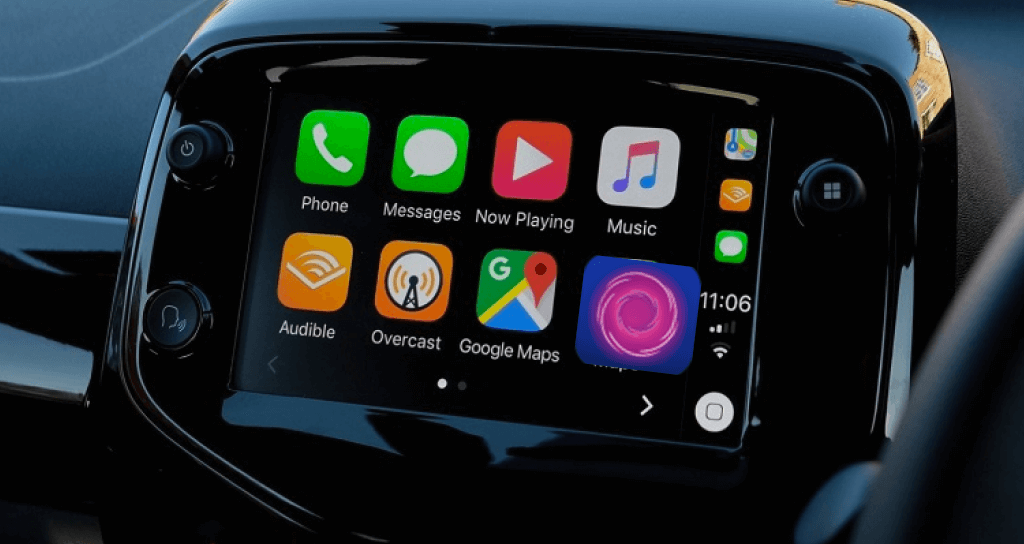
Apple CarPlay is designed to bring essential iPhone functions to your vehicle dashboard with minimal distraction. By default, Apple strictly curates the ecosystem, limiting available software to audio players, messaging tools, and navigation services. For drivers who want greater freedom, the carbridge app has long served as the primary workaround, unlocking the ability to run virtually any installed iOS application on a car’s infotainment screen.

Whether you want to stream video during long parking sessions, use unsupported navigation tools, or mirror your device completely, CarBridge changes how CarPlay operates. However, because it alters low-level system behaviors, understanding its setup, requirements, and risks is critical before installing it on your device.
What Is the CarBridge App and How Does It Work?
CarBridge is an iOS tweak developed by Alex Stich (known online as leftyflip). It intercepts Apple’s CarPlay connection protocol to allow non-CarPlay-enabled applications to display and function through your vehicle’s factory or aftermarket head unit.
Under normal conditions, an app must contain a dedicated CarPlay entitlement granted by Apple to communicate with the vehicle display. CarBridge bypasses this barrier using two distinct display mechanisms:
- Bridged Applications: This method adapts regular iPhone apps to open directly as standalone icons inside the CarPlay user interface. The app renders on the vehicle screen, utilizing your car’s touch panel or physical rotary controller for input.
- The Portal App: Portal is a companion tool included with CarBridge that streams your iPhone’s entire screen directly onto the CarPlay display. It behaves like an interactive mirror, letting you view and control anything currently visible on your phone.
Core Capabilities of the CarBridge App
CarBridge goes far beyond simple screen casting. It integrates deep into the operating system to deliver a smooth in-car experience across multiple use cases.
1. Complete App Freedom
With CarBridge, you can launch web browsers like Safari or Chrome, social feeds, productivity tools, and utility apps right on the dash. While typing on a dashboard keyboard is rarely practical, reviewing a parked delivery route, checking a live camera feed, or browsing an itinerary becomes straightforward.
2. Video and Media Playback
Stock CarPlay deliberately blocks all video playback apps for safety reasons. CarBridge permits media platforms like YouTube, Plex, and VLC to output both video and synchronized audio through your vehicle’s sound system. Note that certain services utilizing FairPlay digital rights management (DRM)—such as Netflix or Hulu—may display a black screen due to hardware-level copy protection.
3. Independent Device Use
When running a bridged application on your vehicle screen, your iPhone screen does not have to remain locked to the same task. You can run one app on the dash while your passenger checks directions or manages music on the handheld device.
Jailbreak Requirements and Compatibility
A common search query among motorists is whether the CarBridge app works on a standard, stock iPhone. It does not. CarBridge fundamentally requires a jailbroken device running a compatible version of iOS.
Apple sandbox security prohibits third-party software from modifying CarPlay configurations. Only a jailbreak provides the root permissions needed to redirect visual output and bypass Apple’s entitlement checks. Beware of websites claiming to offer an "official no-jailbreak CarBridge APK or profile"—these are scams designed to harvest data or install malicious configuration profiles.
Video: How to get CarBridge Tutorial [NO Jailbreak/No Computer✅] Watch YouTube/Netflix/Disney+ in Your Car
Supported Versions and Environments

Compatibility depends on the jailbreak tool you use:
- Legacy iOS (iOS 10–12): Supported by the original CarBridge release.
- Modern iOS (iOS 13–16+): Handled by CarBridge rewritten for modern architectures, compatible with package managers like Sileo, Zebra, and Cydia on jailbreaks such as Dopamine, palera1n, and checkra1n.
How to Install and Configure the CarBridge App
If you have a jailbroken iPhone, getting started with CarBridge takes only a few minutes. Follow these steps to install and configure it safely:
- Open Your Package Manager: Launch Sileo, Zebra, or Cydia on your jailbroken iPhone.
- Add the Official Repository: Add the Havoc repository (
https://havoc.app) to your sources list if it is not already present. Avoid pirated repos, as repackaged tweaks can compromise device stability. - Purchase and Download: Search for "CarBridge," purchase the official license, and install the package. Confirm the installation and allow your device to respring.
- Configure Settings: Go to your iPhone’s native Settings app and scroll down to find the CarBridge preferences pane.
- Bridge Your Apps: Tap into the "Bridged Applications" menu. Toggle on the specific apps you want to display on your CarPlay home screen.
- Connect to Your Car: Plug your iPhone into your vehicle via USB or connect over wireless CarPlay. Your selected apps will now appear alongside native apps on your dashboard.
Safety Concerns and Legal Considerations
While unlocking your vehicle’s screen is technically appealing, driver safety must remain the top priority. Factory CarPlay limits are not arbitrary; driver distraction is a leading cause of highway accidents.
In most jurisdictions across North America, Europe, and Australia, operating a vehicle with a television, video monitor, or entertainment screen visible to the driver while in motion is illegal. Law enforcement officers can issue substantial citations if they observe moving video on your center console while driving.
CarBridge should strictly be reserved for stationary scenarios, such as:
- Waiting at an electric vehicle charging station.
- Resting in a parking lot during long road trips.
- Viewing vehicle diagnostic gauges or telemetry while parked.
Viable Alternatives to CarBridge
If jailbreaking your daily phone is out of the question, several hardware and software alternatives offer similar flexibility without modifying iOS system files.
1. Standalone CarPlay AI Android Boxes
The most popular non-jailbreak alternative is a standalone "CarPlay AI Box" from brands like Carlinkit, Ottocast, or M.I.C. These compact dongles plug into your car’s wired CarPlay USB port and trick the vehicle into thinking an iPhone is attached. In reality, the box runs full Android OS independently, allowing you to download YouTube, Netflix, Google Maps, and browser apps directly from the Google Play Store without touching your iPhone.
2. Dedicated Secondary Jailbroken Devices
Rather than jailbreaking your primary smartphone, many drivers buy an inexpensive older iPhone (such as an iPhone 8, SE 2nd Gen, or iPhone X) running a vulnerable iOS version. Keeping this device permanently connected in the glove compartment gives you CarBridge functionality while keeping your main phone secure, updated, and stock.
3. Hardware Screen Mirroring Interfaces
Some aftermarket head units and interface modules support HDMI inputs or wireless screen casting (AirPlay/Miracast). These bypass CarPlay entirely, displaying a direct feed of your phone’s screen directly on the vehicle monitor.
Summary: Is CarBridge Right for You?
The carbridge app remains the gold standard for software-based CarPlay expansion. For enthusiasts who already maintain a jailbroken iOS device, it offers unmatched integration, turning a restrictive dashboard display into an open, fully interactive monitor. However, if you rely on modern, un-jailbroken iOS releases or want a plug-and-play solution, a dedicated CarPlay AI box provides a far more practical, low-maintenance path to dash freedom.