Carrier Infinity Thermostat Reset Guide
When your home's climate control system stops responding or starts throwing cryptic error messages, it can feel like your home is speaking a language you don't understand. Carrier Infinity systems are known for their precision, efficiency, and advanced diagnostics. However, like any sophisticated piece of technology, they occasionally need a fresh start. Knowing how to execute a proper Carrier Infinity thermostat reset can save you time, eliminate minor software glitches, and prevent unnecessary HVAC service calls.

Before you grab a screwdriver or panic about a failing compressor, let's explore what your thermostat might be trying to tell you and how to safely reset the system.
Is Your Thermostat Trying to Tell You Something?
Modern communicating thermostats do much more than simply turn the heat or air conditioning on and off. They monitor static pressure, track filter life, measure humidity, and coordinate variable-speed equipment. When something goes wrong, the display acts as a dashboard warning light.
Common warning signs that your system needs attention include:
- Unresponsive touchscreen: The display freezes or fails to register your touch inputs.
- Communication faults: Error codes appear on the screen indicating a loss of connection between the wall control and the indoor or outdoor unit.
- Scheduling loops: The system ignores programmed setbacks or runs constantly despite hitting the target temperature.
- Wi-Fi dropouts: The app loses connection, and local weather updates fail to load.
Often, these issues are simply the result of a minor firmware glitch or a temporary power surge. A system reset clears the volatile memory, allowing the control board to reboot and re-establish communication with your furnace, heat pump, or air handler.
Types of Resets for Carrier Infinity Systems
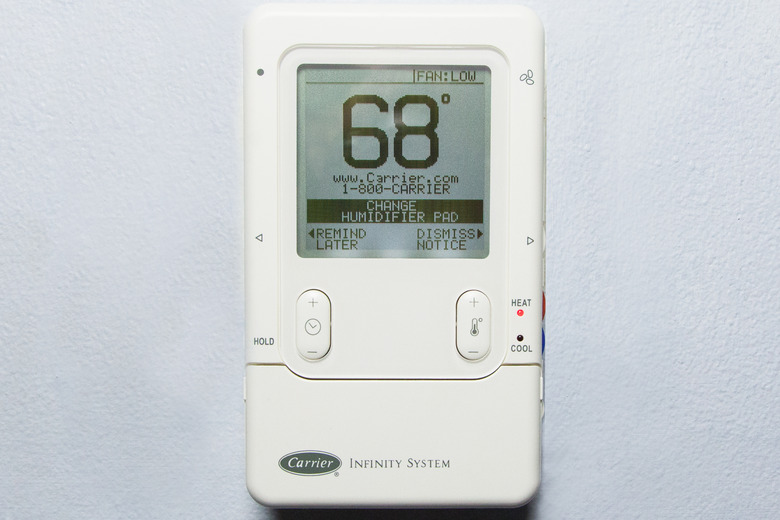
Depending on the model of your Infinity control (such as the classic Touch or the newer Infinity SYSTXCCITC01-C wall control), there are a few different levels of resetting available. You should always start with the least invasive method.
1. The Soft Reboot (Power Cycle)
A soft reboot simply restarts the operating system without wiping out your custom schedules, Wi-Fi passwords, or dealer configurations. This is your best first step for frozen screens or minor communication hiccups.
- Locate the small reset button on your thermostat. Depending on your specific model, it may be located on the bottom, side, or hidden behind a removable front cover/door.
- Use a paperclip or a small pin to gently press and hold the recessed reset button for about 5 to 10 seconds.
- Watch the screen. It should go black and display the Carrier startup logo as it reboots.
- Wait 3 to 5 minutes for the system to fully reinitialize and reconnect to your HVAC components.
2. Powering Down via the Furnace or Air Handler
If your Infinity wall control does not have a physical pinhole reset button, or if a soft reboot doesn't resolve a hard freeze, you can power cycle the entire system from the indoor unit.
- Go to your indoor unit (furnace or fan coil) located in the basement, attic, or utility closet.
- Find the power switch mounted on the side of the unit or flip the dedicated circuit breaker in your main electrical panel.
- Leave the power off for a full 60 seconds. This allows the capacitors on the control boards to completely drain.
- Turn the power back on. Return to your thermostat and allow it to boot up, which can take several minutes as it rediscovers the system components.
3. Factory Reset (Clear All Data)
A factory reset should be used as a last resort. This process wipes all your custom heating and cooling schedules, Wi-Fi credentials, dealer contact info, and preferences, restoring the device to its out-of-the-box state.
- From the home screen of your Infinity display, tap the Menu icon.
- Navigate to Service or Installer Settings (you may need to hold down the service icon for 10 seconds if prompted).
- Look for an option labeled Restore Factory Defaults or Reset to Factory Settings.
- Confirm your choice when prompted.
- Once the unit reboots, you will need to walk through the initial setup wizard to reconnect to Wi-Fi and re-enter your preferences.
Troubleshooting Persistent Error Codes
If you perform a Carrier Infinity thermostat reset and the error code immediately returns, your thermostat is trying to tell you about a physical or mechanical issue that requires hands-on troubleshooting.
Error Code 650: Communicating Bus Fault
This is one of the most common errors in Infinity systems. It means the 4-wire communicating bus (A, B, 24V, C) has lost contact with one of the system devices. Check the wiring terminals at the back of the thermostat plate to ensure no wires have worked loose. If the wiring is secure, a power cycle at the breaker usually forces the system to re-poll the bus.
Airflow Limit Exceeded
If your system repeatedly shuts down or throws airflow warnings, your filter may be severely clogged, or supply vents may be blocked. A reset will only temporarily mask this issue. Always check and replace your high-Efficiency pleated air filters before blaming the thermostat electronics.
When to Call a Professional HVAC Technician
While DIY resets solve the vast majority of software-related glitches, thermostats are ultimately the messengers of your HVAC system. You should contact a certified Carrier dealer if:
- The thermostat repeatedly displays critical hardware or sensor faults after multiple reboots.
- The unit loses power entirely, indicating a blown low-voltage fuse on the indoor furnace control board (often caused by a shorted wire).
- The screen flickers or goes dark, and a reboot fails to revive the display hardware.
Final Thoughts
Your Carrier Infinity system is designed to keep your home comfortable while monitoring its own health. When it acts up, don't panic. By understanding how to safely execute a Carrier Infinity thermostat reset, you can quickly clear away temporary glitches, restore normal operations, and listen more closely to what your climate control system is trying to tell you.