Cox WiFi Speed Test: How to Check Your Internet Speed
Understanding Your Cox WiFi Speed Test Results
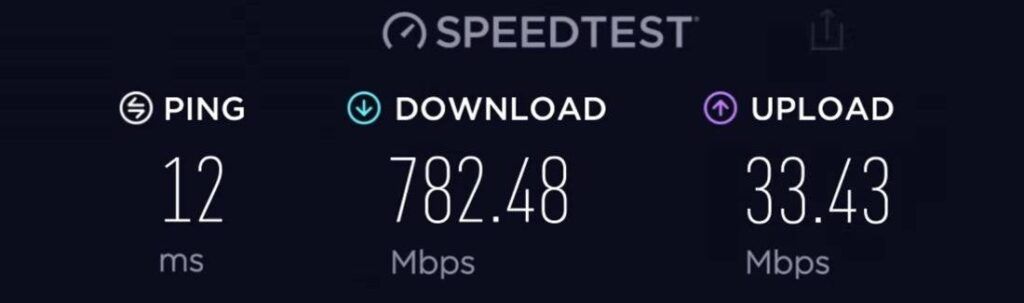
Internet service providers often promise lightning-fast connections, but everyday performance can fluctuate due to network congestion, Wi-Fi interference, and hardware limitations. If your streaming video is buffering or your video calls keep dropping, the first step toward a solution is running a Cox WiFi speed test. This simple diagnostic tool measures how fast data travels between your device and the global internet.
When you run a speed test, you will typically see three main metrics: download speed, upload speed, and latency (ping). Understanding what these numbers mean helps you determine if you are actually getting the internet tier you pay for, or if your home network needs a tune-up.
How to Run an Accurate Cox WiFi Speed Test
To get the most reliable reading from your internet diagnostic, you need to minimize variables that can artificially lower your results. Follow these steps to ensure your test reflects your true connection:
- Use a wired connection if possible: Wi-Fi signals suffer from interference caused by walls, appliances, and other wireless networks. Plug an Ethernet cable directly from your computer into your Cox Panoramic Wifi Gateway for the most accurate measurement of your incoming service.
- Disconnect heavy bandwidth users: Pause large downloads, stop streaming 4K video on other devices, and close background applications on the device you are testing with.
- Use an official or trusted testing tool: You can use the built-in speed test inside the Cox app, or rely on industry-standard platforms like Ookla Speedtest or Measurement Lab.
- Run multiple tests: Internet speeds can vary throughout the day depending on local network traffic. Test your connection during both peak hours (evenings) and off-peak hours for a complete picture.
Decoding the Metrics: Download, Upload, and Ping
Once your diagnostic tool finishes running, you will be presented with specific data points. Here is a breakdown of what those numbers represent and why they matter for your daily usage.
Download Speed
Measured in Megabits per second (Mbps), download speed dictates how quickly your device pulls data from the internet. This includes activities like loading web pages, streaming movies on Netflix, downloading large software updates, and pulling files from cloud storage. Cox offers various tiers ranging from 150 Mbps for casual users to 1 Gbps or higher for heavy households and smart homes.
Upload Speed
Upload speed measures how fast your device sends data back to the internet. While typically much lower than download speeds on cable internet connections, upload performance is critical for video conferencing on Zoom or Microsoft Teams, live streaming on Twitch, and uploading large attachments or backup files to Google Drive.
Ping (Latency)
Ping is measured in milliseconds (ms) and represents the reaction time of your connection—how fast your device gets a response after sending a request. A low ping (under 30 ms) is essential for real-time applications such as competitive online gaming, video calls, and responsive web browsing. High latency results in noticeable lag.

What to Do If Your Speed Test Results Are Too Low
If your Cox WiFi speed test reveals numbers significantly lower than the plan you pay for, don't panic. You can usually resolve the discrepancy with a few troubleshooting steps before contacting customer support.
1. Restart Your Gateway
The oldest trick in IT troubleshooting remains one of the most effective. Unplug your Cox Panoramic Wifi Gateway or modem/router combo from the power outlet, wait about 30 seconds, and plug it back in. This clears the device's memory, drops stalled background processes, and allows it to connect to the clearest available frequency channel.
Allow up to five minutes for the gateway to fully boot up and reestablish connection before running another test.
2. Check Your Wi-Fi Signal and Placement
If you are testing over a wireless connection rather than an Ethernet cable, your physical environment might be the bottleneck. Radio frequencies struggle to penetrate thick walls, concrete, and metal appliances.
- Place your gateway in a central, open location in your home, preferably elevated off the floor.
- Keep the router away from large metal objects, thick masonry, and electronics that emit electromagnetic interference like microwaves and baby monitors.
- If you live in a large home, consider adding Cox WiFi Pods to eliminate dead zones and extend coverage to distant rooms.
3. Limit Network Congestion
Modern households often have dozens of devices connected to the internet simultaneously—smart TVs, smartphones, tablets, smart home security cameras, and game consoles. Even when idle, some devices download background updates. If multiple people are streaming or downloading heavy files, your available bandwidth will be divided, leading to slower individual test results.
When to Contact Cox Support
If you have tested your connection via an Ethernet cable, restarted your gateway, eliminated background traffic, and still notice speeds that fall far short of your subscribed plan, there may be an issue outside your home. Local cable line damage, outdated exterior wiring, or neighborhood maintenance can degrade service quality.
Reach out to Cox customer support through the official mobile app or phone line. Provide them with the specific details from your speed tests, including the time of day and whether you tested via Wi-Fi or a wired cable. This data allows their technicians to run remote diagnostics and dispatch a service crew if line repairs are required.


