Edgenuity Fitness Log: Complete Guide & Tips
Taking a physical education course online offers a lot of flexibility, but it also comes with unique administrative requirements. One of the most critical components of passing an online PE class is the edgenuity fitness log. If you are enrolled in a health or physical education course through Edgenuity, you will likely be required to track your physical activities, log your time, and submit regular reports to verify that you are meeting your state's physical education requirements.
While keeping track of workouts sounds simple, many students struggle with formatting errors, missed signatures, or inadequate descriptions that can lead to delayed grades or course failure. This comprehensive guide will walk you through everything you need to know about completing your fitness log accurately and efficiently.
Understanding the Edgenuity Fitness Log Requirements
Before you start exercising, you need to understand what your specific teacher and course expect from you. Edgenuity acts as the platform, but individual teachers often have specific guidelines regarding weekly minute totals, approved activities, and acceptable verification methods.
Most courses require students to complete a specific number of physical activity hours per week—often ranging from two to five hours. These hours must typically be dedicated to moderate-to-vigorous physical activity that elevates your heart rate. Simply sitting or walking slowly around the house usually does not qualify unless specified by your instructor.
What Activities Count as Physical Education?
Edgenuity and most physical education standards are broad, allowing you to choose activities that fit your lifestyle, accessibility, and interests. Approved activities generally fall into several categories:
- Cardiovascular Training: Running, jogging, brisk walking, cycling, swimming, and jump rope.
- Team and Individual Sports: Basketball, soccer, tennis, golf, martial arts, and dance.
- Strength and Conditioning: Weightlifting, bodyweight exercises (push-ups, pull-ups, squats), Pilates, and yoga.
- Recreational Activities: Hiking, skateboarding, kayaking, and active yard work that keeps your heart rate up.
Always check your specific course syllabus to ensure your chosen activities align with the instructor's rules.
Step-by-Step Guide to Filling Out Your Log
Consistency is key when maintaining your log. Waiting until the end of the month to guess your workout times almost always results in errors. Follow these steps to keep your documentation accurate and stress-free.
1. Use the Correct Template
Video: Edgenuity Fitness log video how to
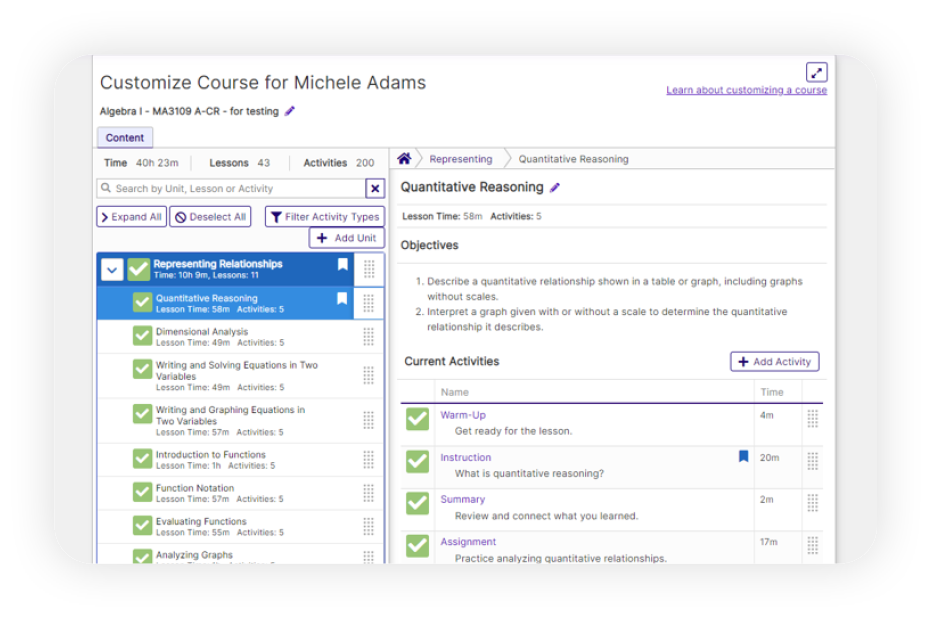
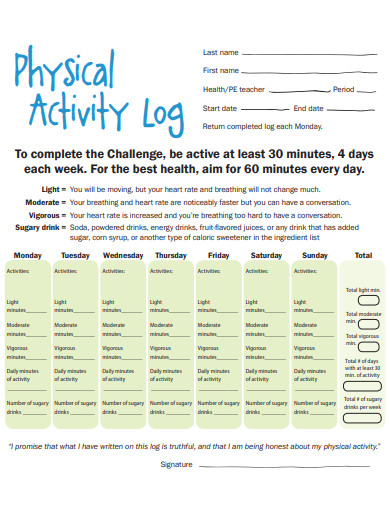
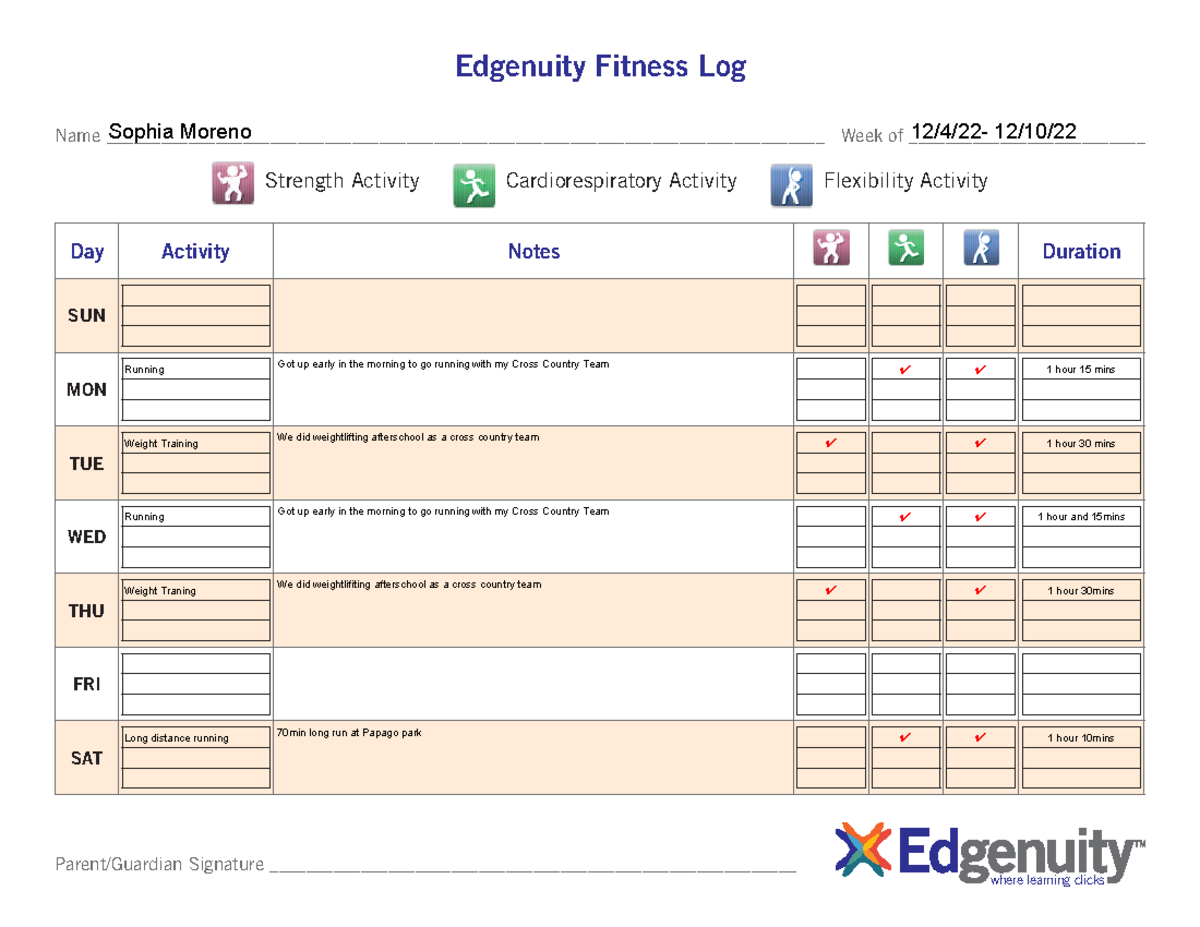
Your teacher will usually provide a downloadable PDF or Microsoft Excel template in the course resources. Make sure you are using the official document rather than a homemade spreadsheet, as official logs usually contain required fields for parent or guardian verification.
2. Record Immediately After Your Workout
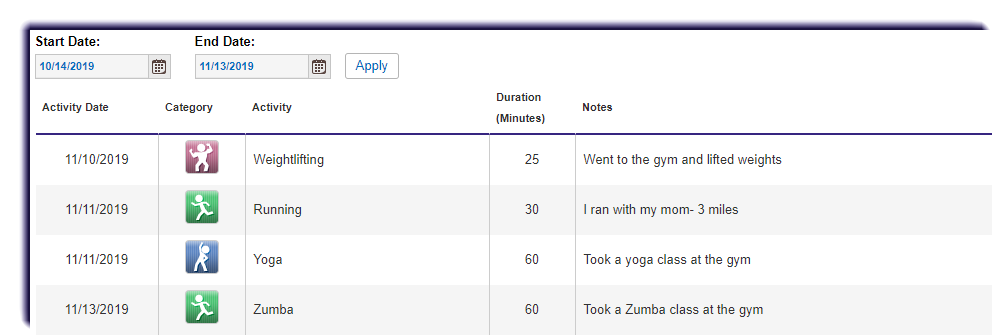
As soon as you finish exercising, write down the details. Waiting until the end of the week makes it easy to forget exact durations. Your log entry should typically include:
- The date of the workout
- The specific type of activity performed
- The total duration (in minutes or hours)
- A brief description or intensity level
- Parent or guardian signature (if required)
3. Calculate Your Totals Accurately
At the end of each week or reporting period, sum up your total active minutes. Double-check your math to ensure you have met the minimum weekly requirement set by your teacher. Falling short by even five minutes can sometimes trigger a rejection of the log.
How to Submit Your Fitness Log on Edgenuity
Once your log is complete and properly signed, you need to upload it through the Edgenuity platform. Follow these steps to ensure a smooth submission:
- Save Your Document: If your log is a paper form, take a clear, well-lit photo or scan it into a PDF format. If it is a digital file, save it as a PDF to preserve the formatting.
- Navigate to the Assignment: Log into your Edgenuity account and locate the specific fitness log assignment in your course map.
- Upload the File: Click the submission button, select your saved PDF or image file, and attach it.
- Verify Submission: Check your gradebook or submission status to ensure the file uploaded correctly before closing the browser.
Common Mistakes to Avoid
Avoiding a few simple pitfalls can save you from having to redo weeks of physical activity or deal with a delayed final grade.
- Failing to Get Signatures: Many teachers require a parent, guardian, or supervising adult to sign off on the log. Unsigned logs are frequently rejected.
- Submitting Blurry Photos: If you photograph a paper log, ensure the text and numbers are completely legible. If your teacher cannot read it, they cannot grade it.
- Inconsistent Logging: Cramming 300 minutes of exercise into a single Saturday is often flagged as unrealistic. Spread your workouts across multiple days to reflect a healthy, balanced routine.
- Vague Descriptions: Writing "exercised" instead of "jogged for 45 minutes" lacks the necessary detail for physical education verification.
Conclusion
The edgenuity fitness log is more than just a bureaucratic checkbox—it is designed to help you build and maintain healthy physical habits while earning your high school credit. By tracking your workouts consistently, using the correct templates, and submitting clear documentation, you can breeze through this requirement and focus on finishing your online coursework with confidence.