Emory Webmail Guide: Login, Access, and Setup
Accessing your university inbox is essential for staying on top of coursework, campus announcements, and professional correspondence. For students, faculty, and staff at Emory University, Emory Webmail serves as the primary portal for all official email communications. Powered by Microsoft Office 365, the platform provides a reliable, secure, and feature-rich environment for managing messages, calendars, and contacts.

Whether you are a newly admitted student logging in for the first time or a long-time staff member trying to sync your inbox to a new smartphone, understanding how to navigate and troubleshoot the system saves time and prevents communication gaps.
How to Access Emory Webmail
Getting into your Emory email account is straightforward, but it requires your official university credentials and multi-factor authentication (MFA). Follow these steps to log in from any standard web browser:
- Open your preferred web browser and navigate to the official login portal at mail.emory.edu.
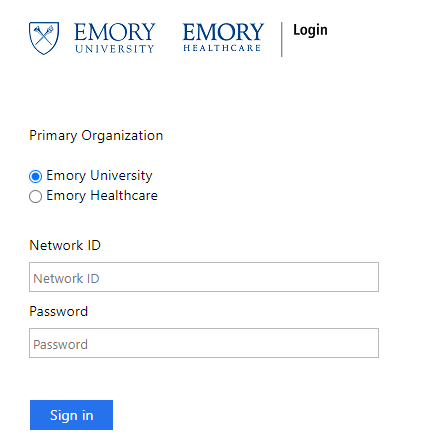
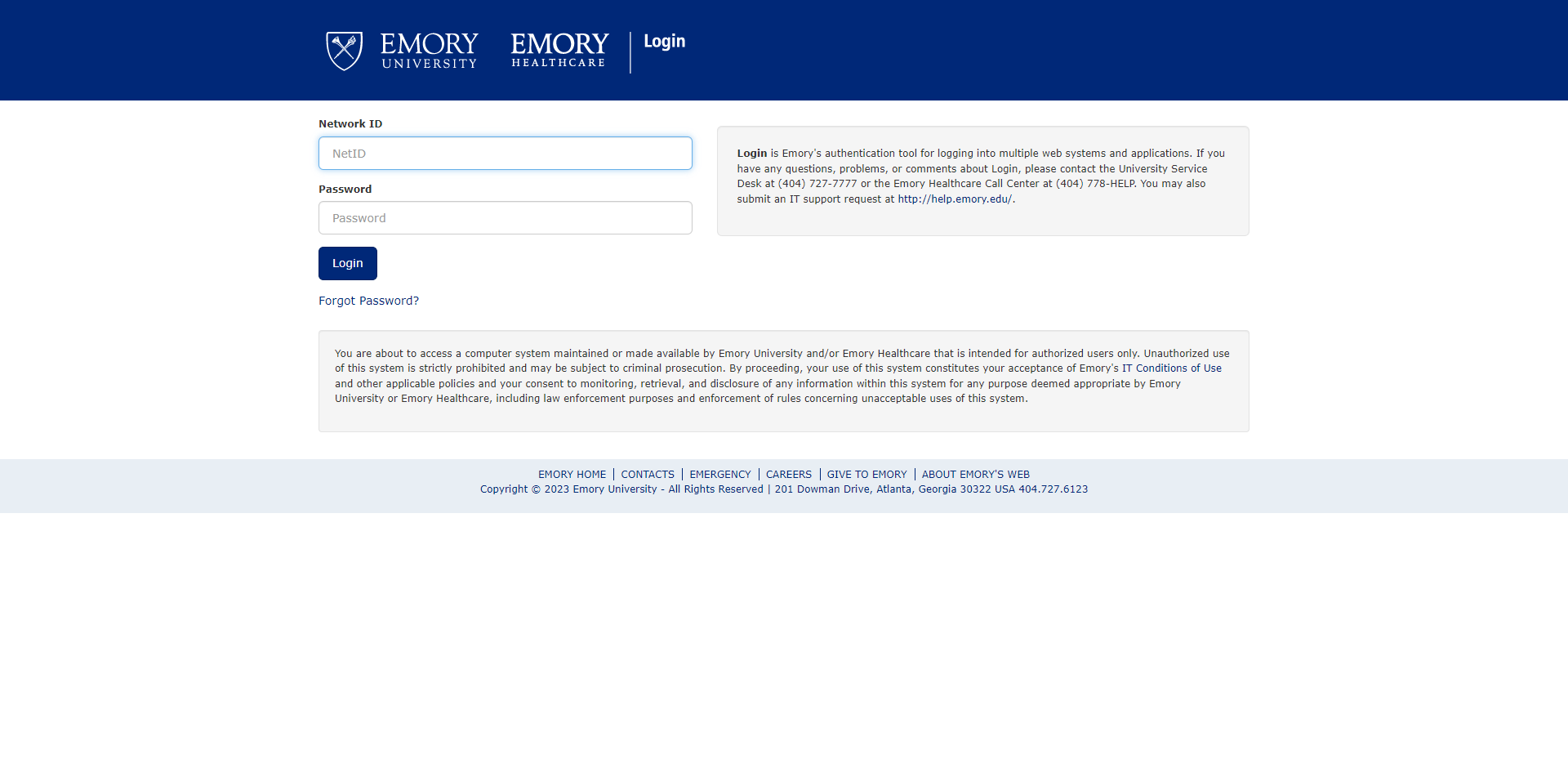
- You will be redirected to the Emory Enterprise Login page. Enter your NetID (network ID) followed by your primary university password.
- Complete the Duo Security multi-factor authentication prompt. You can use a push notification on your smartphone, a passcode, or an approved hardware token.
- Once authenticated, you will land directly in your Office 365 Outlook web interface.
It is always best to use modern, updated browsers such as Google Chrome, Mozilla Firefox, Microsoft Edge, or Apple Safari to ensure full compatibility with the Office 365 suite.
Setting Up Emory Webmail on Mobile Devices
Managing your university inbox on the go is crucial. While you can access the web-based version through a mobile browser, installing a dedicated email app provides push notifications and a smoother user experience.
Using the Microsoft Outlook App
Emory University officially recommends the Microsoft Outlook app for mobile devices (available on both iOS and Android app stores):
- Download and install the Microsoft Outlook app from the Apple App Store or Google Play Store.
- Open the app and enter your full Emory email address (typically
firstname.lastname@emory.eduor your specific departmental alias). - The app will automatically recognize the domain and redirect you to the Emory single sign-on screen.
- Enter your NetID, password, and complete the Duo MFA check.
- Your emails, calendar events, and contacts will begin syncing automatically.
Configuring Native Mail Clients
If you prefer using the native iOS Mail app or Android mail client, you can add your account manually using Microsoft Exchange settings. Enter your full email address and university password when prompted, and follow the organization-managed profile prompts to finalize the connection.
Troubleshooting Common Login Issues
Even with a robust infrastructure, users occasionally encounter roadblocks when trying to check their messages. Here are the most common issues and how to resolve them:
Password Expiration and Resets
Emory University requires users to update their passwords periodically. If your password has expired, you will not be able to log in to your webmail. You must visit the official Emory IT password management portal to update your credentials before attempting to access your email again.
Duo Security Push Failures
If you aren't receiving Duo push notifications on your phone:
- Ensure your mobile device has an active internet or cellular data connection.
- Open the Duo Mobile app manually to check for pending authentication requests.
- Alternatively, choose a different verification method, such as entering a passcode generated within the app or receiving a phone call.
Browser Cache and Cookies
If the login page gets stuck in a redirect loop or throws unexpected errors, clearing your browser's cache and cookies often fixes the problem. You can also try opening an Incognito or Private Browsing window to test your login.
Emory IT Support and Resources
If you experience persistent technical difficulties that you cannot resolve independently, the University Technology Services (UTS) help desk is available to assist. You can submit a support ticket, call the service desk, or visit the UTS website for guides tailored to specific departments, healthcare staff, and incoming students.
By keeping your credentials secure, using approved mobile applications, and following university IT guidelines, you can ensure seamless communication throughout your time at Emory University.