Error 500 AO3: Why It Happens & How to Fix It
Few things are as frustrating as reaching the climax of an exciting fanfiction, clicking “Next Chapter,” and suddenly facing a blank screen with a cryptic message. If you find yourself encountering an error 500 ao3 message, you are not alone. Archive of Our Own (AO3) hosts millions of works and serves millions of daily requests, making server hiccups an occasional part of the reading experience.

An HTTP 500 code signifies an Internal Server Error. It means the server encountered an unexpected condition that prevented it from fulfilling your request. Here is a comprehensive breakdown of why this happens on AO3, how to diagnose the issue, and what you can do to resolve it.
Understanding the Error 500 AO3 Message
In standard web architecture, error codes grouped in the 500s represent server-side problems. Unlike a 404 (Not Found), which indicates a broken link or a deleted fanfic, or a 403 (Forbidden), which implies an access restriction, a 500 error means the problem rests on AO3’s internal infrastructure rather than a user configuration error.
AO3 runs on an open-source framework primarily built with Ruby on Rails, backed by MySQL databases and Elasticsearch for site indexing. When you click a link, AO3’s servers execute database queries to compile chapter text, kudos, author notes, and user comments. If any part of that complex backend pipeline fails to return data before a strict timeout limit, the server aborts the process and delivers a 500 error page.
Primary Causes of Error 500 on AO3
While the error code itself is generic, recurring patterns on AO3 typically trace back to four primary culprits:
1. Sudden Traffic Surges
AO3 is funded entirely by donations through the Organization for Transformative Works (OTW) and relies on dedicated volunteers to manage its infrastructure. During peak hours—such as weekend evenings, holidays, or immediately following the release of major franchise media—traffic spikes can temporarily overwhelm the application servers.
2. High-Resource Queries (“Entire Work” Mode)
Attempting to load long fanfics (often 100,000 words or more) with all comments expanded in “Entire Work” view places intense strain on database servers. If the system takes too long to render thousands of comments and HTML tags simultaneously, the request times out, generating a 500 status code.
3. Background Deployments and Database Upgrades
AO3 developers regularly roll out security patches, interface tweaks, and backend updates. While the dev team strives for zero-downtime deployments, transient bugs or database locks during deployment can trigger momentary 500 errors for active users.
4. Corrupted Session Data or Stale Cookies
Although Error 500 is fundamentally server-side, corrupted local session cookies can sometimes send malformed request headers to AO3. When the server cannot parse your specific session token correctly, it rejects the request with an internal error rather than an authentication prompt.
How to Check if AO3 Is Down for Everyone
Before spending time modifying browser settings, check whether the outage is global or limited to your connection.
- Check AO3 Status on Social Media: The official systems team actively reports maintenance and unplanned outages via their X (formerly Twitter) account:
@AO3_Status. This should always be your first stop. - Third-Party Outage Monitors: Check crowd-sourced platforms like Downdetector to see if other readers are reporting simultaneous connection problems.
- AO3 News and Announcements: The OTW News blog occasionally announces scheduled maintenance windows in advance, providing clear timetables for planned server downtime.
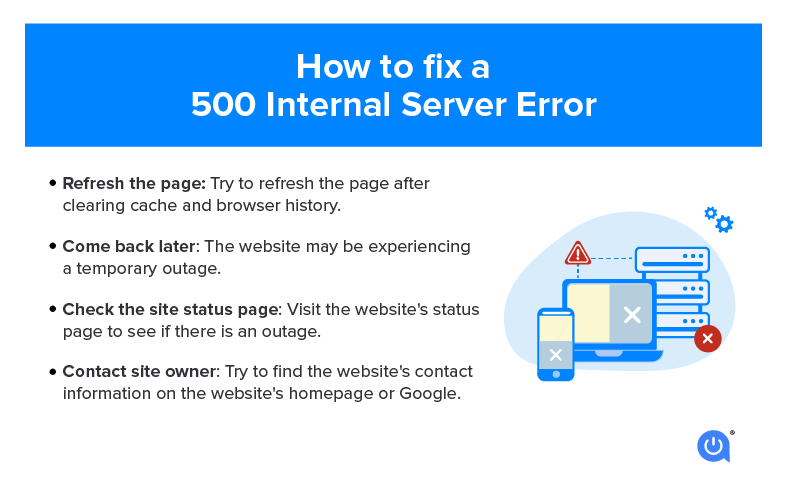
Step-by-Step Fixes to Bypass or Resolve Error 500
If official status feeds indicate no general outage, the issue might be localized to a specific page or cached state. Work through these sequential troubleshooting steps.
1. Perform a Hard Refresh
Standard browser refreshes often load cached versions of recently retrieved pages. A hard refresh forces the browser to discard cache and request the page fresh from the server:
- Windows/Linux: Press
Ctrl + F5or holdCtrland click the reload button. - macOS: Press
Cmd + Shift + R. - Mobile: Close the tab completely, purge your browser from your recent app history, and reopen the URL.
2. Switch Off “Entire Work” Mode
If the error only appears on an unusually large fanfic, you are likely triggering a database timeout. Edit the URL to switch back to paginated chapters. Remove ?view_full_work=true from the URL bar and navigate directly to an individual chapter (e.g., append /chapters/12345678 if known, or open the work via the work summary page without expanding it).
3. Download the Work Offline
If reading through the browser keeps breaking, check if the download menu functions. AO3 renders downloadable files (such as EPUB, MOBI, or PDF) through a distinct background worker process. Often, you can download an entire book-length fic and read it through an e-reader or reader app even when live site rendering is failing.
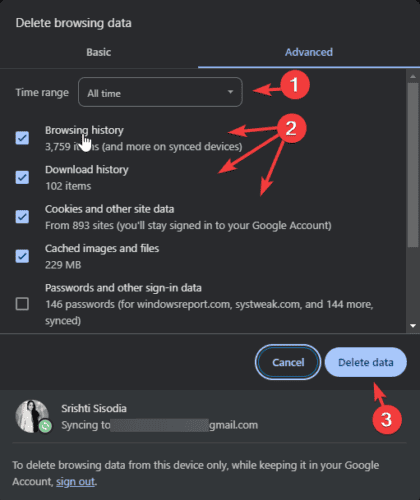
4. Clear Cookies and Local Storage for AO3
If you see an error 500 only when logged into your account, clearing site-specific cookies can resolve stale token issues without deleting your entire browser history:
- Open your browser settings and navigate to Privacy & Security.
- Select Cookies and Site Data, then choose Manage on-device site data (wording varies slightly across Chrome, Firefox, and Safari).
- Search for
archiveofourown.org. - Delete all stored cookies and local data for the domain.
- Restart your browser, navigate back to AO3, and log in again.
5. Test in Private/Incognito Mode
Third-party browser extensions—particularly script blockers, ad-blockers, and custom site skins—can inject scripts that conflict with AO3’s page processing. Opening an incognito window automatically disables most extensions and ignores saved cookies, making it an easy diagnostic test.
Important Advice for Writers Encountering Error 500
If you encounter an internal server error while attempting to post a chapter or edit an existing draft, proceed with caution:
- Do Not Repeatedly Click “Post”: If the server processed your write request but timed out while delivering the confirmation page, clicking “Post” multiple times will create duplicate works or multiple identical chapters in your work history.
- Check Your Works List: Open AO3 in a separate tab or device and check your author dashboard. Often, the chapter posted successfully despite the error screen.
- Always Keep Local Backups: AO3 drafts expire after one month and are vulnerable to server drops. Never compose directly inside the AO3 rich text editor. Keep original manuscripts stored safely in software like Google Docs, Scrivener, or Microsoft Word.
When to Contact Support
If an error 500 persists on a specific work or page for more than 24 hours while the rest of the archive works normally, you may have encountered an isolated database anomaly. In this scenario, visit AO3’s Support and Feedback form. Include the exact URL that produces the error, the browser and device you are using, and whether the issue persists in private browsing mode. This helps the volunteer dev team pinpoint the root database conflict and resolve it.