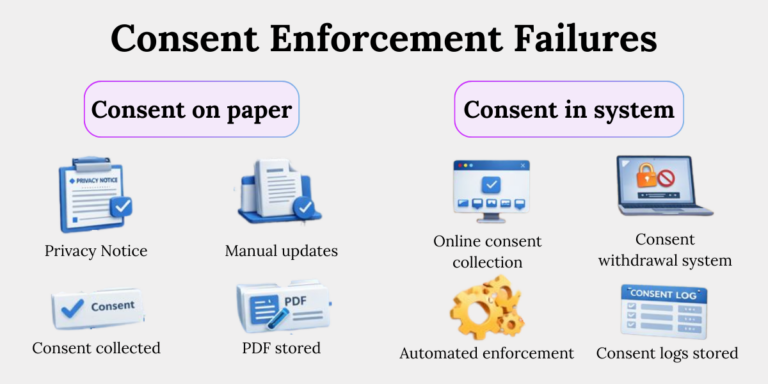
FCPS Digital Consent: Common Mistakes Parents Make
At the start of every school year across Northern Virginia, parents receive an avalanche of notifications, back-to-school forms, and administrative checklists. Among the most critical yet frequently misunderstood tasks is providing permission for online learning tools. If your student attends Fairfax County Public Schools, are you making these common mistakes with FCPS digital consent? Overlooking a single step can unexpectedly lock your child out of essential classroom applications, assignments, and collaborative projects.

Fairfax County Public Schools (FCPS) uses a centralized digital resource consent process to balance modern digital instruction with strict student data privacy standards. However, the system's nuances often lead to confusion. Below, we break down the most frequent missteps parents make and how to ensure your student is fully prepared from day one.
Understanding the Purpose of FCPS Digital Resource Consent
Before examining where parents go wrong, it helps to understand why the district asks for digital consent in the first place. Federal laws—namely the Family Educational Rights and Privacy Act (FERPA) and the Children's Online Privacy Protection Act (COPPA)—require parental notification and consent before schools share student information with third-party software vendors.
FCPS maintains an extensive review process for every digital application used in classrooms. Instructional technology teams evaluate vendors to verify how student data is stored, whether personal data is monetized, and what security measures protect children online. The digital consent form gives you transparency into these vetted resources and allows the school to provision accounts legally.
Are You Making These Common Mistakes with FCPS Digital Consent?
Navigating district portals can be confusing, especially if you have multiple children across elementary, middle, and high schools. Here are the most prevalent errors families encounter during the consent window.
1. Assuming Consent Carries Over from Previous Years
One of the most widespread assumptions is that digital permissions are a "one-and-done" task. If you gave consent when your child entered kindergarten or started middle school, you might believe that agreement remains valid until graduation.
In reality, FCPS requires digital resource consent to be renewed every single school year. Technology contracts change, software terms of service update, and new instructional platforms are adopted annually. If you do not actively re-submit your consent each autumn, your student’s permissions default to unapproved, potentially revoking their account access to instructional software.
2. Believing One Submission Covers the Entire Household
Parents with two, three, or more students enrolled in FCPS often log into the portal, review the digital tool list, submit approval, and assume the job is done. Unfortunately, digital consent is attached to individual student ID numbers, not family accounts.
Because an elementary student uses different instructional software than an AP student in high school, each child has an independent profile. You must select each child individually in the application menu and confirm consent separately for every student in your household.
3. Confusing Digital Consent with the SR&R Acknowledgment
Each fall, parents must sign off on the Student Rights and Responsibilities (SR&R) document through SIS ParentVUE. Because this notification appears prominently as soon as you log in, many caregivers assume that signing the SR&R covers all back-to-school compliance items, including technology use.
The SR&R and Digital Resource Consent are two entirely separate requirements:
- SR&R: Acknowledges code of conduct, disciplinary policies, and general district regulations.
- Digital Resource Consent: Explicitly authorizes third-party vendors to create student profiles using district-provided login credentials (like student email and display name).
4. Opting Out Without Understanding the Instructional Impact
Data privacy is a valid concern, and some parents reflexively choose to decline digital consent to safeguard their child's digital footprint. While privacy vigilance is commendable, blanket non-consent often causes unintended academic hurdles.
When you deny consent, teachers must prepare offline, paper-and-pencil alternatives for digital activities. This sounds simple in theory, but in practice, modern collaborative group work, interactive science labs, and peer-review systems rely on digital platforms like Pear Deck, Padlet, or Edpuzzle. Students without digital access cannot participate in real-time digital polls, collaborate on shared documents, or use specialized learning software during class time.
5. Overlooking School-Specific Application Lists
FCPS divides digital resources into two tiers: district-wide tools (such as Google Workspace for Education and Schoology) and school-specific tools. Individual schools purchase supplementary software licenses tailored to their curricular focus—such as specialized STEM software, language learning applications, or reading intervention tools.
When completing the consent form, parents sometimes approve the general list without clicking through to inspect their specific school's approved software roster. Reviewing the school-specific section ensures you know exactly which third-party vendors your child's teachers plan to introduce.
Step-by-Step: How to Complete Digital Consent Correctly
Completing the consent process only takes a few minutes when you follow the direct workflow established by FCPS:
- Access the Consent System: Navigate to the official FCPS Digital Resource Consent web portal or follow the verified link provided in communications from your school principal.
- Log In via ParentVUE: Authenticate using your active SIS ParentVUE username and password. If you have not activated your ParentVUE account, contact your school’s student registrar for an activation key.
- Select Your Student: If you have multiple children, select the first student from the drop-down menu.
- Review the Resource List: Read through the district and school-specific applications your child will use during the school year. Links are provided to each vendor's privacy policy.
- Submit Your Decision: Confirm your consent choice and submit the form.
- Repeat for Siblings: Return to the student selection screen and repeat the process for every other enrolled child in your family.
What Happens If You Have Questions or Concerns?
If you examine the list of digital tools and encounter software you are uncomfortable with, you do not have to make an all-or-nothing choice in isolation. FCPS allows parents to discuss specific software concerns directly with school staff.
Reach out to your school's School-Based Technology Specialist (SBTS) or your student’s grade-level administrator. The SBTS can explain how a particular tool is used in the classroom, what data it collects, and whether specific module settings can address your privacy concerns without completely disconnecting your child from classroom workflow.
Takeaway Checklist for Parents
To keep your student's digital transition seamless every academic term, keep these quick principles in mind:
- Complete the digital consent review within the first two weeks of the school year.
- Verify that your SIS ParentVUE account credentials are up to date well before the first day of class.
- Double-check that all siblings have their own individual confirmation submitted.
- Engage with your school's technology specialist if you need clarification on how any vendor handles student privacy.
By staying proactive and avoiding these common errors, you safeguard your student’s data while ensuring they have immediate, uninterrupted access to the collaborative tools they need to succeed.