FedEx Retrieval Code Printing: Complete Guide
Understanding FedEx Retrieval Code Printing

Shipping packages, returning online purchases, or printing urgent documents on the go often requires interacting with automated shipping kiosks or retail counter systems. When you initiate a shipment online or via customer service, you are often assigned a unique identifier. This is where fedex retrieval code printing comes into play, serving as a secure digital bridge between your online shipping label generation and the physical printer at a FedEx location.
A FedEx retrieval code is typically a string of numbers—and occasionally letters—associated with a prepaid shipping label, a document stored in the cloud, or an electronic return authorization. Instead of carrying a physical copy or trying to connect a personal laptop to a public printer, you simply input this code into a supported terminal. This guide covers everything you need to know about how the process works, where to go, and how to troubleshoot common issues when your code will not print.
Where Do You Get a FedEx Retrieval Code?
Before you can print anything, you need to obtain the code. Depending on how you set up your shipment or document transfer, the code can be generated in several different ways:
- Retail Merchant Returns: When you process an online return with participating retailers (such as Amazon, Nike, or various apparel brands), the merchant may offer a "Drop off at FedEx without a box or label" option. Choosing this generates a QR code or a numeric retrieval code sent directly to your email.
- FedEx Ship Manager Lite: If you create a one-time shipment on the FedEx website without logging into a full business account, the system generates a tracking number and a separate retrieval or barcode for self-service kiosk printing.
- Email Confirmations: Automated shipping notifications or mobile app alerts frequently include a numeric code that can be typed manually into a FedEx Office self-service terminal.
Step-by-Step: How to Print Using a Retrieval Code
Once you have your code ready, utilizing a FedEx self-service kiosk or working with a retail counter associate is straightforward. Follow these steps to complete your print job efficiently.
1. Locate a Participating FedEx Location
Not every FedEx drop box or authorized shipping center has the necessary hardware for retrieval code printing. You will want to visit:
- A standalone FedEx Office Print & Ship Center.
- Select retail locations that feature updated self-service FedEx shipping kiosks.
You can use the online FedEx Locator tool and filter specifically for "Self-service kiosks" or "Print and copy services" to ensure the facility can handle your request.
2. Access the Self-Service Kiosk
When you walk into a FedEx Office location, look for the bank of touchscreen computer terminals designated for customer use. Approach an available kiosk and tap the screen to wake it up. The interface typically features prominent buttons for shipping packages, printing documents, or scanning mobile barcodes.
3. Input Your Code or Scan Your Barcode
Depending on the format of the information you received, you have two primary ways to input your data:
Video: How To PRINT At Fedex With Retrieval Code 2026 - FedEx Print & Go Instructions
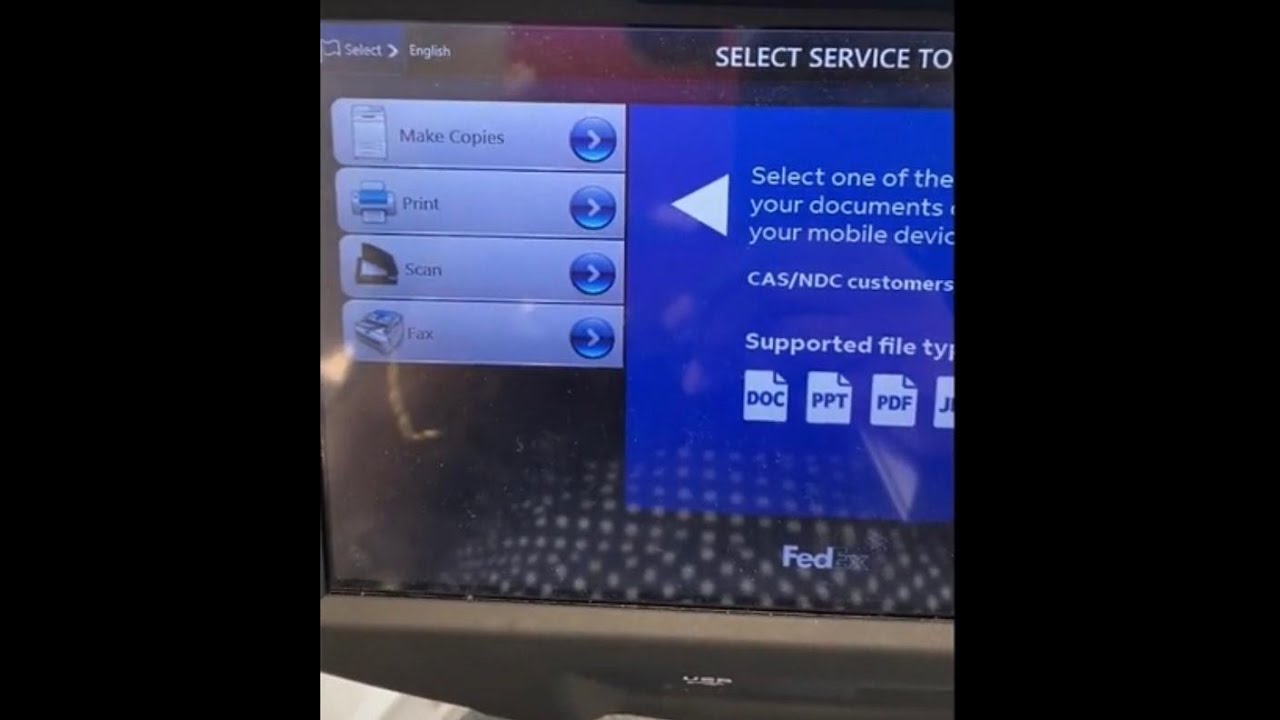
- Manual Entry: Tap the option for entering a retrieval code or tracking number. Use the on-screen keyboard to carefully type in the exact alphanumeric sequence provided in your email or merchant instructions. Double-check for typos, as missing a single digit will cause an error.
- Barcode Scanning: Most modern kiosks feature a red-light barcode scanner underneath the screen. If your retrieval code came paired with a QR code or a traditional linear barcode on your smartphone screen, hold your phone a few inches away from the scanner glass until it reads the image.
4. Select Print Options and Output
After the system successfully recognizes your retrieval code, it will pull up the corresponding document or shipping label file. Review the preview on the screen to verify that it is the correct item. If you are printing a standard 4x6 shipping label, the kiosk will automatically route the job to a thermal label printer built into the machine. If you are printing multi-page standard documents, you may be prompted to select single or double-sided printing before confirming.
5. Payment and Completion
For prepaid shipping labels generated via merchant returns, printing is typically free of charge. However, if you are retrieving and printing personal document files using a code provided by a cloud service or email link, standard self-service printing rates will apply. Insert a credit or debit card into the card reader when prompted to complete the transaction, collect your printed materials from the output tray, and you are ready to go.
Alternative: Using Counter Service
If the self-service kiosks are out of order, or if you prefer human assistance, you can take your retrieval code directly to a FedEx Office counter associate. Hand your smartphone or a printed piece of paper containing the code to the team member. They can scan the code using their desktop terminals and print your shipping label or document behind the counter. Keep in mind that counter service may occasionally incur minor assisted-service fees depending on the exact nature of the print job.
Troubleshooting Common Retrieval Code Issues
While the system is designed to be user-friendly, technical glitches can occasionally occur. Here is how to resolve the most frequent roadblocks:
Code Not Recognized by the Kiosk
If the terminal states that your retrieval code is invalid or cannot be found, verify the following:
- Expiration: Some retail return codes have a strict expiration window (often 7 to 30 days). If the code has expired, you will need to revisit the merchant's website to generate a fresh return request.
- Typing Errors: Ensure you did not confuse similar-looking characters, such as the letter "O" and the number "0," or the letter "I" and the number "1."
- Network Delays: Occasionally, newly generated codes take 10 to 15 minutes to sync across FedEx's cloud servers. Wait a few moments and try scanning again.
The Printer Is Out of Labels
Self-service kiosks rely on internal thermal printers loaded with standard 4x6 adhesive shipping labels. If the printer runs out of media or experiences a jam, an error message will display on the screen. Do not attempt to fix the internal mechanics yourself. Alert a store associate immediately so they can reload the paper stock or clear the jam for you.
Best Practices for Smooth Printing
To ensure a quick and painless trip to the FedEx shipping center, keep these final tips in mind:
- Screenshot Your Code: Do not rely entirely on an active cellular data connection inside the store, as building interference can sometimes prevent emails from loading. Take a screenshot of the barcode or write down the numeric retrieval code before you leave home.
- Check Store Hours: While many FedEx Office locations have extended operating hours, self-service kiosks are typically only accessible while the physical store doors are unlocked and staffed.
- Prepare Your Package: If you are printing a label for an outbound shipment, make sure your box is already securely taped and packed before you approach the counter to drop it off, saving you valuable time.


