Fix Contraband Police Not Loading: 7 Proven Methods
Few things are more frustrating than sitting down to run border checks at the Karikatka post only to find contraband police not loading on your PC. Whether the game is frozen on an infinite loading screen, crashing instantly upon startup, or hanging on a black display before the main menu appears, these technical snags interrupt your gameplay. Fortunately, this issue is common and can almost always be resolved with standard troubleshooting steps.

In this guide, we break down why the game fails to load and provide actionable, step-by-step solutions to get you back on duty in the Acarist People's Republic.
Common Reasons Contraband Police Fails to Load
Contraband Police runs on the Unity engine, combining driving, shooting, and physics-heavy inspection mechanics. When it fails to start or load a saved session, the culprit is usually one of the following:
- Corrupted Local Files: Missing or damaged assets within the Steam directory prevent the executable from initializing.
- Outdated Graphics Drivers: Obsolete GPU drivers can cause shader compilation errors or memory bottlenecks.
- Corrupted Save Files: A broken auto-save file can send the game into an infinite loading loop.
- Third-Party Security Interference: Windows Defender or third-party antivirus software may flag the game's executable or unity crash handler.
- Insufficient Virtual Memory: A small Windows paging file can cause Unity to freeze while unpacking high-resolution textures into memory.
How to Fix Contraband Police Not Loading
Work your way through these solutions sequentially, testing the game after each step to see if the issue is resolved.
1. Verify Integrity of Game Files
Corrupted or missing files are the most frequent cause of loading failures, especially following a game update or an abrupt system shutdown.
- Open your Steam Library.
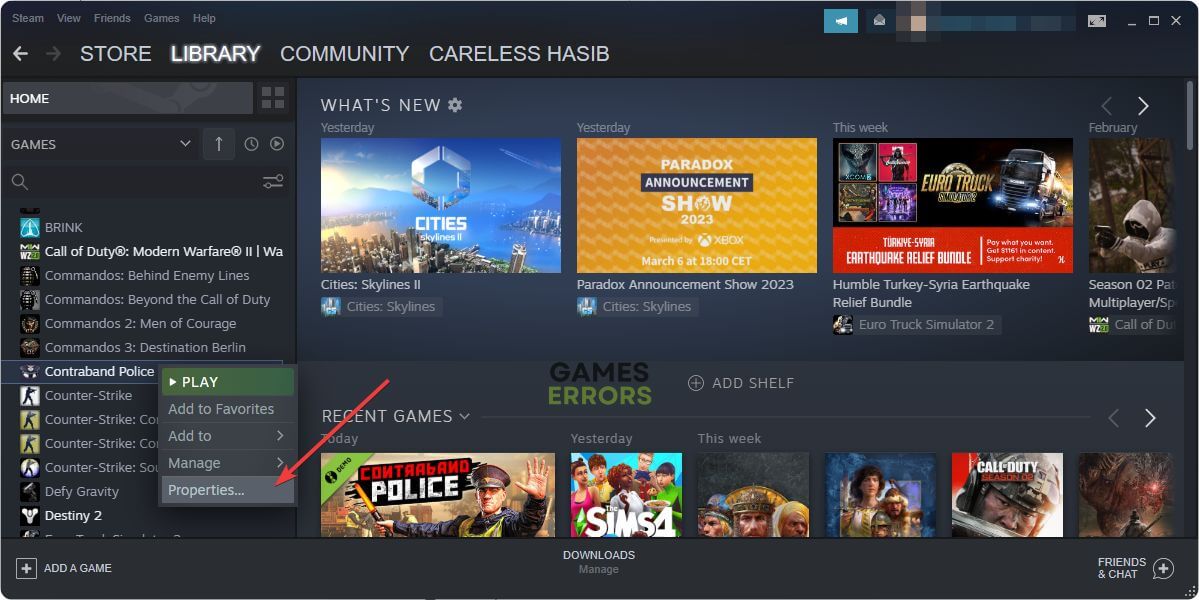
- Right-click on Contraband Police and select Properties.
- Navigate to the Installed Files tab on the left menu.
- Click Verify integrity of game files.
- Wait for Steam to scan your installation. If any files are missing or broken, Steam will automatically reacquire them.
2. Update Your Graphics Drivers
An outdated graphics driver can trigger black screens and startup freezes. Ensure you are running the latest driver release tailored for your GPU:
- NVIDIA: Open GeForce Experience and check for updates, or download drivers directly from NVIDIA's official website.
- AMD: Launch AMD Software: Adrenalin Edition to perform an automated update check.
- Intel: Use the Intel Driver & Support Assistant for integrated or Intel Arc graphics.
After updating, restart your computer before launching the game again to ensure newly registered libraries load properly.
3. Delete Corrupted Save Files and Local Cache
If the game launches to the main menu but gets stuck while loading your campaign or endless mode session, a corrupt save state is likely blocking progress. You can inspect or back up your saves manually.
Video: How to FIX Contraband Police Not Responding!

- Press Windows Key + R to open the Run dialog.
- Type
%USERPROFILE%\AppData\LocalLow\CrazyRocks\ContrabandPoliceand press Enter. - Copy the entire folder to your desktop as a backup.
- Look inside the save folder. If you see multiple saves, move the most recent auto-save out of the folder and try launching the previous day's save from the main menu.
- Alternatively, rename the entire
ContrabandPolicefolder toContrabandPolice_Oldto let the game generate a clean profile on launch.
4. Run the Game as Administrator and Disable Fullscreen Optimizations
Windows permissions can prevent the game executable from creating temporary log files or accessing certain storage directories.
- Open Steam, right-click Contraband Police, and go to Manage > Browse local files.
- Locate ContrabandPolice.exe.
- Right-click the executable and select Properties.
- Go to the Compatibility tab.
- Check Run this program as an administrator.
- Check Disable fullscreen optimizations.
- Click Apply, then OK, and launch the game directly from the folder.
5. Whitelist the Game in Windows Defender
Security suites frequently flag Unity games after new patches due to generic heuristic scanning. To prevent your antivirus from blocking the game:
- Press the Windows Key, type Windows Security, and press Enter.
- Click on Virus & threat protection.
- Select Manage settings under Virus & threat protection settings.
- Scroll down to Exclusions and click Add or remove exclusions.
- Click Add an exclusion, choose Folder, and select your Contraband Police installation directory (usually found under
C:\Program Files (x86)\Steam\steamapps\common\ContrabandPolice).
6. Repair Visual C++ Redistributables and DirectX
Missing or damaged runtime libraries can cause silent launch crashes where the process briefly appears in Task Manager and then disappears.
- Visit the official Microsoft website and download the latest Visual C++ Redistributable (x64 and x86) package. Install both versions, even on a 64-bit operating system.
- Run the DirectX End-User Runtime Web Installer to replace any corrupt direct rendering components.
- Restart your PC once installations finish.
7. Force Windowed Mode via Steam Launch Options
If the game hangs during the initial resolution switch or monitor handshake, forcing it into borderless or windowed mode can bypass the freeze.
- Right-click Contraband Police in Steam and select Properties.
- Under the General tab, locate the Launch Options field at the bottom.
- Type
-windowed -noborderor-force-d3d11. - Close the properties window and run the game.
Hardware Bottlenecks and Virtual Memory Adjustments
Contraband Police recommends at least 12 GB of RAM and an SSD for stable performance. If your system runs out of physical RAM while loading world geometry, Windows relies on the pagefile (virtual memory). If your pagefile is disabled or set too small, the game will freeze indefinitely.
To ensure adequate paging file size:
- Type Adjust the appearance and performance of Windows into the Windows search bar and hit Enter.
- Navigate to the Advanced tab and click Change under the Virtual memory section.
- Ensure Automatically manage paging file size for all drives is checked, or manually allocate an initial and maximum size of at least 8192 MB (8 GB) on an SSD drive.
- Click Set, apply the changes, and reboot.
Final Thoughts
In the vast majority of cases, verifying Steam game files or swapping out a corrupted auto-save file solves the loading issue. If the game still refuses to cooperate after attempting these steps, check the developer's official Steam Community Hub for recent patch-specific bugs or submit a crash log found in your local AppData\LocalLow\CrazyRocks directory to the support team.