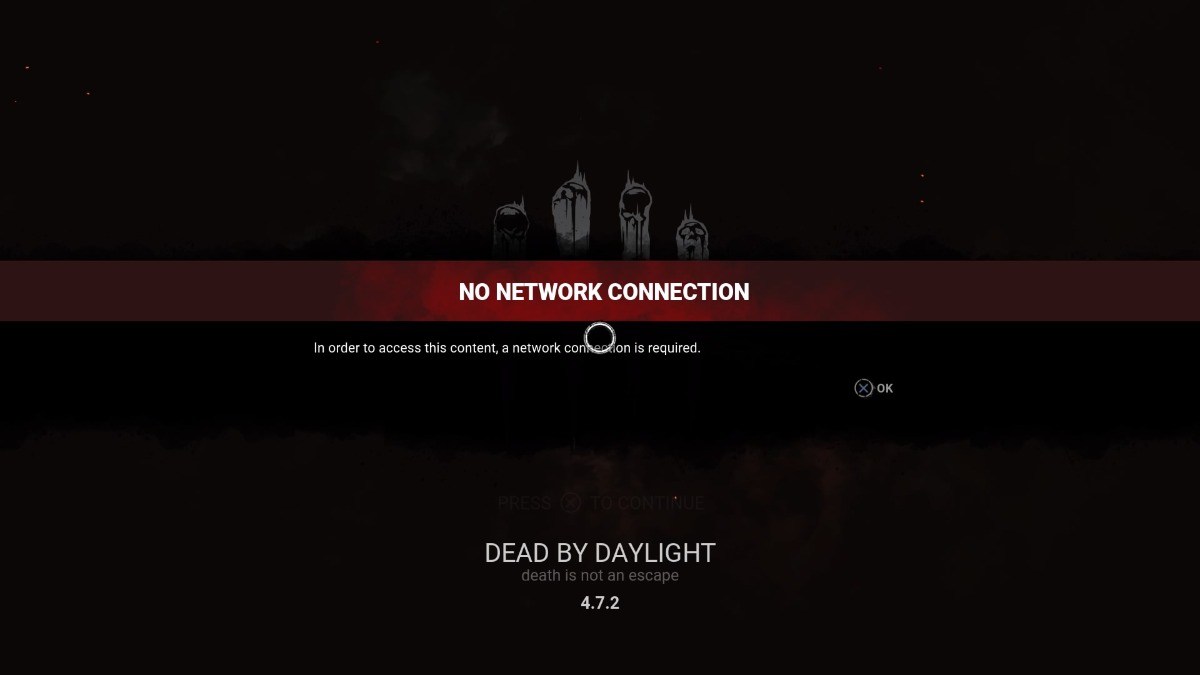
Fix DBD No Network Connection Error: Full Guide
Few things are more frustrating than gathering your survivor squad or queuing up for a Killer trial only to get blocked by the dbd no network connection error. This error usually pops up on the initial title screen or abruptly boots you back to the lobby after a match. While the prompt claims your system lacks an internet connection, you are often sitting on a perfectly functioning, high-speed connection elsewhere on your device.

Because Dead by Daylight relies on continuous authentication among your platform (Steam, Epic, PlayStation, Xbox), Easy Anti-Cheat (EAC), and Behaviour Interactive’s dedicated servers, even a micro-interruption can trigger this roadblock. Below is a comprehensive, step-by-step troubleshooting guide to identify the root cause and get you back into the Fog.
What Causes the DBD No Network Connection Issue?
Before changing complex network settings, it helps to understand why the game fails to establish a handshake. The most common culprits include:
- Backend Server Maintenance or Outages: Behaviour Interactive frequently deploys patches, hotfixes, or server-side updates that temporarily take the master servers offline.
- System Clock Desynchronization: Dead by Daylight uses secure authentication tokens. If your device's system time differs by even a few seconds from universal time, the server rejects the connection.
- Corrupted Local Game Files: Damaged binaries or outdated Easy Anti-Cheat files can prevent the client from reporting an active, secure state to the server.
- DNS Cache Congestion: Outdated Domain Name System records can lead your client to query obsolete IP addresses for the game servers.
- Security Software Interference: Overprotective third-party firewalls and antivirus suites frequently flag the game's network packets as anomalies.
Step 1: Check Dead by Daylight Server Status
Before altering any system files or network properties, verify that the servers are actually online. If Behaviour’s backend is undergoing maintenance, no client-side fix will solve the problem.
- Check the official @DeadbyDaylight account on X (formerly Twitter) for maintenance announcements.
- Look at community monitoring platforms such as Downdetector to see if other players are reporting spikes in connection errors.
- Confirm platform services (Steam network, PlayStation Network, or Xbox Live) are operational.
If servers are down, your only option is to wait until Behaviour Interactive finishes deploying their fix or update.
Quick Fixes for DBD No Network Connection
If the servers are running normally and other players are in trials, the problem lies within your local configuration or network routing. Work through these fundamental fixes first.
1. Synchronize Your System Clock
An unsynchronized clock is the leading hidden cause of authentication failures in modern multiplayer games. To fix this on Windows:
- Press the Windows Key + I to open Settings.
- Navigate to Time & Language > Date & Time.
- Ensure Set time automatically and Set time zone automatically are toggled On.
- Under "Additional settings," click the Sync now button.
- Restart Dead by Daylight and attempt to log in.
2. Power Cycle Your Network Equipment
Routers and modems accumulate cached routing tables that can become stale or corrupted over time. A clean reboot clears temporary buffer bloat and re-establishes a fresh IP assignment from your Internet Service Provider (ISP):
- Turn off your PC or console completely.
- Unplug the power cables from both your modem and your router.
- Wait a full 60 seconds to allow the internal capacitors to drain completely.
- Plug your modem back in and wait until all connection lights stabilize.
- Plug your router back in and wait for the Wi-Fi/LAN lights to turn solid.
- Boot up your gaming device and launch the game.
3. Verify the Integrity of Game Files
Missing or corrupted game assets prevent your game client from matching the current live version checksum, throwing a generic network error.

On Steam:
- Open your Steam Library.
- Right-click on Dead by Daylight and select Properties.
- Select the Installed Files tab on the left menu.
- Click Verify integrity of game files and allow Steam to replace any corrupted data.
On Epic Games:
- Open the Epic Games Launcher and go to your Library.
- Click the three dots (...) under Dead by Daylight.
- Select Manage, then click Verify.
Advanced Network Configuration
If basic troubleshooting does not clear the error, your network may be failing to resolve Behaviour's server endpoints or blocking outbound UDP/TCP game packets.
Flush DNS and Reset Winsock (Windows)
Flushing your DNS cache removes old IP lookups, while resetting the Windows Sockets API restores corrupted network communication layers back to default.
- Press the Windows Key, type
cmd, right-click Command Prompt, and select Run as administrator. - Type the following commands one by one, pressing Enter after each:
ipconfig /flushdnsipconfig /registerdnsipconfig /releaseipconfig /renewnetsh winsock reset
- Restart your computer to finalize the network stack reset.
Switch to Public DNS Resolvers
Many regional ISPs use slow or poorly updated DNS servers that fail to resolve dynamic game routing efficiently. Switching to reliable public DNS resolvers like Google or Cloudflare often resolves lingering connection drops immediately.
- Press Windows Key + R, type
ncpa.cpl, and hit Enter to open Network Connections. - Right-click your active connection (Ethernet or Wi-Fi) and select Properties.
- Select Internet Protocol Version 4 (TCP/IPv4) and click Properties.
- Select Use the following DNS server addresses.
- Enter the Cloudflare DNS addresses:
- Preferred DNS server:
1.1.1.1 - Alternate DNS server:
1.0.0.1
- Preferred DNS server:
- (Alternatively, use Google DNS:
8.8.8.8and8.8.4.4). - Check the box for Validate settings upon exit and click OK.
Whitelist Dead by Daylight in Windows Defender Firewall
Sometimes security updates inadvertently restrict outbound traffic for newly patched game executables.
- Press the Windows Key, type Firewall & network protection, and open it.
- Click Allow an app through firewall.
- Click Change settings (requires administrator access).
- Scroll down to find Dead by Daylight and ensure both Private and Public boxes are checked.
- If the game is missing, click Allow another app..., browse to your Dead by Daylight installation folder, and select
DeadByDaylight.exe.
Console Troubleshooting: PlayStation and Xbox
If you encounter the no network connection error on PlayStation 5, PlayStation 4, or Xbox Series X/S, try these platform-specific adjustments:
- Switch to a Wired Ethernet Connection: Wi-Fi packet drops can easily sever Dead by Daylight’s persistent connection. A direct CAT6 cable drastically reduces packet loss.
- Clear Alternate MAC Address (Xbox): Go to Settings > General > Network settings > Advanced settings > Alternate MAC address and choose Clear. The console will reboot automatically.
- Rebuild Database / Clear Cache (PlayStation): Turn off your PS5 completely. Hold the power button down until you hear a second beep (about 7 seconds) to boot into Safe Mode. Connect your controller via USB, select Clear Cache and Rebuild Database, then choose Clear System Software Cache.
When to Contact Behaviour Interactive Support
If none of these steps eliminate the "No Network Connection" warning, your account may be experiencing an isolated sync issue on the backend, or your ISP may be routing traffic through an unstable node. Submit a support ticket directly through the official Behaviour Interactive Support Portal.
When filing your ticket, make sure to attach your game log file (located on PC at %USERPROFILE%\AppData\Local\DeadByDaylight\Saved\Logs). Supplying these logs immediately cuts days off the response time by showing Behaviour's technical team the exact API error code generated at launch.