Fix MyQ Blinking Green and Blue: Step-by-Step Guide
Smart garage door openers have made home automation remarkably convenient, allowing us to monitor and operate our doors from anywhere in the world. However, when things go wrong, diagnosing the issue can feel like deciphering a secret code. If you glance up at your wall control panel or garage door opener and notice a MyQ blinking green and blue light sequence, it usually means your device is struggling to communicate with your home router.
Understanding what these LED indicators mean is the first step toward getting your smart home ecosystem back on track. In this guide, we will break down the exact causes of this specific LED error code and walk you through actionable steps to restore your connection.
Understanding the MyQ Blinking Green and Blue Error
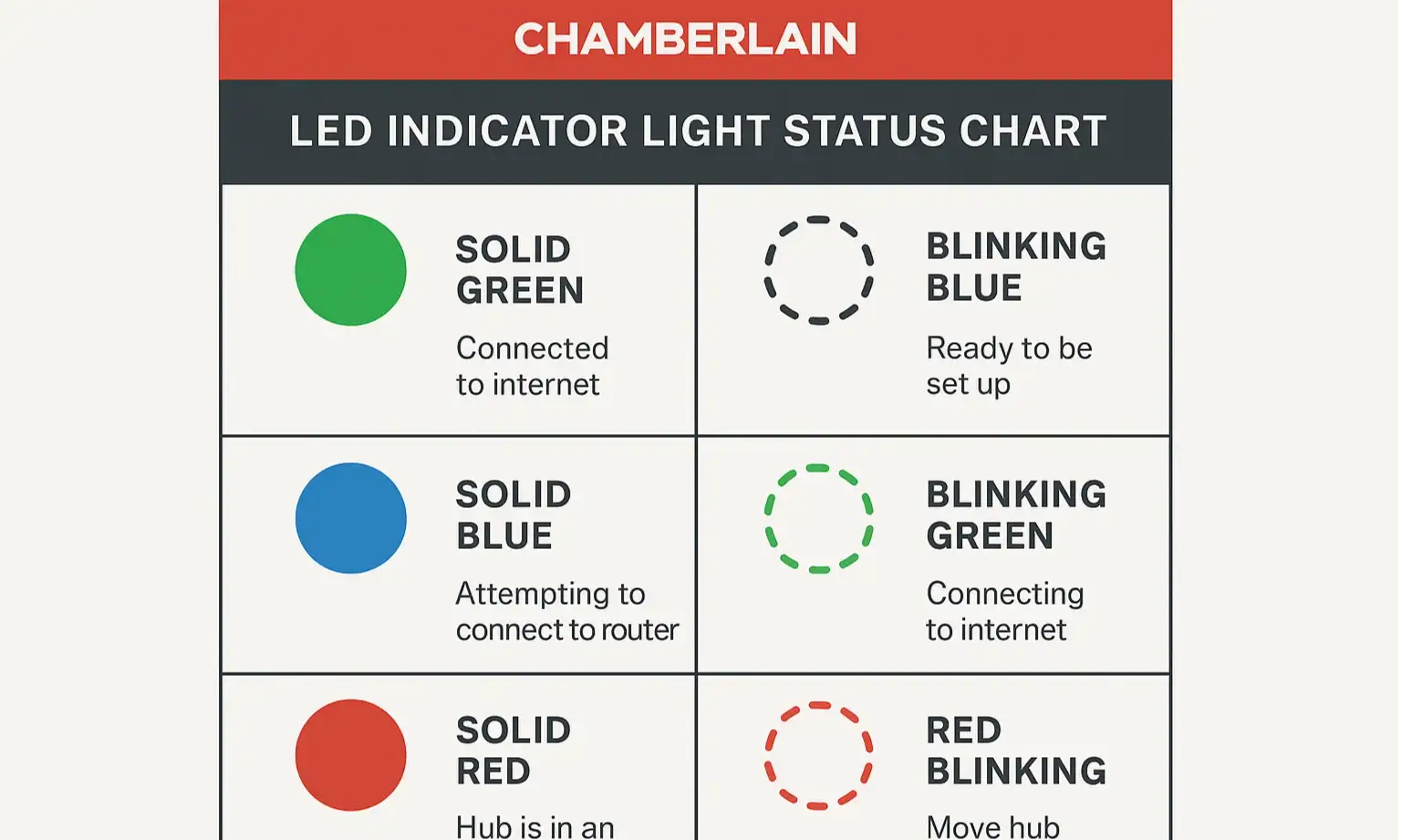
Chamberlain and LiftMaster MyQ garage door openers use a multi-colored LED status light to communicate their operational state. While a solid green light typically indicates a successful internet connection and a solid blue light often signifies normal Bluetooth pairing mode, a combination of both can be confusing.
When you see the green and blue lights blinking alternately or together, your garage door opener is telling you that it has lost its connection to your Wi-Fi network and is attempting to re-establish that connection, or it is stuck in an incomplete provisioning loop. Specifically, the green light relates to the internet/server connection status, while the blue light indicates the Bluetooth or Wi-Fi setup mode.
Common Causes for the Green and Blue Flashing Lights
Before jumping into troubleshooting, it helps to know why this happens. Most connection drops are not hardware failures; instead, they are usually triggered by environmental factors or network changes:
- Wi-Fi Network Changes: Did you recently get a new router, change your Wi-Fi network name (SSID), or update your password? If so, your MyQ device is desperately searching for a network that no longer exists in its memory.
- Poor Router Signal: Garages are notorious dead zones for Wi-Fi. Thick concrete walls, metal garage doors, and distance from your router can cause signal degradation, leading to dropped packets and connection failures.
- Router Firmware Updates: Modern dual-band and tri-band routers often combine 2.4GHz and 5.2GHz/5GHz bands under a single network name. MyQ devices operate exclusively on 2.4GHz networks, and router updates can sometimes disrupt this compatibility.
- Temporary Server Outages: Occasionally, the issue isn't in your garage at all, but rather a temporary outage on Chamberlain's cloud servers.
How to Fix MyQ Blinking Green and Blue
Resolving this issue generally requires resetting the Wi-Fi settings on your opener and pairing it with your network again. Follow these step-by-step methods to get your MyQ opener back online.
Step 1: Power Cycle Your Garage Door Opener
The oldest trick in IT troubleshooting is often the most effective. Sometimes, the internal network card in your opener simply experiences a temporary glitch.
- Unplug your garage door opener from the ceiling electrical outlet.
- Wait approximately 30 to 60 seconds to allow all internal capacitors to drain completely.
- Plug the unit back into the outlet.
- Observe the LED light. If it returns to a solid green or turns off, test your app. If the MyQ blinking green and blue pattern persists, proceed to the next step.
Step 2: Clear the Wi-Fi Settings and Re-Pair
If your router settings have changed, or if the device memory is corrupted, you will need to clear the existing Wi-Fi configuration and start fresh.
- Locate the Learn button on your garage door opener. On most modern units, this is a square yellow, purple, red/orange, or green button located under the light cover or on the back panel.
- Press and hold the Learn button until the LED light next to it turns on and then goes out (usually about 6 seconds). This completely erases all previously saved Wi-Fi network profiles from the opener.
- Unplug the opener for 10 seconds, then plug it back in.
- Open the MyQ app on your smartphone, go to device settings, and follow the in-app prompts to set up a new Wi-Fi connection.
Step 3: Ensure Your Phone is Connected to a 2.4GHz Network
During the setup process, your phone temporarily shares its network credentials with the MyQ device via Bluetooth. If your smartphone is currently connected to a 5GHz Wi-Fi band, the pairing process will likely fail, leading right back to the green and blue blinking lights.
Go into your phone's Wi-Fi settings and ensure you are connected to your home's 2.4GHz Wi-Fi band before attempting to add the device through the MyQ app again.
Step 4: Improve Wi-Fi Signal Strength in the Garage
If your MyQ device repeatedly drops its connection after a few days, weak signal strength is likely the culprit. You can remedy this by:
- Moving your wireless router closer to the garage if possible.
- Installing a Wi-Fi range extender or a mesh network node in or near the garage. Make sure the extender broadcasts a dedicated 2.4GHz signal.
When to Contact Support
If you have tried clearing the memory, power cycling, and ensuring a strong 2.4GHz signal, yet the MyQ blinking green and blue pattern refuses to go away, there may be an internal hardware fault with the logic board or the integrated Wi-Fi module. In this scenario, reach out to Chamberlain or LiftMaster customer support. If your unit is relatively new, they may send you a replacement logic board under warranty.