Fix SSLVPN Error 7200: Step-by-Step Guide
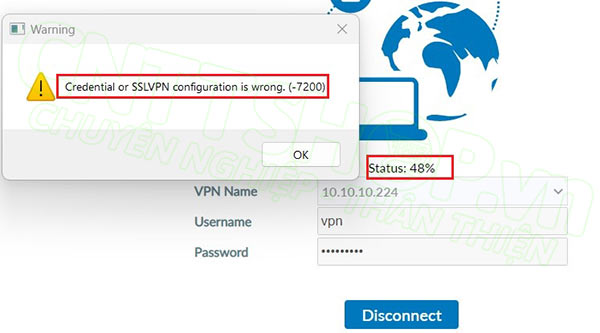
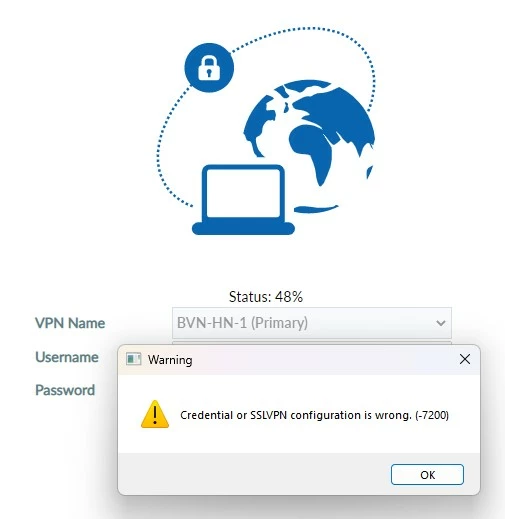
Encountering connection errors when trying to log into your corporate network can bring your workday to a sudden halt. One of the most frustrating obstacles remote employees face is the error message stating that the credential or sslvpn configuration is wrong 7200. This specific error typically pops up in remote access clients like FortiClient, signaling that the application cannot establish a secure tunnel to the gateway.

Understanding why this happens is the first step toward getting back online. Whether it is a simple typo in your password, an outdated client version, or a complex routing conflict on your local machine, this guide walks you through the proven methods to diagnose and resolve the issue.
Understanding Error 7200 in Remote Access
Before diving into fixes, it helps to understand what Error 7200 actually means. In the architecture of virtual private networks, error codes often bridge low-level network failures with user-facing applications. When you see the message indicating that your credential or sslvpn configuration is wrong 7200, it usually points to one of two root causes:
- Authentication Failure: The gateway rejected your username, password, or two-factor authentication (2FA) token.
- Configuration Mismatch: The local client settings—such as gateway address, port numbers, or advanced SSL settings—do not match what the firewall or VPN server expects.
Because the error message groups credentials and configuration together, troubleshooting requires a methodical approach to eliminate each potential variable.
Step-by-Step Troubleshooting Methods
Work through the following solutions sequentially to identify and fix the underlying cause of the connection failure.
1. Verify Your Credentials and Multi-Factor Authentication
It sounds simple, but authentication errors are the most common trigger for this issue. Small typing mistakes or recently expired passwords frequently cause the 7200 error.
- Open a web browser and try logging into the company portal or web-based SSL-VPN interface. This helps determine if your account is active and your password is correct.
- If your company uses Multi-Factor Authentication (MFA) such as an authenticator app or push notification, ensure your mobile device has a stable internet connection and synchronized time settings.
- Check for accidental leading or trailing spaces if you are copying and pasting your password from a text editor.
2. Check Gateway Address and Port Settings
If your credentials are correct, the next suspect is the connection configuration itself. A single misplaced character in the server address can break the handshake.
gateway.company.com:10443). Ensure the port is correctly appended and not blocked by local routing rules.3. Update Your VPN Client Software
Video: Forticlient error Credential or SSLVPN configuration is wrong.(-7200) || in Hindi

Running an outdated version of a remote access client against a recently updated corporate firewall is a recipe for handshake failures. SSL/TLS protocols deprecate older standards frequently for security reasons.
Check the vendor's website or your internal IT portal for the latest stable release of your VPN client. Uninstall your current version, reboot your computer, install the latest client package, and attempt to connect again.
4. Review Local Network and Firewall Restrictions
Sometimes, the block isn't on the VPN server, but on your local network or third-party security software running on your device.
If you are connected to a public Wi-Fi network (like a hotel or coffee shop), captive portals or strict firewall rules might block the specific ports required for SSL-VPN traffic. Try switching to a mobile hotspot temporarily to see if the error persists. Additionally, temporarily disable third-party antivirus software or local firewalls that might be inspecting or dropping outbound TLS traffic.
5. Clear Cache and Reset Network Adapters
Corrupted local cache files or virtual network adapter glitches can cause persistent configuration errors.
Open your command prompt as an administrator and run network reset commands to clear out stale configurations:
ipconfig /flushdnsnetsh winsock reset
Restart your machine after running these commands to ensure a completely fresh network state before launching the VPN client.
When to Contact IT Support
If you have verified your credentials, checked the gateway URL, updated your client software, and still face the error stating that the credential or sslvpn configuration is wrong 7200, the issue likely resides on the server side. Your network administrator may need to check user group mappings, verify account lockout statuses on the firewall, or inspect server-side logs to see why the handshake is failing.
Provide your IT support team with details on what steps you have already tried, along with your client version and operating system details, to speed up the resolution process.