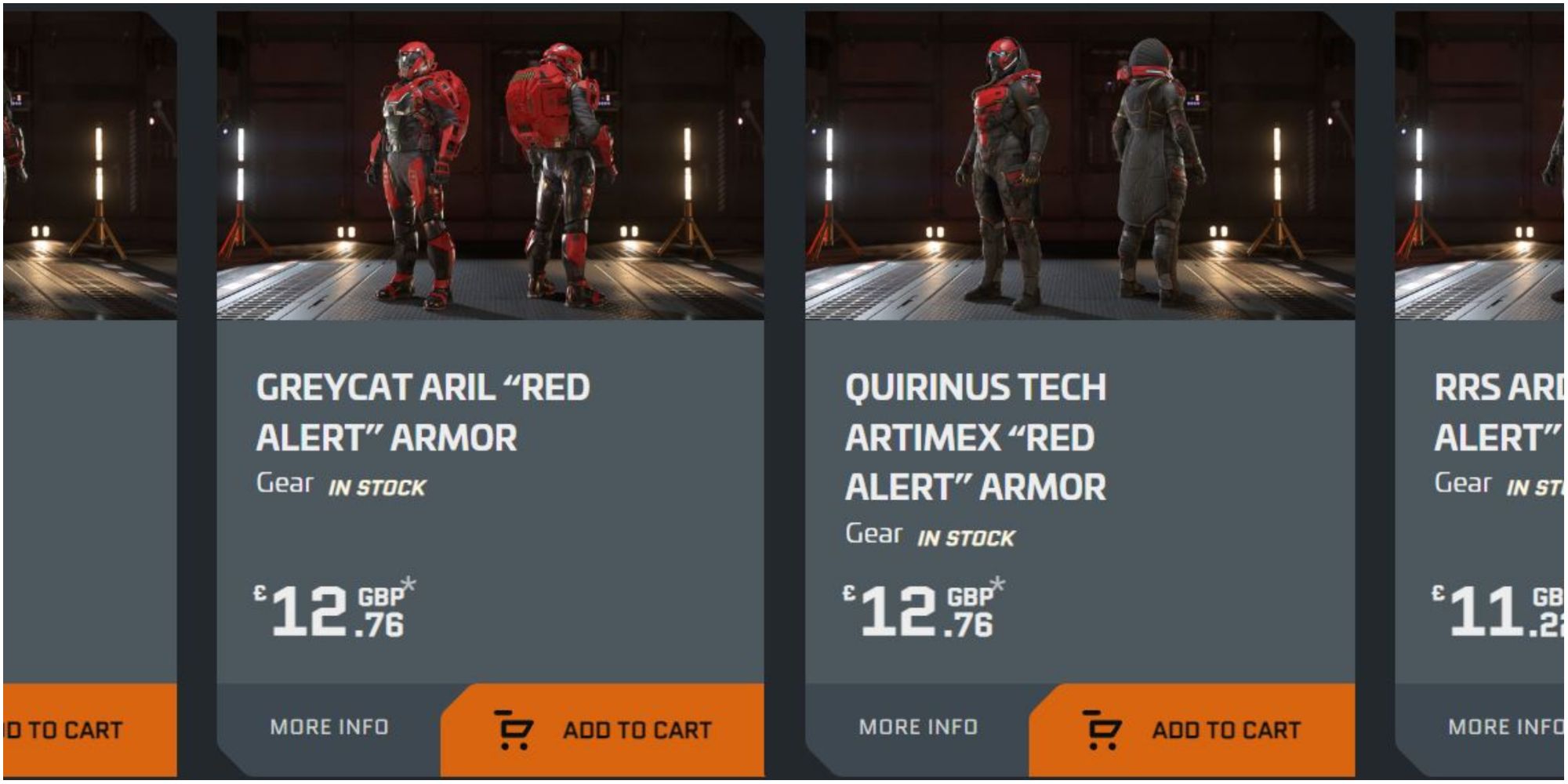
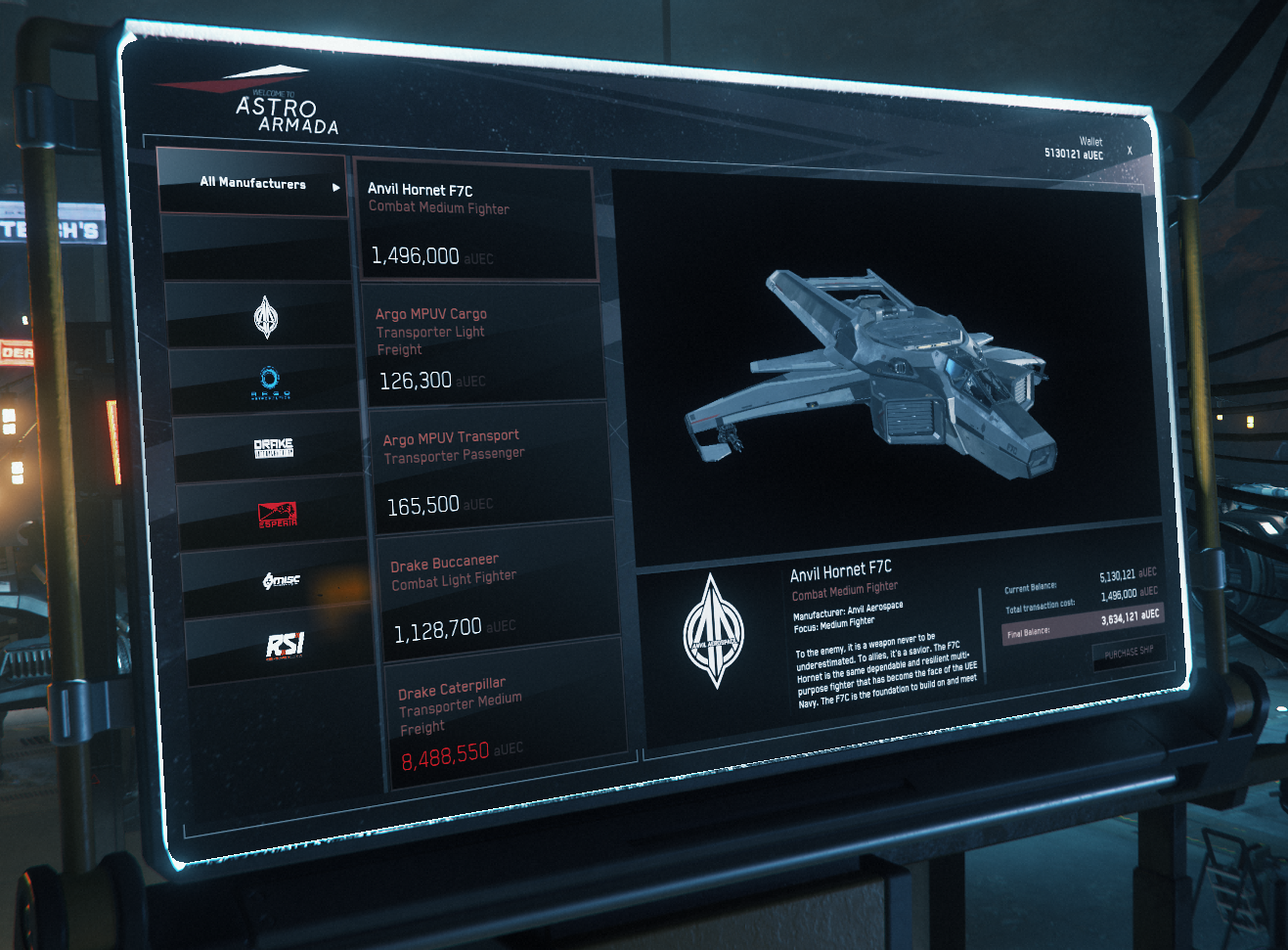
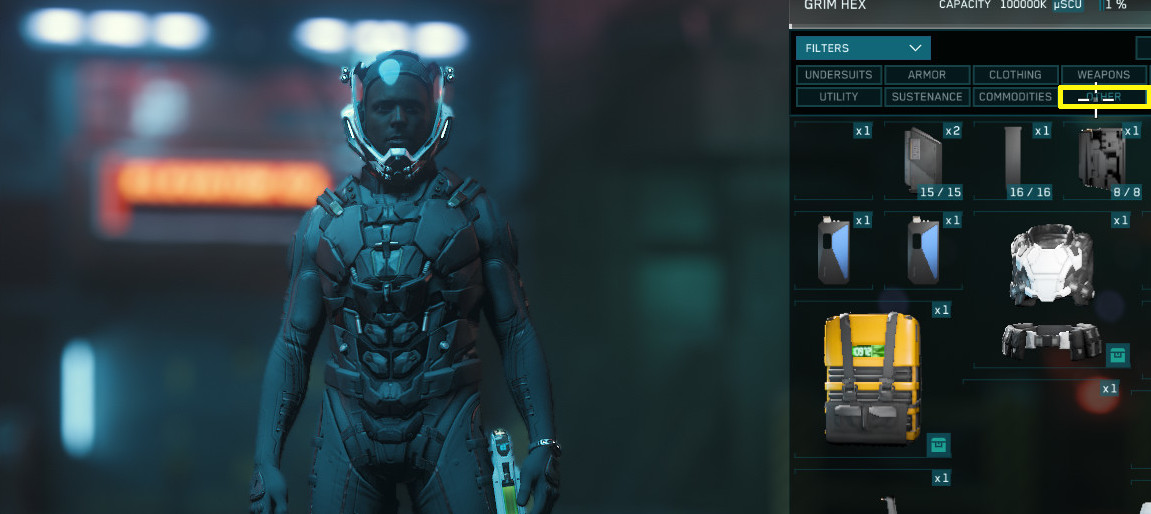
Fix Star Citizen Armor Shop Kiosks Not Showing Items
Few things are more frustrating in the persistent universe than walking into a gleaming Casaba Outlet or refinery terminal, only to find empty screens and unresponsive interfaces. If you are experiencing the dreaded issue of armor shop kiosks not showing items in Star Citizen, you are far from alone. This persistent bug has plagued players across multiple game builds, hindering basic gameplay loops like gearing up for mercenary missions or trying out new flight suits.

While Cloud Imperium Games frequently patches inventory and UI bugs, server degradation and database desync often cause these terminals to break. Fortunately, the community has discovered several reliable workarounds to bypass these empty kiosks and get your hands on the gear you need. This guide outlines why this happens and how you can fix it.
Why Star Citizen Armor Kiosks Fail to Load
To understand how to fix the problem, it helps to know why it occurs. Star Citizen relies heavily on server-client communication for its physicalized inventory system (often referred to as Building Block UI and Global Persistence). When you interact with a shop terminal, the game queries the local database to populate the UI with available stock.
Several factors can disrupt this process:
- High Server Load: During peak hours, server frame rates (Server FPS) drop significantly, causing database queries to time out before the kiosk can display its items.
- Database Desync: Your game client loses synchronization with the backend services, resulting in infinite loading spinners or completely blank inventory grids.
- Physical Inventory Conflicts: Sometimes, overlapping physical items or dead bodies near the kiosk interfere with the terminal's ability to initialize properly.
Proven Workarounds for Armor Shop Kiosks Not Showing Items
Because this is primarily a server-side or synchronization issue, you cannot fix the game code yourself, but you can manipulate your connection and environment to force the kiosk to load. Try the following troubleshooting steps in order.
1. Change Servers via Region Hopping
The single most effective way to fix broken kiosks is to switch game servers. A bad server instance will often have broken kiosks across multiple landing zones, while a fresh server will function normally.
- Escape to the main menu.
- Navigate to the 'Universe' or 'Copy Account' screen (or simply select 'Select Region' in the main menu).
- Change your region from your default (e.g., Best, US) to another available option (e.g., EU or AUS).
- Load back into the game and travel to the nearest armor shop.
2. Use the Local Inventory and Loot Workaround
Video: Accessing the hidden inventories in shop kiosks in Star Citizen: A quick and simple mini tutorial
If you cannot buy armor from the shop kiosk, you do not necessarily have to go without. The game world is filled with alternative ways to acquire gear without ever touching a store terminal.
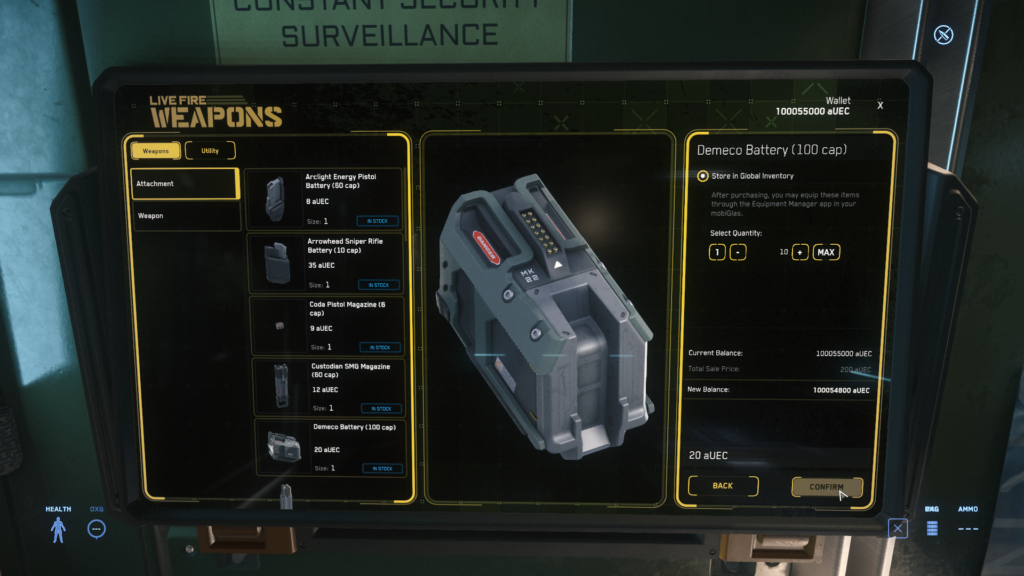
Many players bypass the shops entirely by looting NPCs during bunker missions, security depot raids, or soft-death ship combat. Dragging armor pieces directly from a downed adversary's inventory into your local inventory bypasses the store terminal code completely. Furthermore, armor looted from NPCs is entirely free, saving your valuable aUEC for ship upgrades.
3. Rent or Buy at Alternative Locations
Not all shops suffer from the same server strain simultaneously. If the Mega Hangars or major trade ports like Area18 and New Babbage are experiencing broken terminals, try visiting smaller outposts.
Refinery decks on space stations often feature smaller equipment shops that use a lighter UI load, making them less susceptible to the blank-screen bug. Alternatively, trading outposts on moons may have working inventory terminals even when major city hubs are failing.
4. Clear Your User Folder (CIG Recommended)
Corrupted local cache files can sometimes prevent UI elements from rendering correctly. While less common for purely server-side kiosk failures, clearing your cache is a good hygiene practice after major patches.
- Close Star Citizen completely.
- Navigate to your installation directory (typically
C:\Program Files\Roberts Space Industries\StarCitizen\LIVE). - Locate and delete the
USERfolder entirely. - Restart the game. Note that this will reset your keybindings and graphics settings, so back them up if necessary.
5. Wait for a 30K Recovery or Server Crash
If you notice that global chat is complaining about lag, high ping, or terminal responsiveness, the server is likely on the verge of a 30K disconnect or crash. Waiting for the server to die—or intentionally switching servers—is often faster than trying to force a broken kiosk to update. Once you log into a healthy shard, the shop terminal will usually display its full inventory catalog immediately.
Preventing Future Inventory Frustrations
To minimize the impact of missing shop items during your play sessions, try to buy your standard loadouts in bulk when you find a stable server. Storing multiple sets of your favorite undersuits, core armor, and helmets in your primary residence inventory ensures you always have backups ready when the persistent universe decides to act up. Keep an eye on patch notes from Cloud Imperium Games, as UI and inventory stability improvements arrive with nearly every major quarterly update.