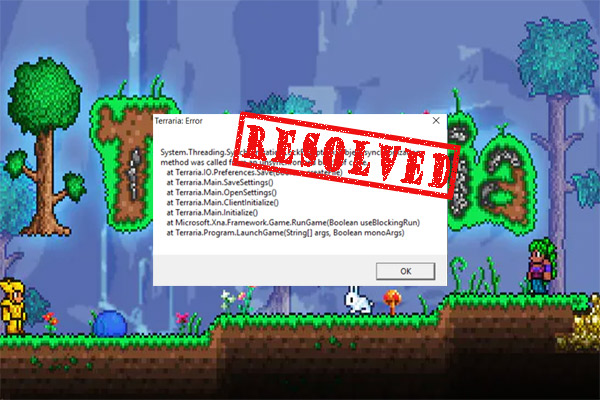
Fix Terraria Join Via Steam Not Working
Few things are more frustrating than gathering your friends for a session of sandbox exploration, only to find that Terraria join via steam not working throws a wrench in your plans. Whether you are stuck on the connecting screen, receiving a generic connection failed error, or simply unable to see your friend's game in your Steam friends list, multiplayer issues can ruin game night.
Fortunately, because Terraria relies heavily on the Steam client and the .NET framework for its matchmaking, most connection problems have straightforward solutions. This comprehensive guide walks you through the most effective troubleshooting methods to get you back into the game.
Check for Version Mismatch
One of the most common reasons players cannot join each other is a discrepancy in game versions. If the host is running a slightly different version of Terraria than the client, the connection will be refused instantly.
- Check Game Updates: Ensure both you and your friend have fully updated Terraria through Steam. Sometimes Steam fails to queue an update automatically. Restarting the Steam client usually forces pending updates to appear.
- Opt-Out of Betas: Right-click Terraria in your Steam Library, select Properties, and navigate to the Betas tab. Ensure you are set to "None" unless you are intentionally testing a specific version branch with your group.
- Crossplay Limitations: Remember that the Steam version of Terraria cannot directly connect to console (PlayStation, Xbox, Nintendo Switch) or mobile versions without third-party bridging tools, which rarely work reliably for standard Steam invites.
Verify Game Files Integrity
Corrupted or missing game files often prevent the game from communicating properly with the Steam overlay and matchmaking protocols. Verifying your files takes only a minute and fixes most underlying file corruption issues.
- Open your Steam Library and find Terraria.
- Right-click on Terraria and select Properties from the drop-down menu.
- Go to the Installed Files tab on the left sidebar.
- Click on the Verify integrity of game files button.
- Wait for Steam to scan and replace any broken or missing files, then relaunch the game.
Bypass Steam Invites Using IP and Port
If the Steam invite system is entirely broken or refusing to hand off the connection properly, you can bypass the Steam overlay by connecting directly via the host's IP address and port.
How to Host and Connect Manually

- For the Host: Instead of launching from within the game client normally, open your Terraria installation folder (usually located at
C:\Program Files (x86)\Steam\steamapps\common\Terraria) and runTerrariaServer.exe. This opens a dedicated console window. Select your world, set a maximum player limit, and choose a port (the default is usually 7777). - For the Client: Launch Terraria normally, click Multiplayer, select Join via IP, choose your character, and enter the host's IPv4 address and port when prompted.
Note: If you are playing with someone outside of your local network using this method, the host may need to set up port forwarding on their router for port 7777.
Check Firewall and Antivirus Interference
Overzealous Windows Defender settings, third-party antivirus programs, or Windows Firewall rules frequently block Terraria's outbound and inbound network traffic. If your security software flags the game's network handshake as a potential threat, your join requests will time out.
- Allow Through Firewall: Open your Windows search bar, type "Allow an app through Windows Firewall," and ensure that both Terraria and the Steam Client Service are checked for both Private and Public networks.
- Temporary Disable: As a troubleshooting test, temporarily disable your third-party antivirus or firewall to see if the connection goes through. If it does, add Terraria to your antivirus exclusion list.
Restart Steam and Clear Download Cache
Sometimes the issue doesn't stem from Terraria itself, but rather from a glitch within the Steam client's networking services or overlay cache.
- Completely Close Steam: Right-click the Steam icon in your Windows system tray (bottom right corner of your taskbar) and select Exit. Then, relaunch Steam as an Administrator by right-clicking its desktop shortcut and selecting Run as administrator.
- Clear Steam Cache: Open Steam, go to Settings > Downloads, and click the Clear Cache button. This clears local download metadata and restarts the client, which often resolves hidden matchmaking bugs.
Summary Checklist
If you are still experiencing connection drops, go through this quick checklist to isolate the problem:
- Are both players on the exact same Terraria version?
- Did you try joining through the Steam Friends list instead of an in-game invite, or vice versa?
- Have both players completely restarted their computers and routers?
By systematically working through these steps, you should easily resolve any issues getting your multiplayer session up and running.