Fix the Meta Quest 5-Digit Code Error Fast
Setting up a new VR headset should be an exciting experience, but running into technical glitches can quickly turn that excitement into frustration. One of the most common hurdles users face during initial setup or re-pairing is the sudden appearance of a prompt asking for a Meta Quest 5 digit code. Whether you are setting up a brand-new Quest 3 or reconnecting an older device to your smartphone, getting stuck on this screen can halt your progress entirely.

In this guide, we will break down why this verification prompt appears, how to locate the correct numbers, and what you can do if the code simply will not work. By following these troubleshooting steps, you will bypass the pairing block and get straight into your virtual reality library.
Understanding the Meta Quest 5 Digit Code Prompt
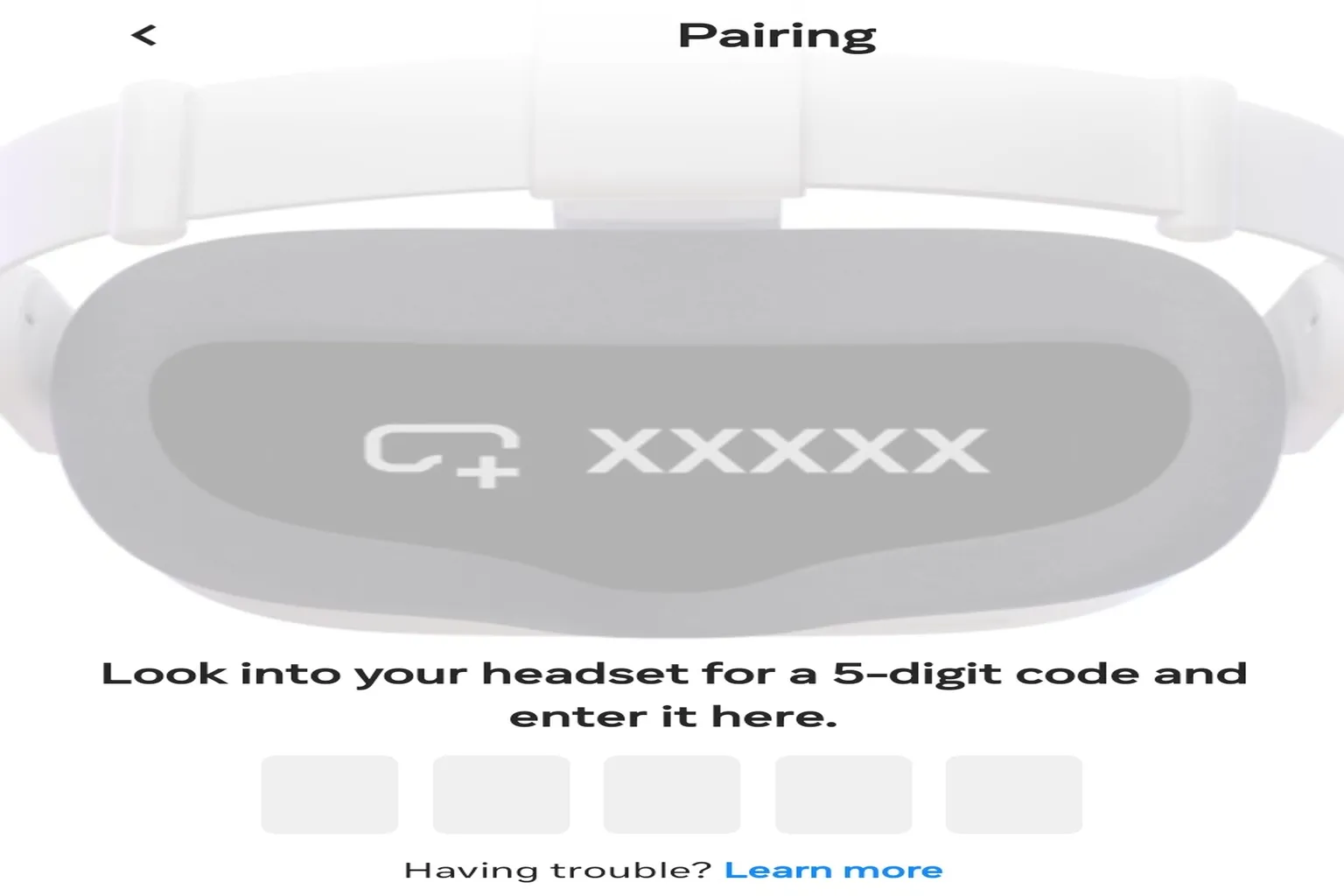
When you power on your Meta Quest headset for the first time, it generates a unique numeric sequence. This sequence acts as a secure handshake between your physical headset and the Meta Horizon mobile app on your smartphone or tablet. The system uses this protocol to verify that you are pairing the correct device to the correct user account, preventing unauthorized access or accidental pairing with a neighbor's headset.
Usually, this process happens automatically via Bluetooth proximity detection. However, interference, outdated software, or network glitches can cause the automatic handoff to fail. When that happens, the headset displays a specific numeric prompt, forcing you to manually enter a Meta Quest 5 digit code to complete the bridge.
How to Find and Enter Your Pairing Code
If your headset is displaying a prompt for numbers and you are unsure what to type, you do not need to look very far. The solution is built directly into your headset's display and your mobile interface.
- Check the Headset Lenses: Put on your headset or look closely through the lenses. A large numerical sequence should be clearly visible floating against the dark startup background.
- Open the Meta Horizon App: Ensure the Meta Horizon app on your iOS or Android device is open and that you are logged into the exact same Meta account you intend to use on the headset.
- Navigate to Devices: If the app does not automatically prompt you to pair a new headset, tap the menu icon, select 'Devices,' and choose the option to set up a new device or pair an existing one.
- Input the Digits: Carefully type the numbers shown inside your headset into the corresponding text box on your smartphone screen.
Troubleshooting When the Code Fails
Sometimes, entering the numbers does not work. You might see an error message stating that the code is invalid, expired, or that the app cannot find the headset. If you find yourself stuck in a loop, apply these targeted troubleshooting methods to resolve the issue.
1. Restart Both Devices
The oldest trick in tech support remains one of the most effective. Temporary software freezes often prevent the headset's Bluetooth broadcaster from communicating with your phone.
- Turn off your Meta Quest completely by holding down the power button for a few seconds until the shutdown menu appears.
- Close the Meta Horizon app entirely on your phone (swipe it away from your recent apps list).
- Turn your phone off and back on again for a clean network slate.
- Power on your headset, reopen the mobile app, and try the pairing process from scratch.
2. Check Bluetooth and Wi-Fi Permissions
Modern smartphones rely heavily on local permissions to discover nearby hardware. If your Meta Horizon app lacks permission to use Bluetooth, it will never find your headset.
- Go to your smartphone's system settings.
- Find the application manager and locate the Meta Horizon app.
- Verify that Bluetooth permissions, local network access, and location services are explicitly allowed.
- Ensure that your phone is connected to a stable 2.4GHz or 5GHz Wi-Fi network and that Bluetooth is actively toggled on in your quick-settings menu.
3. Update Your Software
Discrepancies in software versions frequently cause pairing errors. If your smartphone app updated automatically to the newest version, but your headset is running outdated firmware, they may fail to understand each other.
If you cannot get past the initial setup screen to check for system updates, you may need to perform a factory reset on the headset to force it to pull the latest firmware during a fresh initialization.
4. Factory Reset as a Last Resort
If you have exhausted all other options and the headset still rejects your manual input or fails to generate a valid sequence, a factory reset is your best path forward.
- Turn off the headset.
- Press and hold the Power and Volume Down (-) buttons simultaneously until the boot loader menu appears on your screen.
- Use the volume buttons to highlight Factory Reset, then press the power button to select it.
- Confirm your choice and let the headset wipe its data and reboot.
Once the device restarts, it will walk you through a fresh initial setup, generating a brand-new pairing sequence and clearing out whatever glitch caused the previous blockage.
Preventing Future Connection Issues
To keep your hardware running smoothly after you successfully bypass the pairing screen, make a habit of keeping your companion mobile app updated. Avoid moving too far away from your wireless router during initial updates, as interrupted downloads are a primary culprit behind corrupted headset firmware. By maintaining a stable connection and keeping your software current, you can ensure a seamless VR experience every time you step into the metaverse.


