Google Docs Pamphlet Templates: Streamline Your Design
Why Traditional Brochure Design Slows You Down

Creating a marketing brochure from scratch is often a bottleneck for small businesses, educators, and event organizers. Between wrestling with expensive desktop publishing software, aligning complex grid systems, and managing endless rounds of PDF proofs via email, valuable time slips away.
Fortunately, you don't need a degree in graphic design or a subscription to high-end software to produce professional results. You can easily streamline your design process with Google Docs pamphlet templates, bringing speed, accessibility, and real-time collaboration directly to your workflow.
The Benefits of Using Google Docs for Pamphlets
While tools like Adobe InDesign or Canva are popular, Google Docs offers unique advantages for document-based layouts, especially when working in fast-paced teams.
Real-Time Team Collaboration
Traditional design software often forces a siloed workflow where one person designs, exports, and sends files for review. Google Docs lets multiple stakeholders review text, swap out images, and leave comments simultaneously. Changes happen in real-time, drastically reducing the revision cycle.
Zero Learning Curve
Almost everyone knows how to type in a word processor. By utilizing a pre-formatted template, team members who have zero graphic design experience can update copy, change brand colors, and swap placeholder graphics without breaking the layout structure.
Cloud Accessibility and Version Control
Because everything lives in Google Drive, you never have to worry about losing the latest file version on a local hard drive. Access your pamphlet templates from any device, anywhere, and rely on built-in version history to track every edit.
How to Find and Access Pamphlet Templates
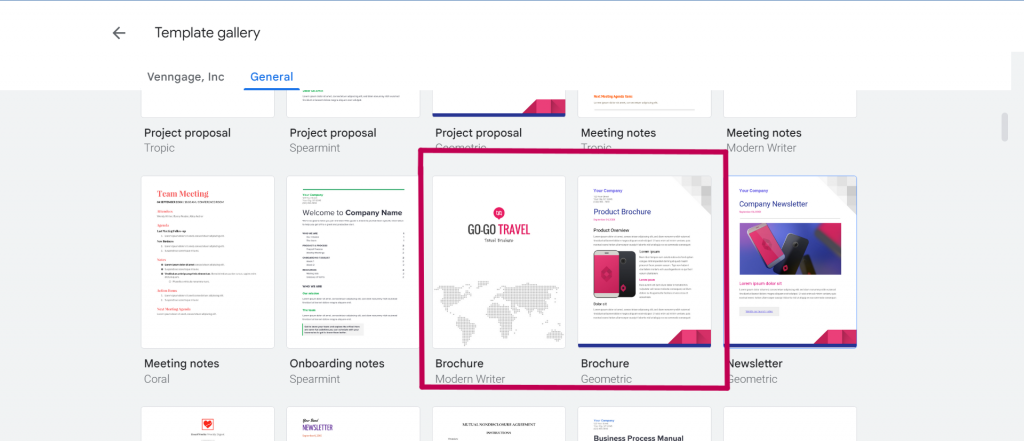
Google Docs features a built-in template gallery, though its default selection focuses heavily on resumes, letters, and basic reports. To find true tri-fold or bi-fold pamphlet layouts, you have a few reliable options:
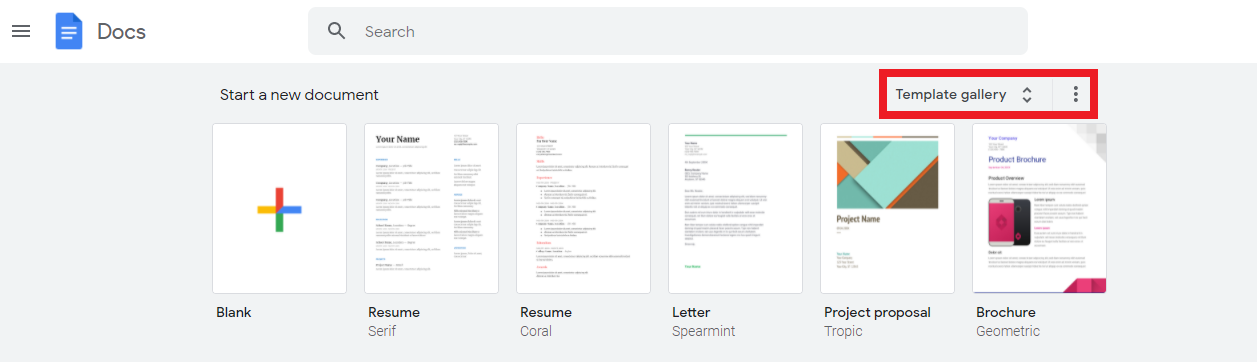
- The Built-In Template Gallery: Open Google Docs, click on "Template gallery" at the top right of the home screen, and scroll down to the "Work" or "Education" sections to see if any brochure layouts are currently featured.
- Third-Party Template Sites: Reputable template websites offer free, professionally designed Google Docs pamphlet layouts specifically structured with tables and columns for tri-fold printing.
- Custom Master Templates: Create your own layout once using Google Docs' drawing or table tools, save it as a master file, and simply make a copy whenever a new project arises.
Step-by-Step: How to Customize Your Pamphlet Template
Once you open a template, follow these practical steps to transform raw placeholder elements into a polished marketing asset.
1. Understand the Grid Structure
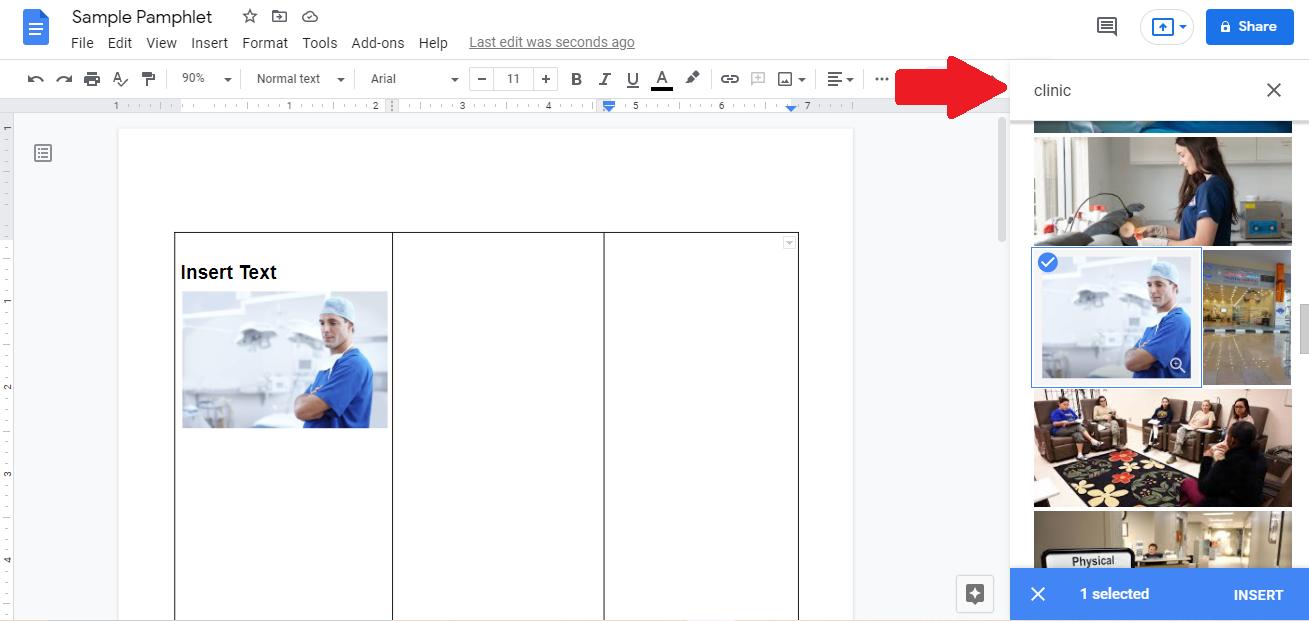
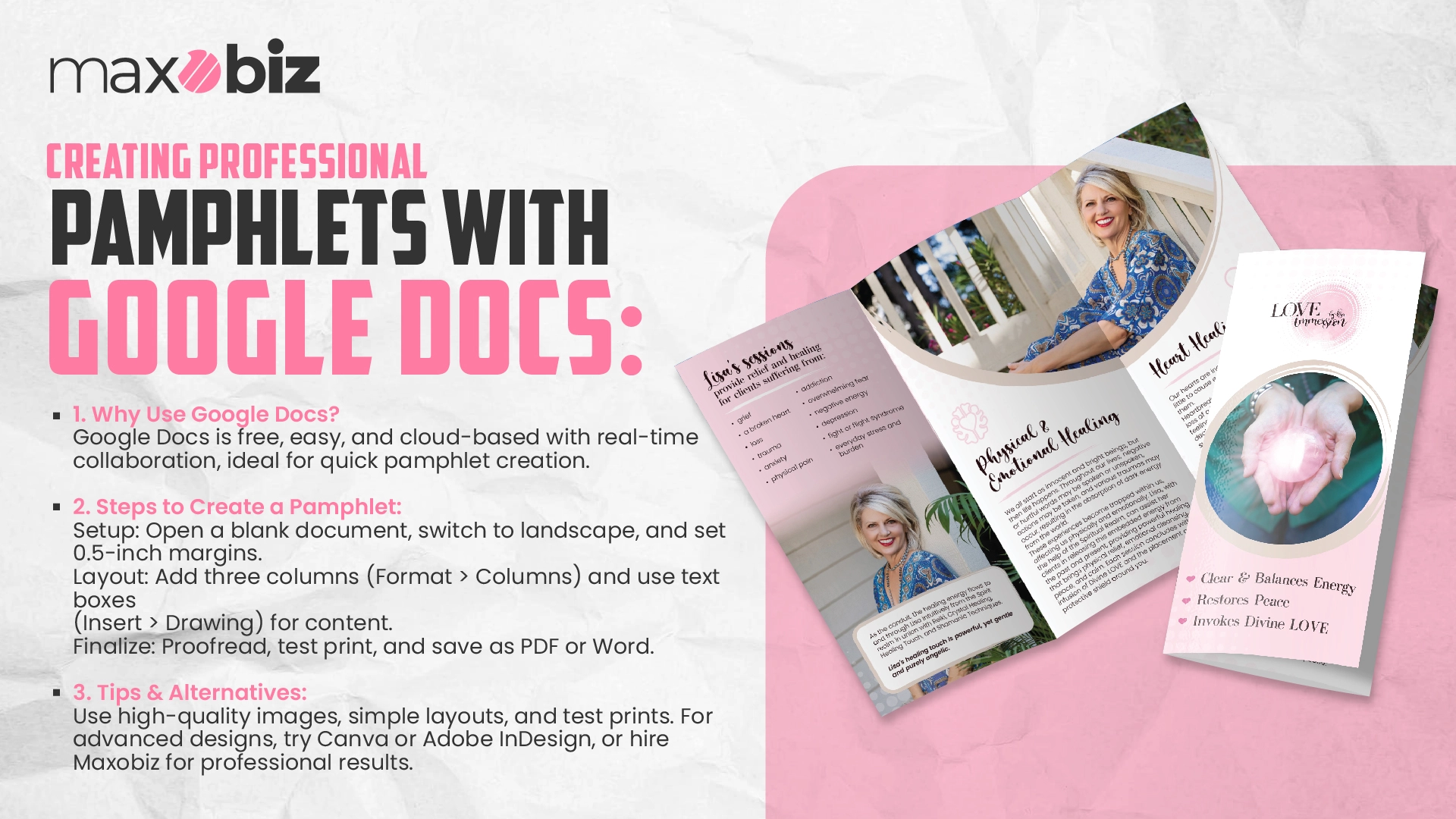
Most Google Docs pamphlet templates rely on invisible border tables or multi-column layouts to simulate a standard tri-fold brochure. Before you type a single word, click inside the sections to understand how the panels correspond to the front cover, inside flaps, and back cover once folded.
2. Set Up Your Page Orientation
A standard pamphlet requires a landscape orientation to accommodate multiple panels across a single sheet of paper. Go to File > Page setup and ensure your orientation is set to Landscape, with appropriate margins (usually 0.5 inches or less) to maximize your printable area.
3. Refine Your Typography
Keep your font choices minimal and readable. Stick to a maximum of two font families: one distinct header font (like Montserrat or Playfair Display) and one clean body font (like Roboto or Open Sans). Use Google Docs' paragraph styles to maintain consistent headings throughout the panels.
4. Integrate Visuals Strategically
Images sell the message. Insert high-resolution photos, vector icons, or company logos by navigating to Insert > Image. Use the built-in image options in Google Docs to adjust contrast, transparency, or text wrapping so your graphics complement the text rather than overwhelm it.
Best Practices for Printing and Exporting
Designing the pamphlet is only half the battle; getting it onto physical paper requires careful export settings.
- Check Your Bleed and Margins: Ensure your important text isn't sitting too close to the edge of the panel, where standard home printers might clip it off.
- Download as a PDF: Never send a Google Doc directly to a professional printer. Always go to File > Download > PDF Document to lock in your fonts, image placements, and formatting.
- Test Print First: Print a single test copy on regular printer paper and fold it manually to check panel alignment before running a full batch on cardstock.
Conclusion
You don't need a bloated software stack or a massive budget to create compelling marketing materials. By choosing to streamline your design process with Google Docs pamphlet templates, you empower your entire team to collaborate efficiently, iterate quickly, and produce clean, professional brochures that captivate your audience.