Google Photos Shared Album: Complete Guide
Gathering pictures from vacations, family gatherings, or weddings often turns into a messy game of chasing down group texts and expired download links. Setting up a google photos shared album solves this problem by creating a centralized, high-resolution hub where everyone can contribute, regardless of whether they use Android, iOS, or a desktop computer.

Unlike standard text attachments that compress images aggressively, a shared album maintains original metadata, organizes shots chronologically, and allows continuous contributions over time. Below is everything you need to know about setting up, managing, and securing shared albums on Google Photos.
How to Create a Google Photos Shared Album
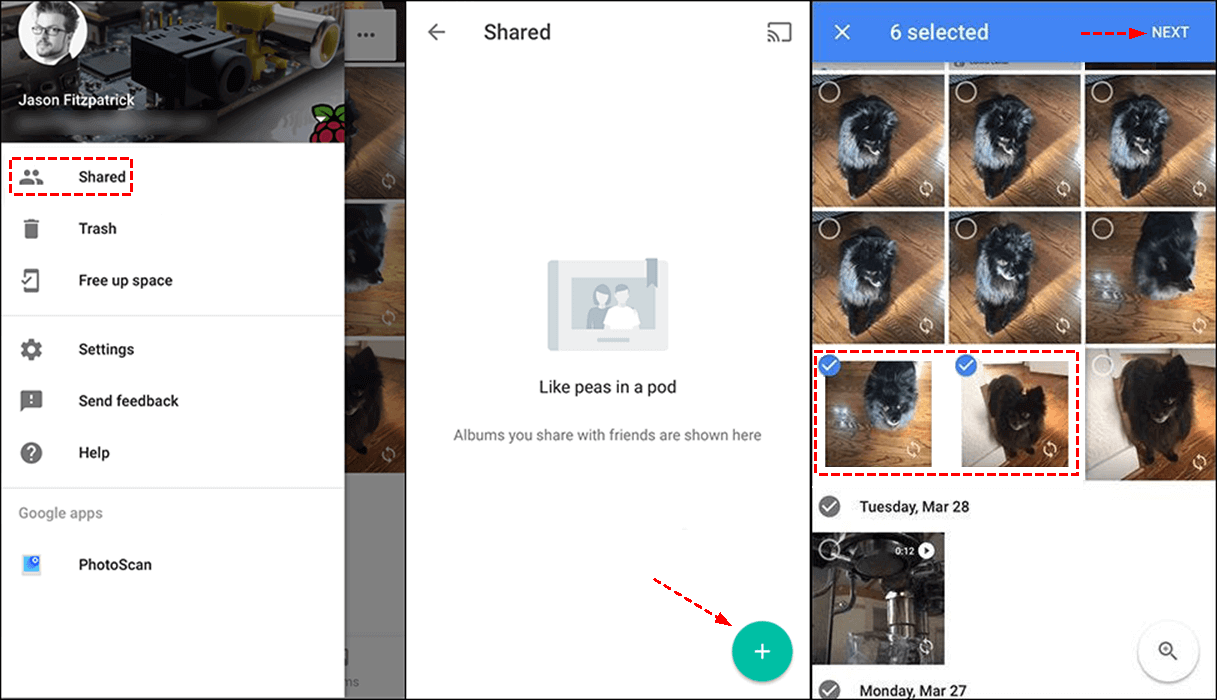
Creating an album takes only a few taps or clicks. The interface is virtually identical on Android and iOS, with slight layout variations on the desktop web interface.
On Mobile (Android & iPhone)
- Open the Google Photos app.
- Tap the Photos tab to choose existing photos, or tap Library (or Collections in updated app versions) and select Albums.
- Select New Album (the plus icon).
- Add a title for your album.
- Tap Select photos to add initial pictures, then tap Add in the top-right corner.
- Tap the Share button. You can now invite contacts directly via their Google account email, send an invite via SMS, or generate an open link.
On Desktop (Web Browser)
- Navigate to photos.google.com and sign in.
- Click Explore or Albums on the left navigation sidebar.
- Click Create album at the top.
- Enter an album title and click Add photos.
- Select the pictures you want to include and click Done.
- Click the Share icon (three connected dots) in the top-right corner to invite collaborators or generate a shareable URL.
Understanding Storage Quotas in Shared Albums
One of the most common points of confusion is how shared albums impact the 15 GB free storage allotment provided by Google Accounts.
- The Contributor Pays the Storage: A photo or video only uses storage space in the Google account of the person who uploaded it. If a friend uploads 2 GB of 4K vacation video to your shared album, that 2 GB consumes their Google One quota, not yours.
- Saving Photos to Your Library: If you view an image uploaded by someone else and tap the Save button (the cloud icon with a down arrow), a copy is linked to your library. Under Google's current architecture, that saved photo does not count against your storage quota as long as the original uploader keeps it in their library. If they delete their copy, the photo remains in your library and then begins counting against your storage quota.
Key Settings and Collaboration Controls
Once your album is active, you retain full administrative control over who sees it and who can contribute. Open the album, tap the three dots menu, and select Options to adjust these controls:
Collaborate (Let Others Add Photos)
Toggle this on if you want guests to upload their own snaps. When disabled, the album acts as a read-only gallery where participants can view and download photos, but cannot add new media.
Comments and Likes
By default, viewers can heart photos and leave text comments. Disabling this toggle keeps the gallery clean and purely visual, which is useful for professional portfolios or public showcase links.
Link Sharing
Link sharing allows anyone with the URL to view the album. While convenient, it is the least secure sharing method. If you disable link sharing, only the specific Google accounts you invited directly can access the contents.

Advanced Tips for Power Users
1. Automate with Live Albums (Auto-Add Faces)
If you regularly share photos of your children or pets with grandparents, manual uploading gets tedious. You can turn any shared album into a “Live Album.” In the album options, select Automatically add photos and pick the faces you want to include. Google Photos will automatically detect those faces in new pictures you take and push them straight into the shared album.
2. Hide Photo Location Data for Privacy
Smartphones tag every picture with exact GPS coordinates. When you share an album via a public link, anyone viewing the photo might be able to see where you live, work, or travel. In the album options, look for Hide photo location data. When switched on, Google Photos strips embedded EXIF geographic data from images viewed through that album.
3. Distinguish Shared Albums from Partner Sharing
Google Photos also offers a feature called Partner Sharing. Do not confuse this with a standard shared album:
- Shared Albums are project-based: suited for trips, events, projects, or specific groups.
- Partner Sharing is bilateral and ongoing: it shares your entire photo library (or all photos containing specific faces) with a single trusted person, like a spouse.
How to Leave or Delete a Shared Album
If an event is over or you no longer want to participate in an album, you have two options depending on your role:
- If you are the owner: Deleting the album removes it for everyone. Any photos you originally took stay in your personal main library, but the shared collection ceases to exist. Photos contributed by others will simply return exclusively to their individual libraries.
- If you are a member: Open the album, tap the three dots, and select Leave album. Your uploaded photos will typically be removed from the shared view, but they remain safely stored inside your personal Google Photos library.
Troubleshooting Common Issues
Why are photos uploading in lower quality?
Check the backup settings on the device uploading the photos. If the uploader has their backup setting set to “Storage saver” instead of “Original quality,” the photos will upload compressed (16 megapixels for photos, 1080p for video).
Why can't someone join the album?
A single shared album can hold up to 20,000 photos and videos. If that limit is reached, contributions will fail. Additionally, if link sharing is toggled off and the invite was sent to an address not associated with an active Google Account, the recipient will be prompted to sign in before they can see anything.
Summary
Using a shared album in Google Photos is the most frictionless way to collect memories across different operating systems without sacrificing quality. By reviewing privacy toggles, understanding storage mechanics, and utilizing automation tools like Live Albums, you can create seamless digital scrapbooks for any occasion.