Gorilla Tag Mods Download PC: Safe 2025 Setup Guide
Gorilla Tag is one of the most dynamic VR titles available, but playing the vanilla game is only half the fun. Custom cosmetics, custom maps, and creative movement tweaks can transform your gameplay entirely. If you are looking for a reliable gorilla tag mods download pc tutorial, this guide walks you through the entire setup process safely and efficiently using industry-standard community tools.

Prerequisites: What You Need Before Modding
Before installing any modifications, ensure your setup meets the necessary criteria. Modding Gorilla Tag is significantly easier and safer on PC than on standalone Quest hardware, but you must own the PC version of the game.
- A PC-compatible copy of Gorilla Tag: You must own the game either via SteamVR or the Meta Quest PC app (formerly Oculus PC). The standalone Quest version does not use these specific PC files.
- A VR Headset connected to PC: A Meta Quest 2, 3, or Pro linked via Quest Link cable, AirLink, or Virtual Desktop; or a dedicated PCVR headset such as the Valve Index.
- At least one clean game launch: Launch Gorilla Tag unmodded at least once and enter a lobby. This generates the necessary system configuration files on your storage drive.
Gorilla Tag Mods Download PC: Step-by-Step Installation
The standard, community-verified method for installing mods on PC is via MonkeModManager. This lightweight utility manages core libraries, dependencies, and mod installations automatically.
Step 1: Download MonkeModManager
Navigate to the official GitHub repository for DeadlyKitten's MonkeModManager. Avoid downloading this tool from random mirror sites or third-party file hosts, as these can contain malware or outdated binaries. Locate the Releases section on the right side of the GitHub page and download MonkeModManager.exe.
Step 2: Point to Your Game Directory
Run the executable. In most cases, MonkeModManager detects your Gorilla Tag install path automatically. If it displays an error saying it cannot locate the game, you will need to manually select your Gorilla Tag.exe file.
- Default Steam Path:
C:\Program Files (x86)\Steam\steamapps\common\Gorilla Tag - Default Oculus/Meta Path:
C:\Program Files\Oculus\Software\Software\another-axiom-gorilla-tag
Step 3: Select Essential Core Libraries
MonkeModManager displays a checklist of mods and libraries. Before adding cosmetic items or gameplay tweaks, you must select the foundational dependencies at the bottom of the window under Libraries:
- BepInEx: The underlying modding framework that injects code into Unity games.
- Utilla: A critical mod management library that routes modded players into dedicated private rooms to prevent automatic bans.
- Newtonsoft.Json: Handles data parsing for custom maps and cosmetics.
- TMPLoader: Ensures custom in-game text and menus render correctly.
Step 4: Install and Patch
Once you have checked your desired libraries and introductory mods, click the Install / Update button in the bottom-right corner. The status bar will read "Install Complete" after downloading and applying the files to your directory.
How to Install Custom Standalone Mods (.dll Files)
Not every mod is listed inside MonkeModManager. Independent creators often release custom mods—such as custom cameras for streaming or unique cosmetics—as standalone .dll files via Discord communities or GitHub.
- Download your desired
.dllfile from a verified creator or the official Gorilla Tag Modding Group (GTMG) Discord server. - Open MonkeModManager and navigate to the Utilities tab.
- Click the BepInEx Folder button. This opens your system file explorer directly to your installation's mod folder.
- Open the
pluginssubfolder. - Drag and drop your downloaded
.dllfile directly into thispluginsdirectory. - Launch Gorilla Tag through SteamVR or Meta Quest Link.
Popular and Safe Mods to Try First
If you are unsure where to begin, these well-maintained mods improve the experience without breaking the game or compromising safety:
- GorillaCosmetics: Allows you to wear community-created hats, custom badges, and unique materials visible to other players running the mod.
- Yeggi's Camera Mod: A must-have for content creators. It provides third-person camera angles, smooth stabilization, and FOV adjustments on your PC monitor.
- MonkeMapLoader: Enables community-made custom parkour, climbing, and exploration maps that expand far beyond the default Forest and Canyon zones.
How to Avoid Account Bans While Modding

Another Axiom, the developers of Gorilla Tag, enforce strict anti-cheat policies. Violating these rules can result in temporary or permanent hardware-level bans. To keep your account safe, follow these non-negotiable rules:
1. Never Use Advantageous Mods in Public Rooms
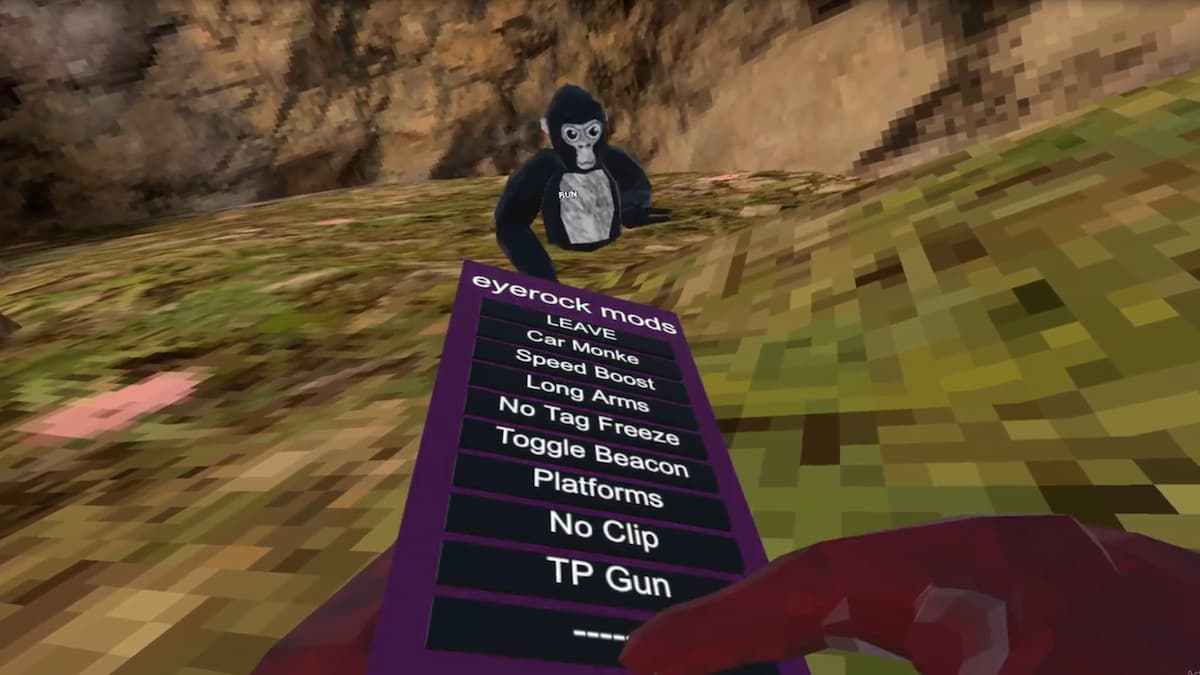
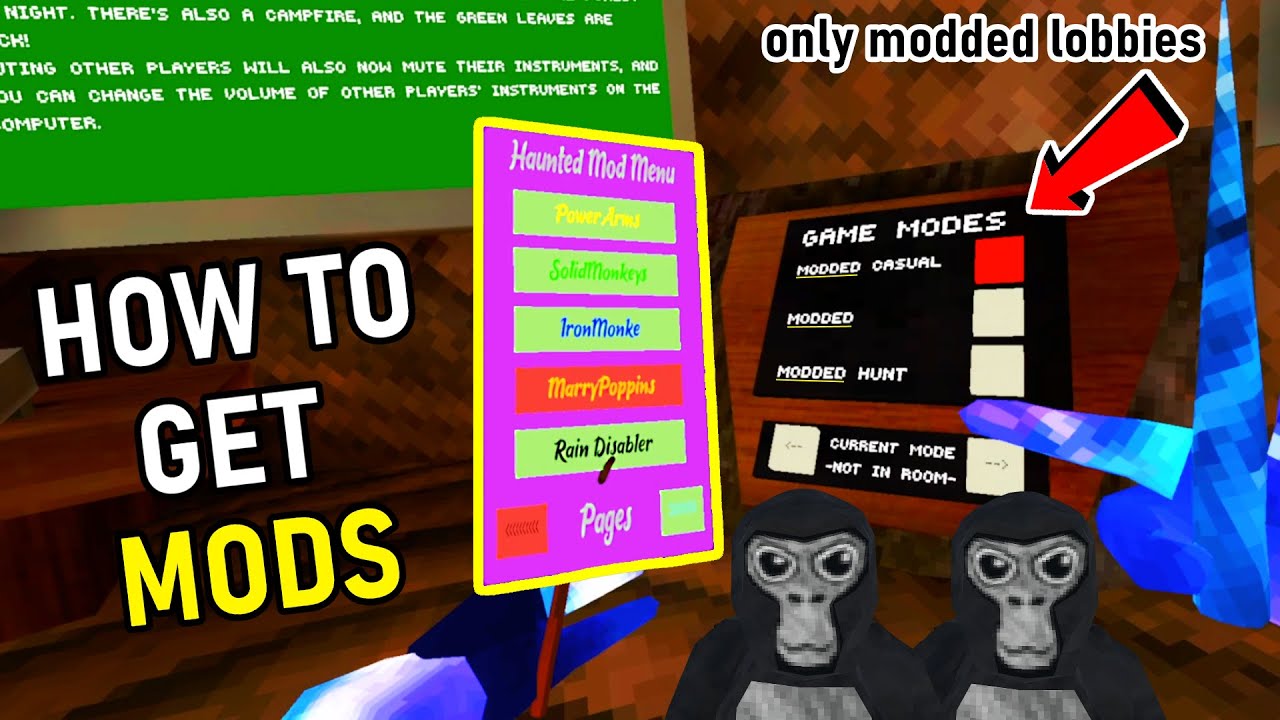
Speed boosts, platforms, long arms, teleportation, or fly mods used in public lobbies will get you reported and automatically banned by the game's telemetry. Utilla is designed to prevent this by forcing modded clients into rooms with the "-MODDED-" queue prefix.
2. Always Play in Private Codes
If you intend to experiment with movement mechanics or map loaders, always join a private room with friends who consent to playing with mods. Modded rooms are unranked and safe for creative experimentation.
3. Beware of Unverified Mod Menus
Do not download random "cheat menus" or "free cosmetics" from unknown YouTube links or unmoderated Discord servers. These files frequently contain credential-stealers (rats) designed to hijack Discord and Steam accounts, or outdated code that immediately triggers anticheat flags.
Troubleshooting Common PC Modding Issues
If your mods are not working as expected, use this checklist to resolve the most common issues:
Mods Disappear After a Game Update
Whenever Gorilla Tag receives an official update, Steam overwrites modified game files, breaking compatibility. Open MonkeModManager, verify your paths, re-check BepInEx and Utilla, and click Install / Update. If mods still fail to load, you must wait for mod creators to update their .dll files for the new patch.
The Game Crashes on Startup
A crashing game usually indicates an outdated or conflicting .dll file inside your BepInEx/plugins folder. Remove all files from the plugins directory except for Utilla and add your mods back one at a time to identify the conflicting file.
MonkeModManager Cannot Download Files
GitHub occasionally limits unauthenticated API requests, causing MonkeModManager to throw download errors. If this happens, wait a few minutes, disable active VPN services that might be rate-limited, or run MonkeModManager as an Administrator.
Summary
Modding Gorilla Tag on PC elevates the game into an expansive sandbox. By downloading MonkeModManager, keeping your core BepInEx and Utilla plugins updated, and restricting modded play to private lobbies, you can enjoy custom maps and cosmetics smoothly and safely.