Guide to Managing a Prepaid Xfinity Account
If you want home broadband without credit checks, long-term contracts, or surprise monthly fees, setting up a prepaid xfinity account is one of the most accessible options available. Powered by Comcast’s nationwide cable network, Xfinity Prepaid Internet offers pay-as-you-go access that lets you purchase service in advance and pause whenever you need to.
Whether you are moving into a short-term rental, repairing your credit, or simply trying to keep a strict household budget, this guide walks you through everything you need to know about starting, managing, and maintaining your prepaid service.
How Xfinity Prepaid Internet Works
Standard cable internet operates on a postpaid model: you get service upfront and pay a monthly bill roughly three weeks later, often subject to credit screenings and equipment rental fees. In contrast, Xfinity Prepaid requires upfront payment for both equipment and service blocks.
Once you own the starter equipment, you simply buy time increments—typically a 7-day or 30-day service pass. When your purchased time runs out, your internet stops until you renew it. There are no late fees, termination penalties, or complex cancellation procedures.
How to Set Up Your Prepaid Xfinity Account
Getting your account running involves two primary steps: acquiring the hardware and completing activation online.
Step 1: Purchase the Starter Kit
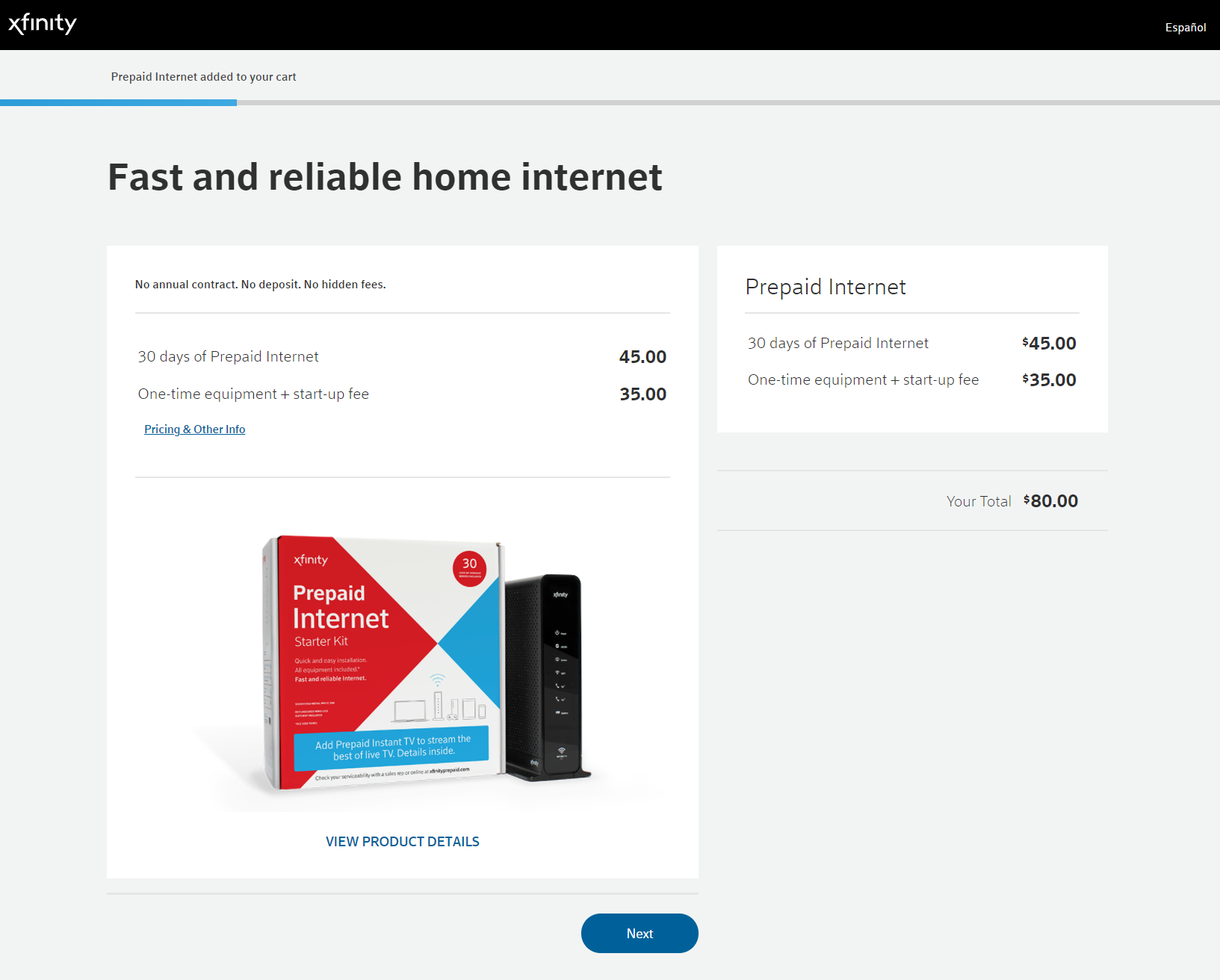
Unlike standard Xfinity services where you might rent a gateway for a recurring monthly fee, prepaid subscribers purchase an Xfinity Prepaid Starter Kit outright. You can buy the kit online through the official Xfinity Prepaid portal or pick one up in person at select retail locations, such as Xfinity retail stores and participating retailers like Boost Mobile.
The kit includes:
- A certified Wi-Fi gateway (modem/router combo).
- A coaxial cable and power cord.
- An Ethernet cable for wired connections.
- Your first 30 days of service included in the initial purchase price.
Step 2: Connect the Hardware
Before creating your account credentials, connect the hardware in your home:
- Locate an active coaxial wall outlet.
- Screw one end of the coaxial cable into the wall and the other into the gateway. Hand-tighten both ends firmly.
- Plug the power cord into the gateway and then into an electrical outlet.
- Wait roughly 5 to 10 minutes. The lights on the gateway will flash during the boot sequence and eventually settle into a steady white or green light, indicating a stable signal.
Step 3: Register and Activate Online
Connect your phone, laptop, or tablet to the gateway’s default Wi-Fi network (printed on the bottom or back of the device). Once connected, open a web browser:
- You should automatically be redirected to the activation portal (or you can navigate directly to
xfinityprepaid.com/activate). - Enter the MAC address and serial number printed on the gateway label if prompted.
- Provide your physical address to verify service availability.
- Enter your name, email address, and mobile phone number to officially create your prepaid xfinity account.
- Create a secure password and set up custom Wi-Fi network credentials (SSID and network key).
Refilling Your Account and Pricing Options
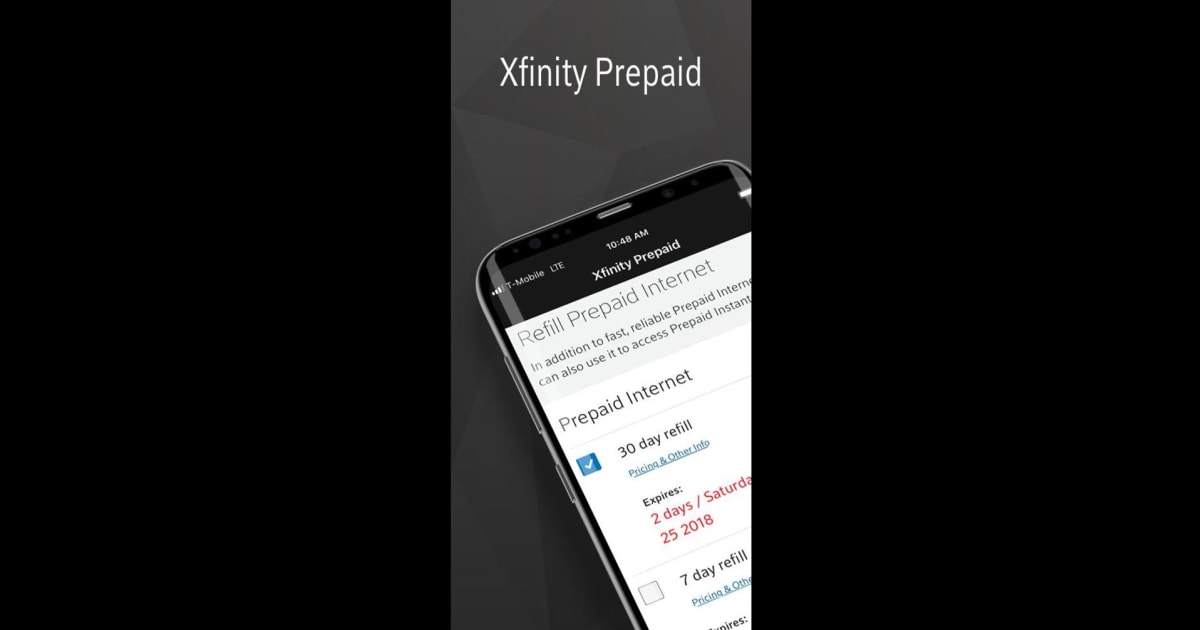
Once your included initial 30 days expire, you must purchase a refill to maintain connectivity. Xfinity provides flexible refill intervals so you only pay for what you actually use.
Refill Durations
Video: How to Create an Xfinity ID
- 7-Day Refill: Ideal if you are traveling, staying temporarily, or only need internet for a single week to finish remote projects.
- 30-Day Refill: The most popular option for permanent households looking for stable, predictable monthly pricing.
Payment Methods

Managing payment is straightforward. You can reload your service using:
- Major credit and debit cards (Visa, MasterCard, American Express, Discover).
- Prepaid debit cards.
- Cash at participating retail locations and Xfinity stores.
If you prefer an uninterrupted experience, you can enroll in Auto-Refill through your online portal. This feature automatically charges your card on file the day before your current pass expires, ensuring your connection never drops unexpectedly.
Equipment Rules: Can You Use Your Own Modem?
One critical distinction of Xfinity Prepaid is equipment policy. With standard postpaid Xfinity plans, customers can bring their own compatible, third-party DOCSIS 3.1 modems to avoid rental fees. However, with Xfinity Prepaid, you must use the official Xfinity Prepaid Gateway that comes in the Starter Kit.
Because you purchase this gateway outright during enrollment, there is no recurring monthly modem rental fee. The hardware is yours to keep, and if you deactivate service for a few months and return later, you can reuse the exact same gateway without buying a new kit.
Prepaid vs. Postpaid Xfinity: Key Differences
Before settling on a prepaid account, consider how it stacks up against standard cable packages:
- Credit Requirements: Prepaid requires no Social Security Number, credit check, or deposit. Postpaid plans often require a credit inquiry or security deposit for new customers.
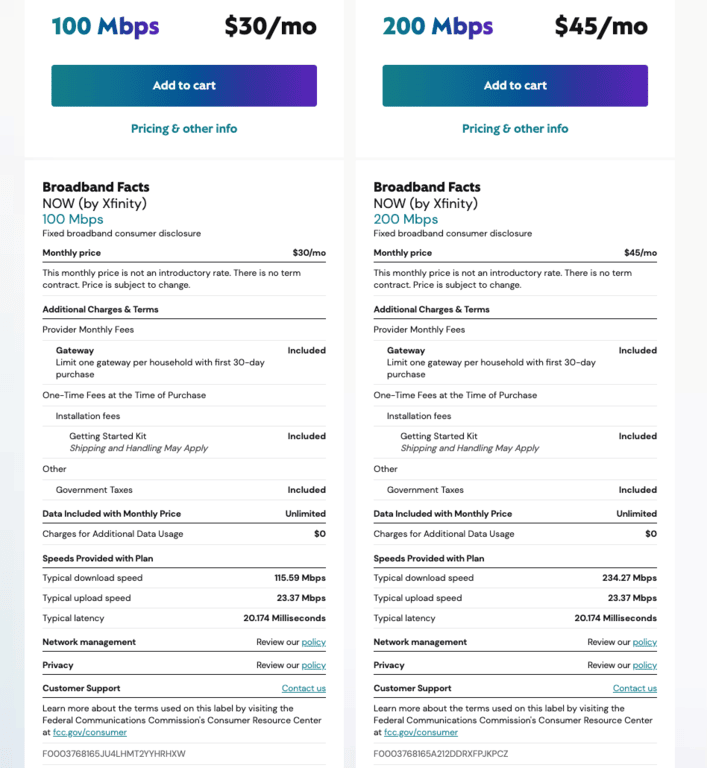
- Speed Tiers: Prepaid plans typically feature fixed speeds (generally 50 Mbps down and 10 Mbps up, or up to 100–200 Mbps depending on local network upgrades and current packaging). Postpaid plans offer higher tier options up to Gigabit speeds.
- Data Allowances: Prepaid accounts include unlimited data with no overage charges. Standard postpaid plans in some regions enforce a 1.2 TB monthly data cap unless an unlimited add-on is purchased.
- Contracts: Prepaid has zero contractual obligation. Standard plans often bundle discounts in exchange for 1- or 2-year service agreements.
Troubleshooting Common Account and Signal Issues
If your service suddenly stops or you encounter connectivity errors, check these common fixes:
1. Service Expiration
The most frequent cause of lost internet access is an expired service pass. When a pass lapses, you can still access the Xfinity Prepaid portal through your connected Wi-Fi network. Open any browser, navigate to your account dashboard, and check the expiration date. If it has passed, submit a payment for an instant refill.
2. Gateway Lights Flashing Amber or Red
If the gateway displays a flashing light that fails to stabilize, it usually indicates a signal delivery problem rather than an account billing error. Check the coaxial cable connections on both the back of the device and the wall outlet. If your home has multiple coaxial outlets, try moving the gateway to a different room, as some outlets may not be wired to the active tap outside.
3. Password Recovery
If you are locked out of your management portal, visit the prepaid login page and select "Forgot Password." You will receive a verification code via SMS or email to the contact information tied to your account profile.
Is a Prepaid Xfinity Account Right for You?
A prepaid Xfinity setup is an excellent choice if you value budget certainty and flexibility over ultra-fast gaming or heavy-upload capabilities. With no long-term contracts, inclusive hardware ownership, and simple online refill tools, it delivers reliable broadband access completely on your terms.