Guide to www.kahoot.com: Play, Create & Host
Few platforms have reshaped classroom participation and workplace presentations quite like Kahoot. By heading to www.kahoot.com, educators, corporate trainers, and trivia enthusiasts gain access to a game-based learning platform that turns routine reviews and training seminars into energetic, competitive events. With its recognizable countdown music, bold primary colors, and fast-paced mechanics, the platform has become a fixture for group engagement around the globe.

Whether you are designing your first multiple-choice quiz or organizing an asynchronous review for remote employees, understanding the platform's core mechanics ensures you run smooth, productive sessions. This guide covers everything you need to navigate the service, construct high-impact learning games, and deliver them to your audience.
Getting Started on www.kahoot.com: Setup and Navigation
One common point of confusion for beginners is the difference between Kahoot's two primary web addresses:
- kahoot.com: The administrative portal where creators and presenters build quizzes, manage account settings, review historical game reports, and configure subscription tiers.
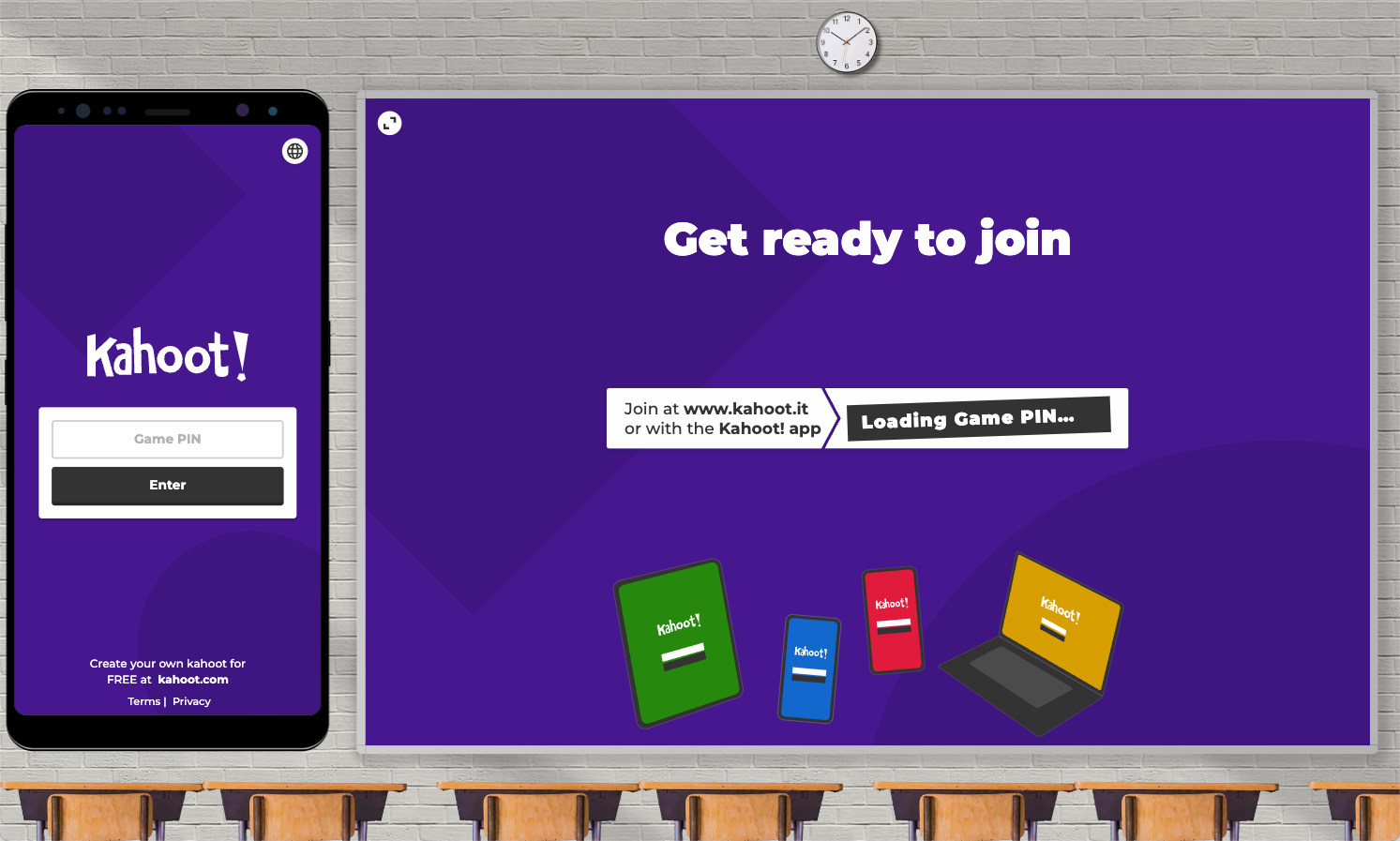
- kahoot.it: The participant portal where players enter a Game PIN to join an ongoing session without needing an account.
To begin creating content, open your browser and navigate to the main website. Click the sign-up button in the upper right corner. You will be prompted to select an account profile based on your primary use case: Teacher, Student, Personal, or Professional. Each profile customizes your dashboard templates and features.
Kahoot offers a robust free tier alongside paid subscriptions (such as Kahoot+). The free plan grants access to standard multiple-choice quizzes, basic player limits, and fundamental reports. Premium tiers introduce slide presentations, open-ended question formats, puzzles, word clouds, custom branding, and larger participant capacities.
How to Build Your First Kahoot
Once your profile is set up, building a quiz (a "kahoot") takes just minutes using the platform's browser-based creator.
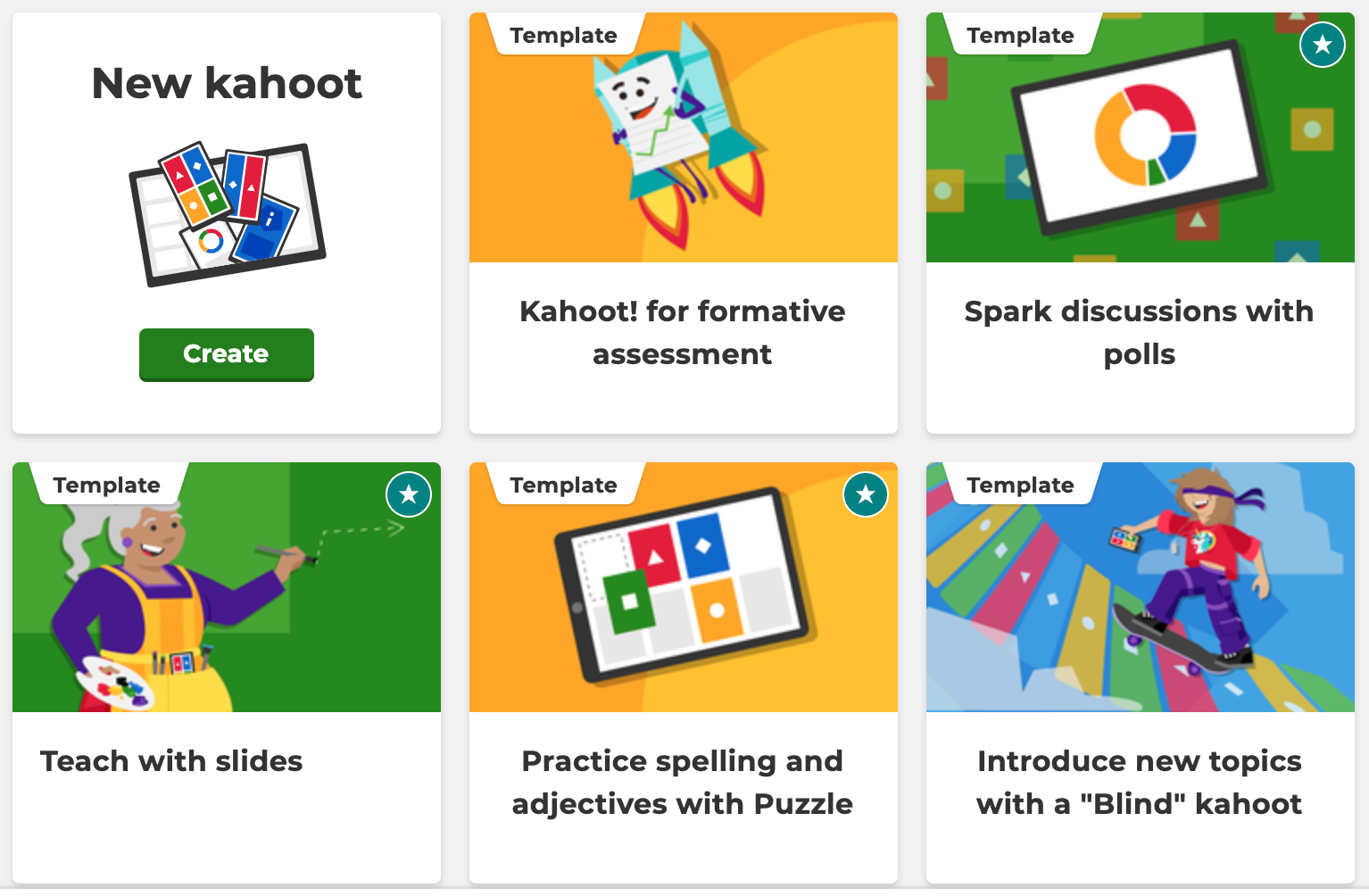
- Launch the Creator: From the top navigation bar of your dashboard, select the blue Create button and choose Kahoot. You can start with a blank canvas or pick a pre-designed template.
- Draft Questions and Answers: Enter your prompt into the main text field at the top of the screen. Beneath it, supply two to four answer choices. Mark the correct answer by clicking the circle next to the corresponding option.
- Add Visual Assets: Games are much more engaging when visual aids support the questions. Upload your own image or GIF, embed a short YouTube or Vimeo clip, or select from Kahoot's built-in media library.
- Adjust Question Mechanics: In the right-hand panel, set the time limit (from 5 seconds to 4 minutes) and assign point values (standard, double points, or no points). Pointless questions work best for icebreakers or pulse checks.
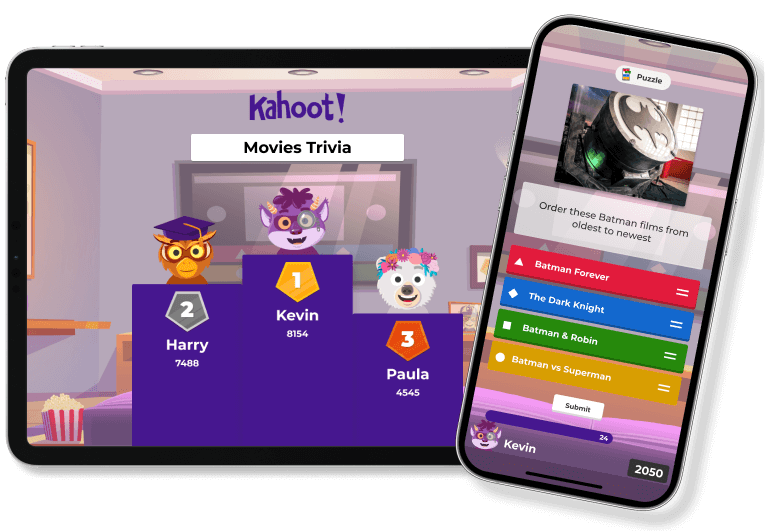
- Explore Alternate Question Types: Depending on your subscription level, you can mix standard quizzes with True/False, Puzzle (sequencing), Polls, Word Clouds, and informational slides that require no answer.
When finished, click Save. The platform will automatically check your quiz for missing answers or invalid media before adding it to your personal library.
Hosting a Game: Live vs. Self-Paced Modes
With your quiz built, you can deliver it in two distinct formats depending on your environment.
1. Live Interactive Hosting
Live mode is best suited for synchronous environments like physical classrooms, company all-hands meetings, or video conferences over Zoom or Microsoft Teams. Click Start on your quiz page to launch the lobby.
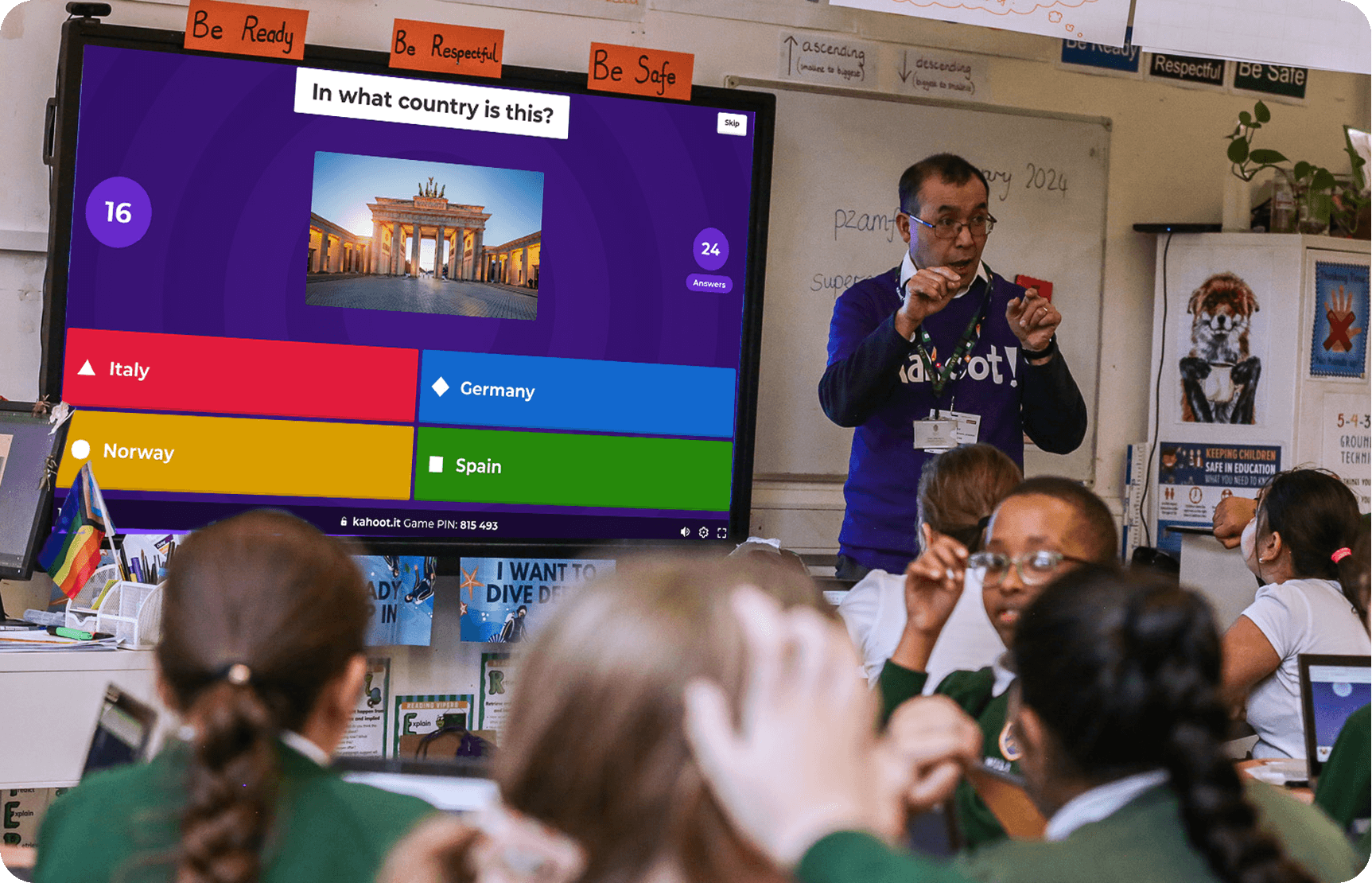
- Classic Mode: Each player connects using their own smartphone, tablet, or laptop.
- Team Mode: Players collaborate in small groups on shared devices, encouraging discussion before submitting answers.
The screen generates a unique numerical Game PIN and a QR code. Direct your participants to open their browser, visit the join address, and enter the PIN along with a display name. Once everyone is visible on the lobby screen, click Start to trigger the first question.
2. Self-Paced Assignments
If your participants are distributed across time zones or working independently, select Assign instead of live hosting. This generates a shareable link and a completion deadline. Players answer questions at their own speed, while you collect the aggregate data on the backend.
Maximizing Engagement: Best Practices for Creators
A poorly structured quiz can quickly lose its appeal. Keep these proven strategies in mind to maintain interest throughout your session:
- Vary the Rhythm: Balance straightforward recall questions with scenario-based queries. Avoid back-to-back questions with long reading requirements, which can slow game momentum.
- Calibrate the Timers: For simple arithmetic or quick vocabulary, 10 to 20 seconds is sufficient. For multi-step problem solving or diagram analysis, extend the clock to 60 or 90 seconds to avoid unnecessary panic.
- Use Slides as Breathers: Insert non-scored content slides between competitive questions to explain why an answer was correct, clarify widespread misconceptions, or transition into the next topic.
- Turn on Nickname Generators for Large Groups: If you are managing large student groups or casual events, enabling the built-in friendly nickname generator prevents inappropriate screen names from disrupting the game.
Leveraging Post-Game Analytics
The educational and training value of Kahoot extends well beyond the final podium screen. After finishing a game, navigate to the Reports tab in your dashboard.
These reports pinpoint difficult questions where a large percentage of players selected the wrong answer. You can view individual player scores, analyze completion rates for self-paced assignments, and download complete data spreadsheets (XLSX) for gradebook entry or compliance tracking. Spotting these trends allows instructors to revisit problematic concepts immediately, rather than waiting for a formal unit exam.
Troubleshooting Common Platform Issues
Even seasoned presenters run into technical hiccups occasionally. Here is how to handle the most frequent problems:
- Players Dropping Off: Intermittent Wi-Fi can disconnect mobile players. They can rejoin using the same PIN; if they re-enter their exact nickname, the platform will often restore their score.
- Lagging Question Timers: Ensure the host computer uses a stable, wired network connection when possible, especially when projecting video clips through screen-sharing software.
- Join Page Blocked: Some strict school or enterprise firewalls restrict new domains. Ensure your IT administrator has allowlisted traffic to Kahoot's game-engine domains.
Final Thoughts
By blending friendly competition with real-time feedback, Kahoot remains one of the most accessible tools for interactive learning. Whether you are checking for reading comprehension in middle school or running an onboarding refresher for new employees, mastering the setup, customization, and reporting tools will turn any passive presentation into an engaging group experience.