How Can You Upload a Picture to Google? Full Guide
If you have ever found yourself asking, how can you upload a picture to google, the answer depends entirely on what you want to achieve. Most people asking this question fall into one of three categories: they want to securely store their private photos using Google cloud storage, they want to use an image to conduct a reverse visual search, or they want their pictures to appear publicly in Google Search results.

Because Google is an ecosystem rather than a single tool, each objective requires a different approach. Below is a comprehensive walkthrough covering every method, whether your goal is personal backup, reverse image lookup, or public web visibility.
Method 1: Uploading Pictures to Google Photos (Cloud Storage & Backup)
Google Photos is the standard platform for personal image storage, automatic syncing, and organization. When you upload photos here, they remain completely private unless you manually share them with someone else.
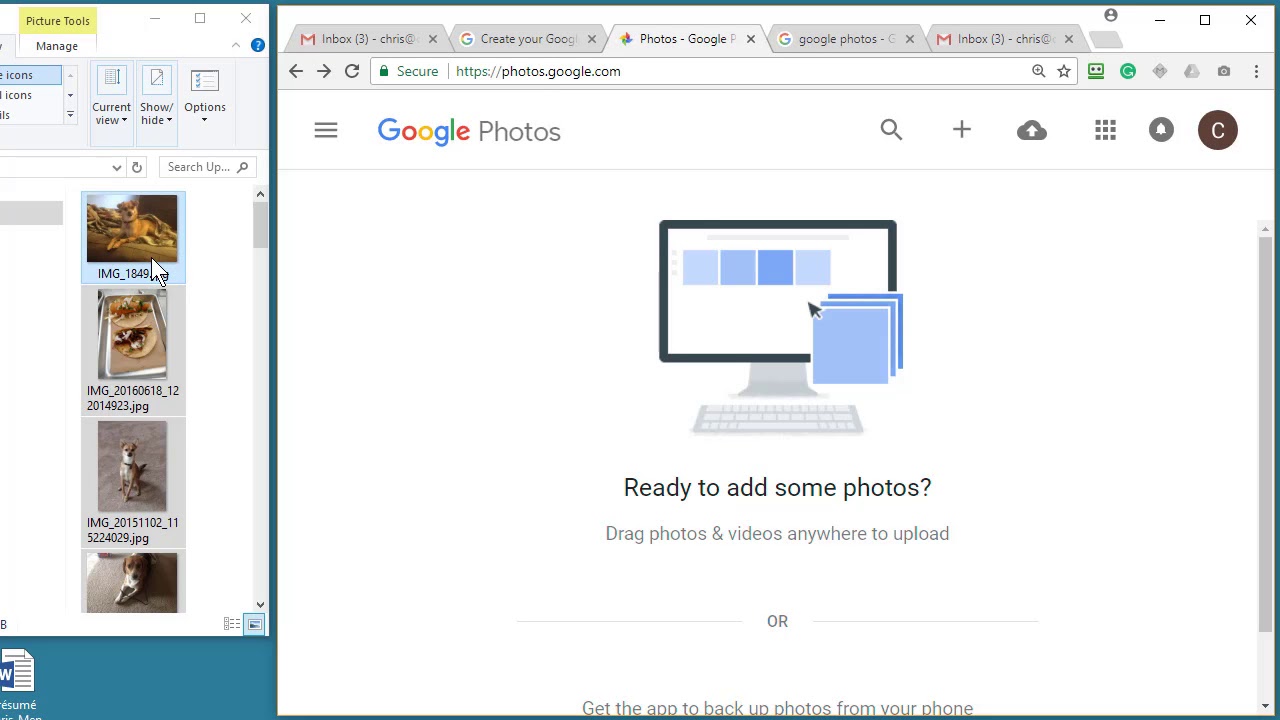
Uploading from a Computer
- Open your web browser and navigate to photos.google.com.
- Sign in with your Google account credentials.
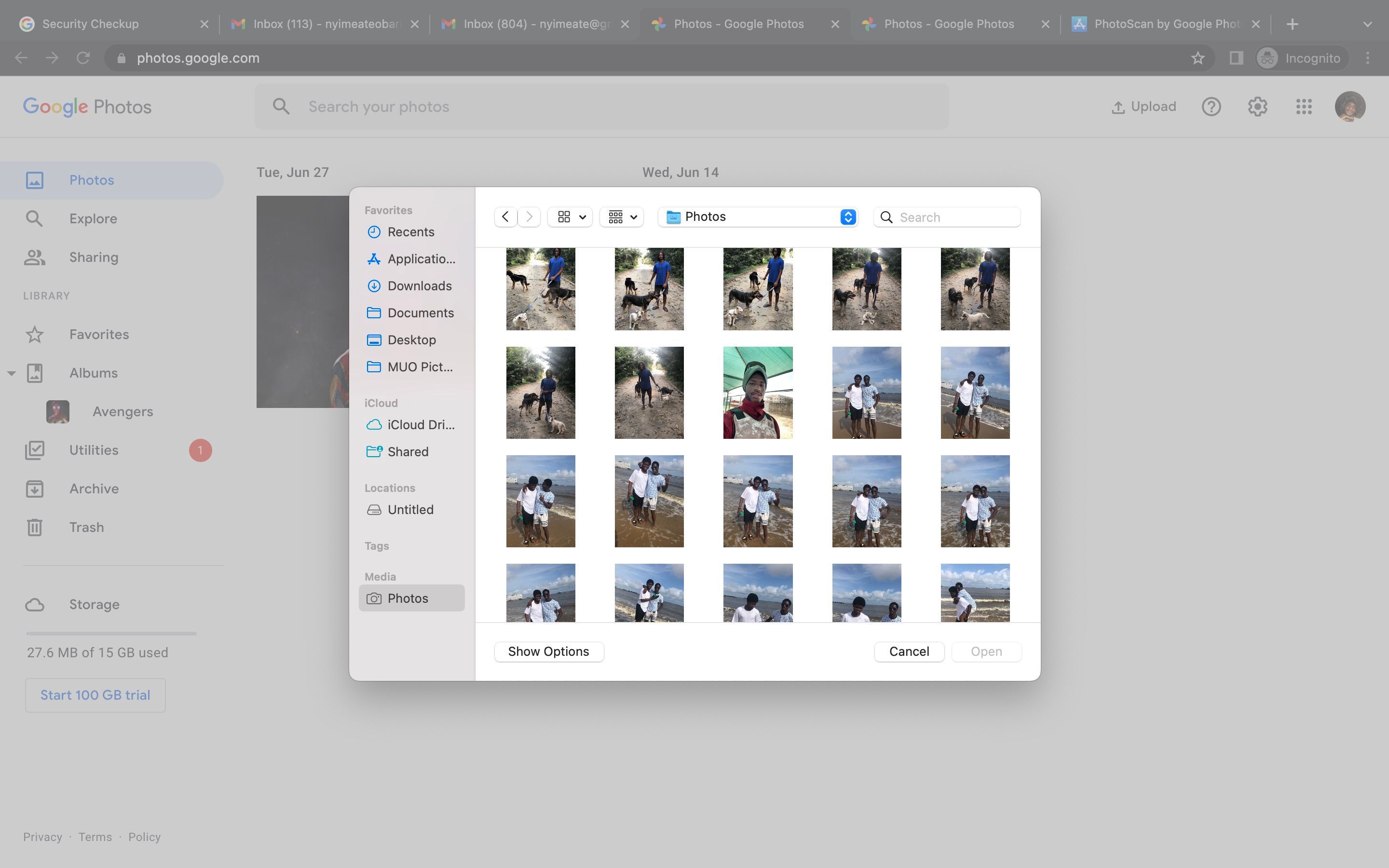
- Click the Upload button located in the top-right corner of the interface.
- Select Computer from the dropdown menu.
- Browse your local hard drive, choose the image file (or select multiple files holding
Ctrlon Windows orCmdon Mac), and click Open. - Alternatively, simply drag and drop images directly from your desktop or file explorer window into the Google Photos browser tab.
Uploading from a Smartphone or Tablet
- Download and open the free Google Photos app from the Google Play Store (Android) or Apple App Store (iOS).
- Sign in to your Google account.
- Tap your profile icon in the top-right corner and select Photos settings > Backup.
- Toggle the switch to turn on Backup. The app will automatically sync your device's camera roll to the cloud whenever you connect to Wi-Fi.
- To upload a single picture manually, locate the photo in the app, tap it, tap the three-dot menu icon, and select Back up now.
Method 2: Uploading Pictures to Google Drive
While Google Photos is optimized for browsing visual albums, Google Drive functions as a structured file cabinet. It is the better choice if you want to store images inside distinct project folders alongside documents, PDFs, or spreadsheets.
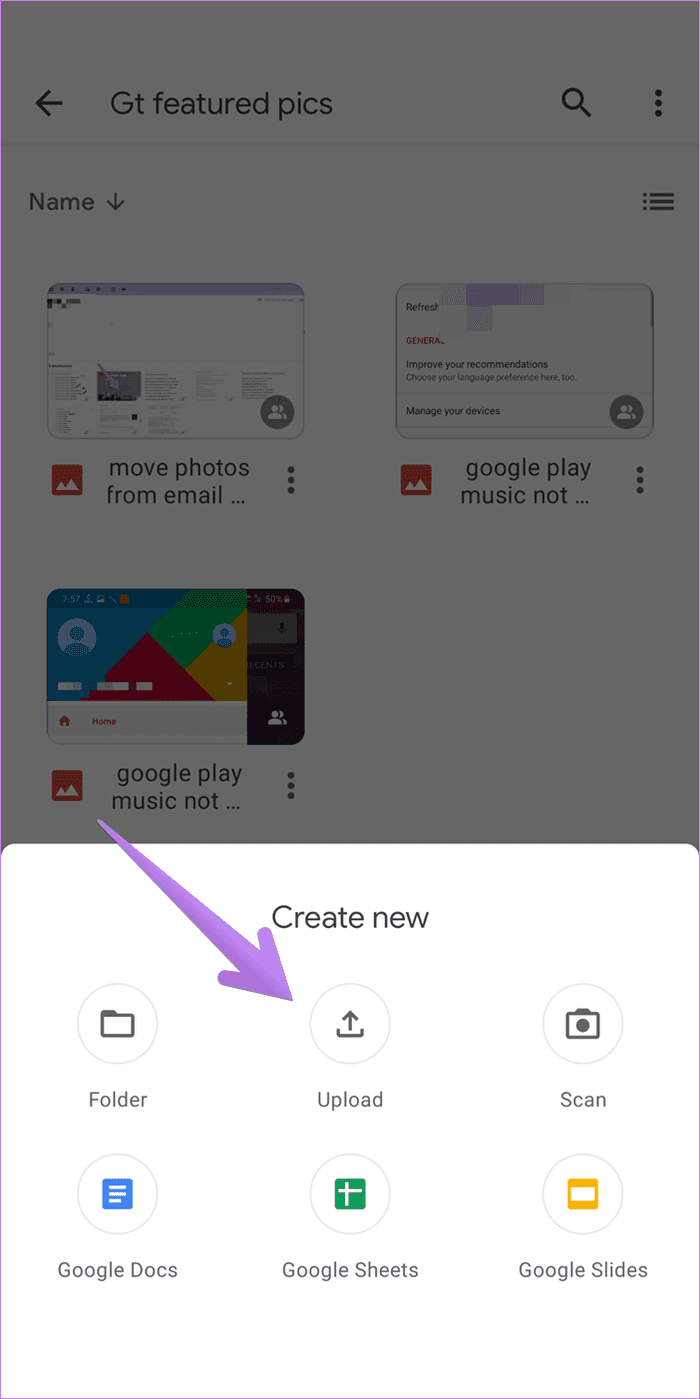
- Visit drive.google.com on your computer or open the Google Drive mobile app.
- Click or tap the + New button on the left sidebar.
- Select File upload (or Folder upload if you have an entire album to transfer).
- Choose your image and confirm. Your picture is now safely backed up in your drive.
Keep in mind that your free 15 GB storage quota is shared across Google Photos, Google Drive, and Gmail. Uploading full-resolution RAW files or large TIFF images will deplete this allocation quickly.
How Can You Upload a Picture to Google to Search with an Image?
Sometimes your goal is not file storage, but discovery. You may have an unknown plant, a piece of clothing, an artwork, or an unidentified location and want to find its origin. Google Lens lets you perform a reverse visual search using an uploaded picture.
On Desktop (Google Images)
- Go to images.google.com.
- In the search bar, look for the camera icon labeled Search by image.
- Click the camera icon to reveal the Google Lens dialogue box.
- Click upload a file, select an image from your computer, or drag an image directly into the designated area.
- Google Lens will analyze the picture and return visual matches, related web pages, and product links within seconds.
On Mobile Devices
- Open the standard Google app or the Chrome browser on your phone.
- Tap the camera icon located inside the search widget.
- Grant camera and photo permissions if prompted.
- Either point your camera at the physical object and snap a photo, or tap the gallery icon in the lower-left corner to upload an existing snapshot from your camera roll.
Method 3: How to Make Your Picture Appear on Google Web Search
A common point of confusion is how to upload a picture directly so that the general public sees it when searching Google. Google does not have a public upload portal where users can manually submit images to the search index. Instead, Google's automated web crawlers (Googlebot) discover pictures published on publicly accessible websites.
If you want your photo, portfolio, or product picture to show up in public Google Search results, follow this process:
1. Publish the Image to a Public Web Platform
Upload your picture to a platform that search engines are allowed to crawl. You can use:
- Your own website or blog (built on platforms like WordPress, Shopify, Squarespace, or Wix).
- Public social and portfolio networks like LinkedIn, Pinterest, Behance, or Wikimedia Commons.
- A Google Business Profile (ideal for local businesses displaying photos of storefronts, menus, or services).
2. Optimize the Image for Search Engines (Image SEO)
Google relies on textual context around an image to understand what it shows. To improve the chances of ranking:
- Use descriptive file names: Rename generic files like
IMG_9482.jpgto clear descriptions, such asantique-oak-dining-table.jpg, before uploading. - Add descriptive alt text: In your website's content management system, fill in the alternative text (alt text) field with a brief, accurate description of the picture. This helps both search engines and visually impaired visitors.
- Surround the image with relevant content: Place the photo on a page containing helpful, related text, appropriate page titles, and relevant headings.
- Check privacy settings: Ensure your website is not blocking search engine bots via a
noindextag or restrictiverobots.txtfile.
Best Practices for Uploading Images to Google
- Supported formats: Google Photos, Drive, and Google Images accept common formats, including JPEG, PNG, GIF, WebP, BMP, and most camera RAW formats.
- Image quality and compression: In Google Photos, choosing "Storage saver" will lightly compress pictures to save space with negligible quality loss, whereas "Original quality" preserves full camera resolution.
- Security and privacy: Pictures placed in Google Drive or Google Photos are encrypted and strictly private by default. Only users with an explicit sharing link or permissions can view them.
Summary
To recap: if you need safe cloud backup, upload directly to Google Photos or Google Drive. If you want to identify an unknown subject, use the camera icon on images.google.com to upload a visual query. Finally, if you want your pictures to appear in public search results, publish them to an indexed website or social profile using descriptive file names and alt tags.