How to Check Warranty on Surface Pro: Quick Guide
How to Check Warranty on Surface Pro: Step-by-Step

Whether you purchased a brand-new Surface Pro or bought a refurbished model, knowing your hardware coverage status is essential. If you run into unexpected hardware failures, battery degradation, or screen issues, you will want to know if repair costs are covered. Fortunately, Microsoft makes it straightforward to check warranty on Surface Pro devices using your online Microsoft account.
In this guide, we will walk you through the exact steps required to find your device details, register your hardware, and check your active warranty status in just a few minutes.
Methods to Check Your Surface Pro Warranty
There are two primary ways to verify your Microsoft Surface Pro coverage: checking online via your Microsoft account using the device serial number, or checking directly inside Windows settings if the device is currently booting up and functional.
Method 1: Check Online via Your Microsoft Account
This is the most reliable method, especially if you are buying a used device or if the Surface Pro is currently not turning on. You will need the device's serial number, which is located physically on the back of the tablet (near the bottom under the kickstand, depending on the specific model generation).
- Open any web browser and navigate to the official Microsoft Account Device Page (account.microsoft.com/devices).
- Sign in using the same Microsoft account (Outlook, Hotmail, or Live email) that is linked to your Surface Pro.
- If your device is already registered to your account, it will appear in the list of registered devices on the screen. Click on your Surface Pro to view its details, including the remaining warranty coverage.
- If the device is not listed, click on the “Register device” or “Add device” button.
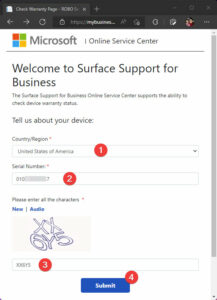
- Enter the serial number of your Surface Pro, select your country or region, and complete the registration prompt.
- Once registered, the dashboard will immediately display your current warranty status, expiration date, and eligibility for Microsoft Complete protection plans.
Method 2: Check Directly Inside Windows Settings
If your Surface Pro is fully functional and you are logged into Windows, you can check your coverage status without hunting for the physical serial number on the casing.

- Click the Start menu and open Settings (or press the Windows Key + I).
- Navigate to System and then select About (on older Windows 10 versions, go to Update & Security > Activation or System).
- Alternatively, open the pre-installed Surface app from your app list. The Surface app automatically detects your hardware model, serial number, and direct links to check your warranty status and request service.
Understanding Microsoft Surface Warranty Coverage
Standard Microsoft Surface Pro devices typically come with a one-year limited hardware warranty and 90 days of technical support from the date of purchase. However, the exact terms can vary depending on where you bought the device and whether you added an extended service plan like Microsoft Complete.
- Standard Limited Warranty: Covers manufacturing defects, mechanical breakdowns, and hardware failures under normal use. It does not cover accidental damage like drops, liquid spills, or cracked screens unless you purchased extra protection.
- Microsoft Complete: An optional extended warranty plan that typically extends hardware coverage up to two, three, or four years and adds comprehensive accidental damage protection (including drops and surges).
- Out-of-Warranty Service: If your standard warranty has expired and you did not purchase Microsoft Complete, you can still request a paid out-of-warranty repair or device replacement through Microsoft support.
What to Do If Your Warranty Has Expired
If your warranty check reveals that your coverage has lapsed, you still have several options for getting your Surface Pro fixed or replaced.
First, check your credit card benefits. Many premium credit cards automatically extend the manufacturer's warranty by an additional year if you purchased the device entirely using that card. Contact your credit card issuer's benefits administrator to file a claim.
Second, evaluate the cost of out-of-warranty repairs through Microsoft. While official Microsoft mail-in repairs can be expensive for older devices, they guarantee OEM replacement parts and certified technicians. Alternatively, local third-party repair shops may offer cheaper screen replacements or battery swaps, though these repairs will permanently void any remaining official Microsoft support eligibility.
Troubleshooting Common Warranty Check Issues
Sometimes checking your coverage does not go smoothly. Here is how to resolve common hurdles:
- Serial Number Not Recognized: Double-check the characters. Surface serial numbers often mix numbers and letters (avoid confusing the letter 'O' with the number '0'). Make sure you select the correct country region matching your point of purchase.
- Incorrect Purchase Date: If Microsoft's system shows an incorrect start date for your warranty (often happening with refurbished or third-party retailer purchases), you can usually update it. Simply contact Microsoft Support via chat or phone and provide a scanned copy of your original sales receipt showing the purchase date.
By keeping your device registered in your Microsoft account, you ensure a smooth process whenever you need to check your warranty status, file a repair claim, or secure technical assistance for your Surface Pro.