How to Connect Verizon 5G Home Internet
Switching to fixed wireless broadband is a great way to cut the cord from traditional cable providers, but getting your hardware configured correctly is essential for top speeds. Knowing how to connect Verizon 5G Home Internet properly ensures you get the strongest signal and the fastest Wi-Fi possible throughout your home. Fortunately, Verizon designs its gateway units for DIY installation, meaning you can usually get online in less than twenty minutes without needing a technician.
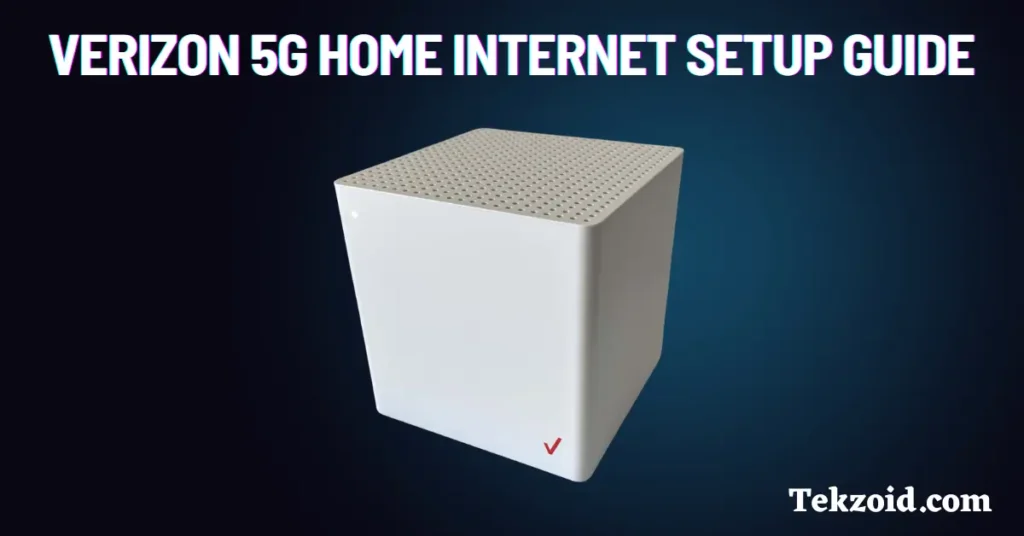
Whether you received the sleek Verizon Cube, the Outdoor Receiver, or the newer Arcadyan or WNC gateways, the setup process follows a similar, straightforward path. Below is a comprehensive guide to unboxing, positioning, and activating your new home network.
Before You Begin: Preparation
Before plugging in any hardware, a little preparation makes the setup process go much smoother. Gather everything that came in your Verizon shipping box and prepare your smartphone for the configuration process.
- Unbox your equipment: Ensure you have the Verizon Gateway router, the power adapter, and any included Ethernet cables.
- Download the My Verizon app: This app is mandatory for modern Verizon 5G Home Internet installations. It acts as your guide, checking signal strength and walking you through account activation. Ensure your phone is connected to cellular data or an alternative Wi-Fi network before starting.
- Check your account details: Have your Verizon account username and password ready to log into the app.
Step-by-Step Guide on How to Connect Verizon 5G Home Internet
Once you are prepared, you can begin setting up the physical hardware. Follow these steps carefully to establish your connection.
1. Find the Best Location in Your Home
The speed and reliability of your home internet depend heavily on where you place your gateway. 5G signals rely on line-of-sight and can be easily blocked by thick walls, concrete, metal, and energy-efficient double-pane windows.
- Place the gateway near a window on the side of your house facing the nearest Verizon cell tower.
- Keep the unit on an upper floor if possible, as higher elevations often yield better line-of-sight.
- Avoid placing the gateway in basements, near large metal appliances, or inside closed cabinets.
2. Power On the Gateway
Plug the power cord into the back of your Verizon gateway and plug the other end into a working wall outlet. Avoid using surge protectors if possible, or plug it directly into a wall socket to ensure the device receives steady, uninterrupted power.
Once plugged in, the device will begin powering up. The LED indicator light on the front will typically glow pulsing white or amber while it boots and searches for a network signal. Give the device about 3 to 5 minutes to fully power on and initialize.
3. Use the My Verizon App for Guided Setup
Open the My Verizon app on your smartphone and log in. If you are a new customer, the app should automatically prompt you to set up your new Home Internet device.
- Select the option to set up your 5G Home Internet gateway.
- Follow the on-screen prompts to scan the QR code located on the bottom of your gateway device.
- Allow the app to use your smartphone's Bluetooth to communicate with the gateway.
- The app will test your current location's signal strength. If the signal is poor, the app will advise you to move the gateway to a different window or room.
4. Personalize Your Wi-Fi Network Name and Password

Once the gateway finds a strong 5G signal and establishes a connection, the My Verizon app will prompt you to create your Wi-Fi network credentials.
By default, the gateway has a printed network name (SSID) and password on the bottom sticker. However, it is best practice to customize these during setup so you do not have to update every smart device and phone in your house. Choose a secure, unique network name and a strong password.
5. Connect Your Devices
With your custom Wi-Fi network up and running, you can now connect your computers, smartphones, smart TVs, and gaming consoles. Simply select your new network name from your device's Wi-Fi settings menu, enter your password, and verify that you have internet access by loading a webpage.
Optimizing Your Connection and Troubleshooting
If you experience slow speeds or dropped connections after initial setup, a few minor adjustments can make a dramatic difference.
Check the LED Light Indicator
The LED light on your Verizon gateway communicates its operational status:
- Solid White: Your device is connected and working normally.
- Solid or Blinking Yellow/Amber: The signal is weak. Try moving the gateway to a different window or higher elevation.
- Solid Red: There is a critical error or no service available. Unplug the device, wait 30 seconds, and plug it back in.
Relocate the Gateway
If your speeds are lower than expected, do not be afraid to unplug the gateway and move it to a completely different room. Even moving a device five feet to a window on the opposite side of a room can clear an obstruction and dramatically boost your 5G Ultra Wideband signal.
Hardwire Devices for Better Performance
If you have devices that require ultra-low latency—such as a desktop gaming PC, a work laptop, or a streaming box—utilize the Ethernet ports located on the back of the Verizon gateway. Hardwiring these high-demand devices frees up Wi-Fi bandwidth for mobile devices and smartphones throughout the house.
Conclusion
Learning how to connect Verizon 5G Home Internet is a simple process that anyone can complete in a matter of minutes. By choosing a strategic location near a window, utilizing the My Verizon app for signal optimization, and customizing your network security, you can enjoy fast, reliable wireless broadband without the hassle of professional installation appointments.


