How to Create an Apple ID: Easy Step-by-Step Guide
Whether you just unboxed a brand-new iPhone or want to access services like iCloud, Apple Music, and Apple TV+, you need an account to get started. When you create an Apple ID, you gain a single master key to Apple’s entire ecosystem, linking your hardware, purchases, cloud backups, and personal data seamlessly.

Apple has begun referring to this credential simply as an “Apple Account” in recent software updates, but the functionality remains identical. Setting one up takes only a few minutes, costs nothing, and does not require you to own an Apple device. Here is everything you need to know to create your account across any platform.
What You Need Before You Begin
Before initiating the registration process, ensure you have the following information ready:
- A valid email address: This will serve as your primary username. Make sure it is an address you check regularly and have secure access to.
- A strong, unique password: Apple requires at least eight characters, including uppercase and lowercase letters and at least one number.
- A trusted phone number: Apple uses mandatory two-factor authentication (2FA). You must provide a phone number capable of receiving SMS text messages or automated phone calls.
- Your date of birth: Required for age-appropriate service restrictions and account recovery verification.
How to Create an Apple ID on iPhone or iPad
You can set up an account either during the initial setup of your mobile device or at any time through the device settings.
Method 1: During Device Setup
- Power on your new device and follow the initial on-screen prompts for language, region, and Wi-Fi connection.
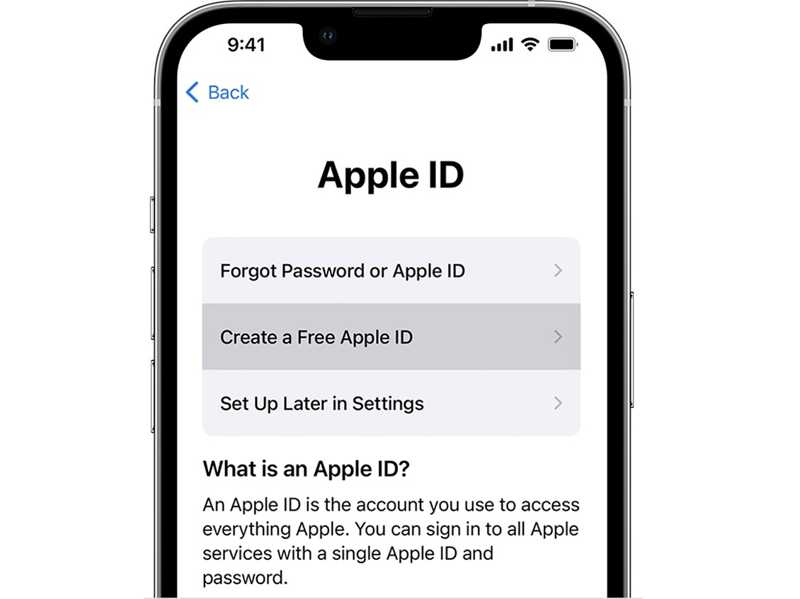
- When you reach the sign-in screen, tap “Forgot password or don’t have an Apple ID?”
- Select Create a Free Apple ID.
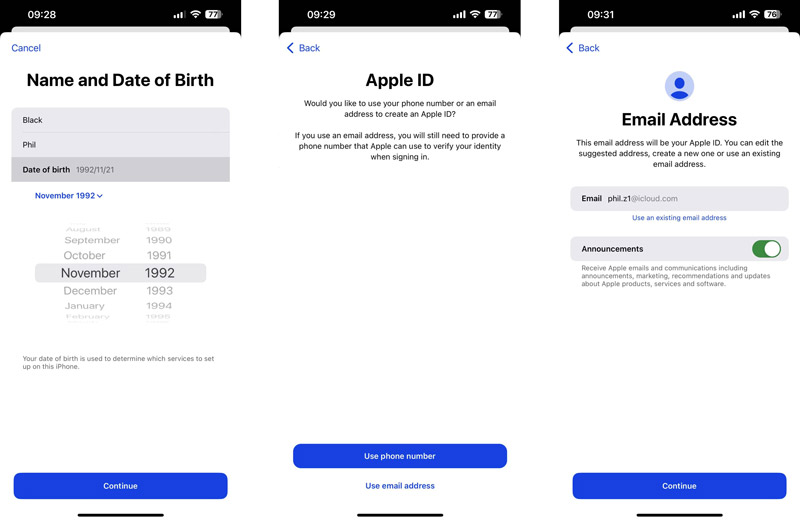
- Enter your first name, last name, and date of birth, then tap Continue.
- Choose whether to use your existing email address or generate a free @icloud.com email address.
- Create your password and set your trusted phone number for verification.
- Enter the verification codes sent to your email and phone number to finalize your setup.
Method 2: Through Device Settings
If your device is already running and no account is signed in:
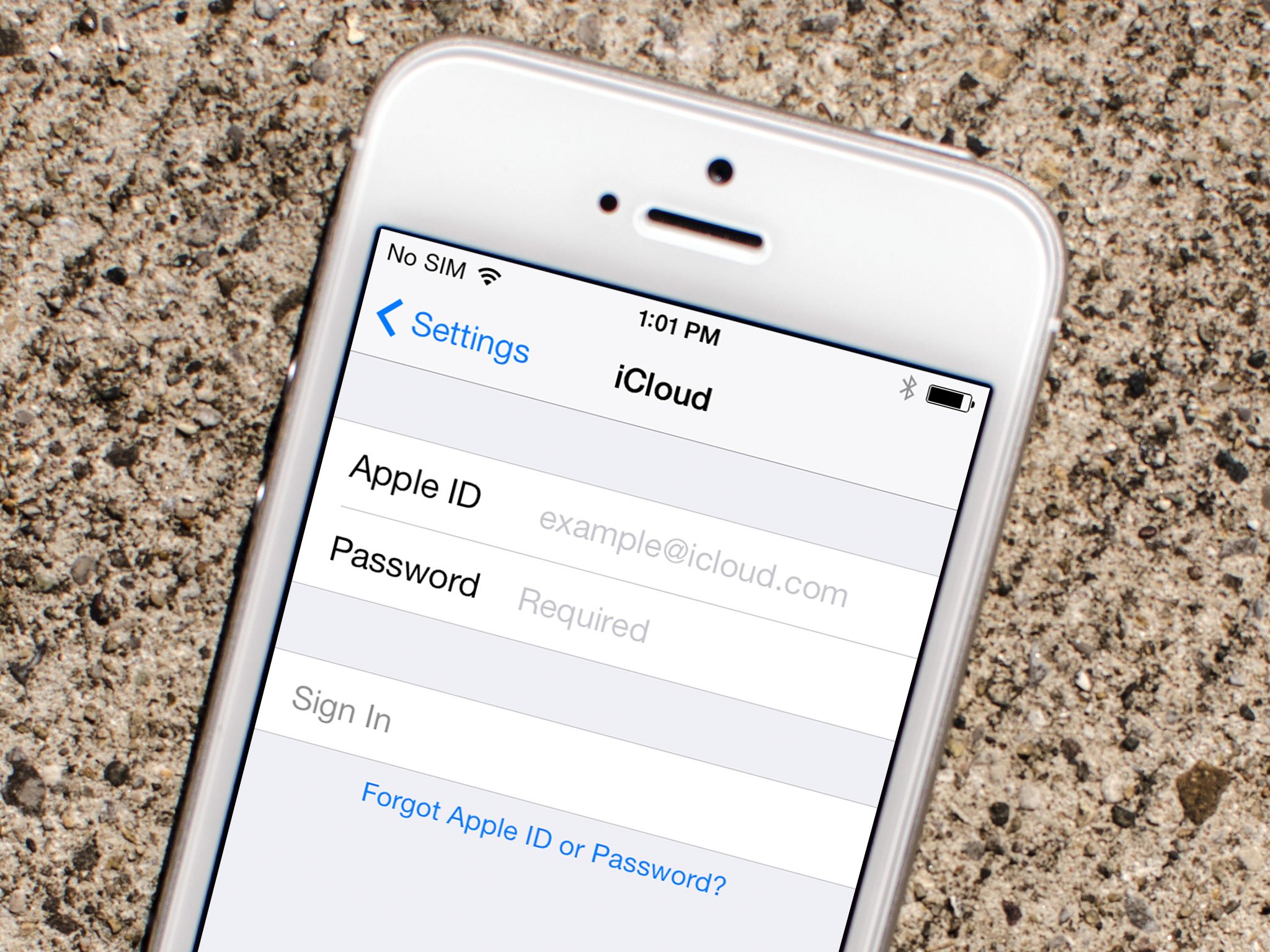
- Open the Settings app.
- Tap Sign in to your iPhone at the top of the menu.
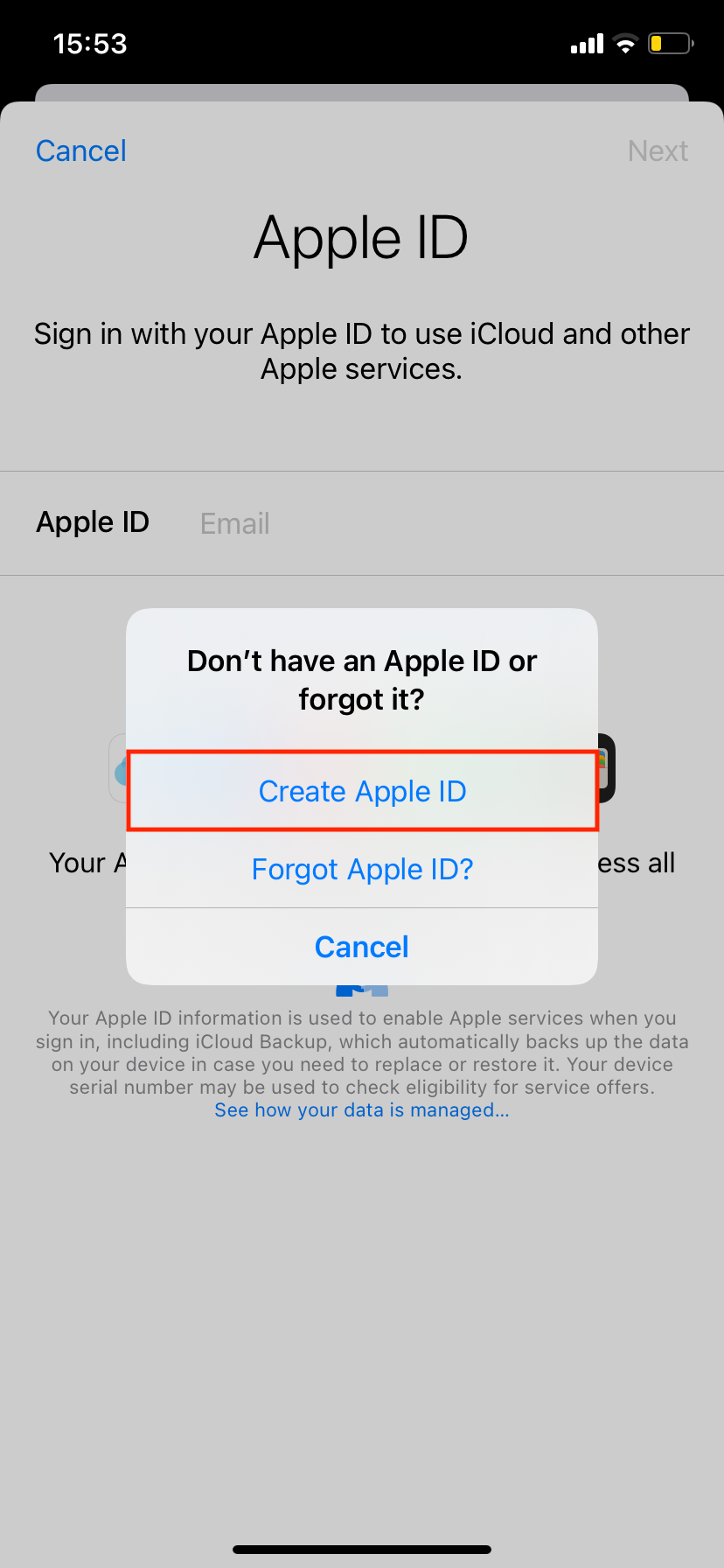
- Tap “Don’t have an Apple ID or forgot it?”
- Tap Create Apple ID and follow the prompts to submit your personal details, email, and security credentials.
How to Create an Apple ID on a Mac
If you prefer using your Mac computer, the process is handled directly through your system preferences.
- Click the Apple menu (ƒ) in the top-left corner of your screen and select System Settings (or System Preferences on older versions of macOS).
- Click Sign In at the top of the sidebar.
- Click Create Apple ID at the bottom of the window.
- Follow the on-screen instructions to enter your birth date, name, email address, and new password.
- Enter your phone number to receive a verification code via text message or phone call.
- Check your email inbox for the confirmation code sent by Apple, input the numbers into the prompt, and agree to the Terms and Conditions.
How to Create an Apple ID on a Windows PC
Windows users who need an account for Apple Music, Apple TV, or iCloud for Windows can set up an account using Apple’s desktop software.
- Download and open the Apple Music, Apple TV, or Apple Devices app from the Microsoft Store (or open iTunes if you use an older version of Windows).
- Click Sign In in the bottom-left corner of the sidebar (or choose Account > Sign In in iTunes).
- Click Create New Apple ID.
- Read and accept Apple’s Terms and Conditions.
- Fill out the registration form with your email address, a secure password, and country region.
- Provide a phone number for two-factor authentication.
- Provide billing details if you plan to buy digital media, or select “None” if you do not want to attach a payment method right now.
- Verify your email address via the numeric code sent to your inbox.
How to Create an Apple ID on the Web
If you are using an Android phone, Linux machine, Chromebook, or public terminal, you can register through any standard web browser without installing additional software.
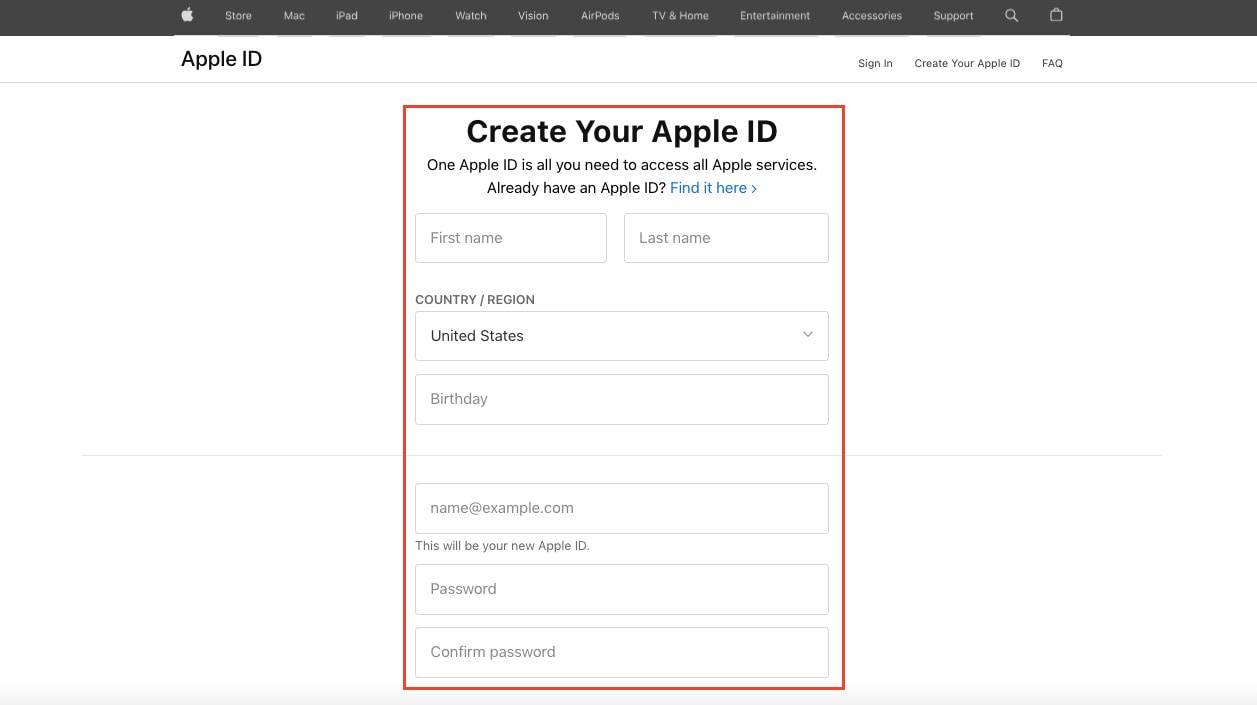
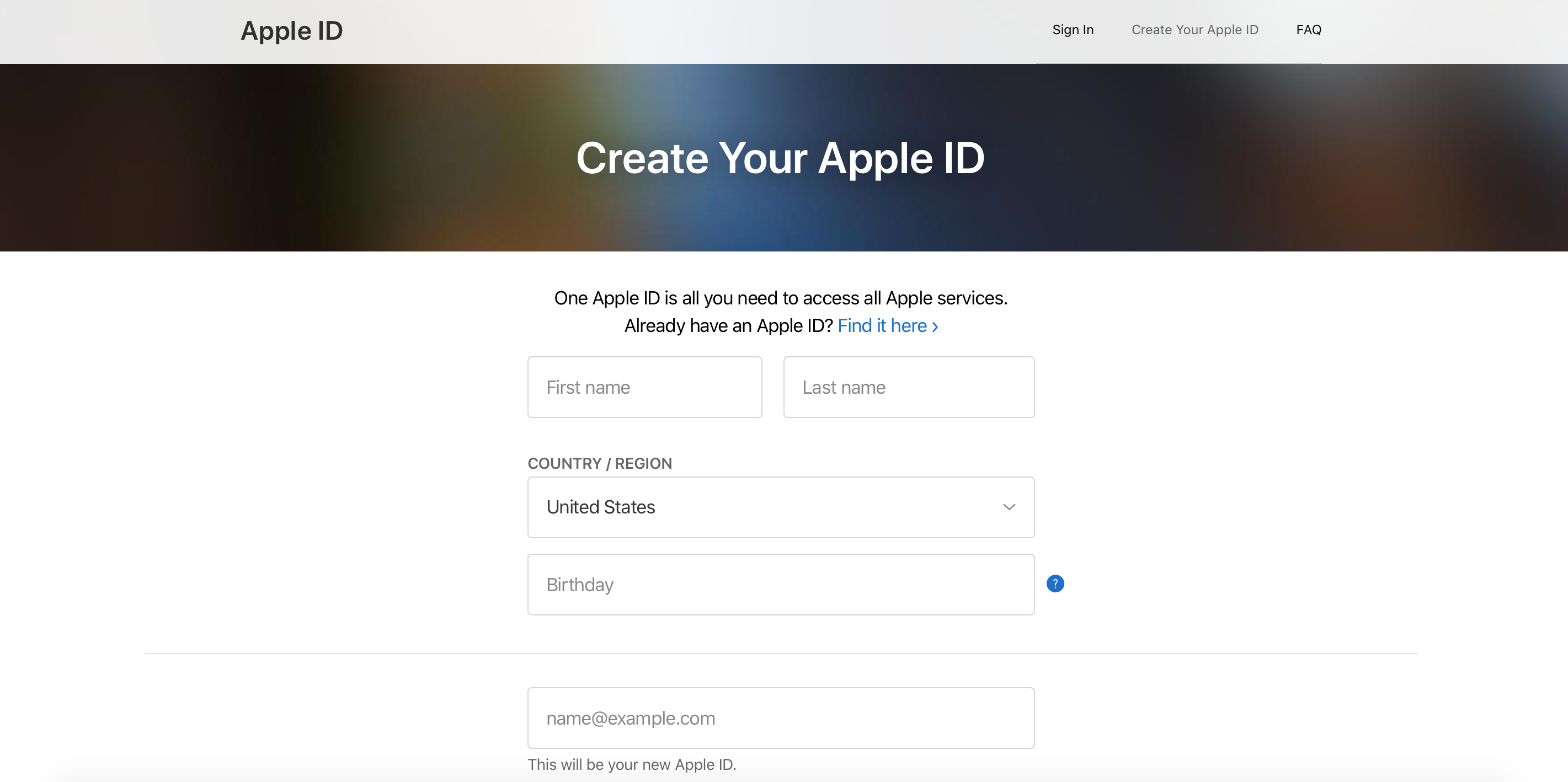
- Navigate to appleid.apple.com.
- Click Create Your Apple ID in the top navigation bar or main banner.
- Enter your legal name, country/region, and date of birth.
- Input your primary email address and establish a password.
- Select your country code and enter your mobile phone number. Choose whether you want to verify your device via text message or automated call.
- Solve the captcha puzzle to prove you are human, then click Continue.
- Retrieve the verification code sent to your email inbox and enter it on the screen.
- Retrieve the SMS code sent to your phone, enter it, and submit to complete registration.
Essential Security Settings After Account Creation

Once your account is active, take two minutes to configure security settings that keep your purchases and private cloud data safe.
1. Add a Secondary Trusted Phone Number
If you lose your primary phone, two-factor authentication can lock you out of your account. Go to your account security settings and add a trusted secondary number (such as a spouse’s mobile or a home landline) to ensure you always have an emergency access route.
2. Establish an Account Recovery Contact
Apple supports designated Recovery Contacts. This can be a family member or trusted friend who uses an iPhone or iPad. If you ever forget your password, Apple can generate a short recovery code on their device to help you safely regain access without weeks of waiting.
3. Set Up a Legacy Contact
Digital legacy management allows you to designate an individual who can request access to your photos, notes, and messages in the event of your passing. This can be configured directly inside your Apple account settings on iOS or macOS.
Frequently Asked Questions
Do I need a credit card to create an Apple ID?
No. You can create an account entirely free without adding a payment method. When asked for payment information during setup or App Store onboarding, simply select None. You only need to add a credit card, debit card, or PayPal account if you intend to buy paid apps, subscribe to premium services, or purchase extra iCloud storage.
Can I use a Gmail or Outlook address as my Apple ID?
Yes. Any valid personal email address can serve as your username. If you prefer not to use an external provider, you can generate a free @icloud.com email during setup on an Apple device.
Can I have more than one Apple ID?
While you can legally create multiple accounts using different email addresses, Apple generally recommends sticking to a single account. Digital purchases, app licenses, and iCloud photo libraries cannot be merged between accounts later.
Creating your account establishes your digital identity across all modern Apple services. Keep your recovery details updated, store your password in a reputable password manager, and your account will remain secure and accessible for years to come.