How to Delete a Workout on Apple Watch (Step-by-Step)
We have all been there: you finish a brisk walk, pull out your phone, and realize your Apple Watch has been tracking a "Functional Strength Training" session for the last three hours while you sat at your desk. Or perhaps you started an Outdoor Run, only to accidentally hit finish two minutes in. Inflated stats and incorrect exercise minutes can ruin your fitness tracking goals, throwing off your daily calorie burns and closed rings.

Fortunately, Apple makes it possible to remove unwanted entries from your history. Whether you want to delete a rogue session directly from your wrist or clean up your broader fitness log from your iPhone, learning how to delete a workout on Apple Watch takes just a few seconds. This guide will walk you through the exact steps to remove inaccurate workout data and keep your Apple Fitness records precise.
How to Delete a Workout on Apple Watch Directly
If you notice an incorrect workout immediately after finishing it—or while it is still on your watch screen—you can delete it right from your wrist without ever touching your iPhone. Follow these steps to wipe the session:
- Open the Workout app on your Apple Watch if you aren't already viewing the summary screen.
- If the workout has just ended, scroll down past your splits, heart rate zones, and calorie totals to the bottom of the summary page.
- Tap the red End button (if you are looking at a paused workout) or scroll to find the action buttons at the base of the summary.
- Tap Discard Workout. A prompt will appear asking you to confirm your choice.
- Tap Confirm to permanently delete the workout data from your watch and your activity rings.
Note: Once you tap "Discard," the active session's calories, active minutes, and distance data are immediately scrubbed from your daily ring calculations.
How to Delete a Workout Using the iPhone Fitness App
What happens if you didn't notice the mistake until hours later, or the workout summary is no longer visible on your Apple Watch? You can easily manage and delete historical workouts using the Fitness app on your paired iPhone. This method is ideal for clearing out older logs or duplicate entries.
Video: How do Delete Workouts on Apple Watch
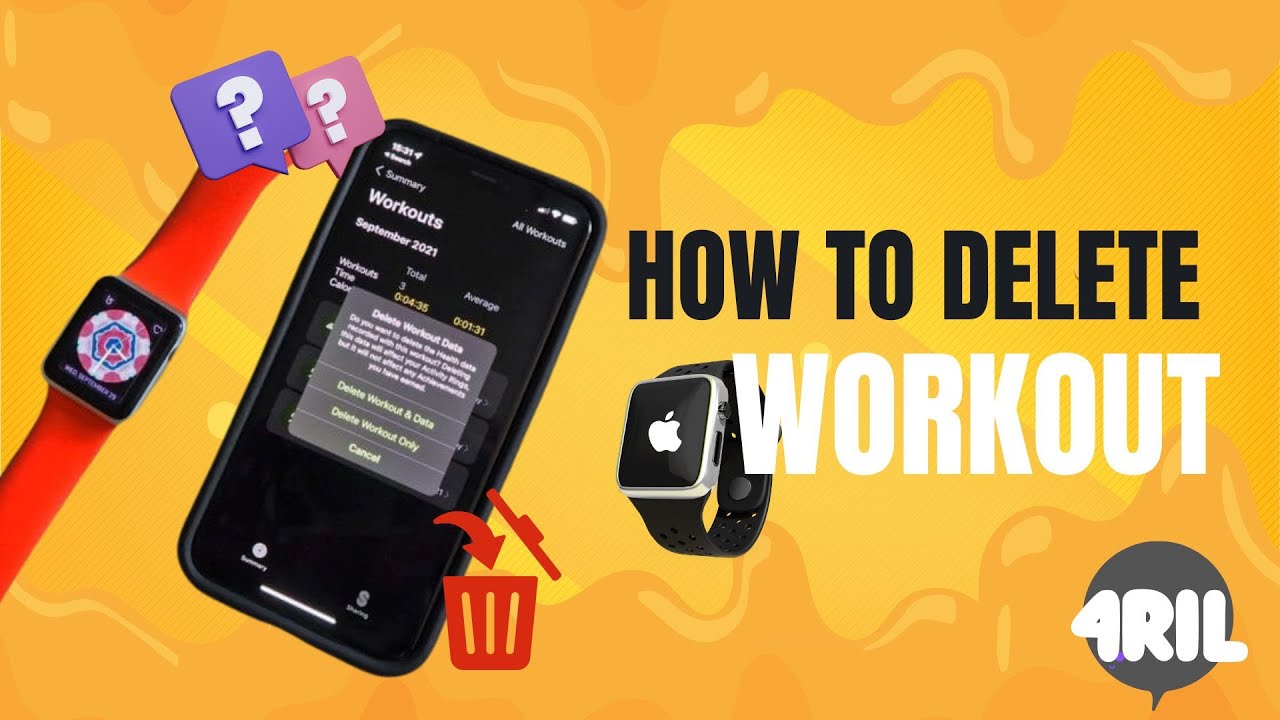
- Open the Fitness app on your iPhone.
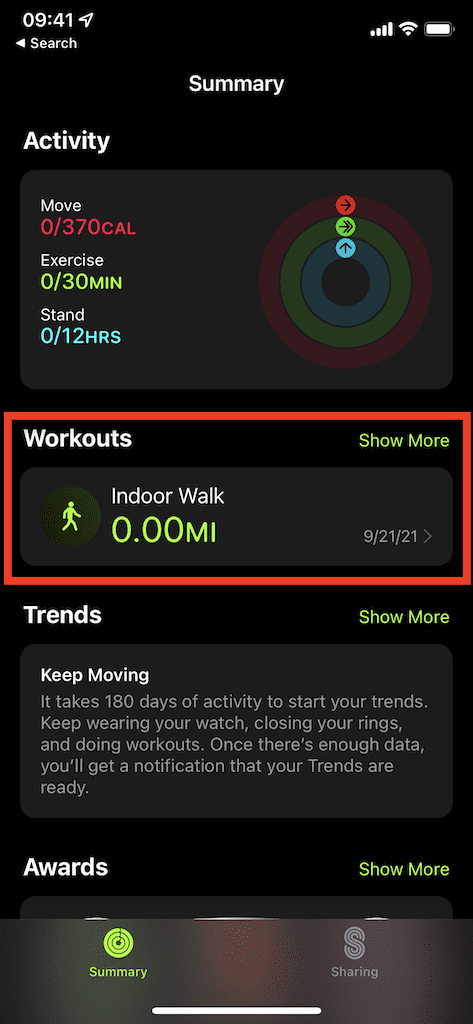
- Tap on the Summary tab at the bottom of the screen.
- Scroll down to the Workouts section and tap Show More on the right side to see your complete history.
- Browse through your list of workouts and tap on the specific session you want to delete.
- Scroll all the way down to the bottom of that individual workout's detail page.
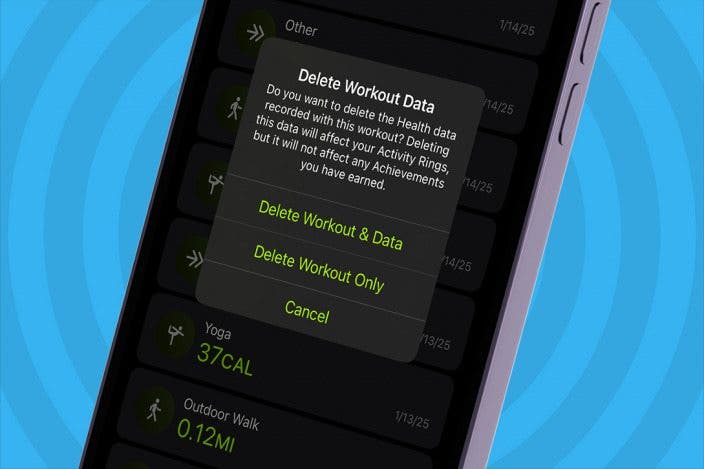
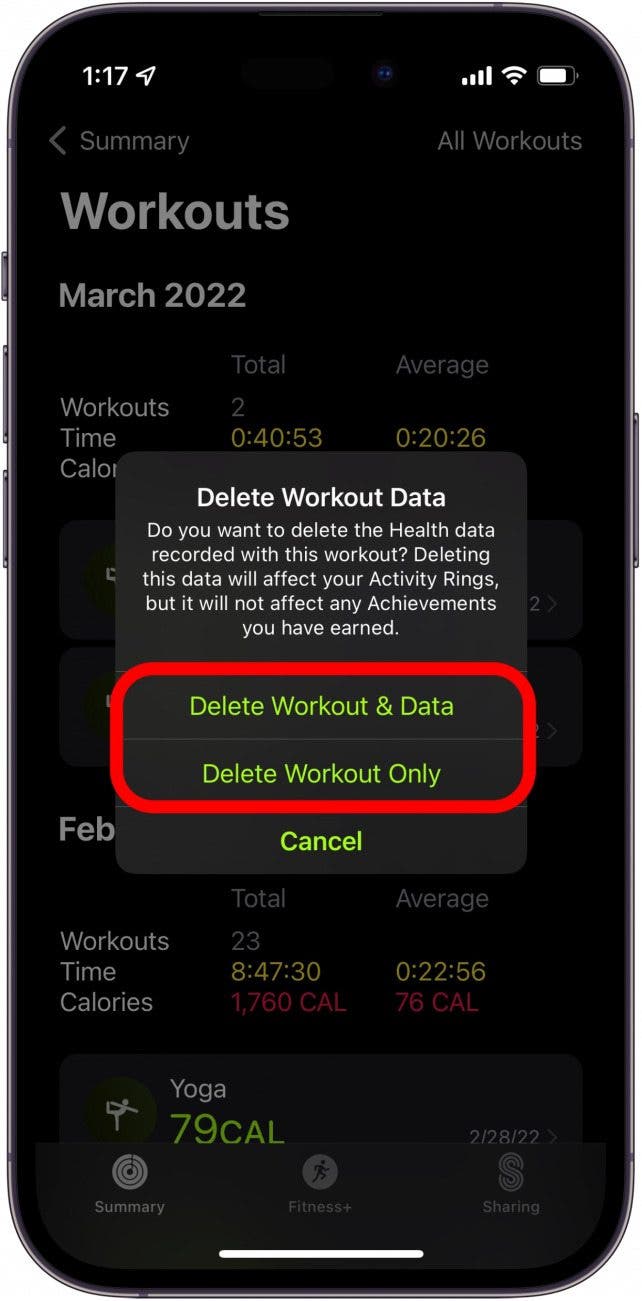
- Tap Delete Workout (sometimes listed as "Delete Workout & Data").
- Confirm your selection when the pop-up warning appears.
When you delete a workout through the iPhone Fitness app, the changes automatically sync with your Apple Watch and iCloud, adjusting your total active calories and exercise minutes for that day accordingly.
Alternative Method: Removing Workouts via the Apple Health App
Sometimes, stubborn workouts or ghost data refuse to show up cleanly in the Fitness app, or third-party fitness apps (like Strava or Nike Run Club) inject duplicate data into your ecosystem. You can bypass the Fitness app entirely and delete workouts straight from the Apple Health database.
- Open the Health app on your iPhone.
- Tap the Browse tab in the bottom right corner.
- Scroll down and select Activity.
- Tap on Workouts from the list of activity metrics.
- Scroll down to the bottom of the screen and tap Show All Data.
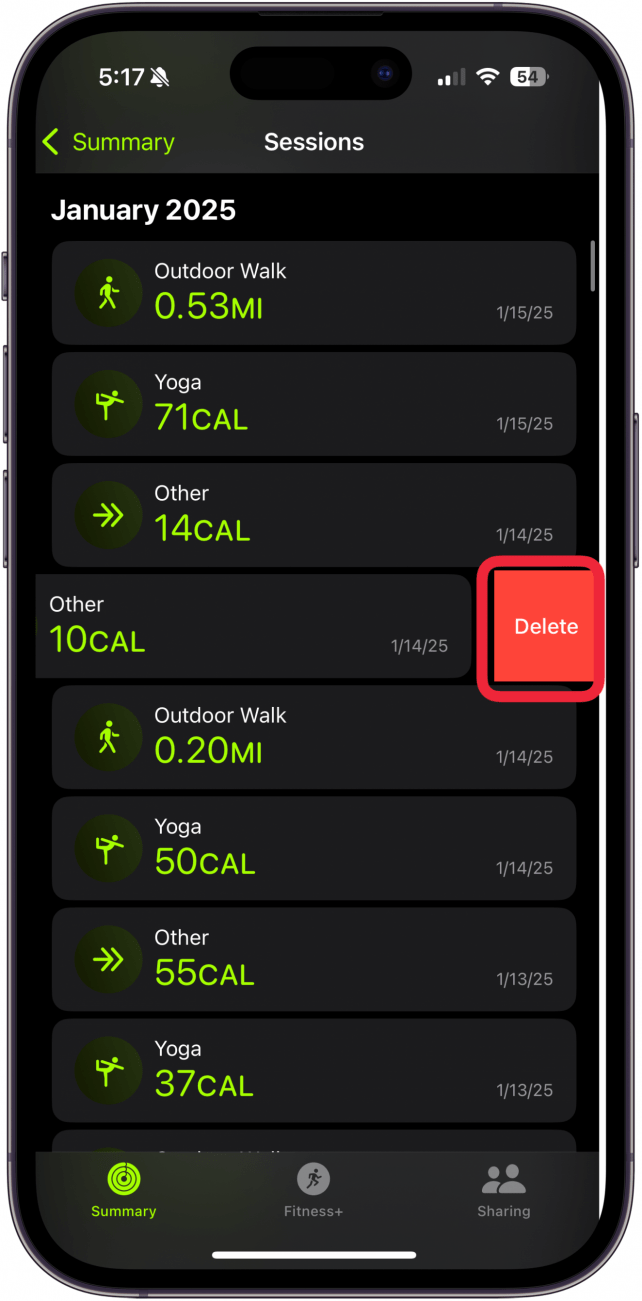
- Find the incorrect workout by date and time, then swipe left across it.
- Tap the red Delete button.
- Choose whether you want to delete just the workout data or "Delete Workout & Data" (which also removes associated active calories).
Troubleshooting: Why Are My Activity Rings Still Off?
After you delete a workout on Apple Watch, you might notice that your Move or Exercise rings haven't updated right away. This is usually just a temporary caching delay between your watch, phone, and iCloud sync.
- Force close the apps: Swipe up and away on both the Fitness and Health apps on your iPhone, then reopen them.
- Restart your devices: A quick reboot of both your Apple Watch and your iPhone forces a refresh of your daily activity ring calculations.
- Check for third-party syncs: If you use apps like Strava, Garmin, or MyFitnessPal, make sure they aren't continually re-importing the deleted workout. You may need to check permissions inside the Health app under Settings > Privacy > Apps.
By mastering these quick deletion steps, you can ensure that your Apple Fitness metrics always reflect your actual physical effort, keeping your health tracking accurate and motivating.