How to Delete History in Google Maps Easily
Google Maps is an essential tool for navigation, helping us find the fastest routes, local restaurants, and hidden gems. However, every place you search for and every route you take is saved to your account. Whether you want to keep your travel habits private from others who share your device or simply prefer a clean slate, knowing how to delete history in Google Maps is an important digital privacy habit.
Fortunately, Google gives you granular control over your data. You can delete individual searches, wipe out entire days of travel, or set your account to automatically erase your history after a set period. Below is a comprehensive guide on how to clear your Google Maps data across different devices.
How to Delete History in Google Maps on Mobile
Most people use Google Maps on their smartphones, whether they carry an iPhone or an Android device. The process for clearing your search history directly inside the mobile app is straightforward and takes less than a minute.
Clearing Individual Search Entries
If you only want to remove a few specific locations from your search dropdown without wiping your entire history, follow these steps:
- Open the Google Maps app on your iOS or Android device.
- Tap the search bar at the top of the screen to reveal your recent searches.
- Find the location or address you want to remove.
- Tap and hold the search result, then select Delete when the prompt appears. Alternatively, you can tap the small "X" next to the search term if it is visible.
Wiping Your Entire In-App Search History
To clear all recent searches made directly within the mobile application:
- Open Google Maps and tap your Profile picture or initials in the top right corner.
- Select Settings from the menu.
- Tap on Maps history.
- Tap the Delete drop-down menu at the top of the screen.
- Choose Delete all time to completely clear your history, or select a custom time range if you only want to delete recent data.
- Confirm your choice by tapping Delete again.
How to Clear History on a Computer
If you prefer planning trips or looking up directions on a desktop computer, your web browser stores a separate view of your Google Maps activity. Managing your data here offers a wider view of your stored locations and timelines.
- Go to Google Maps in your web browser and ensure you are logged into your Google account.
- Click the Menu icon (the three horizontal lines) in the top-left corner of the screen.
- Click on Your places in Maps or directly select Maps history from the menu options.
- Click the Delete button located above your activity list.
- Select either Delete today, Delete custom range, or Delete all time depending on your preferences.
- Click Delete to confirm the action.
Managing Your Timeline and Location History

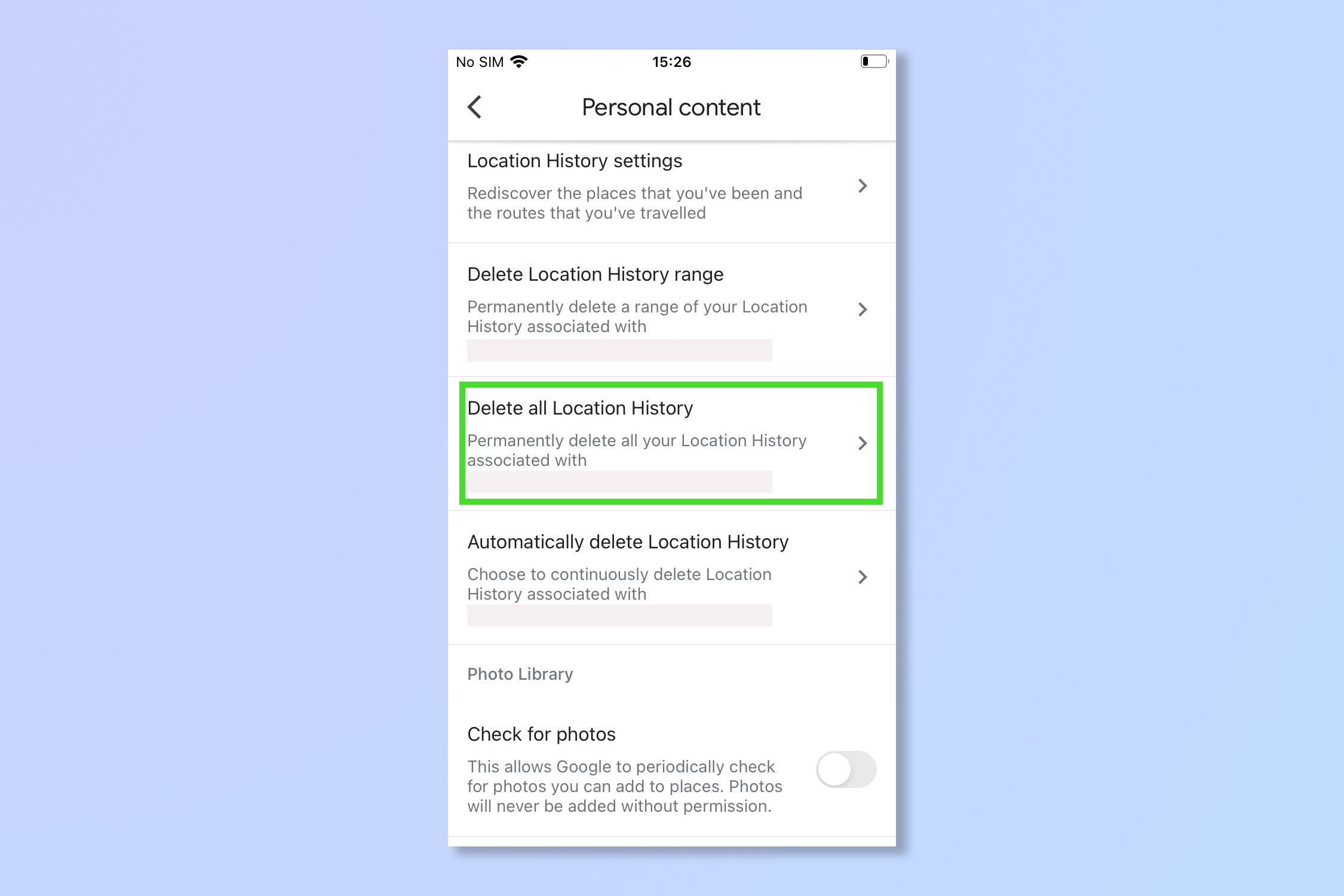
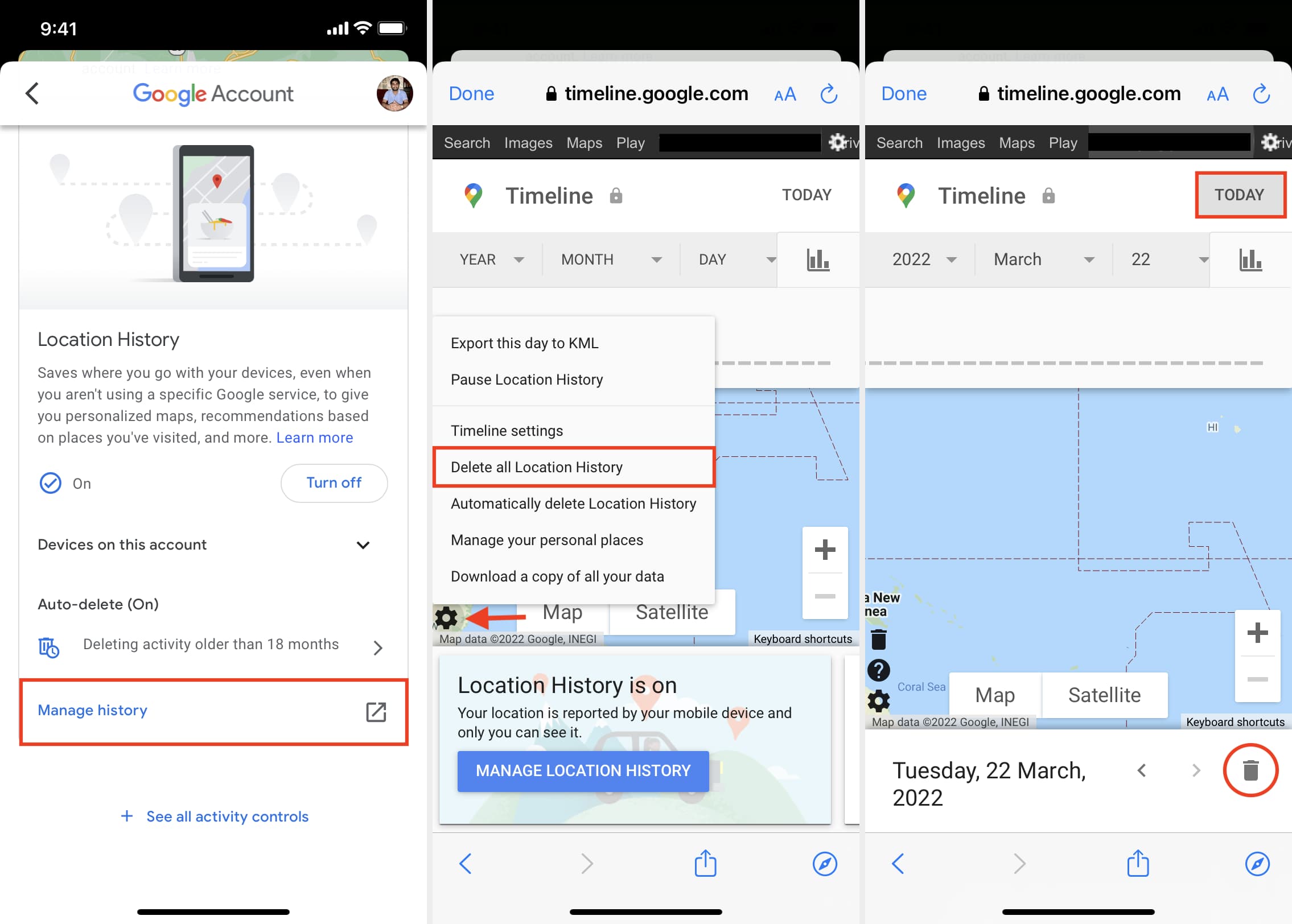
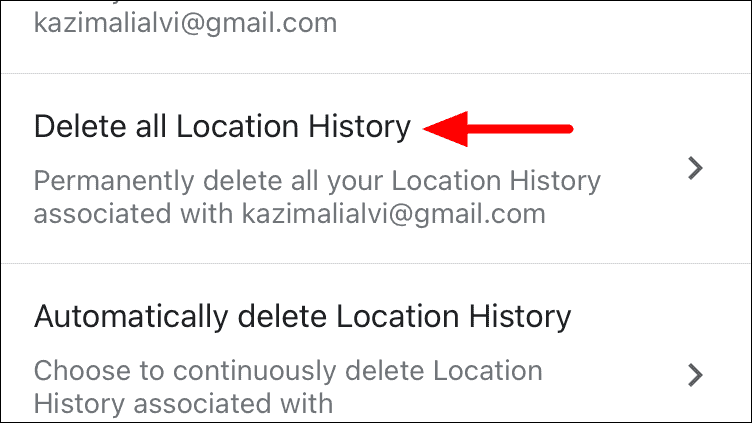
Search history is only part of the equation. If you have Location History enabled (formerly known as Google Timeline), Google Maps also records the physical routes you take and the places you visit throughout the day.
To delete specific days or places from your Timeline:
- Open the Google Maps app and tap your profile picture.
- Select Your Timeline.
- Navigate to the specific day, trip, or place you wish to remove.
- Tap the three dots (more options) next to the location or day and select Delete or Edit.
Note: Google has recently been rolling out updates to store Timeline data directly on your device rather than in the cloud, giving you even more local control over your physical whereabouts.
How to Automate History Deletion
If you do not want to manually clear your data every few weeks, you can set Google Maps to automatically delete your search and location history after a set period. This is a "set-it-and-forget-it" solution for better privacy.
- Open Google Maps and tap your Profile picture.
- Go to Settings > Maps history.
- Look for the section labeled Auto-delete and click on it (if it currently says "Don't auto-delete").
- Choose how long you want to keep your data before it gets automatically erased:
- Active after 3 months
- Active after 18 months
- Active after 36 months
- Tap Next and confirm your preference. Google will now automatically purge older data on a rolling basis.
Using Incognito Mode in Google Maps
If you want to search for a sensitive location without having to delete it later, you can use Incognito Mode in Google Maps. When Incognito Mode is turned on, your activity—such as the places you search or navigate to—is not saved to your Google Account.
To turn on Incognito Mode:
- Open the Google Maps app on your phone.
- Tap your Profile picture in the top right corner.
- Tap Turn on Incognito mode.
While in this mode, the app icon will temporarily change to the Incognito symbol, and your navigation history will remain private until you turn the feature off.
Summary
Maintaining control over your digital footprint is essential, and clearing your navigation data is a great place to start. Whether you choose to wipe your records manually, set up auto-delete, or use Incognito Mode for sensitive trips, managing your Google Maps data ensures that your location remains your business alone.