How to Download Instagram for PC (Complete Guide)
Instagram started purely as a mobile-first application designed for smartphones. However, as remote work, content creation, and multi-tasking have grown, more users want to manage their social media feeds straight from their desktops. Whether you are a social media manager, a photographer editing high-resolution images, or simply someone who prefers typing on a physical keyboard, knowing how to download Instagram for PC can drastically improve your workflow.

Fortunately, Meta provides official ways to run the platform on Windows and Mac computers, alongside several workaround methods for advanced features. This guide walks you through the best methods to get Instagram running smoothly on your computer.
Official Methods to Download Instagram for PC
The safest and most reliable way to access the platform on a desktop is through official channels. You do not need to rely on sketchy third-party emulators or unsafe executable files to get started.
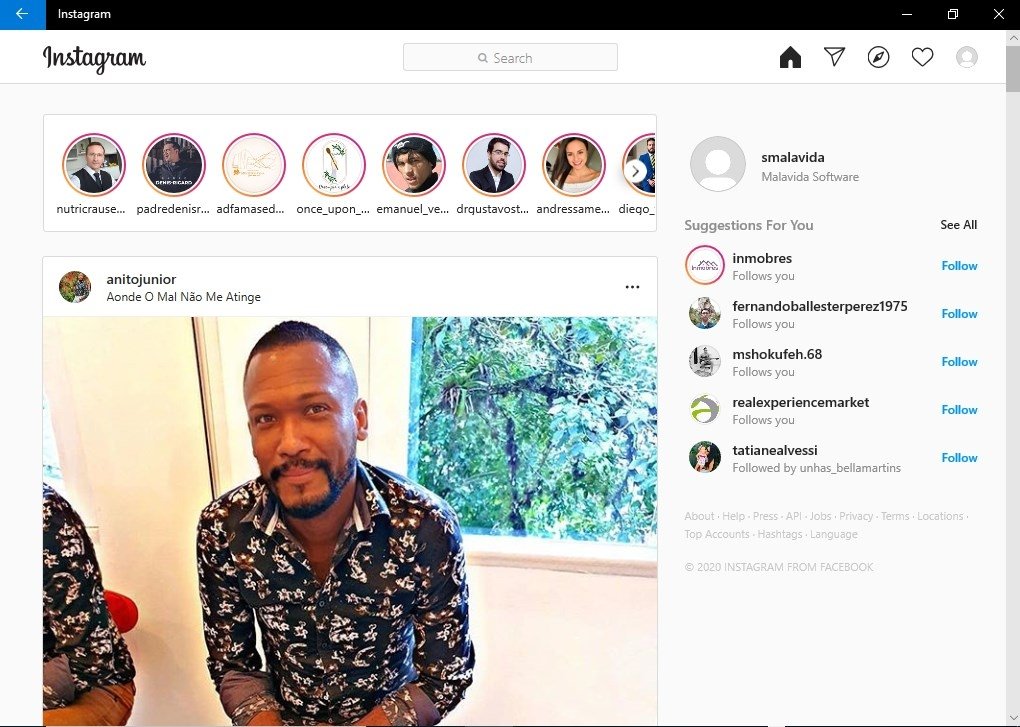
1. Use the Official Microsoft Store App
If you are running Windows 10 or Windows 11, the easiest method is to grab the official application directly from the operating system's built-in marketplace.
- Press the Windows Key on your keyboard and type Microsoft Store.
- Open the Microsoft Store app and type Instagram into the search bar at the top.
- Click on the official Instagram app published by Meta Platforms, Inc.
- Click the Get or Install button. The app will download and install automatically.
- Once installed, launch it from your Start menu, log in with your credentials, and enjoy a native desktop interface complete with notification support.
2. The Web Browser Experience (No Download Required)
If you prefer not to install standalone software on your hard drive, you can use Instagram directly inside your web browser (Google Chrome, Mozilla Firefox, Microsoft Edge, or Apple Safari).
- Navigate to instagram.com in your browser address bar.
- Log in using your username and password.
- Bookmark the page for quick, one-click access in the future.
The web version has evolved significantly. You can now view your main feed, watch Stories, check and reply to Direct Messages (DMs), and even upload photos and videos directly from your computer's local storage without needing a mobile device.
How to Upload Content from Your Desktop

One of the main reasons people search for ways to download Instagram for PC is the ability to post content edited on professional software like Adobe Photoshop, Lightroom, or Premiere Pro. Here is how you can upload posts directly from your computer:
- Open the Instagram app on Windows or go to Instagram.com in your browser.
- Look for the Create icon (usually represented by a plus sign inside a square box) located in the left-hand navigation menu.
- Click Select from computer.
- Choose your image or video file from your local folders.
- Crop, apply filters, and write your caption just like you would on your phone, then click Share.
Alternative Methods for Advanced Users
While the official Windows app and web interface cover most user needs, some power users require features found only in the mobile app, such as posting multi-photo carousels with advanced sticker edits or managing multiple business accounts seamlessly through specific mobile workflows.
Using Android Emulators
If you need the exact mobile experience on your desktop, you can use an Android emulator. Software like BlueStacks or NoxPlayer allows you to run mobile apps inside a virtual Android environment on your PC.
- Download and install a reputable emulator like BlueStacks from its official website.
- Open the emulator and sign in with your Google account to access the Google Play Store.
- Search for Instagram and download it just as you would on an Android smartphone.
- This method gives you full access to the mobile version of the app, though it can be resource-heavy on older computers.
Best Practices for Security
Whenever you download software or log into accounts on a new device, security should be a top priority. Keep these tips in mind:
- Avoid Third-Party Clients: Never download unofficial modified versions of Instagram (like Instagram++ or unauthorized desktop clients) found on random forums. These often violate Instagram’s terms of service and can compromise your personal data or lead to account bans.
- Enable Two-Factor Authentication (2FA): Protect your account by turning on 2FA in your settings, ensuring that anyone trying to log in from a new PC will need a verification code sent to your phone.
- Log Out on Shared Computers: If you are using Instagram on a public or shared PC, always log out of your session and clear your browser cache when you are finished.
Conclusion
Learning how to download Instagram for PC is straightforward and opens up new possibilities for content creators, businesses, and casual scrollers alike. Whether you choose the lightweight Microsoft Store Windows application, the browser-based web player, or a specialized emulator, you can easily stay connected, reply to messages, and publish your favorite media right from your desktop setup.