How to Find and Use a Kahoot Join Code
Participating in an interactive classroom quiz, a corporate training session, or a trivia night with friends often starts with one essential requirement: entering a kahoot join code. Also known as a Game PIN, this temporary numerical sequence connects your device directly to a live-hosted session.

Whether you are a student logging in from a laptop, a professional joining via tablet, or a trivia enthusiast using a smartphone, accessing the right game is straightforward. However, technical glitches, mistyped numbers, or platform confusion can sometimes slow things down. This guide covers everything you need to know about finding, entering, and troubleshooting your game PIN successfully.
What Is a Kahoot Join Code?
A Kahoot join code—officially referred to by the platform as a Game PIN—is a unique, randomly generated series of numbers that typically changes every time a new quiz session starts. Unlike a permanent username or password, this code is completely temporary.
When a host clicks "Play" on a Kahoot quiz, the platform generates a unique PIN and displays it prominently on the main presentation screen. Players must type this specific sequence into their own devices to enter the virtual lobby. Once the host starts the game, the PIN expires for new entries in most standard setups, ensuring security and keeping unwanted participants out of private sessions.
How to Find Your Game PIN
As a participant, you do not create the code; you receive it from the person running the session. Depending on how your event is structured, you can find the join code in a few different places:
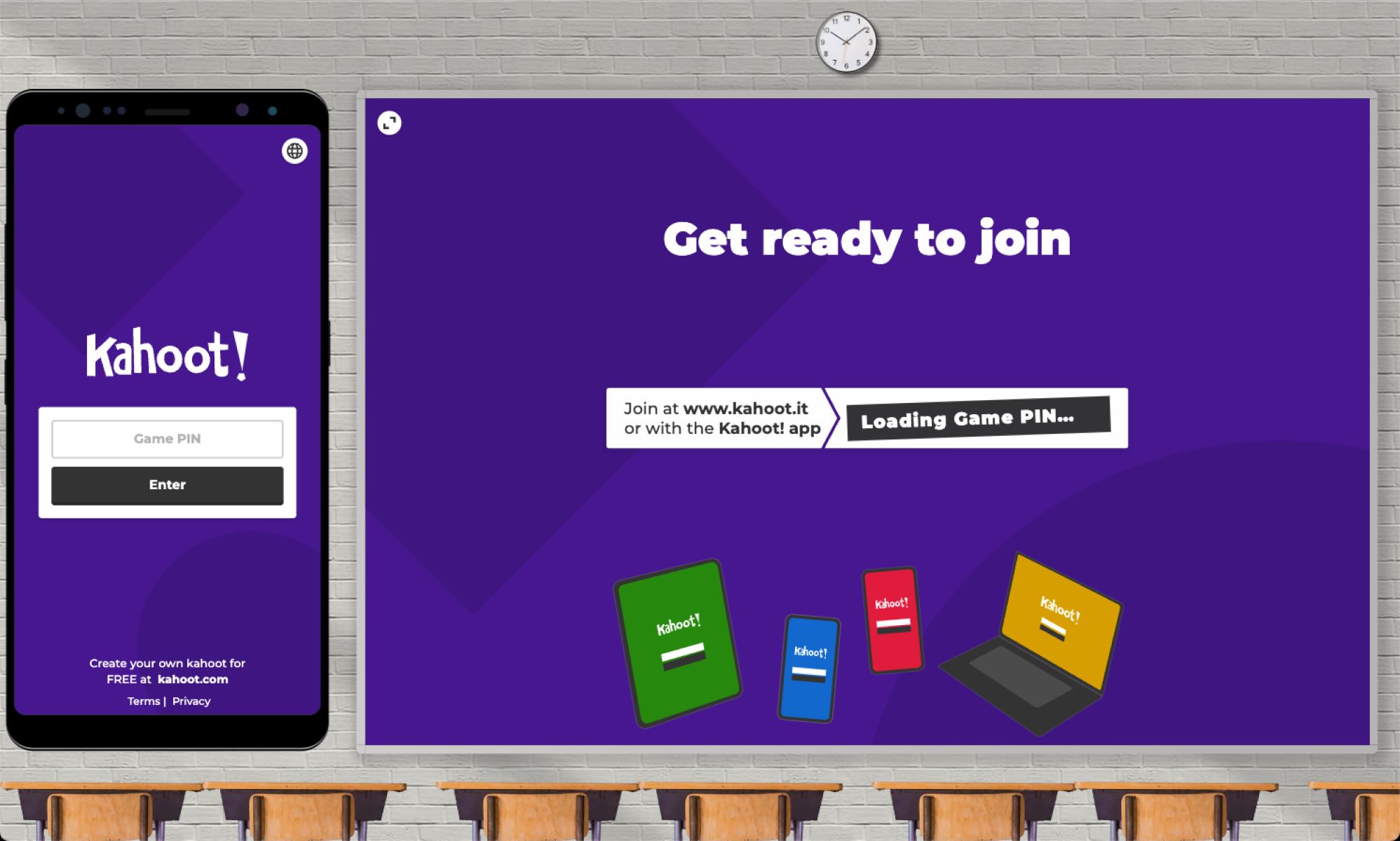
- The Main Screen: If you are in a classroom, lecture hall, or conference room, look at the projector, smart board, or main monitor at the front of the room. The Game PIN is always displayed in large, bold numbers at the top center of the screen.
- Virtual Meeting Share: If you are attending via Zoom, Microsoft Teams, or Google Meet, the host will usually share their screen or type the code into the chat box.
- Direct Invitation: If the host sent you an email challenge or a direct link, the join code or a one-click URL may be embedded directly in the message.
Where to Enter the Code
Once you have secured your numbers, you need to navigate to the correct portal to enter them. You have two primary methods for joining a live session:
- Via Web Browser: Open any internet browser (such as Chrome, Safari, or Firefox) and go to the official website: kahoot.it. You will see a clean, minimalist interface with a single text box asking for the "Game PIN."
- Via Mobile App: Download the free Kahoot! app from the Apple App Store or Google Play Store. Open the app and tap the prominent "Enter PIN" or "Play" button at the bottom of the screen.
Step-by-Step Guide to Joining a Game
Getting into a live session takes less than thirty seconds if you follow these simple steps:
Video: How to find a Kahoot! PIN
- Navigate to kahoot.it or open your mobile app.
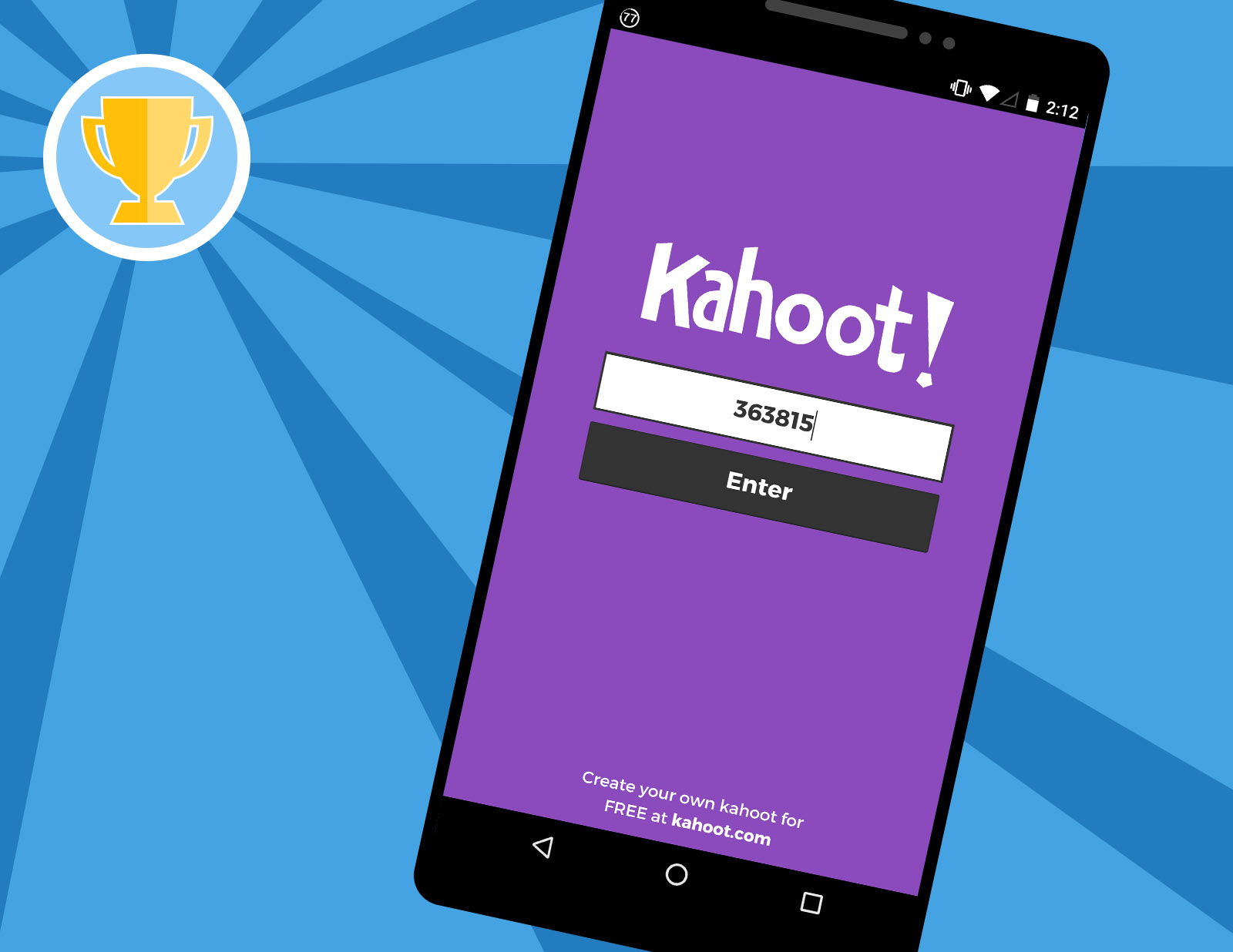
- Type the Game PIN into the designated box exactly as it appears on the host's screen. Do not include spaces or dashes.
- Click Enter or tap the arrow button to proceed.
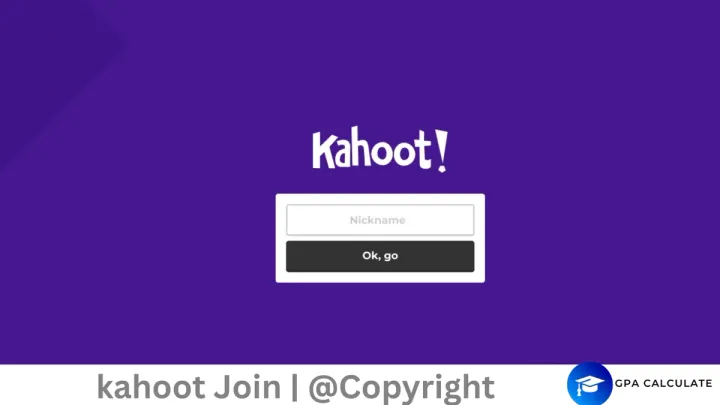
- Enter your nickname. Most hosts have strict rules about screen names (often requiring your real first and last name for grading or attendance). Avoid offensive language, as some hosts utilize automated profanity filters or manually kick disruptive users.
- Wait in the lobby. Once your nickname appears on the main presentation screen, you are successfully in. Watch the main screen and wait for the host to start the quiz.
Troubleshooting Common Issues
Even though the system is designed to be user-friendly, minor hiccups can occur right before a quiz begins. Here is how to fix the most common issues:
"Incorrect Game PIN" Error
If the system rejects your numbers, double-check the digits with the host. It is very common to mistread a zero for the letter 'O' (though Kahoot typically uses only numbers for live PINs) or to accidentally transpose two digits. Remember that Game PINs change constantly; if the host had to restart the game, the old code is immediately invalid.
Frozen Screen or Disconnection
If your internet drops mid-game, your browser might freeze. If this happens:
- Refresh your browser page immediately.
- Re-enter the same Game PIN (if the host allows late-joins or re-entries).
- Type in your exact previous nickname so the host knows who you are.
The Host Locked the Game
Many hosts lock the lobby as soon as all expected participants have arrived to prevent late entries. If you arrive after the game has started and the lobby is locked, you will not be able to enter using the standard code. You will need to ask the host to unlock the session or wait for the next round.
Tips for a Smooth Experience
To ensure you never miss a question or get booted off the platform during a crucial moment, keep these best practices in mind:
- Check your connection: A stable Wi-Fi or cellular connection is vital. Kahoot relies on real-time data transmission; a laggy connection can delay your answers and hurt your final score.
- Keep your browser updated: Outdated browsers can cause display errors where the color-coded answer buttons fail to load properly.
- Bookmark the URL: If you use Kahoot frequently for school or work, bookmark kahoot.it on your phone or computer to save time.
By understanding how to quickly locate, input, and troubleshoot your kahoot join code, you can skip the tech stress and focus entirely on climbing the leaderboard and winning the quiz.