How to Fix and Improve FaceTime Quality
Few things are as frustrating as hopping on a video call only to find a pixelated, stuttering feed. While Apple's video calling platform is known for its simplicity, achieving consistent FaceTime quality requires the right mix of network performance, device settings, and ambient conditions. Whether you are catching up with family or conducting a quick work catch-up, getting crisp 1080p video and clear audio is usually just a few tweaks away.

What Determines FaceTime Quality?
FaceTime does not use a fixed video resolution. Instead, Apple relies on adaptive bitrate streaming. The app continuously assesses the stability, packet loss, and bandwidth of your connection—along with that of the recipient—and scales resolution up or down on the fly.
Several core factors dictate your stream's visual and audio fidelity:
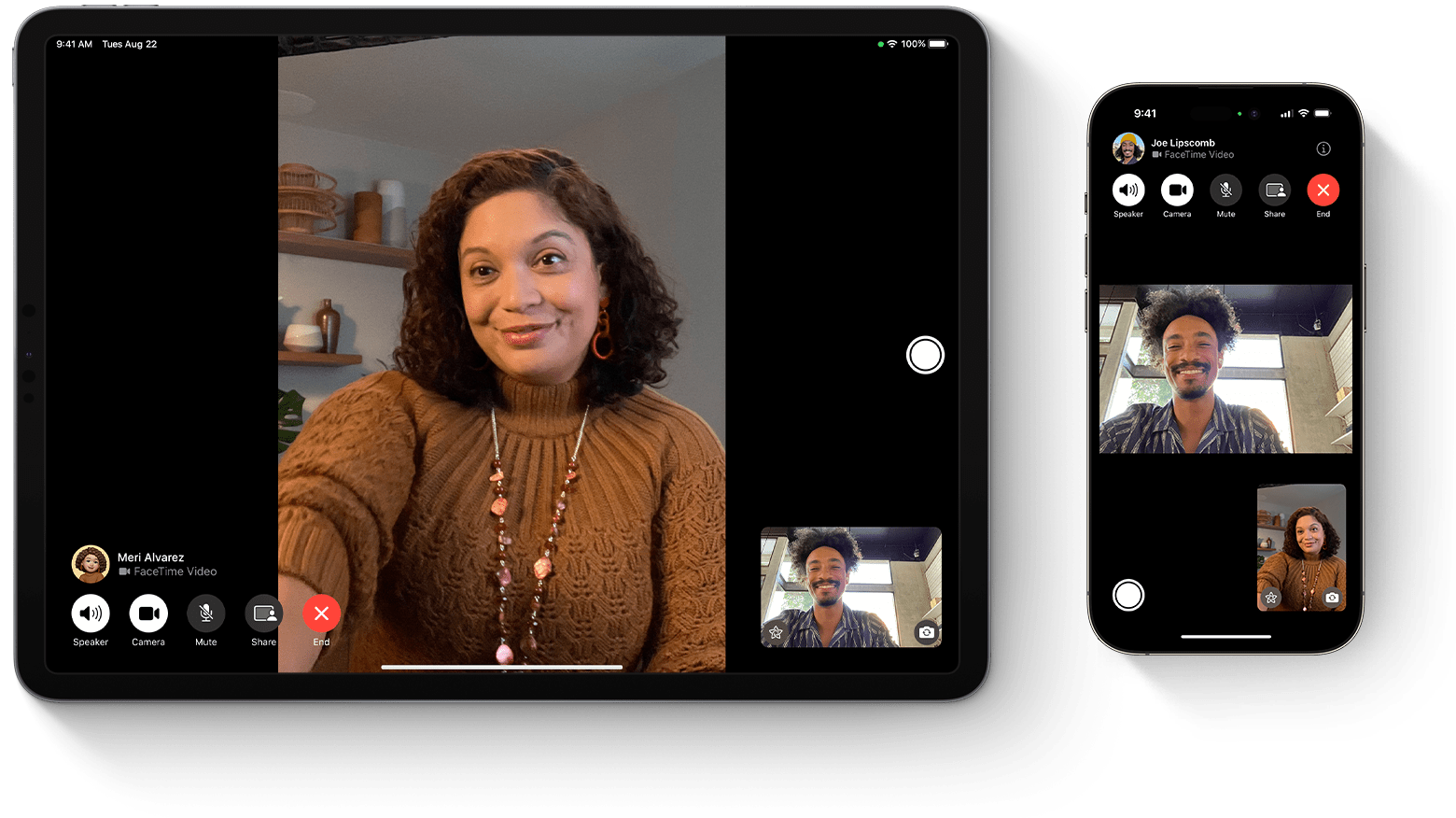
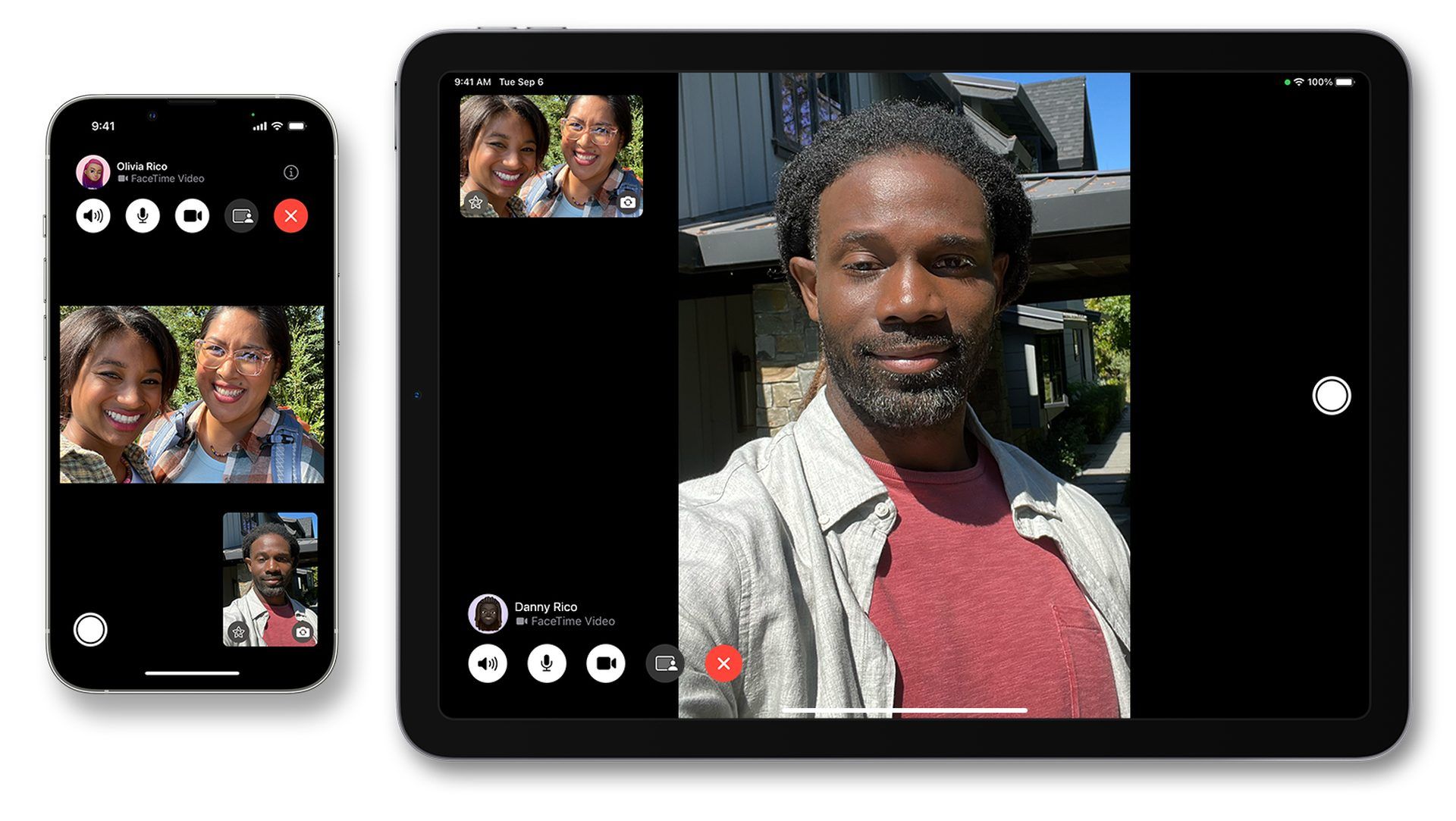
- Resolution capabilities: Standard FaceTime calls over cellular historically defaulted to 720p. However, iPhone 12 and newer models support 1080p Full HD FaceTime calls over both 5G and Wi-Fi. iPhone 8 through iPhone 11 support 1080p over Wi-Fi, while older legacy hardware tops out at 720p.
- Network bandwidth and latency: While FaceTime requires relatively low bandwidth—roughly 3 Mbps up and down for 1080p—it demands low latency and zero packet loss. Jittery connections cause immediate drops in frame rate and clarity.
- Video codecs: Apple uses modern H.264 and HEVC (H.265) compression. While efficient, heavy compression artifacts appear when bandwidth fluctuates.
- Hardware thermals: If your iPhone, iPad, or Mac gets hot, the system reduces processor clock speeds, which can throttle video encoding and lower frame rates.
How to Improve FaceTime Quality: 6 Practical Steps
If your video looks fuzzy, dark, or out of sync, apply these adjustments to unlock the highest fidelity your hardware can produce.
1. Switch to 5G or a 5 GHz Wi-Fi Band
Not all wireless connections handle continuous data streams equally. Older 2.4 GHz Wi-Fi networks suffer from household interference (microwaves, Bluetooth devices, baby monitors). Connect your device to your router's 5 GHz band instead.
If you are on cellular data, check your connection status. On 5G-capable iPhones, go to Settings > Cellular > Cellular Data Options > Data Mode and select Allow More Data on 5G. This specific toggle enables 1080p FaceTime calls over cellular networks rather than compressing down to lower resolutions.
2. Disable Low Data Mode
Both Wi-Fi networks and cellular plans can be throttled by iOS's built-in Low Data Mode, which cuts background tasks and degrades video streams to save megabytes.
- For Wi-Fi: Open Settings > Wi-Fi, tap the blue info icon (i) next to your connected network, and ensure Low Data Mode is toggled off.
- For Cellular: Open Settings > Cellular > Cellular Data Options and toggle off Low Data Mode.
3. Use Control Center Video Effects
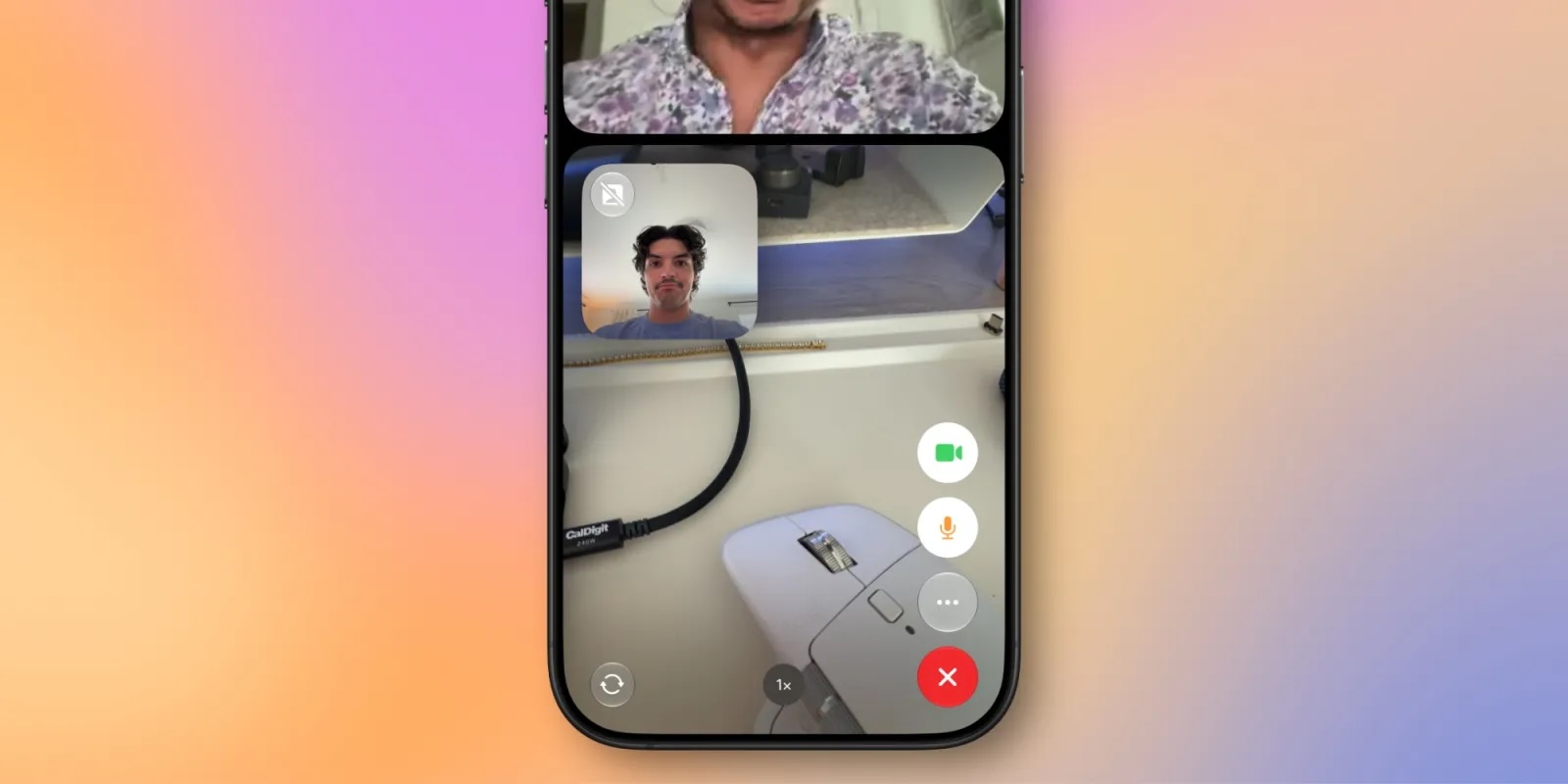
Modern iPhones, iPads, and Apple Silicon Macs have dedicated Neural Engine processing to artificially enhance your video stream without slowing down network transfer speeds. During an active FaceTime call, swipe down from the top-right corner to open Control Center, then tap Video Effects:
- Portrait Mode: Blurs the background behind you, keeping the focus sharp on your face and reducing distracting visual noise for the encoder to process.
- Studio Light: Dims the background and brightens your face, simulating professional studio ring lighting.
- Center Stage: Available on iPads and compatible external displays, this keeps you centered in the frame automatically.
4. Clean and Position Your Camera
It sounds obvious, but pocket lint, finger smudges, and facial oils regularly coat the front-facing TrueDepth camera on iPhones. A quick wipe with a clean microfiber cloth can instantly remove the hazy, soft-focus glare that many mistake for a network issue.

Additionally, pay attention to your light source. Webcams and smartphone selfie cameras have tiny image sensors that produce digital grain (chroma noise) in dim environments. Face a window or position a soft lamp directly in front of you. Avoid sitting with a bright window behind your back, which forces the camera to silhouette you against the glare.
5. Leverage Continuity Camera (for Mac Users)
Built-in MacBook webcams—especially on models prior to the M2 generation—are small 720p or basic 1080p sensors with tiny apertures. If you use FaceTime on a Mac running macOS Ventura or later, use Continuity Camera.
By mounting an iPhone XR or newer to your Mac display using a simple MagSafe mount, macOS will automatically recognize your iPhone's primary rear camera as your Mac's webcam. The resulting bump in sensor size, low-light performance, and dynamic range far outperforms any built-in laptop webcam.
6. Prevent Thermal Throttling
Encoding real-time video while rendering an incoming stream is computationally intensive. If you place your iPhone in direct sunlight, leave it in a heavy case, or charge it rapidly on a high-wattage charger during a long call, the device will heat up. When iOS throttles down to protect the battery, it will lower the FaceTime frame rate down to 15 frames per second or lower. If the device feels hot to the touch, remove the case and keep it out of direct heat.
Upgrading Audio with Voice Isolation
Great video means little if the audio is unintelligible. Apple includes machine-learning audio filters directly inside the FaceTime interface.
While on a call, pull down Control Center and tap Mic Mode:
- Standard: Default processing with light background filtering.
- Voice Isolation: Actively identifies your voice and eliminates ambient noise like running water, barking dogs, passing traffic, or keyboard typing.
- Wide Spectrum: Disables background filtering entirely, capturing every ambient sound—ideal when multiple people are speaking in the same room or if you are sharing music.
Checking Network Bottlenecks
If you have checked your settings and the video remains degraded, test your network with a free speed test tool. Look for two critical metrics:
- Upload Speed: While download speed controls what you see, upload speed dictates what the other person receives. You need at least 3 to 5 Mbps of consistent upload bandwidth per video stream.
- Ping and Jitter: Ping below 50 ms is ideal. If your jitter (the variation in ping) is higher than 15 ms, the connection will drop frames, producing a choppy, paused image even if your total megabits per second are high.
Restarting your home router clears out stale NAT tables and connection caches, which frequently resolves sudden, unexplained dips in streaming quality.
Summary Checklist
To keep your calls as clear as possible, remember the essentials: connect over 5 GHz Wi-Fi or 5G, disable Low Data Mode, clean your camera glass, sit facing your primary light source, and activate Voice Isolation in Control Center. Taking a minute to optimize these settings guarantees the highest fidelity your Apple devices can deliver.