How to Fix PS4 Can't Verify License Error
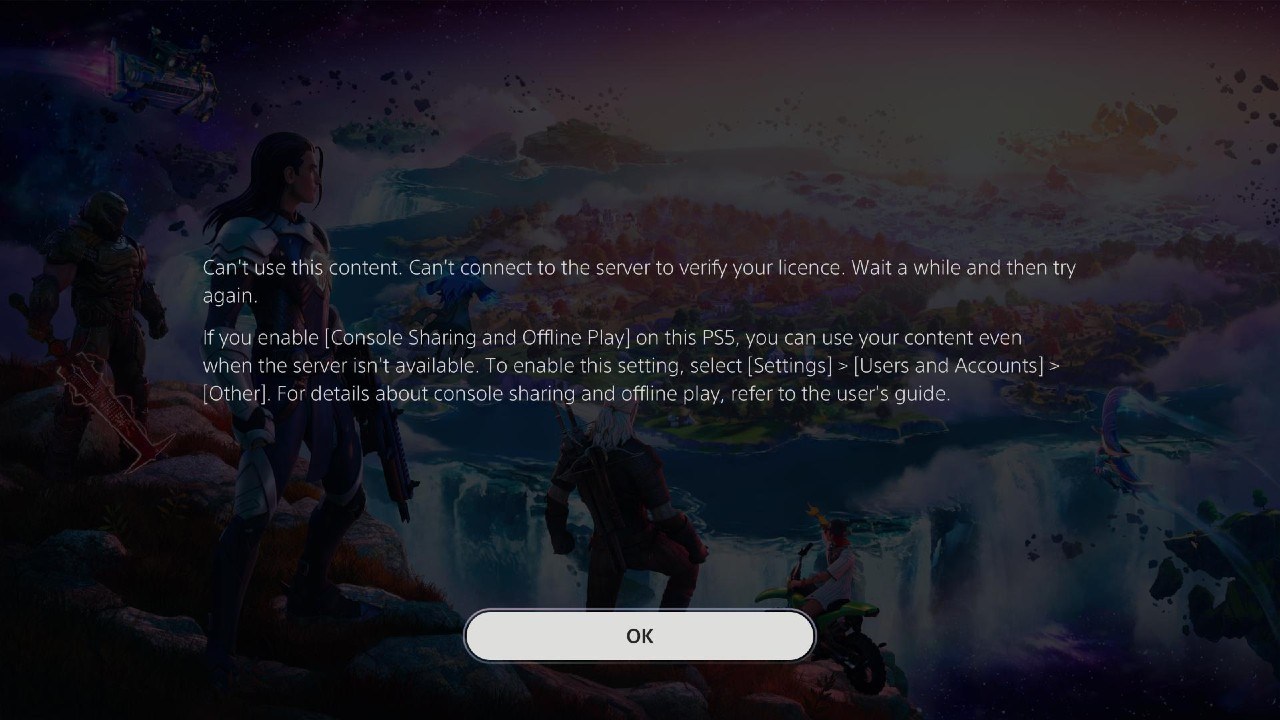
Few things are more frustrating than settling down for a gaming session, only to be blocked by an unexpected system message. If you have ever booted up a digital game on your PlayStation 4 and been greeted by a padlock icon alongside the dreaded notification that the PS4 can't verify license, you know how disruptive it can be. This error prevents you from launching digital purchases, DLC, or subscription-based titles like PlayStation Plus games.

Fortunately, this is a very common issue with well-established fixes. Whether your console temporarily lost connection to the PlayStation Network (PSN) or your account settings simply need a manual refresh, this guide will walk you through the most effective ways to resolve the problem and get back to playing.
Why Does the PS4 License Error Happen?
Before diving into the solutions, it helps to understand why your console throws this error in the first place. Every time you purchase or download a digital game on PlayStation 4, Sony attaches a digital 'license' to your account and your designated primary console. This license verifies that you legally own the content and have the right to play it.
The verification process can fail for several reasons:
- Temporary network outages or server maintenance on PlayStation Network.
- You are trying to play a digital game while offline, but the console is not set as your primary PS4.
- Account database corruption on your local hard drive.
- Recent changes to your account password or subscription status.
How to Fix PS4 Can't Verify License
Work your way through these troubleshooting steps in order. Most users find that the first or second method instantly clears up the issue.
1. Restore Licenses Manually
This is the most direct and effective solution for the license verification error. When you restore licenses, your console communicates with the PlayStation Network to re-download and validate the licenses for all the digital content you own.
- Turn on your PS4 and go to the main dashboard.
- Navigate to Settings (the toolbox icon).
- Scroll down and select Account Management.
- Click on Restore Licenses.
- Select Restore and wait for the process to finish. Do not turn off your console during this step.
Once the process is complete, try launching your game again. In most cases, the padlock icon will disappear, and the game will boot normally.
2. Activate Your PS4 as Your Primary Console
If you play games on an account that isn't set as the primary user, or if your console settings were reset, you will need active internet access to verify ownership every time you play. If your internet drops or PSN goes down, you will see the license error. Setting your console as your primary PS4 allows you to play your digital library offline.

- Go to Settings on your PS4.
- Select Account Management.
- Click on Activate as Your Primary PS4.
- If the option to Activate is available, select it. (If it says Deactivate, your console is already primary. You can choose to deactivate and reactivate it to force a settings refresh).
3. Check PlayStation Network (PSN) Status
Sometimes the issue has nothing to do with your specific console. If Sony’s servers are experiencing an outage or undergoing scheduled maintenance, your PS4 cannot reach the servers to verify your game licenses.
You can check the official PlayStation Service Status website on your phone or computer. If the servers for Account Management or Gaming and Social are down, you will simply need to wait until Sony resolves the server-side issue before your games will boot up.
4. Sign Out and Sign Back In to PSN
A simple account refresh can often clear up communication errors between your local system and the PlayStation Network.
- Head to Settings > Account Management.
- Select Sign Out.
- Restart your PS4 completely.
- Return to Account Management and Sign In using your email address and password.
5. Restart Your Router and Test Your Internet Connection
A weak or unstable internet connection can interrupt the license verification handshake. Power cycling your home network is a quick way to rule this out.
- Unplug your modem and Wi-Fi router.
- Wait about 30 seconds, then plug them back in.
- Once your internet is back up, go to Settings > Network > Test Internet Connection on your PS4 to ensure everything is working properly.
6. Rebuild the PS4 Database
If you have tried everything else and the error persists, your console's hard drive database may be corrupted. Rebuilding the database organizes your files and often resolves lingering software glitches without deleting your saved data or game files.
- Turn off your PS4 completely (do not use Rest Mode; the power light must be off).
- Press and hold the power button on the front of the console until you hear two beeps (one when you press, and another about 7 seconds later).
- Connect your DualShock 4 controller to the console using a USB cable and press the PS button.
- Select Option 5: Rebuild Database from the Safe Mode menu.
- Allow the process to complete. This can take anywhere from a few minutes to a couple of hours depending on how much data is on your drive.
Preventing Future License Errors
To minimize the chances of running into this problem again, make sure your console is always designated as your primary PS4 if you share your system with family members or frequently experience intermittent internet connectivity. Additionally, regularly keeping your system software updated to the latest version ensures optimal communication with Sony's servers.
By following these steps, you should have your digital library verified and ready to play in no time.