How to Get Apple TV on Firestick: Setup Guide
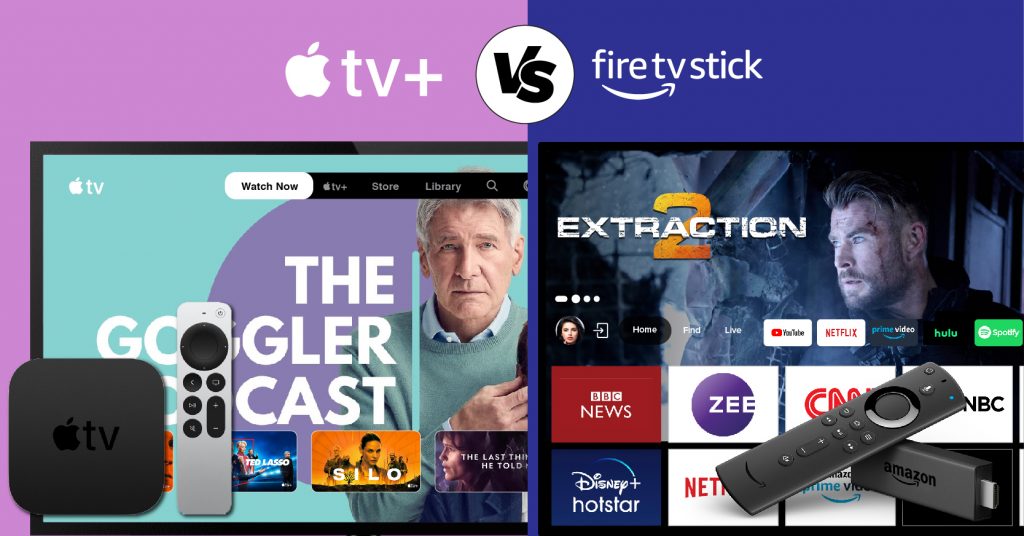
You do not need to spend over a hundred dollars on dedicated Apple hardware just to watch award-winning originals like Severance, Ted Lasso, or The Morning Show. Installing apple tv on firestick takes only a couple of minutes, giving you complete access to your Apple TV+ subscription, purchased iTunes movie library, and premium Apple TV Channels directly from Amazon’s streaming device.

Whether you own a standard Fire TV Stick, Fire TV Stick 4K, 4K Max, or Fire TV Cube, this guide covers everything you need: installation steps, account activation, optimal audio/video settings, and quick fixes if the app stops working.
Device Compatibility: Which Fire TV Models Support Apple TV?
Apple brought its app to the Amazon ecosystem several years ago, meaning the vast majority of active Fire TV hardware runs the application smoothly. Supported models include:
- Amazon Fire TV Stick 4K Max (1st and 2nd Gen)
- Amazon Fire TV Stick 4K (1st and 2nd Gen)
- Amazon Fire TV Stick (2nd, 3rd Gen, and Fire TV Stick Lite)
- Amazon Fire TV Cube (all generations)
- Insignia, Toshiba, and Omni Fire TV Edition Smart TVs
- Fire TV (3rd Gen Pendant design)
If you are using an original 1st-generation Fire TV Stick (released in 2014), the app is not officially supported due to hardware constraints. Upgrading to any modern Fire TV model will resolve compatibility limitations.
How to Install Apple TV on Amazon Firestick
Installing the application is completely free through the Amazon Appstore. Ensure your Firestick is connected to a stable Wi-Fi network, then follow these steps:
- Navigate to Search: From the Firestick home screen, hover over the Find menu and select Search. (Alternatively, hold the voice button on your Alexa Voice Remote and say, "Download Apple TV.")
- Search for the App: Type Apple TV into the search bar. As you type, matching results will appear below the virtual keyboard.
- Select the App: Choose Apple TV from the list. The official icon displays the black-and-white Apple logo alongside the "tv" lettering.
- Download: Click Get or the cloud download icon. Your Firestick will download and install the app in the background.
- Launch: Once installed, select Open to launch Apple TV immediately.
Pinning Apple TV to Your Firestick Home Screen
To avoid searching through the app library every time you stream, pin the app to your top row:
- Hold down the Home button on your Fire TV remote until the quick menu appears, then select Apps.
- Scroll down to the Apple TV tile (do not click it yet).
- Press the Options button (the three horizontal lines) on your remote.
- Select Move to front. Now, the app will always appear at the very front of your home screen ribbon.
How to Sign In and Activate Your Account
Once you open the app, you must link your Apple ID to access your subscriptions and purchases. Apple offers two straightforward authentication methods.
Method 1: Sign in with a Mobile Device (Fastest)
- Select Sign In within the Apple TV app settings or home screen.
- Choose Sign In on Mobile Device.
- A QR code and an activation URL (activate.apple.com) alongside an alphanumeric code will appear on your TV screen.
- Scan the QR code with your smartphone camera, or open a browser and enter the web address manually.
- Sign in using your Apple ID and password on your phone. If prompted, confirm your two-factor authentication code.
- Your Firestick screen will refresh automatically, logging you in.
Method 2: Sign in on This TV (Manual Remote Entry)
- Select Sign In on This TV.
- Use the on-screen keyboard to enter your Apple ID email address, followed by your password.
- If you have two-factor authentication enabled, enter the verification code sent to your trusted Apple device or phone number.
Understanding What You Can Watch
A common point of confusion is the distinction between Apple TV, Apple TV+, and iTunes purchases:
- Apple TV+: Apple’s monthly subscription streaming service featuring exclusive original shows, movies, documentaries, and live sports like Friday Night Baseball.
- Purchased & Rented Movies: Any digital films or television shows you previously purchased through iTunes appear under the Library tab.
- Apple TV Channels: Premium channel add-ons such as Paramount+, AMC+, and Starz subscribed to directly through Apple.
Note on Purchases: Amazon and Apple do not allow direct movie rentals or purchases inside the Firestick app due to digital store commission policies. If you want to rent or purchase a new movie, buy it first via a web browser, iPhone, iPad, or Mac. It will instantly sync to your Firestick under your Library tab.
Troubleshooting Common Issues with Apple TV on Firestick
If you encounter a black screen, video buffering, or random app crashes, work through these proven fixes to restore performance.

1. Force Stop and Clear the App Cache
Over time, cached data can become corrupted, leading to unresponsive menus or playback errors.
- Go to Settings (gear icon) on your Firestick.
- Select Applications > Manage Installed Applications.
- Scroll down and select Apple TV.
- Click Force Stop, then click Clear Cache.
- Relaunch the app. If issues persist, return to this menu and choose Clear Data (you will need to sign in again).
2. Restart Your Firestick
A soft hardware reboot clears memory leaks and background processes:
- Press and hold the Select button (center circular button) and the Play/Pause button simultaneously for 5 seconds until the device says "Your Amazon Fire TV is restarting."
- Alternatively, unplug the power adapter from the wall outlet, wait 30 seconds, and plug it back in.
3. Check for Fire OS and App Updates
Running outdated software often triggers authentication failures or playback glitches:
- Update Fire OS: Go to Settings > My Fire TV > About > Check for Updates. Install any pending updates.
- Update Apple TV: Highlight the Apple TV app icon, press the Options button (three lines), and click More Info. If an update is available, select Update.
4. Fix Video Playback and HDCP Errors
If you see an "HDCP Error" or audio plays without picture, your Firestick’s HDMI handshake with your television failed. Plug the Firestick directly into the HDMI port without extension cables, or try a different HDMI port on your TV that supports HDCP 2.2 for 4K streaming.
How to Get the Best Picture and Audio Quality
The Apple TV app on Firestick supports 4K Ultra HD, Dolby Vision, HDR10, and Dolby Atmos on compatible hardware.
- Enable 4K HDR: Go to Firestick Settings > Display & Audio > Display > Video Resolution and set it to Auto (up to 4K Ultra HD). Under Dynamic Range Settings, select Adaptive.
- Enable Match Original Frame Rate: Under the same display settings, turn on Match Original Frame Rate. This removes motion judder, syncing 24fps cinematic movies perfectly with your TV display.
- Audio Setup: In Display & Audio > Audio > Surround Sound, set output to Best Available to enjoy Dolby Atmos surround sound when using compatible soundbars or AV receivers.
Frequently Asked Questions
Is the Apple TV app free on Amazon Firestick?
Yes. Downloading and installing the Apple TV app is free. However, accessing Apple TV+ original content requires an active Apple TV+ subscription ($9.99/month, or via an Apple One bundle). You can also use the free app solely to access your existing library of iTunes purchases.
Can I watch Apple TV on Firestick without an Apple device?
Yes. You only need a standard Apple ID account. You can create an Apple ID on any web browser by visiting appleid.apple.com. You do not need to own an iPhone, iPad, or Mac.
Why won't the Apple TV app sign in on my Firestick?
Authentication failures are usually caused by an outdated app version, incorrect two-factor authentication timing, or a desynced Firestick clock. Ensure your Firestick system time is accurate under Settings > Preferences > Time Zone, update Fire OS, and use the QR code mobile method instead of typing passwords manually.