How to Get into My iCloud Account (Fast Fixes)
Whether you just bought a new device, need to retrieve a stored photo, or find yourself locked out, figuring out how to get into my icloud account is a common challenge. Apple designs its ecosystem with strict security, which keeps your personal data safe, but it can create hurdles when you forget your credentials or lose access to a trusted phone number.

This guide walks you through standard sign-in procedures across different devices, alternative access methods via the web, and exact steps to recover your account if you are locked out.
The Standard Ways to Access iCloud
Depending on the hardware in front of you, there are three primary ways to log into iCloud.
1. Sign in on iPhone or iPad
If you have an iOS or iPadOS device that is not yet linked to your account:
- Open the Settings app.
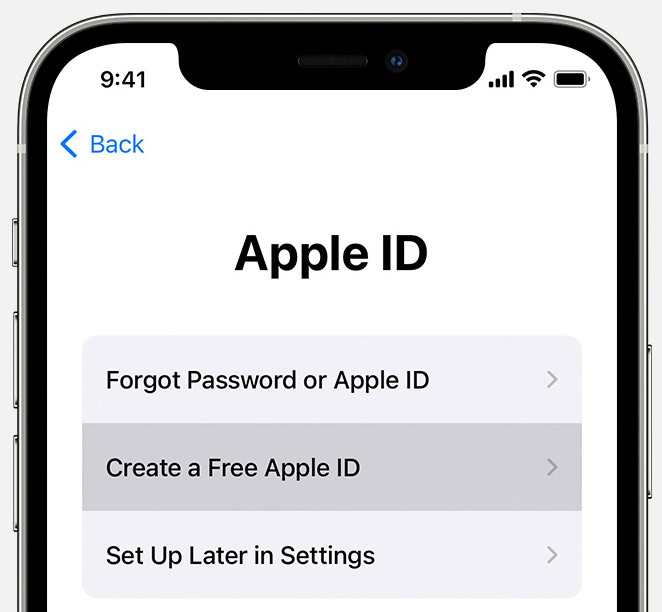
- Tap Sign in to your iPhone (or iPad) at the very top of the menu.
- Enter your Apple ID email address or phone number and tap Continue.
- Type in your password.
- If prompted, enter the six-digit verification code sent to your trusted device or trusted phone number.
2. Sign in on Mac
On macOS, your iCloud account integrates directly into the operating system:
- Click the Apple menu () in the top-left corner and select System Settings (or System Preferences on older macOS versions).
- Click Sign In at the top of the sidebar.
- Enter your Apple ID credentials and submit your two-factor verification code when requested.
3. Sign in via Web Browser (PC, Android, or Public Computer)
You do not need an Apple device to access your files, notes, contacts, or photos. You can access the iCloud web dashboard from any modern desktop or mobile browser:
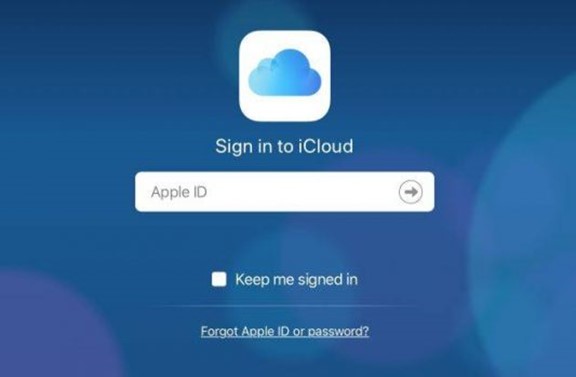
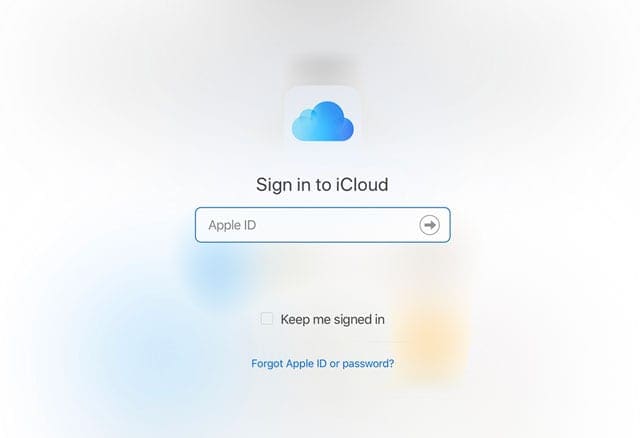
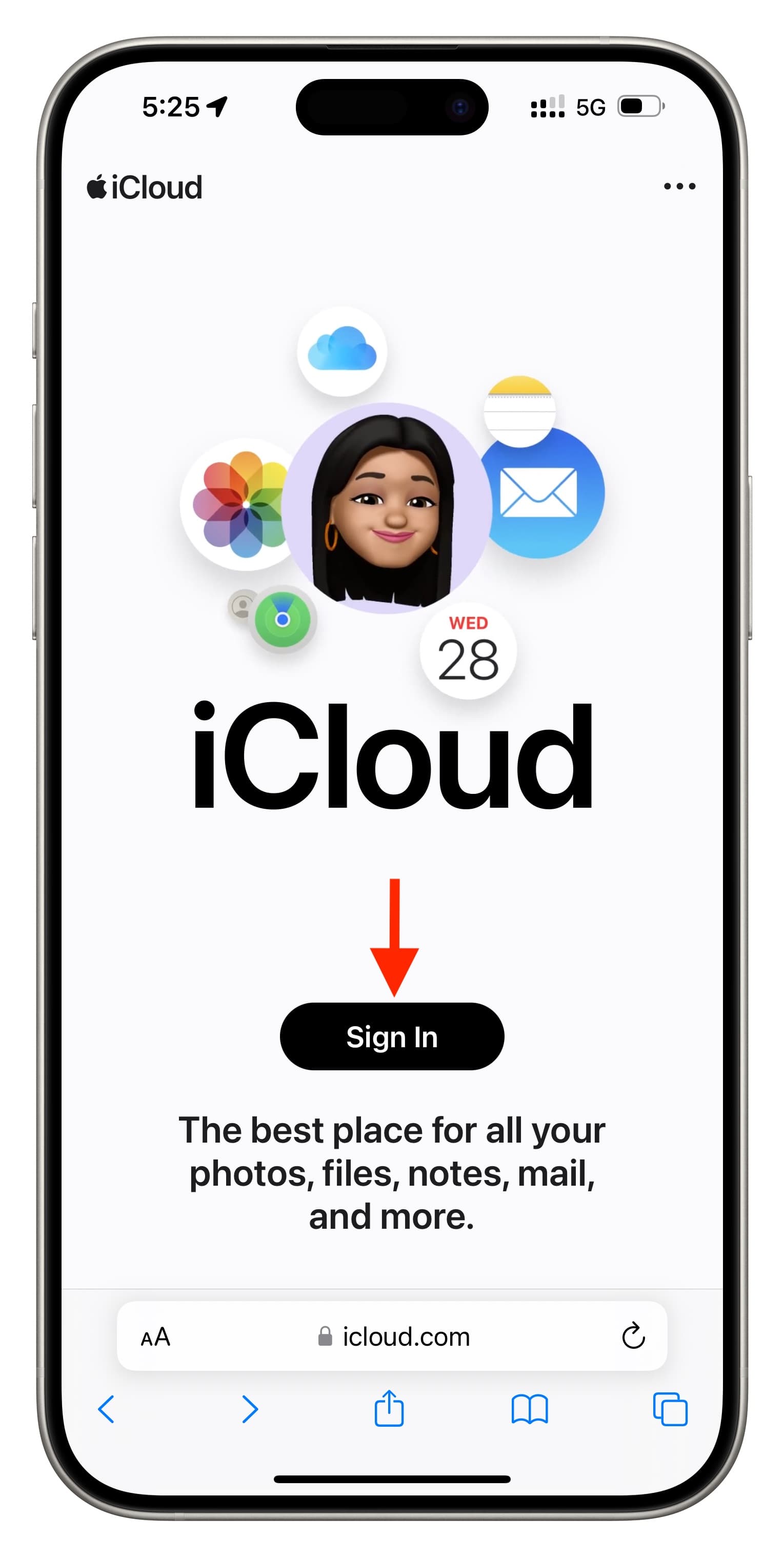
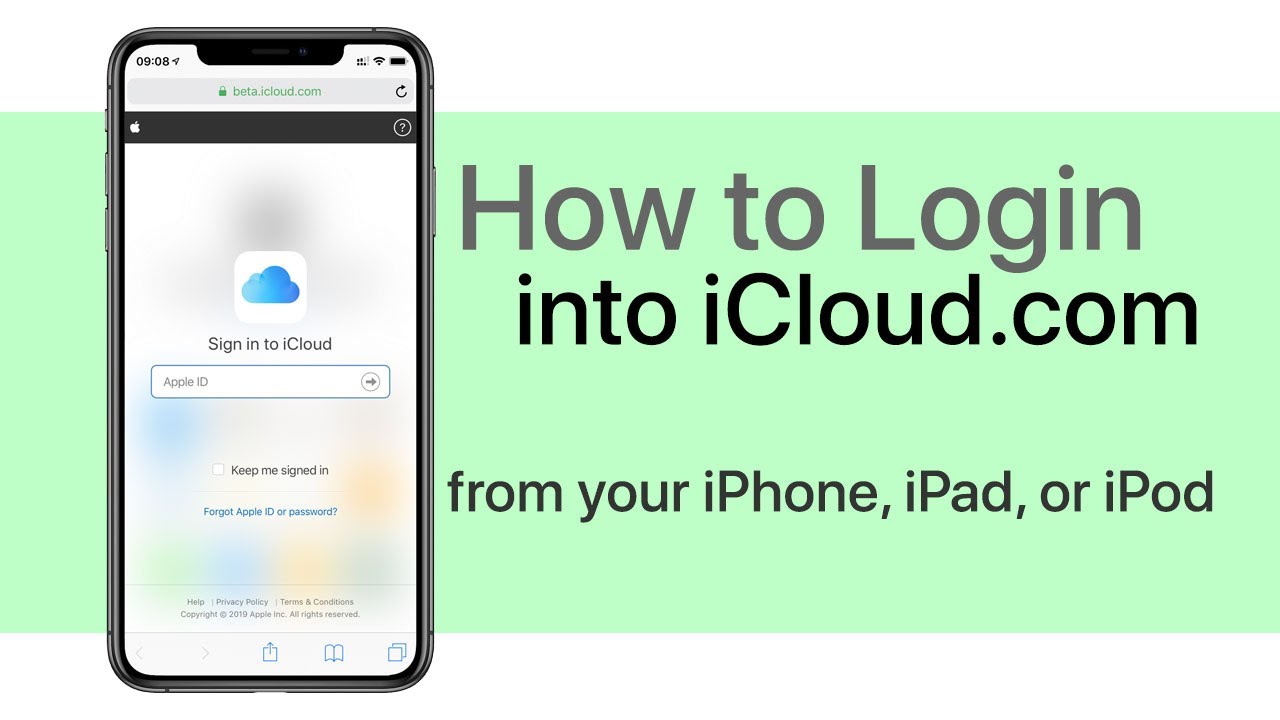
- Navigate to iCloud.com.
- Click Sign In.
- Enter your Apple ID credentials.
- If you are using a personal computer, you can choose Trust this browser so you won't need a two-factor code every time you log in. If you are on a shared or public computer, always select Don't Trust and remember to log out when finished.
How to Get into My iCloud Account Without a Password
If you cannot remember your password, you will not be able to bypass the login screen without resetting it. Apple does not allow anyone—even customer support—to view plain-text passwords. Follow these verified methods to regain entry.
Method 1: Reset Using a Trusted Apple Device
If you are already logged into an iPhone, iPad, or Mac with an active passcode or Mac login password, you can reset your iCloud password immediately without answering security questions or receiving an email.
On an iPhone or iPad:
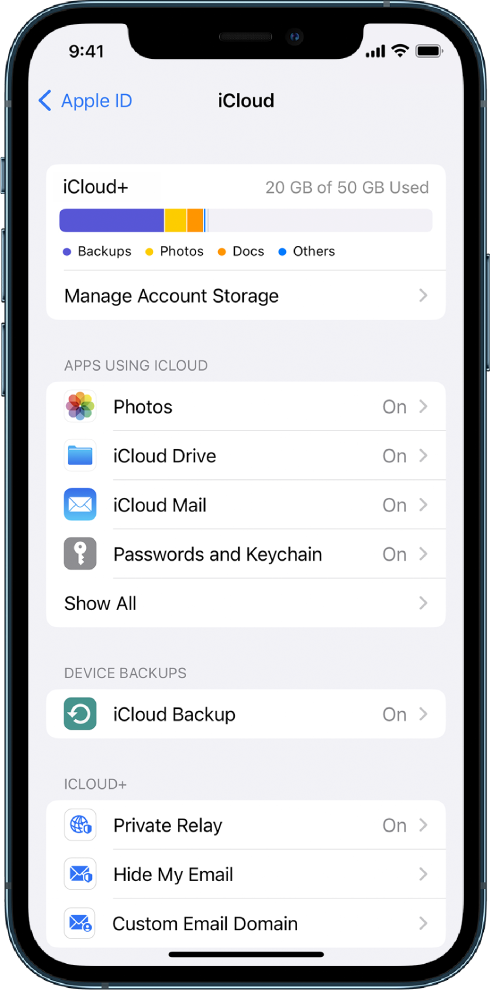
- Go to Settings > [Your Name].
- Select Sign-In & Security (or Password & Security).
- Tap Change Password.
- Enter your device passcode when prompted.
- Type your new password, confirm it, and tap Change.
On a Mac:
- Open System Settings > [Your Name] > Sign-In & Security.
- Click Change Password.
- Enter your Mac administrator password, then input your new iCloud password.
Method 2: Use the Apple Support App on a Friend's Device
If you do not have any of your own devices available, you can borrow an iPhone or iPad belonging to a friend or family member. Apple provides a dedicated recovery path that keeps the owner's data separate from yours:
- Download the free Apple Support app from the App Store onto the borrowed device.
- Scroll down to Support Tools and tap Reset Password.
- Select Help Someone Else.
- Enter the Apple ID email or phone number for the iCloud account you need to access.
- Follow the on-screen prompts to reset your credentials. The process verifies your identity without linking your account to their device.
Method 3: Reset via the Web (iforgot.apple.com)
When no trusted Apple device is available, your next stop is Apple's web-based recovery portal:
- Open a browser and go to iforgot.apple.com.
- Enter your Apple ID email address or associated phone number.
- Enter your trusted phone number to verify ownership.
- A notification will be sent to any device logged into that account. If you do not have those devices, click Don't have access to your devices? to send a verification code via SMS or phone call to your trusted number instead.
What If You Don't Have Access to Your Trusted Phone Number?
Two-factor authentication (2FA) is mandatory for almost all iCloud accounts. If you have lost your phone, changed your phone number, or cannot receive SMS codes, entering your account requires initiating Account Recovery.
Account Recovery is an automated safety procedure designed to get you back into your account while preventing unauthorized users from gaining access. Here is how it works:
- Go to iforgot.apple.com and enter your Apple ID.
- When prompted for a trusted phone number you no longer have, look for an option that says Don't have access to this number? or Can't use this number?.
- Provide a new, working phone number where Apple can reach you via call or text.
- Confirm any account details you remember (such as credit card details tied to Apple subscriptions).
Once requested, Apple evaluates your case. You will receive a status update at your contact email or SMS with an estimated waiting period (which can range from several hours to a few days). Once the waiting period ends, Apple sends instructions on how to finalize your login.
Troubleshooting Common iCloud Login Errors
If you have your credentials but still cannot sign in, check these common roadblocks:
- "Account Locked or Disabled": If you or someone else entered the wrong password too many times, Apple automatically locks the account for security. Head directly to iforgot.apple.com to unlock it with your existing password or perform a reset.
- Verification Code Not Arriving: If your SMS code doesn't arrive, click Didn't get a code? on the login screen. You can choose to have Apple call the phone number with an automated voice message, which often bypasses SMS carrier delays.
- Browser Cookies or Cache Issues: If iCloud.com keeps looping back to the login screen, open a Private/Incognito window or disable browser ad-blockers, which can interfere with Apple's authentication scripts.
Best Practices to Avoid Getting Locked Out Again
Once you are back in your iCloud account, take five minutes to configure these preventative settings:
- Add a Secondary Trusted Phone Number: In your Apple ID settings, add the phone number of a spouse, family member, or landline. If you lose your primary smartphone, you can route the 2FA code to this backup number.
- Set Up an Account Recovery Contact: Under Sign-In & Security > Account Recovery, you can designate a trusted friend or family member who uses an Apple device. If you ever get locked out, Apple can send them a one-time recovery code to hand to you.
- Generate a Recovery Key: If you prefer total control over account recovery, you can generate a 28-character Recovery Key. Note that if you turn this on, you become solely responsible for your access—Apple Support will not be able to help you recover your account if you lose the key.