How to JavaScript Remove Onload Website Popups
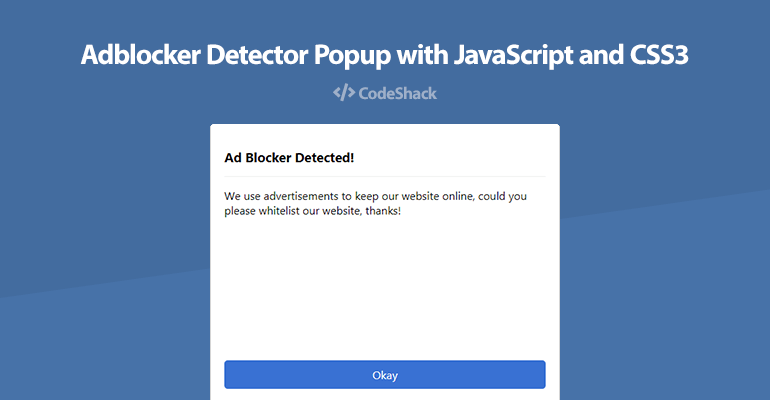
Annoying overlays, newsletter subscription modals, and cookie banners that trigger immediately upon page load can ruin the user experience of any website. Whether you are building a custom userscript to clean up your daily browsing or trying to understand how frontend event triggers work, learning how to JavaScript remove onload website popups is an invaluable skill for web developers and power users alike.

In this guide, we will explore why these popups appear, how the Document Object Model (DOM) handles them, and the exact code snippets you need to eliminate them efficiently.
Understanding How Onload Popups Work
Before you can successfully remove a popup, you need to understand how it gets onto the screen. Most modern websites generate popups dynamically using JavaScript. When a page finishes loading, an onload event or a setTimeout function fires, injecting HTML elements into the DOM, applying CSS classes to darken the background (the backdrop), and disabling scrolling on the body element.
To defeat these elements, standard CSS blocking (like uBlock Origin) works well, but sometimes dynamic scripts recreate elements or leave the main page locked. That is where direct DOM manipulation via JavaScript shines.
Methods to JavaScript Remove Onload Website Popups
Depending on how the website is coded, you can approach popup removal in a few different ways. Here are the most effective techniques ranging from simple element deletion to MutationObservers.
1. Direct Element Removal
If the popup has a specific ID or a unique class name, you can target it directly and remove it from the DOM. Open your browser console (F12) and test a snippet like this:
// Remove popup by ID
const popup = document.getElementById('modal-overlay');
if (popup) popup.remove();

// Or remove by class name
const modals = document.querySelectorAll('.popup-banner');
modals.forEach(el => el.remove());
This method works instantly if the element is already rendered when you run the script. However, if the script executes *before* the popup finishes loading, it will fail to find the element.
2. Restoring Scroll and Removing Backdrop Styles

Often, simply removing the popup HTML leaves the page frozen because the site's script applied overflow: hidden; to the <body> tag. To fix this completely, you must clean up the body styles as well:
// Clean up the modal and restore scrolling
document.querySelectorAll('.modal, .overlay, .popup').forEach(el => el.remove());
document.body.style.overflow = 'auto';
document.body.style.position = 'static';

// Remove any lingering backdrops
document.querySelectorAll('.modal-backdrop').forEach(backdrop => backdrop.remove());
3. Using MutationObserver for Dynamic Popups
Many stubborn websites detect when you try to remove elements or they load their modals a few seconds after the initial page load. A MutationObserver watches the DOM for changes and automatically deletes the popup the exact millisecond it appears.
const observer = new MutationObserver((mutations, obs) => {
    const popup = document.querySelector('#delayed-popup-id');
    if (popup) {
        popup.remove();
        document.body.style.overflow = 'auto';
        // Optional: stop observing once removed
        obs.disconnect();
    }
});

observer.observe(document.body, {
    childList: true,
    subtree: true
});
This script runs continuously in the background of the page, scanning for the target ID. As soon as the site's script injects the popup, your observer intercepts and deletes it.
Automating the Process with Userscripts
If you want these popup-removal scripts to run automatically every time you visit a specific website, you can use browser extensions like Tampermonkey or Greasemonkey. By writing a userscript with a custom @match rule, you can apply your JavaScript cleanup code globally or to targeted domains.
- Install Tampermonkey in your browser.
- Create a new userscript.
- Set the
@matchheader to your target website URL. - Paste your MutationObserver or element-removal code into the script body.
Best Practices and Troubleshooting
When working with DOM manipulation scripts, keep a few technical considerations in mind to ensure your code runs smoothly without throwing errors:
- Null Checks: Always verify that an element exists using an
ifstatement before calling.remove()to prevent console errors. - Specificity: Avoid overly broad selectors like
divorsection, which might accidentally delete core website navigation or content containers. - Timing: If direct removal fails, wrap your execution in a
window.addEventListener('load', ...);block to ensure the DOM is fully ready.
Conclusion
Popups that trigger on page load can severely degrade your browsing or testing experience. By mastering how to JavaScript remove onload website popups, you regain control over the DOM. Whether you use a quick console command for a one-time fix or set up a persistent MutationObserver via a userscript, cleaning up unwanted overlays is a straightforward process once you understand event timing and element selectors.