How to Make a Custom Gorilla Tag Profile Picture
Stand Out with a Custom Gorilla Tag Profile Picture

Gorilla Tag has taken the VR gaming world by storm, boasting millions of active players swinging through forest and canyon maps daily. With such a massive community, standing out on platforms like TikTok, Discord, YouTube, and Twitch can be tough. Whether you are creating content, joining competitive discord servers, or just want to flex on your friends, having a eye-catching custom gorilla tag profile picture is essential for building your personal brand in the community.
Creating a unique PFP (profile picture) goes beyond just taking a standard screenshot inside your headset. High-quality community avatars feature custom cosmetics, vibrant lighting, personalized backgrounds, and expressive monkey poses. This comprehensive guide walks you through the exact methods, tools, and steps required to make a professional-looking profile picture that captures your in-game personality.
Understanding Gorilla Tag PFP Styles
Before diving into the creation process, it helps to know what style of profile picture you want. The Gorilla Tag community generally leans toward a few popular aesthetics:
- The 3D Rendered PFP: Made using software like Blender and official game assets. These offer the highest quality, custom lighting, and precise control over your monkey's cosmetics.
- The In-Game Screenshot Edit: Captured using free-cam mods on PCVR, then enhanced with photo editing software like Photoshop, GIMP, or mobile apps like Canva.
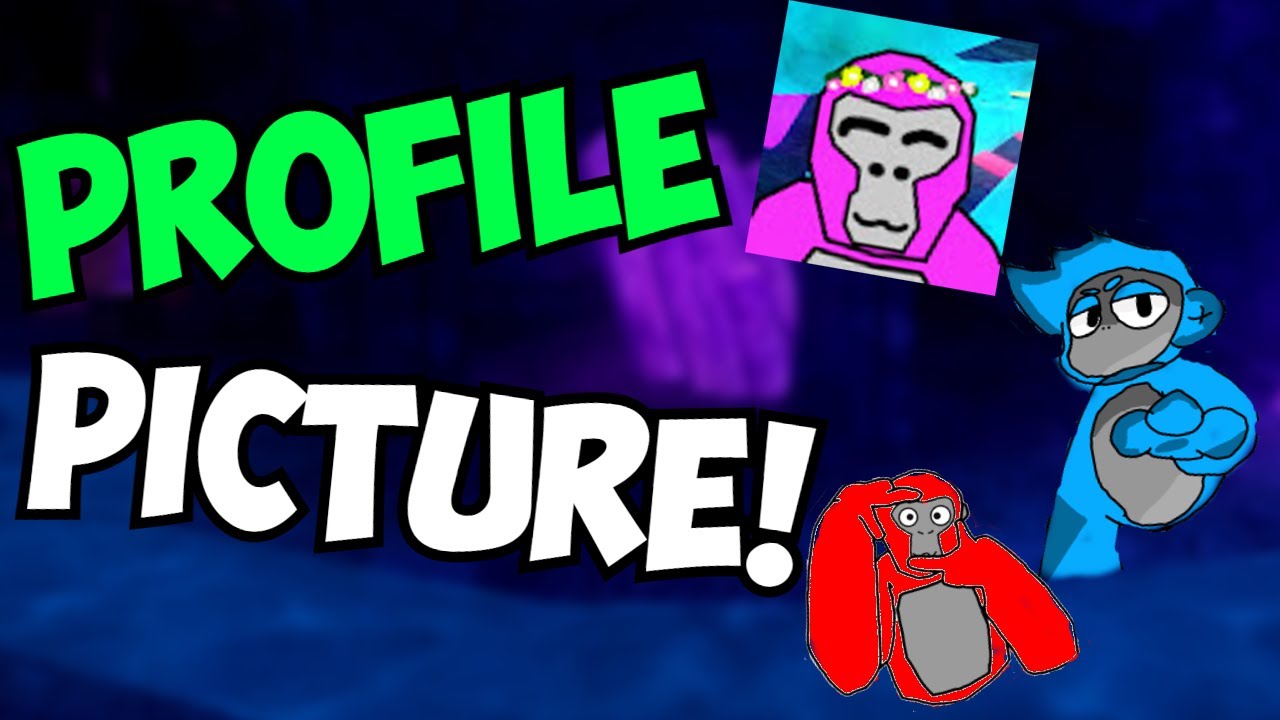
- Digital Art & Illustrations: Hand-drawn 2D artwork of your Gorilla Tag character, popular among content creators and streamers.
Method 1: Creating a 3D Rendered Gorilla Tag PFP (Best Quality)
If you want that crisp, professional look with custom hats, badges, and dynamic lighting, using Blender is the gold standard. While it sounds intimidating, you don't need to be a 3D modeling expert to pull this off.
Step 1: Gather Your Assets
To start, you will need a few free resources:
- Download and install Blender (it is completely free).
- Find a community-made Gorilla Tag rig (often shared in prominent Gorilla Tag modding Discord servers or on GitHub). These rigs include the standard monkey body mesh and bone structures for posing.
- Download textures and material packs that match the current in-game colors and cosmetic items you wear.
Step 2: Pose Your Monkey
Import the rig into Blender. Use the armature to move your monkey's arms, fingers, and head into a fun, dynamic pose. Maybe your monkey is mid-swing, wearing a top hat and holding a candy cane, or simply giving a friendly wave toward the camera.
Step 3: Set Up Lighting and Background
Good lighting makes all the difference in 3D renders. Add a three-point lighting setup (key light, fill light, rim light) to make your character pop off the background. For a profile picture, a solid color background, a glowing gradient, or a blurred in-game map backdrop works best since PFPs are usually displayed in a small circular frame.
Step 4: Render and Save

Set your camera resolution to a square aspect ratio (e.g., 1080x1080 pixels). Hit render, and save your image as a high-resolution PNG file.
Method 2: The Fast Screenshot & Edit Method
If you don't want to mess around with 3D modeling software, you can easily create an awesome profile picture using in-game screenshots and basic photo editing apps.
Step 1: Capture the Shot
If you play on PCVR, use a free-cam or spectator mod to position the camera right in front of your monkey. Find a well-lit area—like the Forest map during clear weather or inside the tutorial tree. Strike a pose, change your color code, equip your favorite cosmetics, and take a high-resolution screenshot.
Step 2: Remove the Background
Upload your screenshot to a free background removal tool like remove.bg or use the magic wand tool in Photoshop. This will isolate your monkey from the rest of the map.
Step 3: Add Effects and Borders
Open your isolated monkey image in Canva or Photopea. Add a vibrant colored outline, a glowing drop shadow, or a cool geometric background pattern. Glowing borders are particularly popular in the Gorilla Tag community because they help your PFP stand out against dark Discord UI themes.
Tips for Optimizing Your Profile Picture
No matter which creation method you choose, keep these design principles in mind to ensure your profile picture looks great everywhere:
- Design for a Circle: Most platforms (Discord, TikTok, YouTube) crop profile pictures into circles. Always keep your monkey's head and main features centered so important details don't get cut off in the corners.
- Keep it High Contrast: Use bright colors and high contrast so your avatar is easily recognizable even when viewed as a tiny thumbnail on a mobile phone screen.
- Match Your Branding: If you make YouTube videos or stream on Twitch, try to match the color scheme of your custom PFP with your channel banner and overlay graphics.
Conclusion
Designing a custom gorilla tag profile picture is a fun project that lets you show off your personality and love for the game. Whether you spend hours rigging a 3D model in Blender or quickly edit an in-game screenshot on your phone, taking control of your online aesthetic will help you make a lasting impression in the community. Grab your assets, get creative, and start swinging!