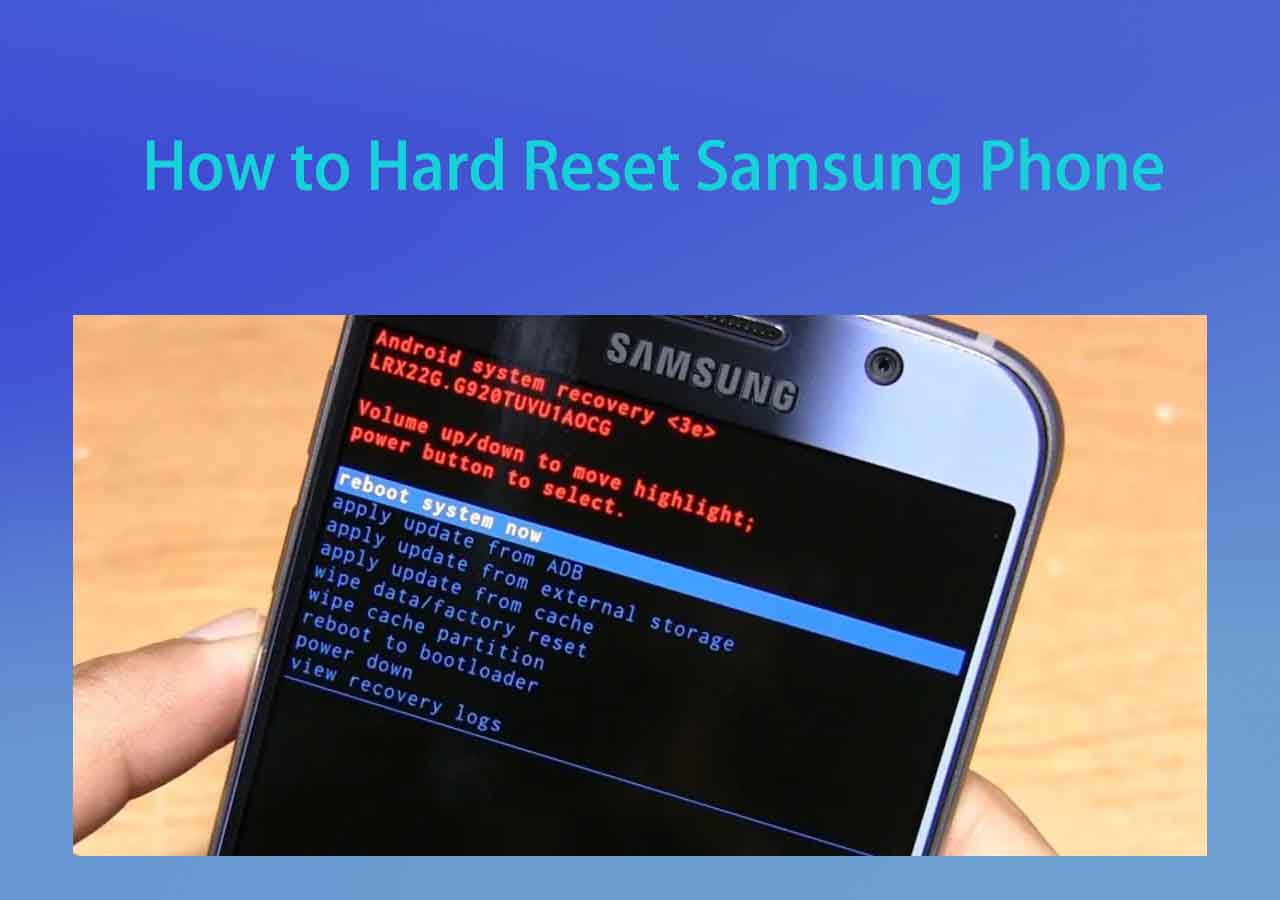
How to Master Reset a Samsung Tablet: Step-by-Step
Introduction to Samsung Tablet Resets

Whether your device is lagging, freezing, or you simply want to wipe your personal data before selling it, knowing how to master reset a Samsung tablet is an essential skill. A master reset (also known as a factory reset) restores your device to its original factory state. It deletes all downloaded apps, personal files, and customized settings, giving you a fresh slate.
Before you begin the process, it is critical to understand that a master reset is irreversible. Everything stored in the tablet's internal memory will be erased. In this comprehensive guide, we will walk you through the preparation steps, multiple methods to perform the reset, and how to bypass common security locks.
Important Preparations Before You Begin
Jumping straight into a reset without preparation can lead to data loss or a locked device due to Google Factory Reset Protection (FRP). Take a few moments to complete these crucial steps:
- Back up your data: Save your photos, documents, and important files to Google Drive, Samsung Cloud, or a physical SD card.
- Note your Google account details: Android security features require you to log back into the same Google account that was previously synced on the device. Failing to remember these credentials will lock you out.
- Charge your tablet: Ensure your battery is at least 50% charged. If the tablet dies mid-reset, it can corrupt the operating system and brick the device.
Method 1: How to Master Reset a Samsung Tablet via Settings
The easiest and most common way to wipe your device is through the Android settings menu. This method works best if your tablet is turning on normally and you know your screen lock PIN or password.
- Open the Settings app on your Samsung tablet.
- Scroll down and tap on General management. (On older Android versions, look for Cloud and accounts or Backup and reset).
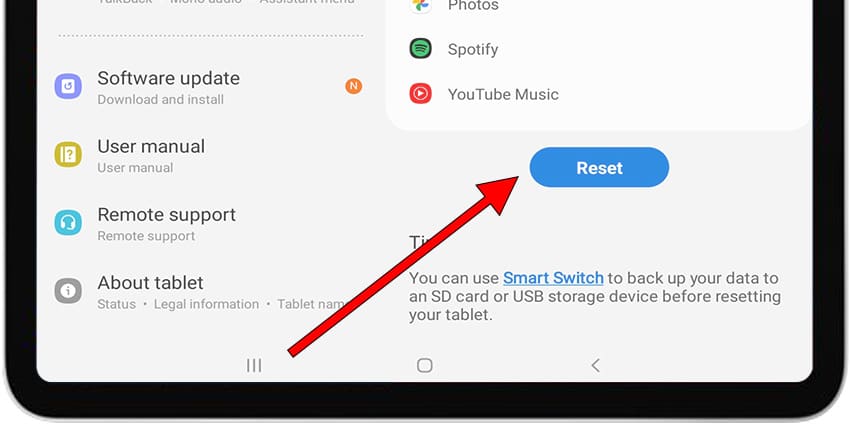
- Select Reset from the options list.
- Tap on Factory data reset.
- Review the list of apps and data that will be erased, then scroll to the bottom and tap Reset.
- If prompted, enter your screen lock PIN, pattern, or password, and confirm by tapping Delete all.
The tablet will display the Samsung logo while it securely wipes all data. This process can take anywhere from 5 to 15 minutes. Once complete, the tablet will boot up to the initial setup screen.
Method 2: Using Hardware Buttons (Recovery Mode)
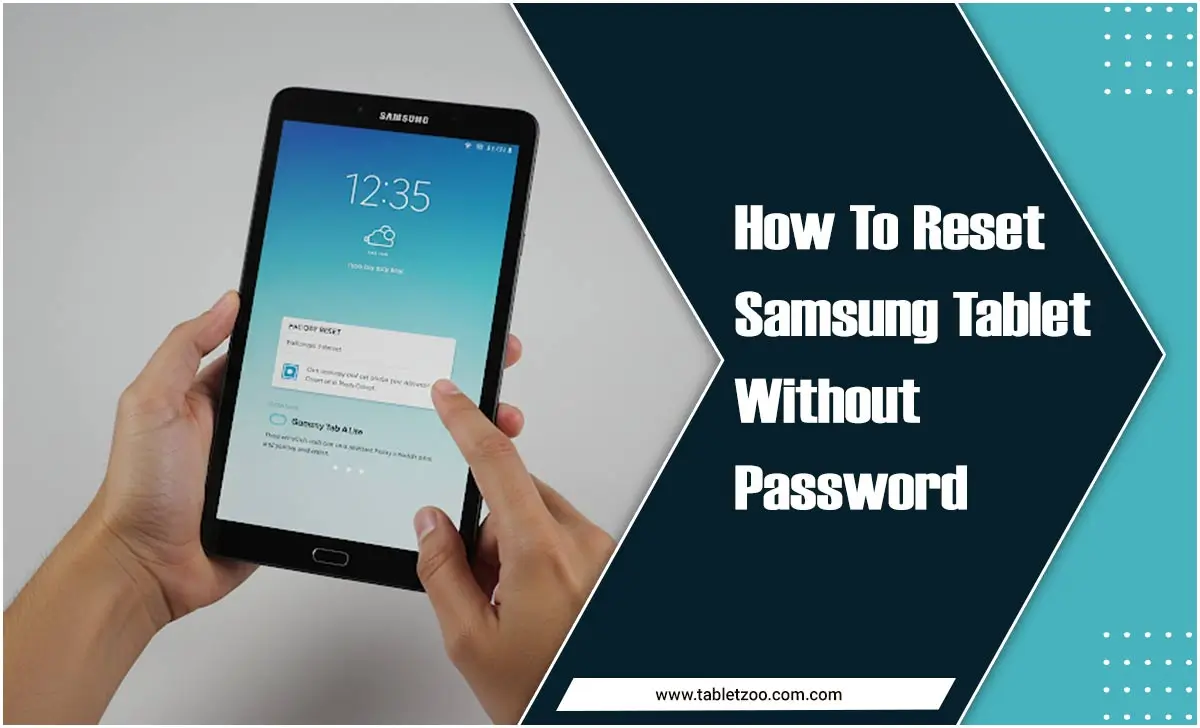
Video: Samsung Galaxy Tab A: How to Factory Reset if You Forgot the Password
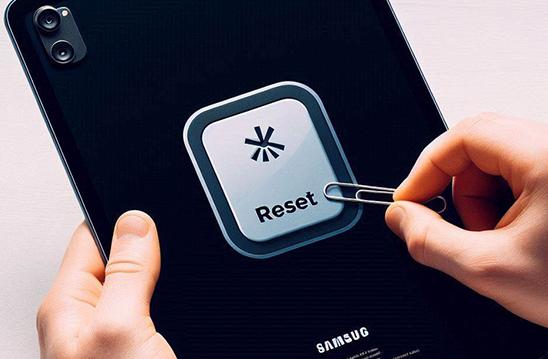
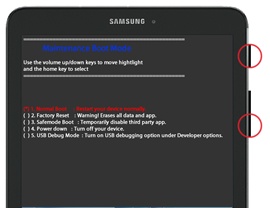
If your tablet is frozen, stuck in a boot loop, or you cannot access the settings menu because you forgot your PIN, you can use the physical buttons to trigger a master reset through Android Recovery Mode.
- Turn off your tablet completely. If it is frozen, press and hold the Power and Volume Down buttons simultaneously for about 10 seconds until the screen goes dark.
- Once off, press and hold the Power and Volume Up (or Volume Down, depending on your specific model) buttons at the same time.
- Keep holding the buttons until the Samsung logo appears on the screen, then release them. You should now see the Android Recovery Mode menu, which consists of text lines.
- Use the Volume Down button to highlight the option that says Wipe data / factory reset.
- Press the Power button to select it.
- Highlight Factory data reset (or Yes) using the volume buttons, and press the Power button to confirm.
- Once the wipe is complete, ensure Reboot system now is highlighted and press the Power button.
Method 3: Remote Reset via SmartThings Find
If your Samsung tablet is lost, stolen, or entirely unresponsive, you can trigger a master reset remotely. Samsung provides a built-in tracking service that allows you to wipe your hardware from afar.
- Visit the official Samsung SmartThings Find website (formerly Find My Mobile) on a computer or smartphone.
- Log in using your Samsung account credentials (the same account registered on the target tablet).
- Select your tablet from the list of registered devices on the left sidebar.
- In the pop-up menu, click on Erase data.
- Follow the on-screen security prompts to confirm the remote wipe. Note that the tablet will need an active internet connection (Wi-Fi or cellular) for this command to process.
Troubleshooting Factory Reset Protection (FRP)
Google implements a security feature called Factory Reset Protection on all modern Android devices. If you perform a master reset via recovery mode, the tablet will demand that you sign in with the exact Google account and password that was last used on the device before the wipe.
This prevents unauthorized users from wiping and reselling a stolen tablet. However, if you are the rightful owner and plan to sell or gift the device, make sure you manually remove your Google account from the tablet *before* performing the reset. Go to Settings > Accounts and backup > Manage accounts, select your Google account, and tap Remove account.
Conclusion
Master resetting your Samsung device is a straightforward process whether you use the settings menu, hardware buttons, or remote tools. By following the proper backup steps and understanding security safeguards like FRP, you can successfully wipe your tablet, fix lingering performance issues, or get it ready for its next owner with total peace of mind.