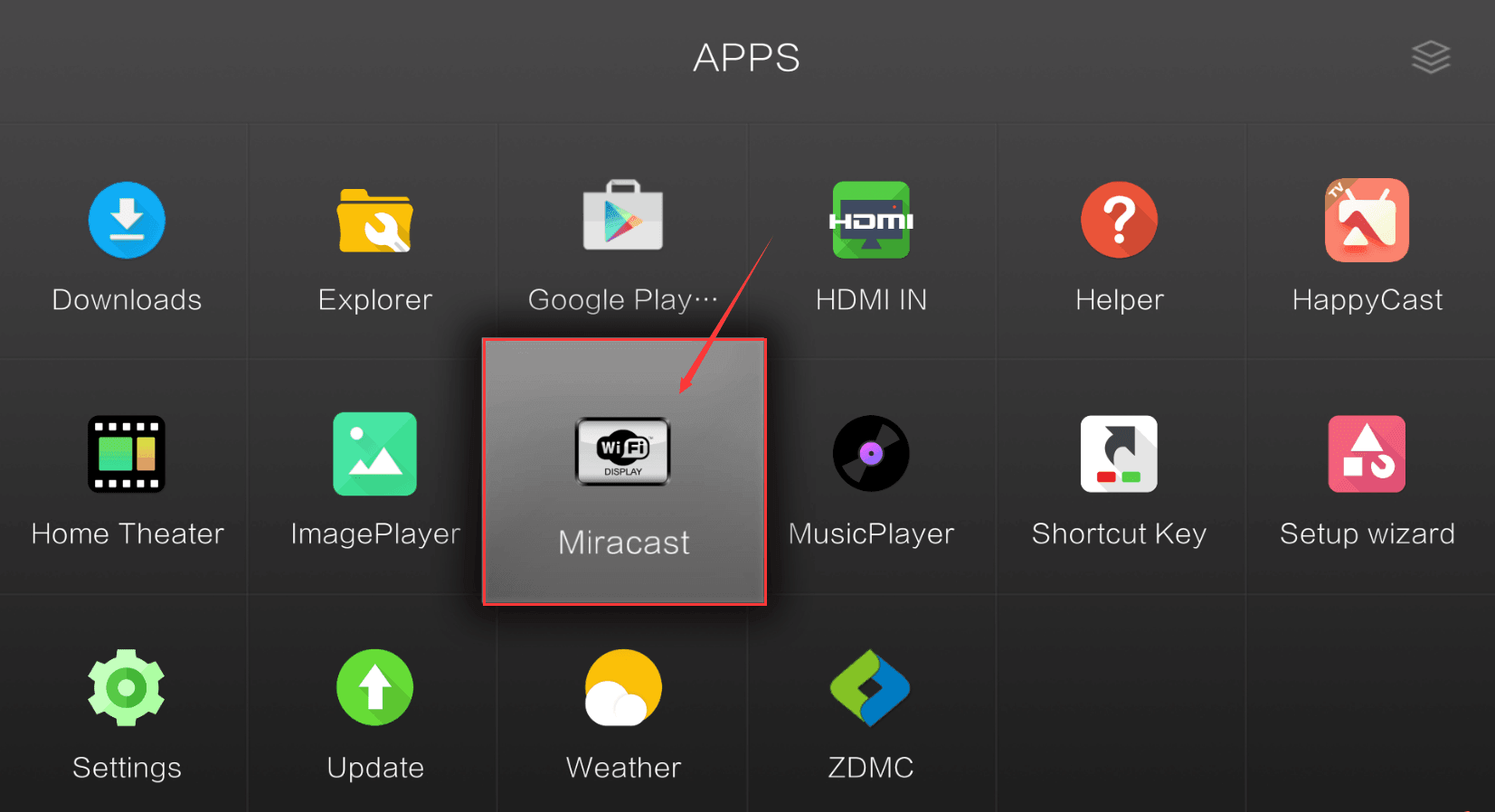
How to Miracast on Android: The Ultimate Guide
Understanding Miracast and Android Compatibility

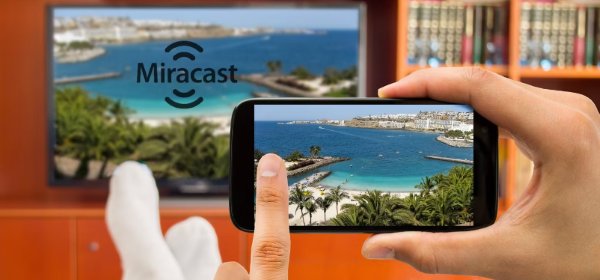
Mirroring your smartphone screen to a larger display is a great way to share photos, watch videos, or give presentations. If you are wondering how to miracast on android, you are in the right place. Miracast is a wireless display standard created by the Wi-Fi Alliance. It acts like an HDMI cable over Wi-Fi, allowing your phone to beam its exact display to a compatible TV, projector, or streaming stick without needing a router.
However, Android's relationship with Miracast is a bit nuanced. Google officially dropped native, out-of-the-box Miracast support starting with Android 6.0 Marshmallow in favor of its proprietary Google Cast (Chromecast) protocol. Despite this shift, many Android manufacturers—such as Samsung, LG, and OnePlus—still include Miracast functionality under alternative names like Smart View, Screen Mirroring, or Wireless Display. Additionally, third-party apps and hardware adapters can bridge the gap if your specific device lacks native support.
Prerequisites for Screen Mirroring
Before you begin the mirroring process, ensure your hardware meets the necessary requirements for a stable connection:
- Wi-Fi Network: While Miracast creates a direct peer-to-peer Wi-Fi connection between your devices, keeping both your phone and your smart TV connected to the same Wi-Fi network can help with initial discovery.
- Hardware Compatibility: Your TV or external display must support Miracast natively, or you must be using a Miracast-certified wireless display receiver plugged into an HDMI port.
- Power and Proximity: Keep your Android phone close to the receiving display during the connection process to avoid signal drops and latency.
How to Miracast on Android: Step-by-Step Methods
Depending on your phone's manufacturer and software version, you can use one of the following methods to establish a wireless connection.
Method 1: Using Native Manufacturer Settings (Samsung, LG, etc.)
If you own a device that still retains built-in screen mirroring software, the process is straightforward and does not require downloading any extra tools.
Video: MIRACAST: How to connect android phone to SUREWHEEL Q3 projector, method 2

- Turn on your Miracast-compatible smart TV or wireless display receiver.
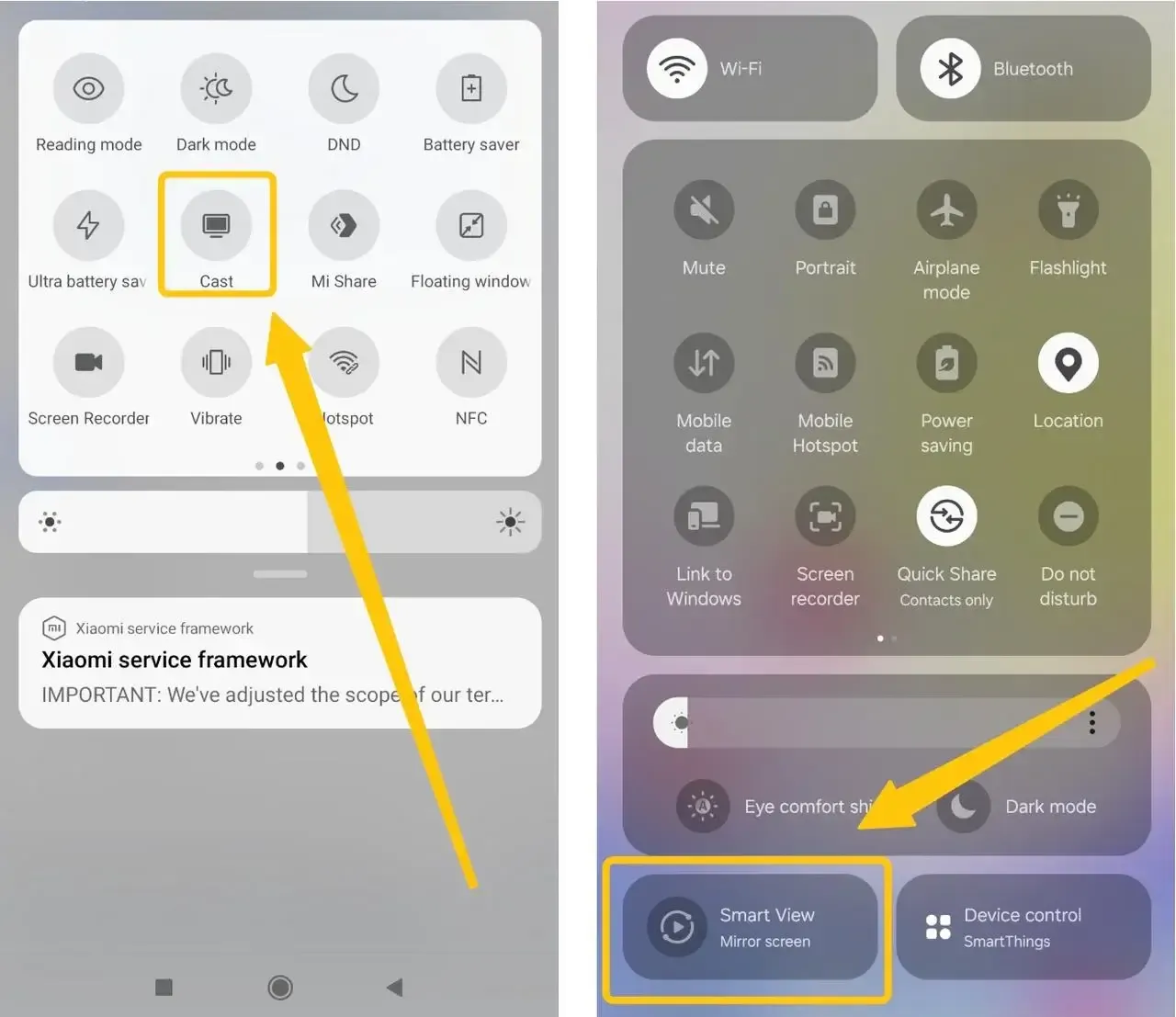
- Swipe down from the top of your Android screen twice to open the full Quick Settings panel.
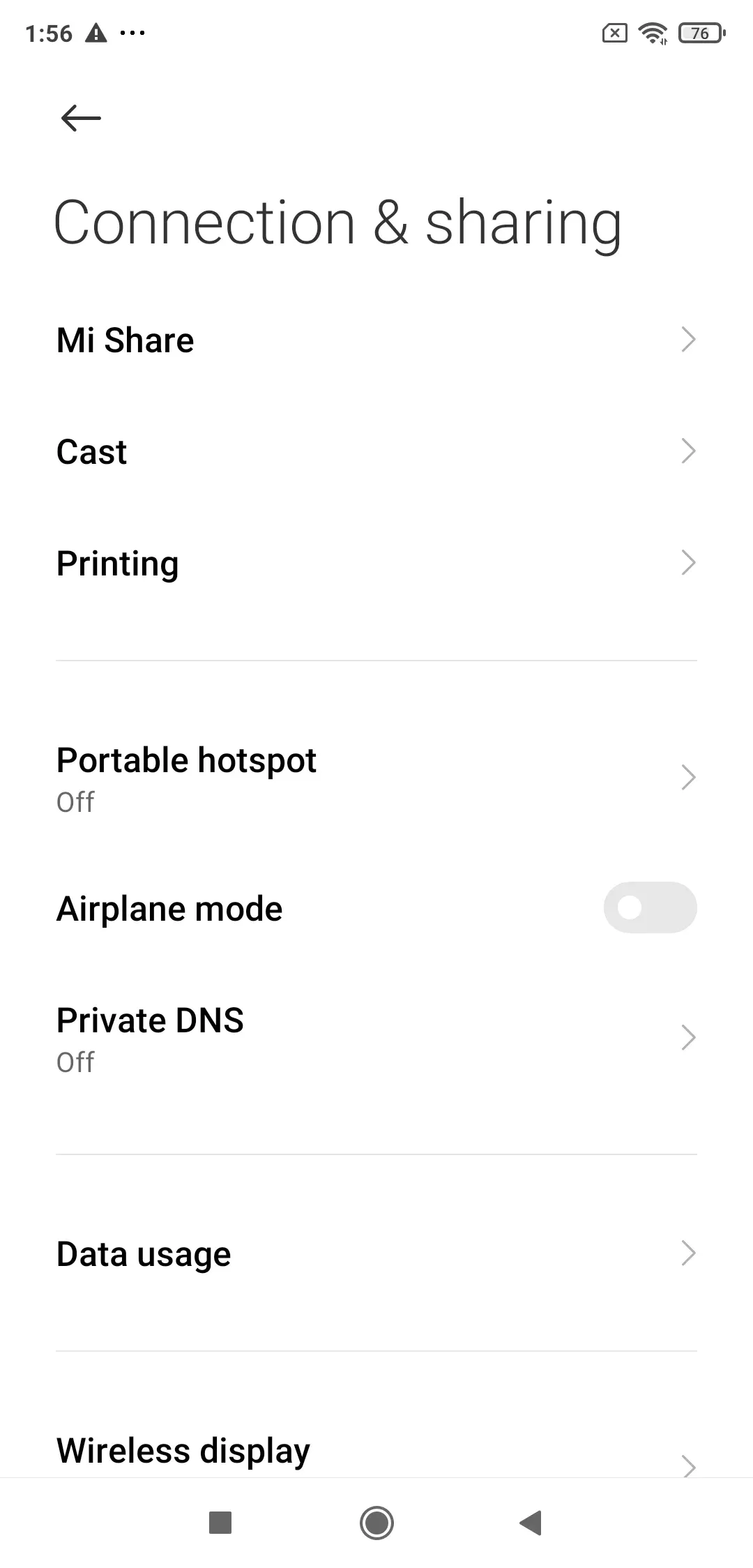
- Look for a toggle labeled Smart View (Samsung), Screen Mirroring, Cast, or Wireless Display.
- Tap the icon to search for nearby available devices.
- Select your TV or display from the scanned list. If prompted, accept the connection request on your television screen.
Method 2: Using Third-Party Miracast Apps
If your version of Android or your specific phone brand removed native Miracast options from the settings menu, you can restore functionality using third-party applications available on the Google Play Store.
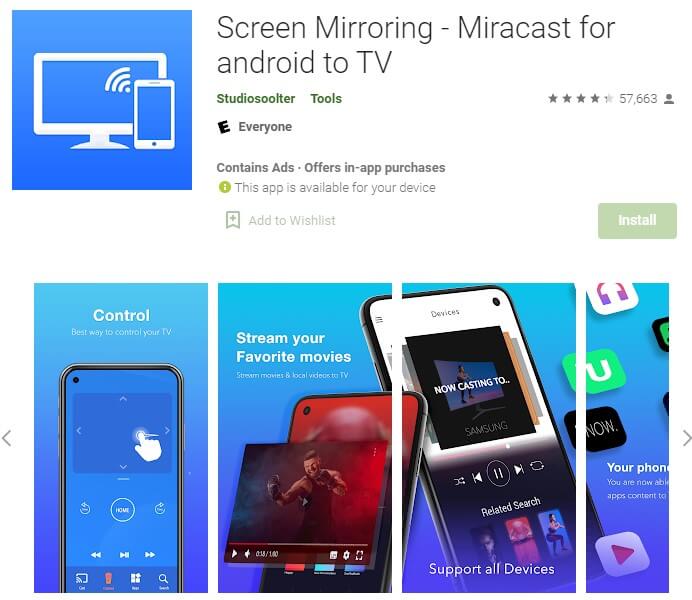
- Open the Google Play Store on your Android phone and search for a reputable Miracast or wireless display app (such as "Miracast Wifi Display" or "Screen Mirroring app").
- Download and install the application.
- Ensure your phone and smart TV are connected to the same Wi-Fi network.
- Open the app and grant any necessary storage or location permissions.
- Tap the connect or start button within the app to scan for your Miracast receiver and establish the stream.
Method 3: Using a Miracast Hardware Dongle
If your television is an older model that lacks built-in smart features or Wi-Fi connectivity, you can still use Miracast by purchasing an external hardware receiver.
- Plug a Miracast-certified wireless display adapter into an available HDMI port on your TV.
- Connect the dongle to a power source using a USB cable (many modern TVs have USB ports that can power the dongle directly).
- Switch your TV's input source to the corresponding HDMI port.
- Use your phone's native wireless display settings or a third-party app to detect and connect to the hardware dongle.
Troubleshooting Common Miracast Issues
Even though Miracast is designed to be plug-and-play, wireless interference and software quirks can occasionally disrupt your connection. Here is how to fix common problems:
- Device Not Found: Restart both your Android phone and your television. Ensure that your TV's screen mirroring input or receiver mode is actively turned on and waiting for a connection.
- Lag and Freezing: Miracast relies heavily on local Wi-Fi frequencies. Interference from Bluetooth devices, microwaves, or crowded router channels can cause stuttering. Move closer to the display and disconnect unnecessary Bluetooth accessories.
- Black Screen or No Audio: This is often caused by HDCP (High-bandwidth Digital Content Protection) issues when attempting to stream protected media apps like Netflix or Hulu. Try disconnecting and reconnecting, or check if an app update resolves the handshake failure.
Miracast vs. Chromecast: Which Should You Use?
It helps to know the difference between Miracast and Google Cast if you are trying to decide on the best streaming setup. Miracast mirrors your exact phone screen pixel-for-pixel, making it ideal for local files, gaming, or projecting apps that do not support casting. Chromecast, on the other hand, usually streams content directly from the cloud while freeing up your phone to handle other tasks or go to sleep. If you specifically need direct screen duplication without a router, Miracast remains a powerful, versatile tool for Android users.