How to Program an Xfinity Remote Control
Getting your Xfinity entertainment system to work seamlessly with a single click starts with understanding how to program an Xfinity remote control. Whether you just received a new voice remote from Comcast or you are trying to sync an older model with a newly purchased television, pairing your devices lets you control power, volume, and inputs without juggling multiple clickers.

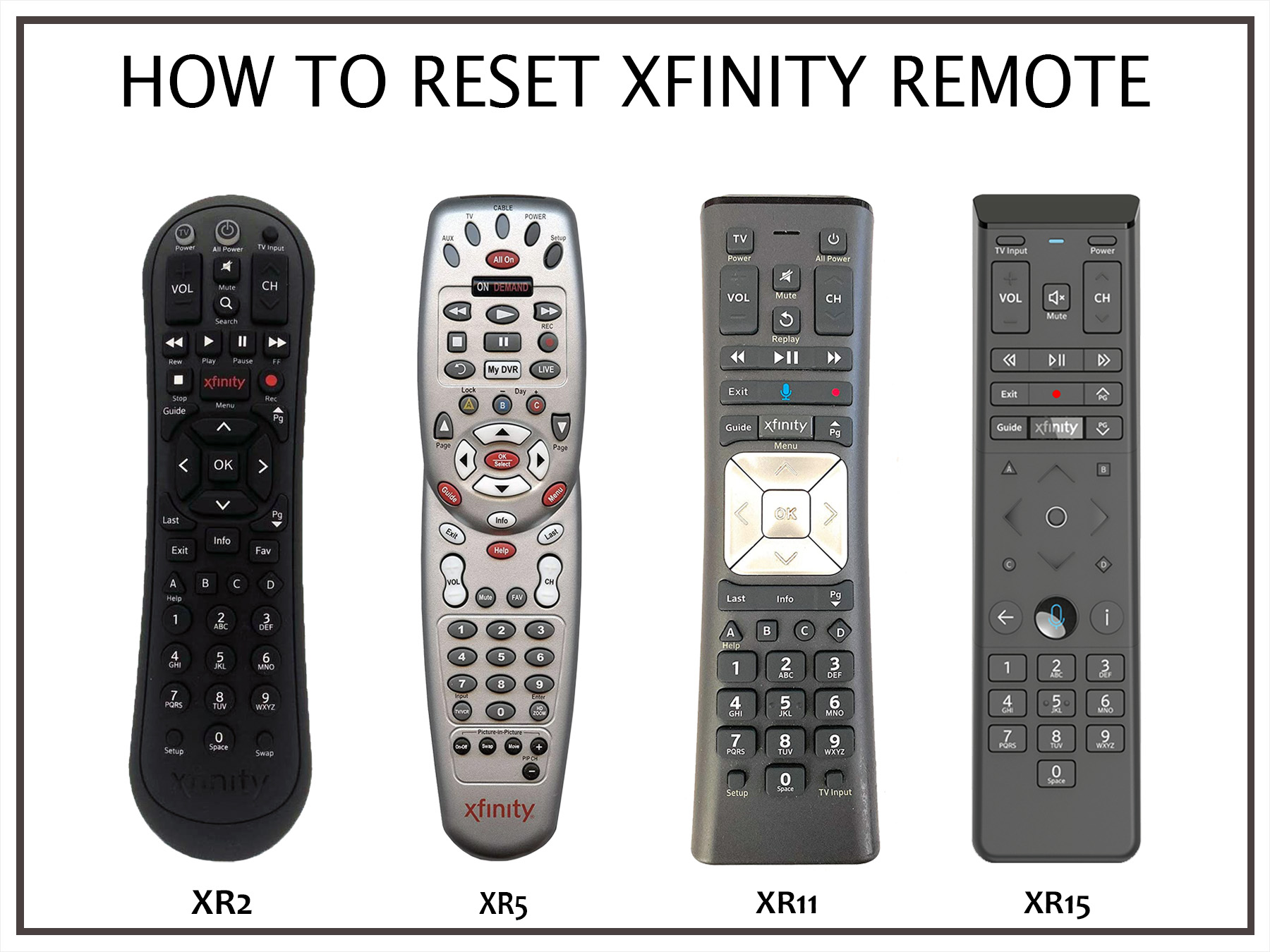
Depending on which model of the Xfinity voice remote you own—such as the popular XR11, XR15, or the newer XR16—the pairing process varies slightly. Below is a comprehensive guide to help you sync your remote to your TV and audio receiver in just a few minutes.
Before You Begin
Before diving into the programming steps, make sure your equipment is ready:
- Ensure your TV and cable box are turned on.
- Check that fresh batteries are installed in your Xfinity remote.
- Clear any physical obstructions between the remote and your TV or set-top box.
- Have your TV brand name ready, as you may need to input a code if automatic pairing fails.
Method 1: Pairing Your Xfinity Remote for Voice and Power
Most modern Xfinity remotes (like the XR15 and XR16) use Aim-Anywhere technology, allowing you to control your cable box even if it's hidden inside a cabinet. To pair the remote directly to your TV for power and volume control, follow these steps:
- Turn on your television and your Xfinity TV box.
- Press and hold the A (triangle) and D (diamond) buttons on your remote simultaneously for about three seconds.
- Wait for the status light on the remote to change from red to green.
- Type the digit code 9-8-1 on the keypad.
- The status light will flash green twice to confirm that the remote has been factory reset and is ready to pair.
- Press the Xfinity button (or the microphone button on some models) on your remote.
- Follow the on-screen instructions that appear on your TV to complete the pairing process. You will typically be asked to enter a 3-digit code or confirm that you see a specific message on the screen.
Method 2: Using the Xfinity Setup Code Search
Video: How To program your Xfinity remote to your TV
If the automatic pairing method does not work for your specific television brand, you can manually program the remote using a device code.
- Turn on your TV.
- Press and hold the Info (i) and Xfinity buttons at the same time for about five seconds until the status light on the remote changes from red to green.
- Enter the first 5-digit code listed for your TV brand. (You can find these manufacturer codes on the official Xfinity support website or in the manual that came with your remote).
- If you entered the correct code, the status light will flash green twice. If you entered an incorrect code, the light will flash red then green.
- Test the remote by pressing the volume up/down or power button. If the TV responds, you are finished. If it does not, repeat the process using the next code listed for your brand.
How to Program an Xfinity Remote Control to an Audio System
Many users want their Xfinity clicker to control a soundbar or an AV receiver rather than just the television speakers. You can easily program the volume controls to manage your sound system.
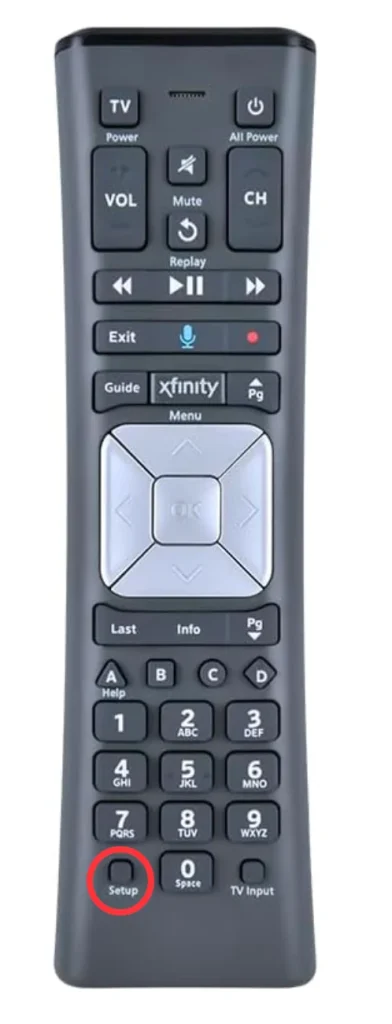
- Press and hold the Setup button (or the Info and Xfinity buttons on remotes without a dedicated setup button) until the status light turns green.
- Enter the manufacturer code for your audio receiver or soundbar.
- Test the volume buttons. If the volume adjusts your sound system, the programming was successful. If not, try the next code associated with your audio brand.
Troubleshooting Common Setup Issues
If you run into trouble while setting up your remote, try these quick fixes:
- Check the batteries: Low battery power can prevent the infrared and RF signals from transmitting properly. Replace the batteries and try again.
- Line of sight: If you are using an older Xfinity remote that relies on infrared (IR) rather than RF, make sure you point the remote directly at the cable box or TV.
- Factory Reset: If your remote becomes unresponsive or paired to the wrong device, perform a factory reset by holding the A and D buttons until the light turns green, then press 9-8-1.
By taking a few moments to properly pair your devices, you can streamline your entertainment setup and enjoy effortless control over your entire home theater system using just your Xfinity remote.