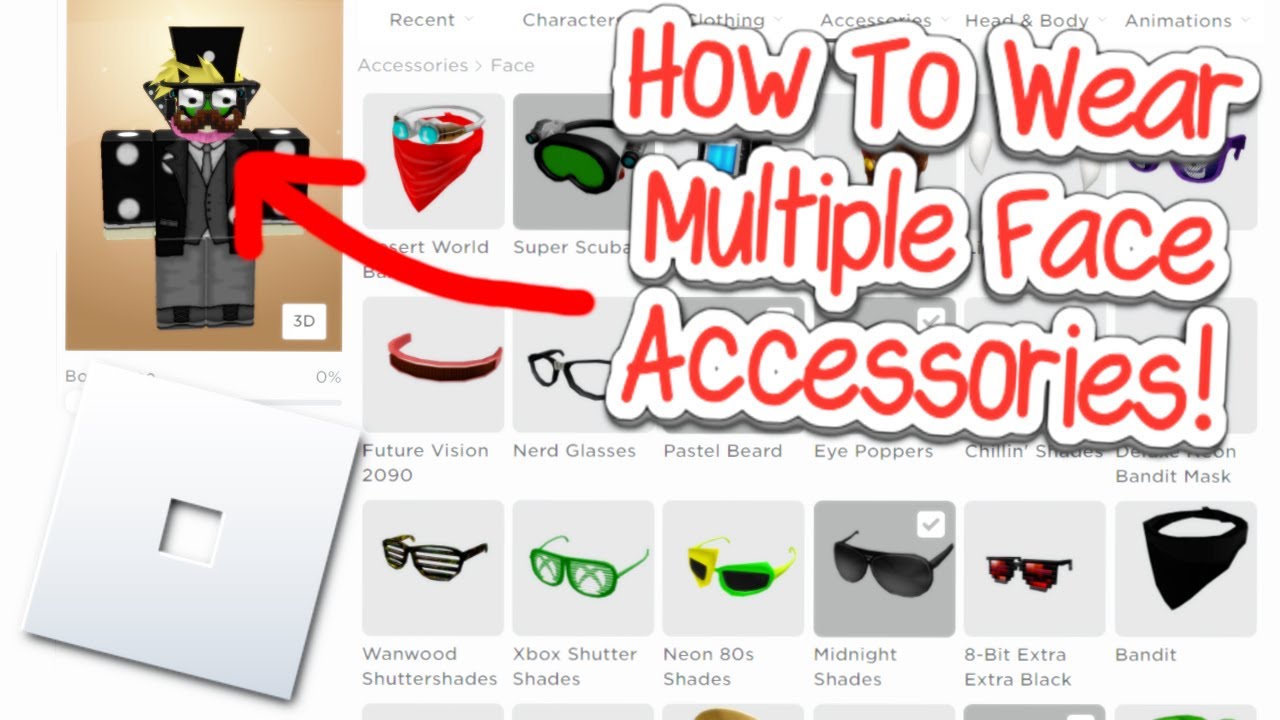
How to Put on Two Face Accessories in Roblox
Mastering Roblox Avatar Customization

Roblox offers millions of ways to customize your virtual avatar, letting you express your personality through clothing, hair, hats, and gear. However, the platform's default avatar editor often enforces strict limits on how many items you can equip in a single category. For example, if you want to wear glasses and a mask simultaneously, you might find yourself blocked by the system's standard restriction of one accessory per slot.
Players frequently look for creative workarounds to bypass these limitations and build more detailed, expressive outfits. If you have ever wondered how to put on two face accessories in Roblox, you are not alone. Fortunately, there are reliable methods using browser extensions and web tools that allow you to equip multiple face items at once. This comprehensive guide will walk you through the exact steps needed to layer your favorite face items safely and effectively.
Why Roblox Limits Face Accessories
By default, the standard Roblox mobile app and website interface categorize items strictly. When you click on a second item in the same category—such as a pair of sunglasses when you already have a face mask equipped—the system automatically un equips the first item. This is primarily designed to prevent severe item clipping, graphic rendering issues, and excessive lag in lower-end devices.
Despite these technical reasons, advanced users love pushing the boundaries of avatar design. By using specific asset IDs and external web tools, you can override these UI restrictions. While mobile users face tighter limitations, desktop players have access to powerful extension-based solutions that make multi-layering effortless.
Method 1: Using Browser Extensions (PC & Mac)
The easiest and most popular way to wear multiple face items is by utilizing custom browser extensions designed for the Roblox website. Extensions like BTRoblox (Better Roblox) or RoPro add advanced features to your browser interface, including enhanced inventory management and the ability to equip multiple items via asset IDs.
Step 1: Install a Roblox Enhancement Extension
Open your preferred desktop browser (such as Google Chrome, Microsoft Edge, or Firefox) and navigate to your browser's extension web store. Search for a reputable extension like BTRoblox or RoPro and click "Add to Browser." Once installed, make sure the extension is enabled and refresh your Roblox webpage.
Step 2: Find Your First Face Accessory ID
Go to the Roblox Avatar Shop or your inventory. Click on the first face accessory you want to wear. Look at the URL in your browser's address bar. You will see a web address similar to `roblox.com/catalog/123456789/Item-Name`. The string of numbers in that URL is the Asset ID. Copy these numbers to your clipboard.
Step 3: Equip the First Item Normally
Go to your Avatar Editor on the website and equip your first face accessory the traditional way by clicking on it.
Video: How To Wear Multiple Face Accessories Roblox 2024
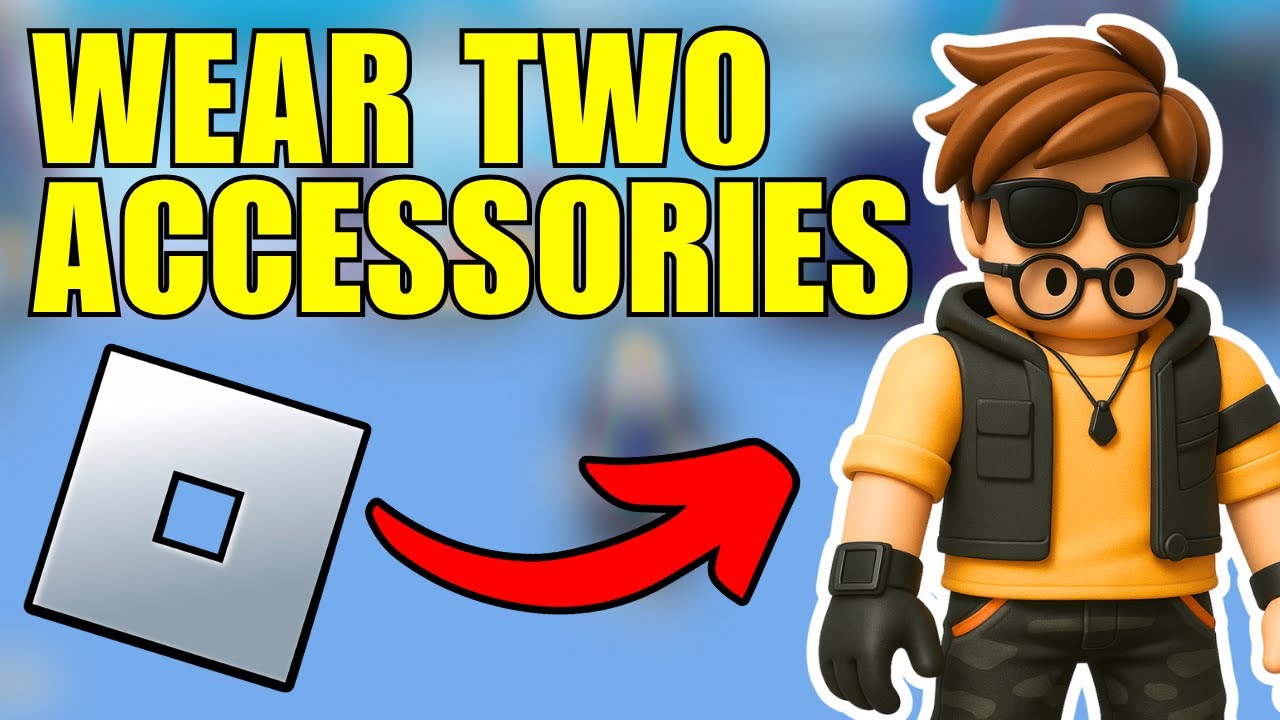
Step 4: Use the "Advanced" Button for the Second Item
With BTRoblox or RoPro installed, open your Avatar Editor and look for an Advanced button near your accessory categories. Click this button, which opens a text-box window allowing you to paste specific asset IDs manually. Paste the asset ID of your second face accessory into one of the asset ID slots and click save. The system will layer the second item right over your first choice.
Method 2: Using Asset IDs on the Standard Website
If you prefer not to install third-party browser extensions, you can still achieve a similar result using the built-in advanced tab on the official Roblox desktop website, provided the items fit into slightly different sub-categories (such as Face vs. Front vs. Mask).
- Navigate to the Roblox website and log into your account.
- Click on the Avatar tab from the left-hand navigation menu.
- Hover over the Clothing or Accessories tab and select Face.
- Scroll down to the bottom of your accessory list and click the small Advanced text link.
- A modal window will appear with multiple asset ID boxes. Paste your numeric item IDs directly into these fields.
- Click Save to apply the changes to your avatar.
How to Put on Two Face Accessories in Roblox on Mobile
Mobile players (iOS and Android) often find avatar customization more restrictive because the mobile app does not support browser extensions or the advanced ID pasting menu. However, you can easily bypass this limitation using your phone's internet browser.
- Open Safari, Google Chrome, or any mobile web browser on your phone or tablet.
- Go to the official Roblox website and log in to your account.
- Open your browser settings menu and check the box for "Request Desktop Website" or "Desktop Site."
- The webpage will reload to look like the computer version of Roblox.
- Navigate to your Avatar Editor, zoom in if necessary, and use the desktop-style menus or advanced asset ID entry method outlined in Method 1 and 2.
Troubleshooting Common Issues
When you start combining multiple face items, you may occasionally run into minor technical glitches. Here is how to fix them:
Items Are Disappearing Automatically
If the game or website keeps removing one of your items, it usually means both items share an identical collision box or slot designation within the Roblox engine. Try pairing items from different sub-categories, such as combining a 2D face decal with a 3D glasses model, rather than trying to wear two pairs of glasses at the exact same time.
Severe Item Clipping
Because these items were not originally designed to be worn together, they may intersect awkwardly on your character's face. To fix this, head back into your inventory and swap one of the items for a smaller, more compatible accessory that sits differently on the head mesh.
Conclusion
Learning how to put on two face accessories in Roblox opens up endless possibilities for creating a standout avatar. Whether you use a handy desktop browser extension like BTRoblox or switch your mobile browser to desktop mode, layering your favorite items lets you showcase your unique style. Experiment with different combinations of glasses, masks, and face effects to find a look that stands out in any experience!