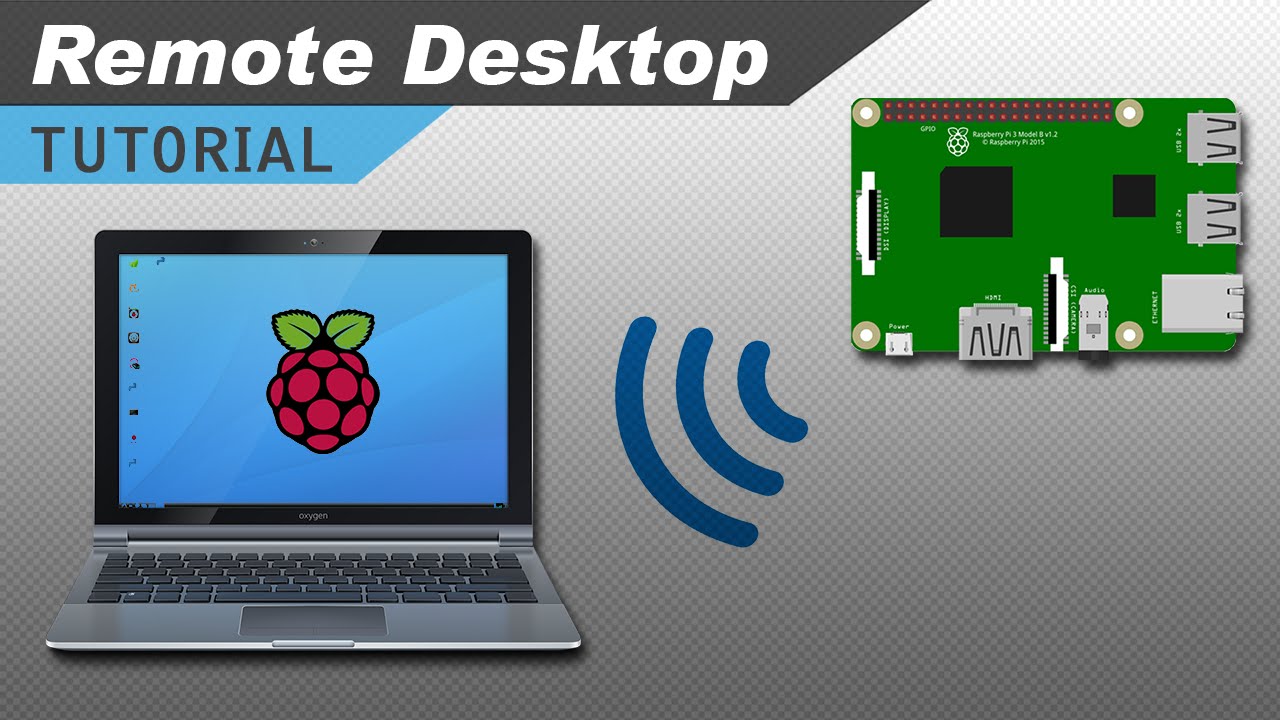
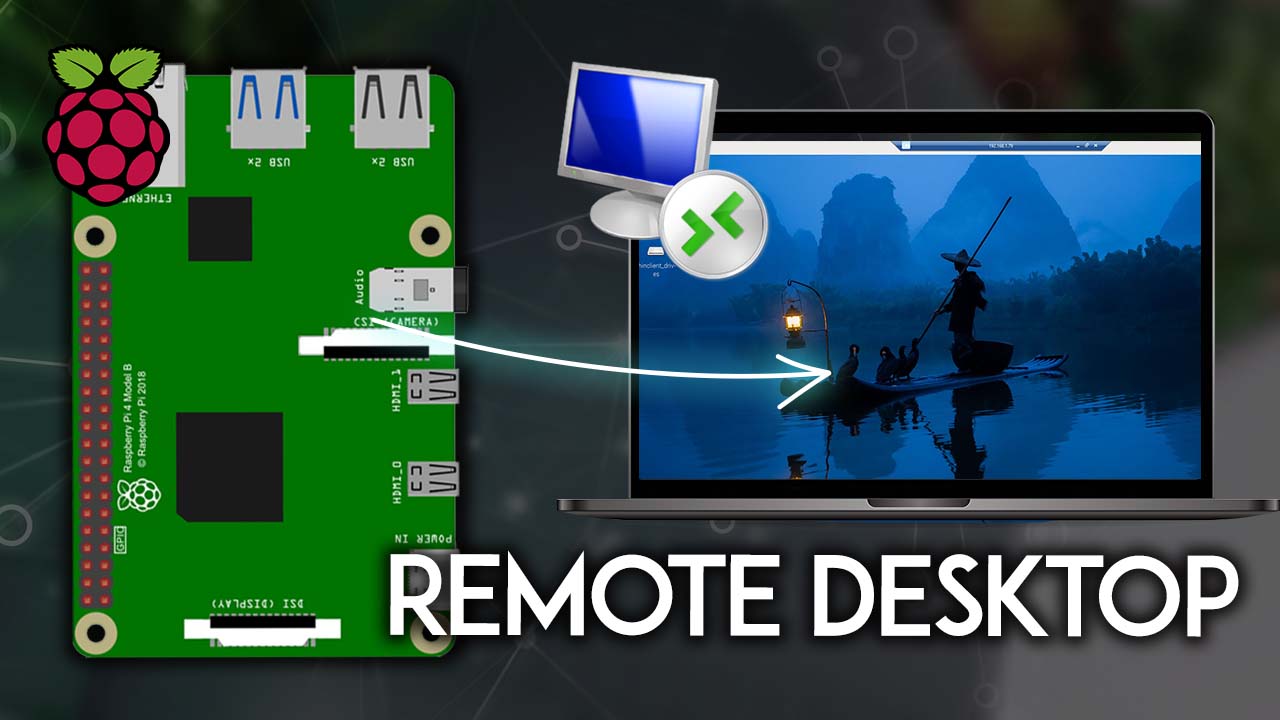
How to Remote Connect to Raspberry Pi Desktop Easily
Introduction to Raspberry Pi Remote Access
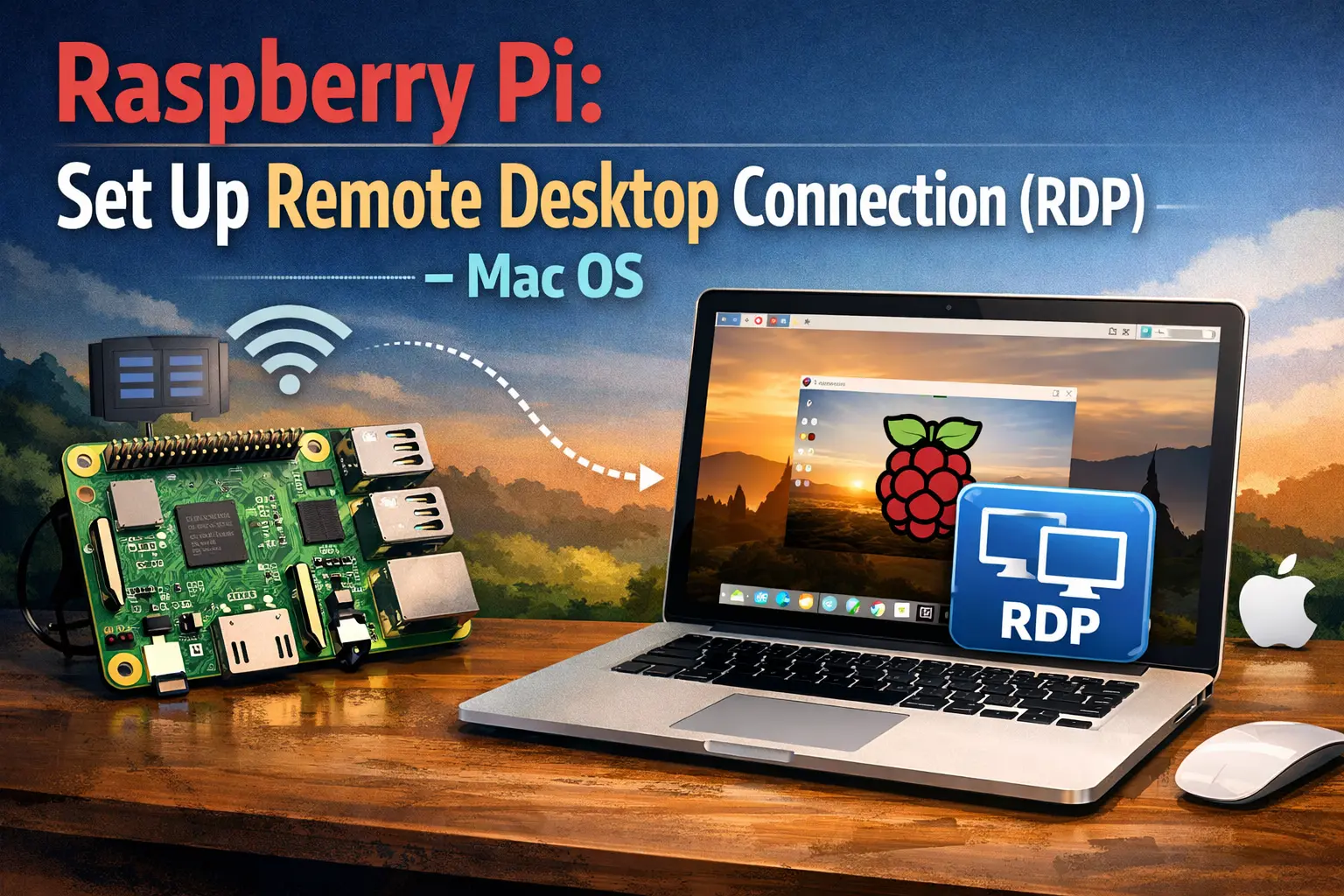
The Raspberry Pi is a remarkably versatile micro-computer. Whether you are using it as a media center, a home automation server, or a coding workstation, having a monitor, keyboard, and mouse attached all the time isn't always practical. That is where headless management comes in. Knowing how to remote connect to raspberry pi desktop allows you to manage your tiny computer from the comfort of your primary laptop or desktop, saving desk space and simplifying your workflow.
Depending on your technical comfort level and what you want to achieve, there are several reliable ways to access your Raspberry Pi's graphical user interface (GUI) over a local network or even the internet. This guide covers the most effective methods, from built-in VNC tools to alternative protocols like RDP.
Method 1: Using RealVNC (The Official Way)
Raspberry Pi OS comes with built-in support for VNC (Virtual Network Computing) via RealVNC. This is by far the easiest and most seamless way to mirror your Raspberry Pi desktop onto another screen.
Step 1: Enable VNC on the Raspberry Pi
Before you can connect remotely, you need to enable the VNC server on your Pi. You can do this either via the desktop interface or the terminal:
- Boot up your Raspberry Pi with a monitor attached (just this once).
- Open the main menu, navigate to Preferences, and select Raspberry Pi Configuration.
- Go to the Interfaces tab.
- Find VNC and switch it to Enabled. Click OK.
- Alternatively, open a terminal window and run
sudo raspi-config, navigate to Interface Options, and enable VNC there.
Once enabled, you will see a small VNC icon appear in the top-right corner of your Raspberry Pi taskbar.
Step 2: Install VNC Viewer on Your Client Machine
Next, you need a VNC client on the computer you are using to control the Pi (Windows, macOS, or Linux).
- Download and install VNC Viewer from the official RealVNC website on your primary computer.
- Open VNC Viewer and type the IP address of your Raspberry Pi into the address bar at the top. (You can find your Pi's IP address by hovering over the network icon on the Pi taskbar or by running
hostname -Iin the terminal). - Press Enter. When prompted for credentials, enter your Raspberry Pi username (default is usually
pi) and your password (default israspberry).
You should now see your Raspberry Pi desktop inside an application window on your main computer.
Method 2: Using Microsoft Remote Desktop (RDP)
If you prefer not to use RealVNC, or if you are heavily invested in the Windows ecosystem, you can use the Remote Desktop Protocol (RDP) to connect to your Pi. This requires installing an open-source RDP server called xrdp onto your Raspberry Pi.
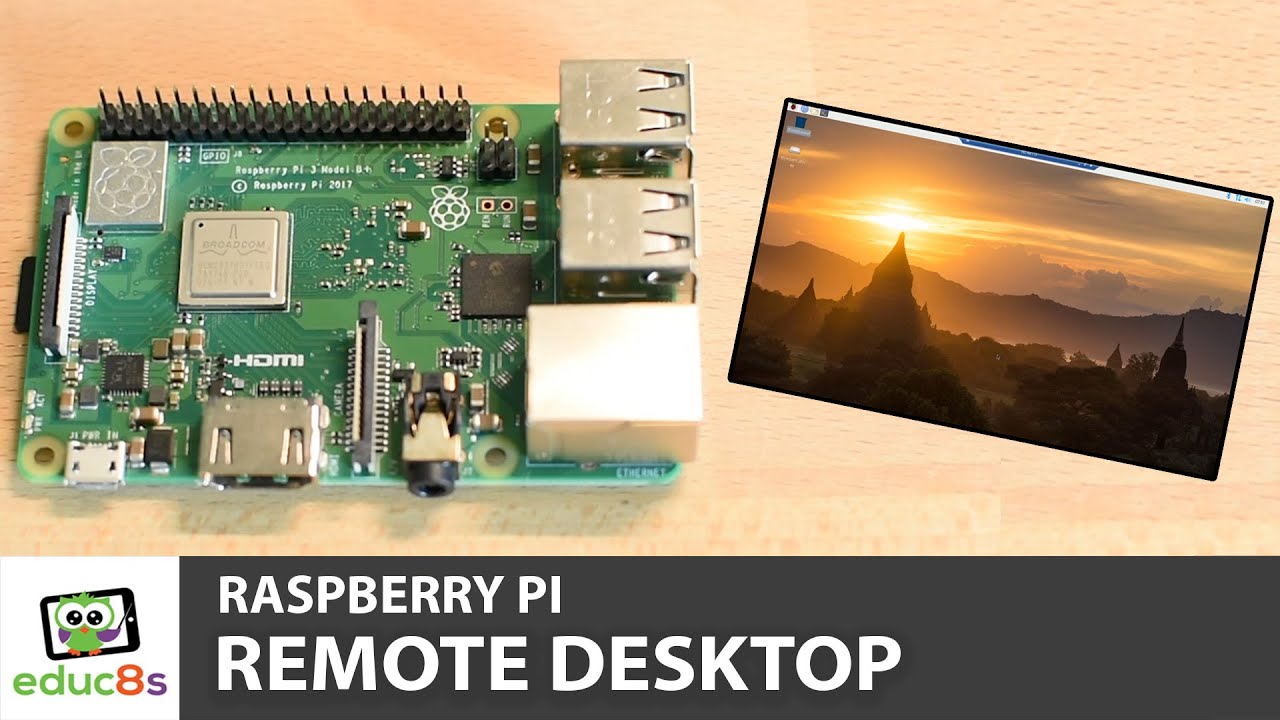
Video: Raspberry Pi Remote Access - 3 Methods
Step 1: Install xrdp
Open a terminal on your Raspberry Pi and run the following commands to update your package list and install the RDP server:
sudo apt update
sudo apt install xrdp -y
The installation is automatic, and the xrdp service will start running in the background immediately. It will even start automatically every time you boot up the Pi.
Step 2: Connect from Windows or Mac
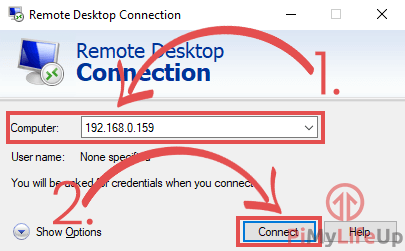
- On a Windows PC, press the Windows Key, type Remote Desktop Connection, and open the app.
- Type your Raspberry Pi's IP address into the "Computer" field and click Connect.
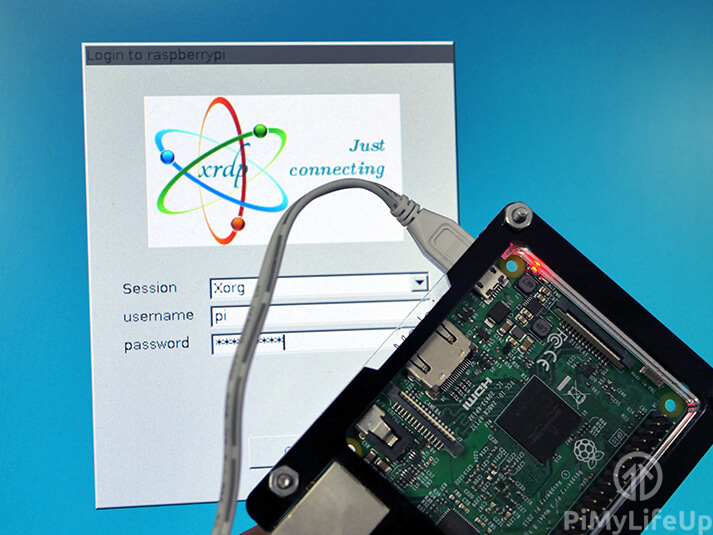
- A login window will appear. Select sesman-Xorg as the session type, and enter your Raspberry Pi username and password.
Mac users can download the Microsoft Remote Desktop app from the Mac App Store and follow a similar process.
Method 3: SSH with X11 Forwarding (For Lightweight Access)
If you do not strictly need the full desktop environment and just want to run a specific graphical Linux application remotely, you can use SSH with X11 forwarding. This method transmits only the application window rather than the entire desktop, making it much faster over slower networks.
First, ensure SSH is enabled on your Raspberry Pi via the configuration menu. Then, from a Linux or macOS terminal, connect using the `-X` flag:
ssh -X pi@<your-pi-ip-address>Once logged in via SSH, simply type the command for any GUI application (like geany or vlc), and the application window will pop up directly on your local computer's desktop.
Troubleshooting Connection Issues
Sometimes, setting up remote access does not go smoothly. Here are a few common pitfalls and how to fix them:
- Connection Refused: Double-check that you actually enabled VNC or installed xrdp on the Pi. Ensure the service is running.
- Changing IP Addresses: If your router assigns dynamic IP addresses, your Pi's IP might change after a reboot. Consider setting up a static IP address in your router settings or on the Pi itself.
- Black Screen on VNC: If you connect via VNC and see only a black screen, open the Raspberry Pi configuration tool, go to Display Options, and set a specific resolution rather than leaving it on default.
Conclusion
Accessing your single-board computer doesn't require a dedicated monitor cluttering your workspace. Whether you choose the official RealVNC route, set up an RDP server with xrdp, or utilize lightweight SSH forwarding, you can easily remote connect to raspberry pi desktop from virtually any device. Take a few minutes to set up one of these methods today, and enjoy a cleaner, more flexible workspace for all your DIY computing projects.