How to Set Clock on Freightliner Cascadia
How to Set Clock on Freightliner Cascadia

Keeping accurate time in a semi-truck is essential for logbook compliance, scheduling appointments, and managing your daily hours of service. If you drive a Freightliner Cascadia, you may have noticed that daylight saving time changes or battery disconnects will throw off your dashboard clock. Knowing how to set clock on Freightliner Cascadia models can save you frustration, especially since the dashboard layout can vary significantly depending on the truck's model year.
Because Freightliner has updated the Cascadia interior several times—transitioning from traditional analog gauges with small LCD screens to fully digital, smartphone-like instrument clusters—the exact menu navigation depends on your truck's generation. This guide covers the step-by-step process for the most common Cascadia dashboard configurations.
Method 1: Setting the Clock on Newer Cascadias (2018–Present)
Newer Freightliner Cascadia trucks feature a high-resolution digital instrument cluster paired with a steering wheel control pad. If your steering wheel has directional arrows (left, right, up, down) and an 'OK' button in the center, follow these steps to adjust your time.
Step-by-Step Instructions
- Turn the Ignition On: Insert your key and turn it to the ON position (or press the start button without engaging the starter), ensuring the digital dash lights up.
- Access the Main Menu: Look at the right-hand side of your steering wheel. Use the directional pad to navigate until you highlight the Settings gear icon on the instrument display.
- Select Settings: Press the OK button in the center of the directional pad to enter the Settings menu.
- Navigate to Truck or Display Settings: Scroll using the up and down arrows to find the submenu labeled Vehicle, System, or Display (this varies slightly depending on software version). Press OK.
- Locate the Clock Setting: Scroll through the options until you see Time or Clock Setup. Press OK to open the time adjustment screen.
- Adjust the Time: Use the up and down arrows to change the hours. Once the correct hour is displayed, press the right arrow to move to the minutes. Adjust the minutes using the up and down arrows.
- Save Your Changes: Press the OK button to lock in the new time. You can now use the left arrow or back button to exit the settings menu and return to the primary screen.
Method 2: Setting the Clock on Older Cascadias (2008–2017)

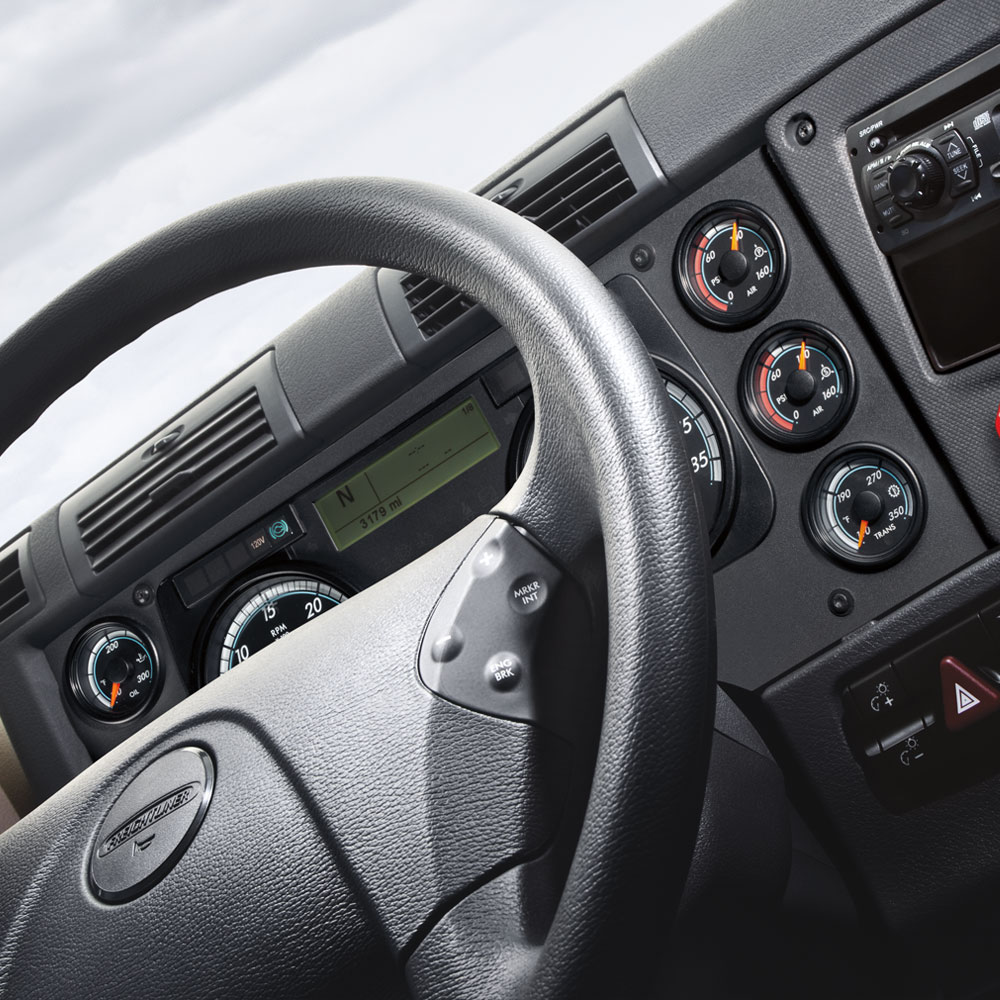
If you drive an older generation Freightliner Cascadia, your dashboard features a smaller dot-matrix LCD screen nestled between physical analog gauges. Navigation on these models relies entirely on the stalk buttons protruding from the instrument cluster or buttons located directly on the dash bezel.
Step-by-Step Instructions
- Turn the Key to ON: Power up the electronics without turning over the engine.
- Find the Instrument Cluster Buttons: Look for the two buttons usually labeled with a menu icon (often resembling a page or an arrow) and an adjustment button (often a plus/minus or checkmark) located on the lower corners of the instrument cluster glass.
- Cycle Through the Menu: Press the menu button repeatedly until the LCD screen displays the setup menu or highlights the current time settings.
- Enter Adjustment Mode: Press and hold the selection button until the hour digits begin to blink.
- Change the Time: Tap the designated adjustment buttons to cycle the hours to the correct time. Press the menu button again to switch from hours to minutes, then use the adjustment buttons to set the correct minutes.
- Exit and Save: Hold down the menu button for a few seconds to exit the settings menu and save your newly configured time.
Troubleshooting Common Issues
Sometimes, setting the clock on your Cascadia isn't as seamless as it should be. Here are a few troubleshooting tips if you run into roadblocks:
- Time Resets Automatically: If your clock keeps reverting to the wrong time or resets every time you turn off the truck, you may have a failing starting battery or a loose connection in your power distribution module that cuts constant 12V power to the dash memory.
- GPS Time Sync: Some newer Cascadia units equipped with advanced telematics or Detroit Connect systems sync time automatically via satellite. If your truck has this feature, manual adjustments might be locked out unless you disable auto-sync in the system menu.
- Locked Out While Driving: For safety reasons, Freightliner locks out certain menu adjustments while the vehicle is in motion. Always make sure the parking brake is set and the transmission is in neutral or park before attempting to change your dashboard settings.
Summary
Getting your dashboard clock synchronized is a quick fix once you know which buttons to press. Whether you operate a newer model with steering wheel controls or a classic older Cascadia, taking two minutes to adjust your time ensures you stay on schedule throughout your cross-country runs.