How to Update My Xbox: Quick & Easy Guide
How to Update My Xbox Console and Games
Keeping your gaming console running smoothly requires regular software maintenance. Whether you are trying to fix a connection error, access online multiplayer features, or simply prepare for a brand-new game release, knowing how to update my Xbox is an essential skill for any gamer. Fortunately, Microsoft has streamlined the process across both modern and legacy hardware.
This guide covers step-by-step instructions for updating your Xbox Series X, Xbox Series S, or Xbox One console. We will also walk you through updating your games, controllers, and troubleshooting common update errors.
How to Update Your Xbox Console System Software
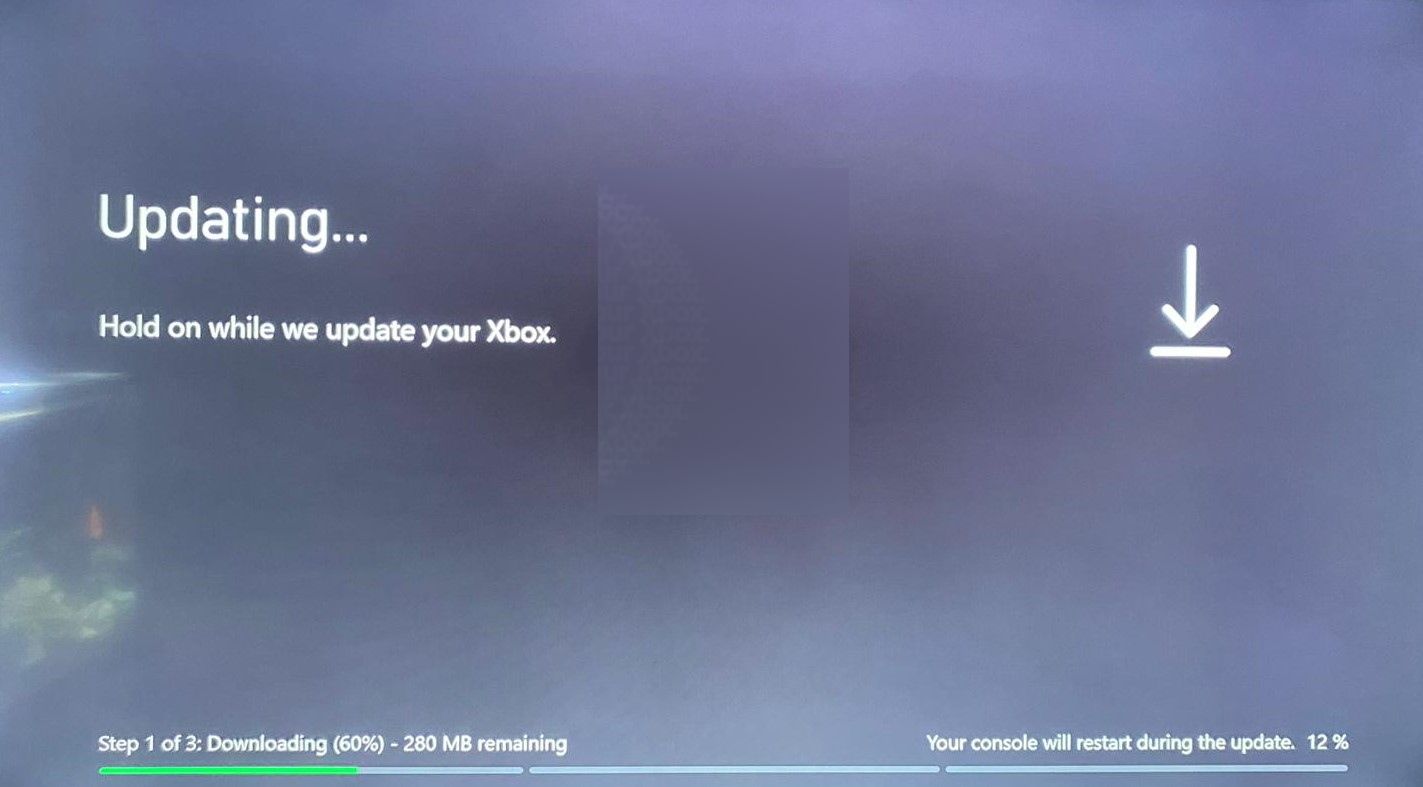
Most of the time, your Xbox will download system updates automatically in the background as long as your console is set to "Instant-On" or "Sleep" mode and connected to the internet. However, if an update is mandatory or you want to force a manual check, you can do so through the settings menu.
Manual System Update Steps
- Turn on your Xbox console and sign in to your profile.
- Press the Xbox button on your controller to open the guide.
- Navigate to Profile & system > Settings.
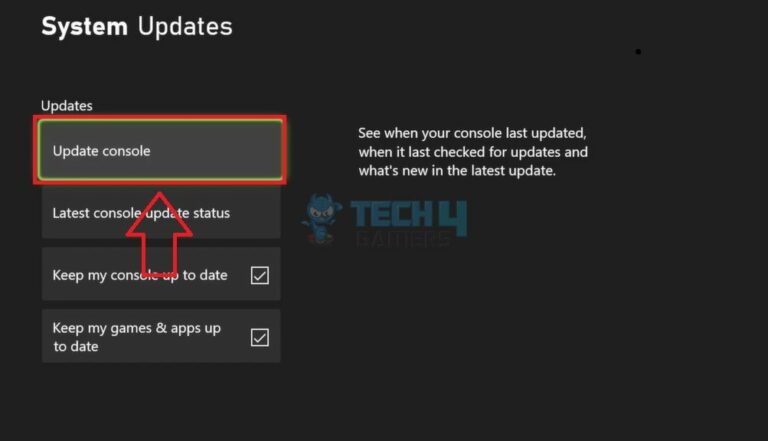
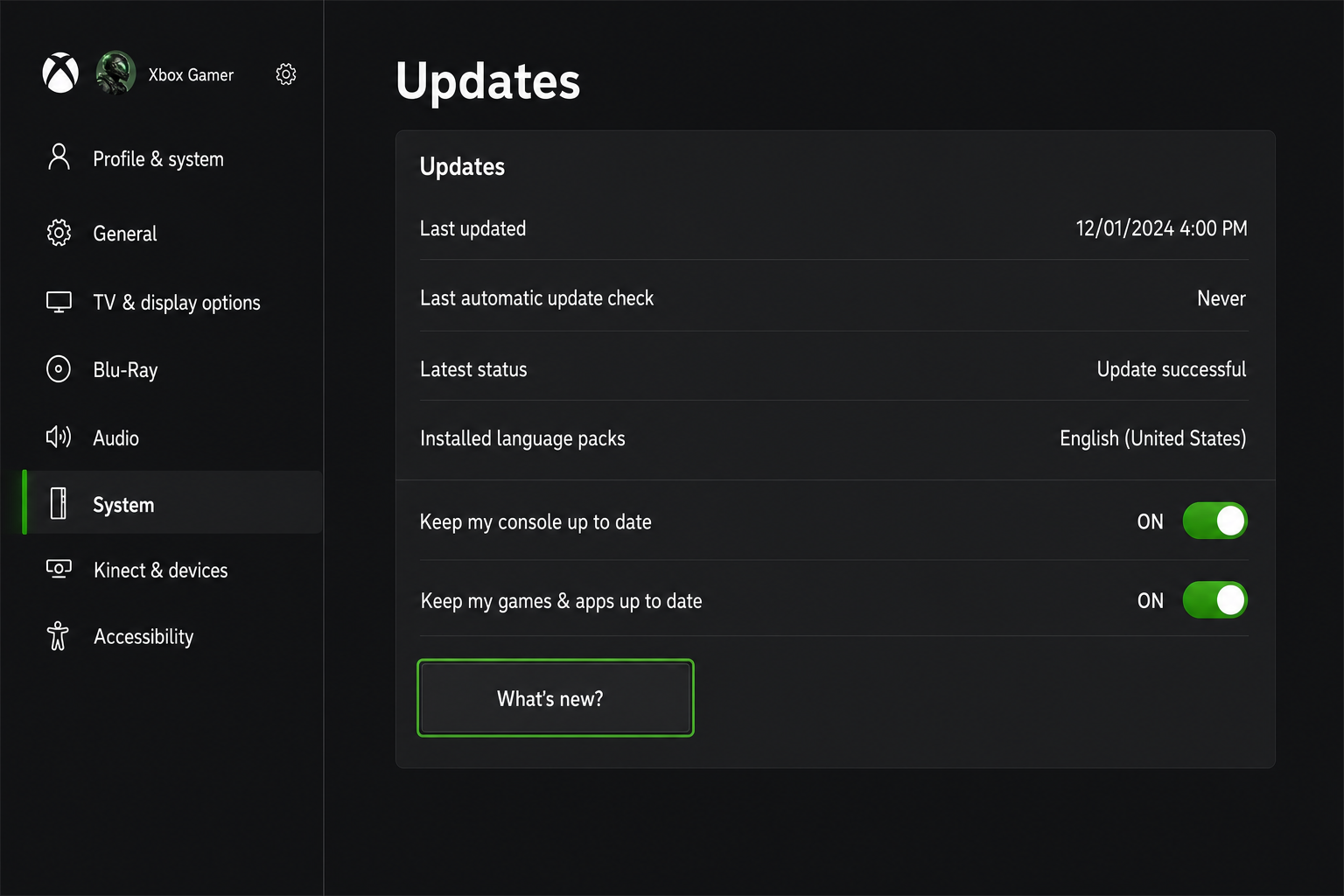
- Select System from the left-hand menu, then choose Updates.
- If an update is available, you will see Console update available. Select it to begin the download and installation process.
If the update option is greyed out, it means your console is already running the most current system software version available from Microsoft.
How to Set Up Automatic Updates
To avoid manually checking for system software every time Microsoft releases a patch, you can configure your console to handle updates automatically. This ensures your system is always ready to play.
Video: How to UPDATE Xbox Series X / S / One (Quick)

- Go to Settings > System > Updates.
- Check the box that says Keep my console up to date.
- To ensure game patches download automatically, navigate to Settings > System > Updates & downloads, and check Keep my games & apps up to date.
Note that your console must be connected to power and the internet, and power mode must be set to Sleep rather than complete shutdown, for background updates to download successfully.
How to Update Xbox Games and Apps
Outdated games will often prevent you from playing online or accessing specific DLC packs. If you notice a game failing to launch or connecting to servers, you may need to update your software library manually.
- Press the Xbox button to open the guide and select My games & apps > See all.
- Scroll down to the Updates tab on the left-hand menu.
- Here, you will see a list of any games or apps that currently have pending patches.
- Select Update all to download everything, or choose individual games you want to prioritize.
How to Update Your Xbox Wireless Controller
Console updates often bring firmware improvements for accessories. Updating your Xbox wireless controller can fix connectivity drops, stick drift issues, or headset audio glitches.
- Connect your controller to the Xbox console using a USB-C or micro-USB cable (depending on your controller model), or ensure you have fresh batteries inserted.
- Press the Xbox button to open the guide.
- Go to Profile & system > Settings > Devices & connections > Accessories.
- Select the three dots (...) under your controller to check the firmware version.
- If an update is available, select Firmware version and follow the on-screen prompts. Do not unplug the controller until the update finishes.
Troubleshooting Common Xbox Update Issues
Occasionally, an update might stall, fail, or throw an error code. If you encounter issues while trying to update your system, try these troubleshooting steps:
- Power Cycle the Console: Hold down the physical power button on the front of the Xbox for about 10 seconds until the console turns off completely. Unplug the power cable for 30 seconds, plug it back in, and turn the console on.
- Check Your Network Connection: Go to Settings > General > Network settings > Test network connection to ensure you have a stable internet connection. Slow speeds can cause updates to time out.
- Clear Local Storage: Sometimes corrupted cache data prevents downloads. Clearing your persistent storage or local save cache via the system settings can clear the bottleneck.
- Offline System Update: If your console cannot connect to the internet at all, Microsoft allows you to download system updates to a USB flash drive from a PC and install them physically via the Xbox Startup Troubleshooter menu.
By following these steps, you can keep your hardware, operating system, and game library fully optimized for the best possible gaming experience.