How to Use Google Image Search Upload Like a Pro
Have you ever stumbled across a striking photo online and wondered where it came from? Or perhaps you need to verify the authenticity of a picture, track down a high-resolution version, or find where to buy a specific product you saw in a snapshot. The easiest solution is to perform a google image search upload.
Instead of typing keywords into a text search box, reverse image searching allows you to use a picture as your query. This comprehensive guide will walk you through everything you need to know about uploading images to Google across different devices, along with practical tips to get the best results.
How to Do a Google Image Search Upload on Desktop
Using a computer is one of the most common ways to run a visual search. Whether you are using a Windows PC, Mac, or Chromebook, Google has streamlined the process through Google Lens integration.
Method 1: Drag and Drop
If you have the image file saved on your desktop or inside a folder, you can use the ultra-fast drag-and-drop method:
- Open your web browser and go to images.google.com.
- Locate the image file on your computer.
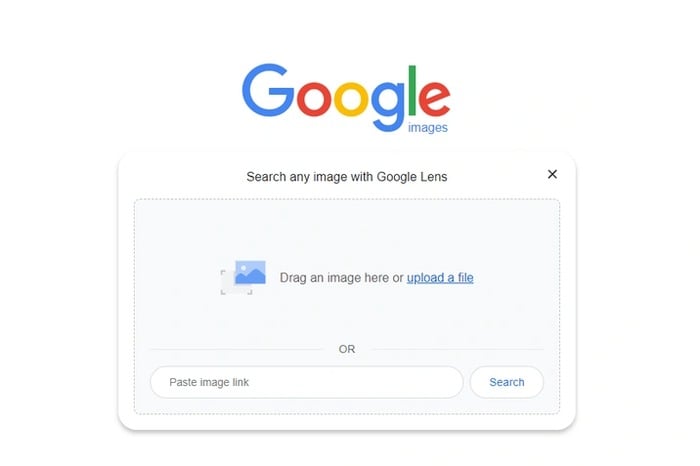
- Click and hold the image file with your mouse, then drag it directly onto the Google Images search bar.
- Release the mouse button. The page will automatically refresh to show your search results.
Method 2: Uploading a Saved File
If dragging and dropping isn't your style, you can manually upload the file through the browser interface:
- Go to Google Images.
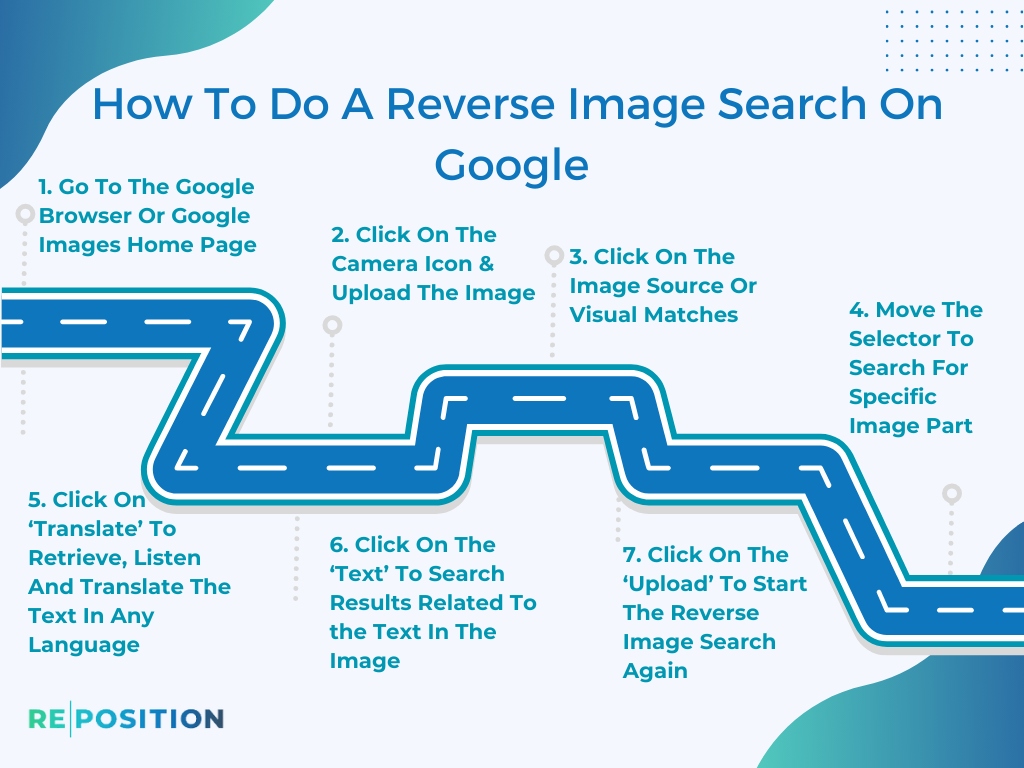
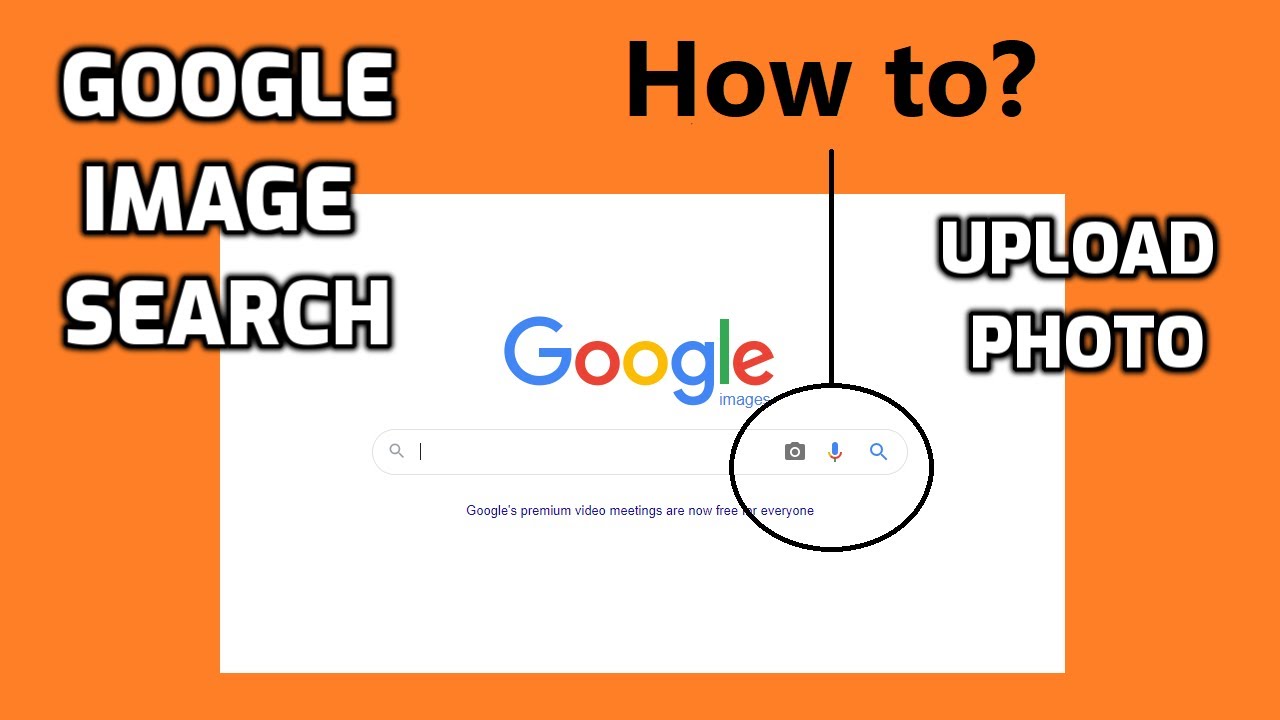
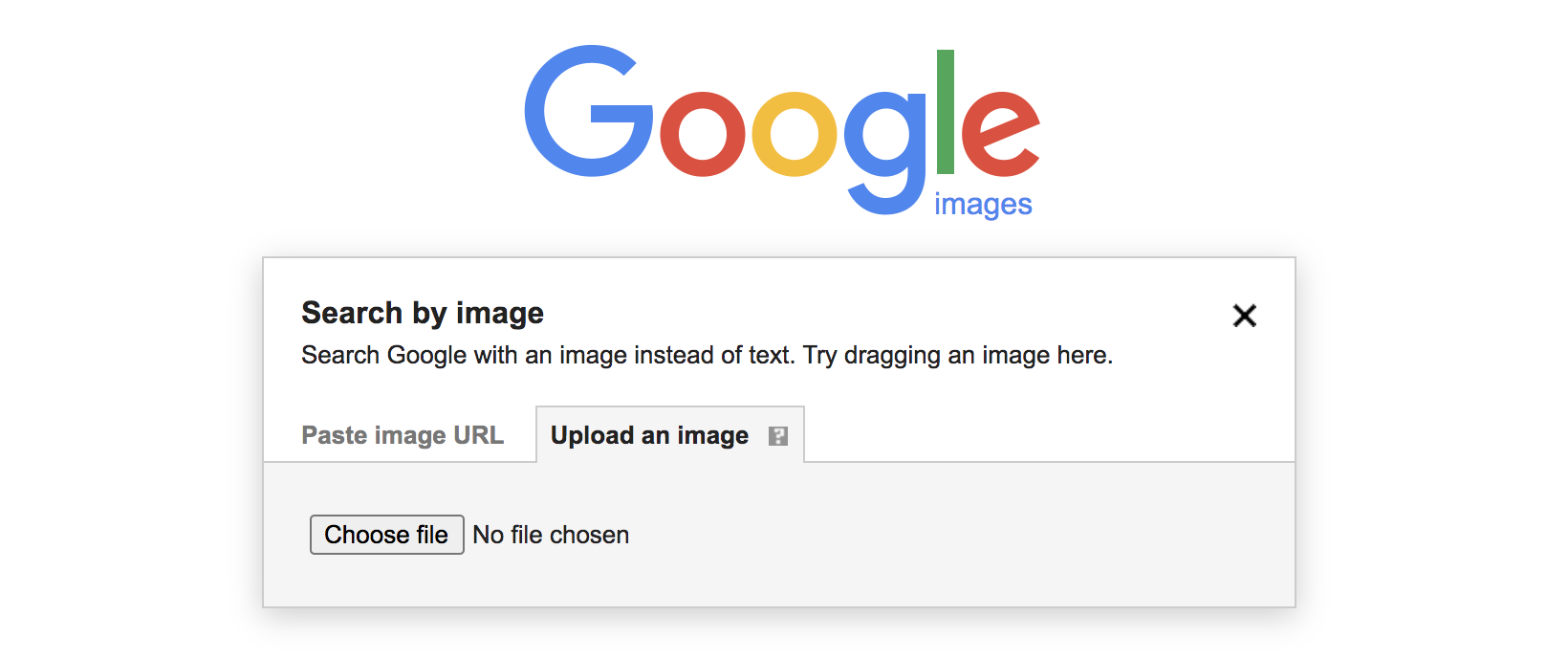
- Click the Camera icon (Google Lens) located inside the search bar.
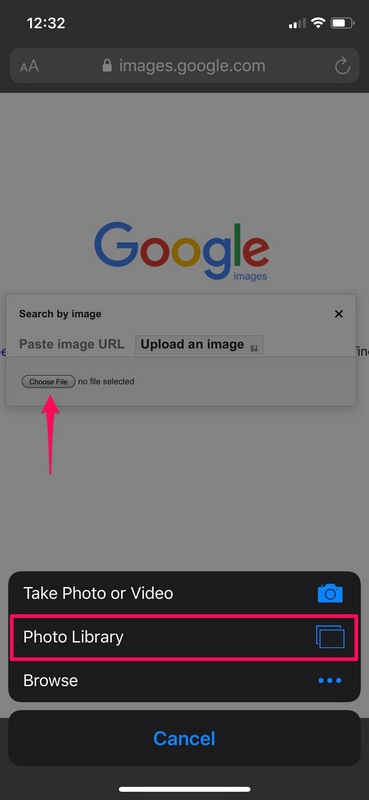
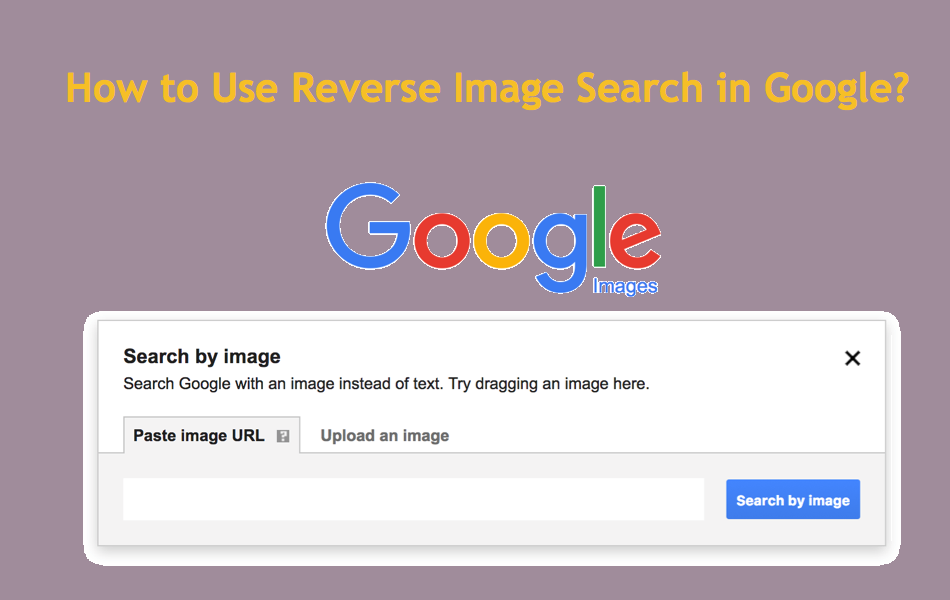
- A panel will appear prompting you to search by image. Click on the Upload a file button.
- Browse your computer's folders, select the image you want to use, and click Open.
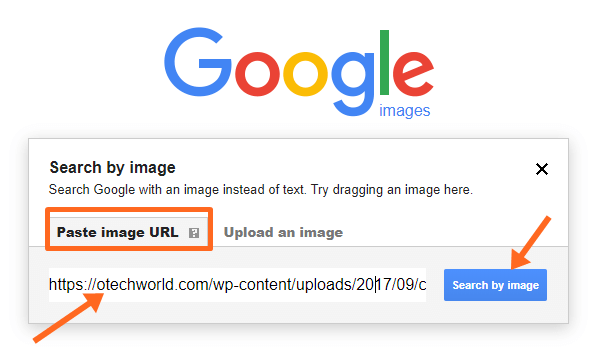
Method 3: Searching by Image URL
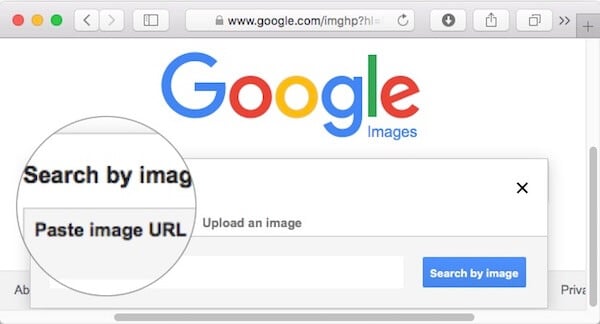
Sometimes you don't want to download the image to your hard drive just to search for it. You can simply copy and paste its web address:
- Right-click the image on the webpage and select Copy image address (or copy image link).
- Go to Google Images and click the camera icon.
Using Google Image Search Upload on Mobile Devices
Searching for images on a smartphone or tablet is slightly different depending on whether you are using an iPhone, iPad, or Android device.
Using the Google App or Chrome on Android and iOS
- Open the Google app or the Chrome browser on your mobile device.
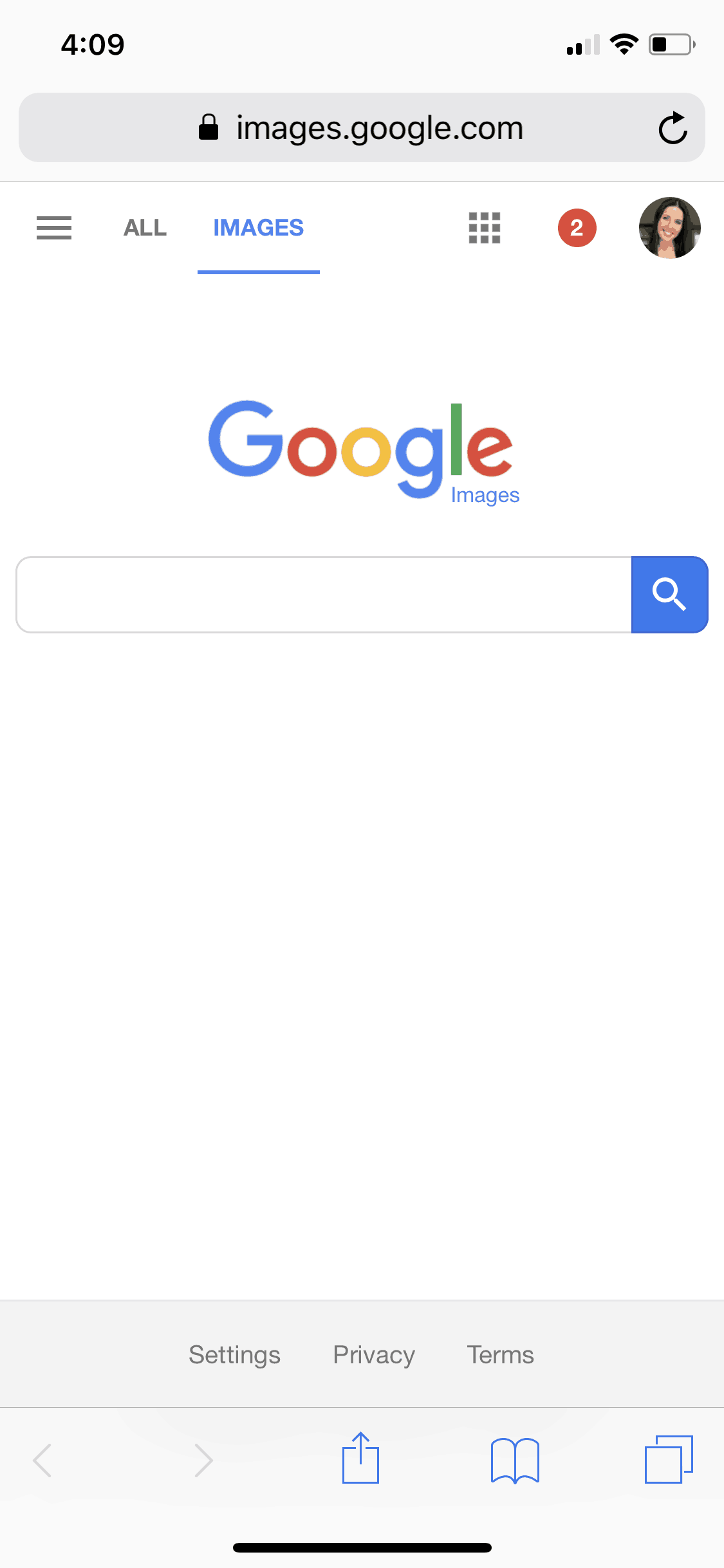
- Navigate to Google Images. (Note: On mobile browsers, you may need to request the desktop site if the camera icon doesn't appear by default, though modern mobile interfaces usually show it immediately).
- Tap the Camera icon in the search bar.
- Choose an image from your phone's photo gallery or take a new picture using your camera.
- Google Lens will process the image and display the results below.
The Shortcut for Mobile Web Browsers
If you are browsing a website on your phone and want to search for a specific picture you see on that page, you don't even need to download it:
- Press and hold your finger on the image until a menu pops up.
- Select Search image with Google (or "Search Google for this image").
- The search results will slide up from the bottom of your screen instantly.
Tips for Getting Better Results
Sometimes a reverse image search doesn't immediately give you what you are looking for. Here are a few advanced tips to improve your search accuracy:
- Crop the image: If your photo contains too many distracting elements, crop it down to the specific subject before uploading. This helps Google Lens focus on the core element.
- Check image quality: Extremely blurry, pixelated, or heavily filtered photos are harder for algorithms to match. Try to use the clearest version available.
- Use multiple search engines: If Google doesn't yield the results you need, try alternative reverse image search tools like TinEye (which excels at finding exact file matches and older versions of images) or Yandex (which is often superior for facial recognition and international photos).
Common Uses for Reverse Image Searching
Understanding how to upload and search images opens up a variety of practical applications for everyday users, creators, and professionals alike:
- Fact-Checking and Verification: Combat misinformation by checking if a viral news photo was actually taken years ago or in a completely different location.
- Copyright and Plagiarism Tracking: Content creators and photographers can use reverse image searches to see if their copyrighted works are being used without permission across the web.
- Shopping and Identification: Spot a piece of furniture, clothing, or a plant you love? Upload a picture of it to find out brand names, prices, and where to buy it online.
- Finding Higher Resolutions: If you have a tiny thumbnail of an image, you can upload it to find larger, crisper versions suitable for desktop wallpapers or professional projects.
Summary
Mastering the google image search upload process takes only a few seconds, but it saves countless hours of guessing. Whether you prefer dragging and dropping files on your desktop or tapping and holding on a mobile screen, Google's visual search tools make identifying objects, finding sources, and verifying web content easier than ever before.