How to Use join.nearpod.com: Student Guide
Interactive learning has transformed modern classrooms, making lessons more engaging through quizzes, virtual reality, and collaborative boards. One of the leading platforms for this is Nearpod, which allows educators to host dynamic presentations in real-time. If you are a student or participant looking to jump straight into an active session, navigating to join.nearpod.com is your gateway to the lesson.

This guide explains how the platform works, how to enter your session code, and what to do if you run into common technical roadblocks.
What Is Nearpod and How It Works
Nearpod is an instructional platform that bridges the gap between teachers and students. Instead of passively watching a slideshow, participants interact directly with the content on their own devices—whether that is a laptop, tablet, or smartphone.
Teachers control the pace of the presentation from their dashboard, pushing out slides, interactive questions, polls, and games. To make this seamless, the platform generates a unique five-letter code for every single session. Participants do not necessarily need to create an account or log in with a password; they simply navigate to the portal and type in the code provided by their instructor.
How to Join a Lesson Using join.nearpod.com
Getting into your classroom presentation takes only a few seconds. Follow these simple steps to access your interactive session:
- Open your web browser: Launch Safari, Chrome, Firefox, or Microsoft Edge on your device.
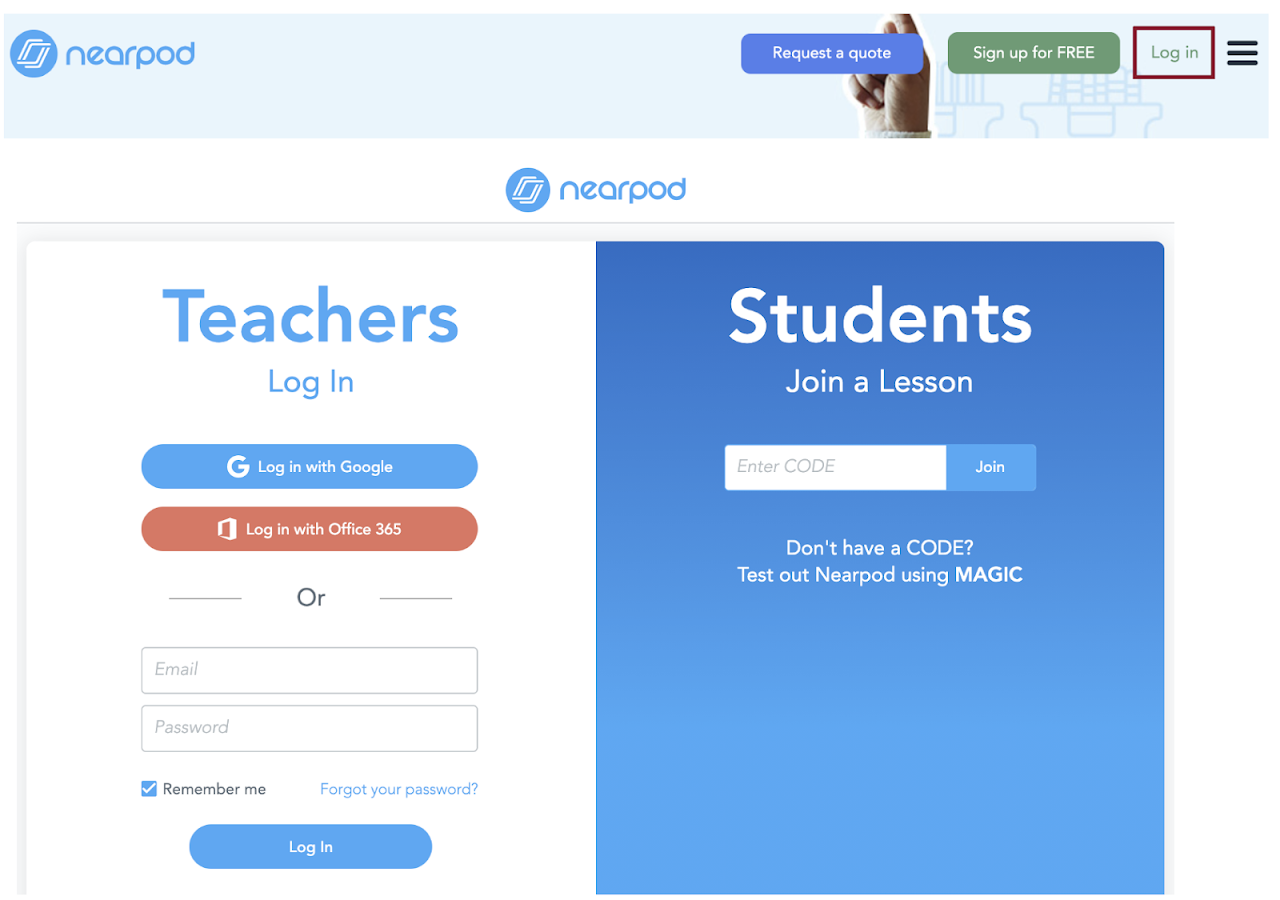
- Go to the portal: Type
https://join.nearpod.cominto your address bar and press Enter. You will see a clean page featuring a prominent text box asking for a code. - Enter your code: Carefully type the unique five-letter code given to you by your teacher, instructor, or presenter. These codes are case-insensitive, but make sure you do not include extra spaces.
- Click the arrow or press Enter: Submit the code to proceed to the next screen.
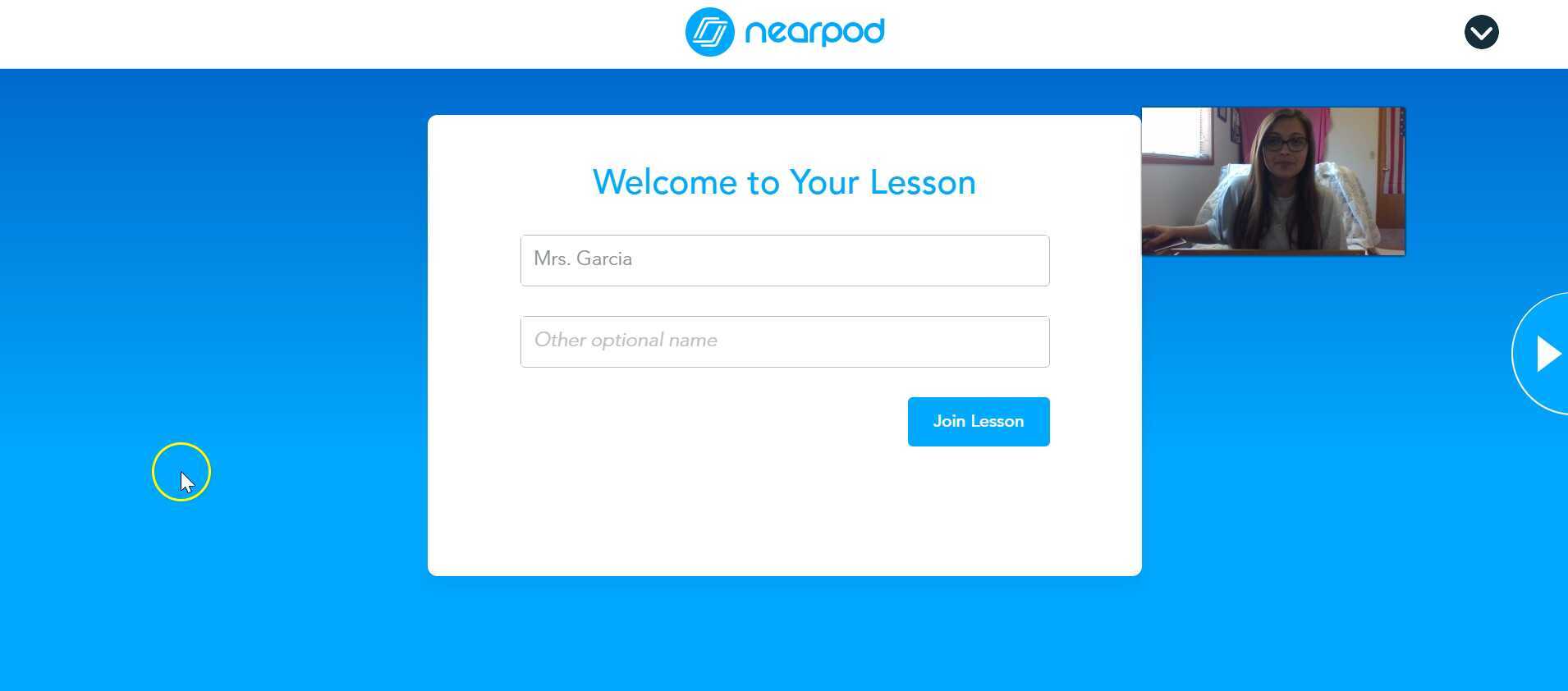
- Add your name: The system will prompt you to enter your name or nickname. Teachers rely on this to track participation and grading, so use your real name unless instructed otherwise.
- Join the session: Click "Join Lesson" to enter the virtual classroom and wait for the presentation to begin.
Alternative Ways to Access Nearpod Lessons
While typing the URL manually is the standard method, there are a few other ways you might end up in a session:
- Direct Links: Your teacher might share a direct URL via email, Google Classroom, or Microsoft Teams. Clicking this link automatically bypasses the manual code entry page and takes you straight to the name-entry screen.
- Nearpod Mobile App: If you are using an iPad, iPhone, or Android device, you can download the official Nearpod app from your device's app store. The app features a dedicated code entry box that functions identically to the website.
Troubleshooting Common Issues
Most of the time, accessing a lesson is frictionless. However, technology can occasionally misbehave. Here is how to fix the most common issues when trying to connect:
Invalid Code Error
If the system tells you the code is invalid, double-check your spelling with the instructor. Nearpod codes expire once the teacher ends the live session, so if you are trying to access yesterday's homework presentation using an old code, it will not work. Additionally, check that you did not accidentally type the code into the student-paced link area if your teacher is running a live-paced session, or vice versa.
Stuck on the Loading Screen
If your browser freezes while trying to load the lesson, try these quick fixes:
- Refresh the browser tab.
- Clear your browser cache and cookies.
- Switch from Wi-Fi to a stronger network connection, or restart your router.
- Try opening an incognito or private browsing window.
Accidentally Entered the Wrong Name
If you misspelled your name or typed a nickname by mistake, you usually cannot edit it from within the active lesson. The best solution is to close the browser tab, return to the portal, re-enter the code, and type your correct name before clicking join again.
Tips for Students and Participants
To get the most out of your interactive Nearpod experience, keep these quick tips in mind:
Keep your tab open and active. If you switch to another browser window during a timed quiz or a collaborative board activity, you might miss important prompts or get disconnected. Make sure your device is fully charged or plugged into a power source, as interactive features like simulations and virtual field trips can consume battery life quickly. Finally, always follow your teacher's instructions regarding participation—whether the lesson is set to live-paced (where everyone moves together) or student-paced (where you can move through slides independently at your own speed).
By understanding how the portal works and keeping your session code handy, you can log into your virtual classroom smoothly every single time.