How to Use Textcolor in LaTeX: Complete Guide
When writing documents, reports, or presentations in LaTeX, adding a splash of color can help draw attention to key points, highlight code snippets, or structure your notes. By default, LaTeX sets all body text in a crisp, professional black. To introduce color, you need to load a specialized styling package and use specific formatting commands.

The standard and most robust way to achieve this is through the xcolor package. Whether you want to use basic predefined hues or exact hex codes, mastering textcolor latex commands gives you complete visual control over your output.
Getting Started with the Xcolor Package
LaTeX does not include advanced color management in its core engine. Before you can modify any text, you must load the xcolor package in your document's preamble (the section before \begin{document}).
Add this line to your preamble:
\usepackage{xcolor}Once imported, this package unlocks a wide variety of tools for coloring text, table cells, and entire page backgrounds. The most common command for standard paragraphs and headings is \textcolor{color}{text}.
Basic Textcolor LaTeX Commands
Applying color to a specific block of text is straightforward. The \textcolor command takes two mandatory arguments: the name of the color and the text you wish to style.
Here is a basic syntax example:
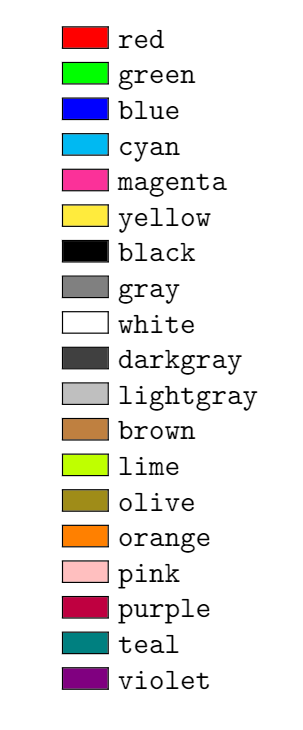
This is normal text, and \textcolor{red}{this text is red.}By default, the xcolor package comes with a set of nineteen standard colors ready for immediate use. You do not need to define them yourself; simply reference their names directly inside the brackets.
Predefined Colors in LaTeX
You can use the following standard color names out of the box:
blackdarkgray,gray,lightgraywhite(best visible on colored backgrounds)redgreenbluecyanmagentayellowbrownlimeoliveorangepinkpurpletealviolet
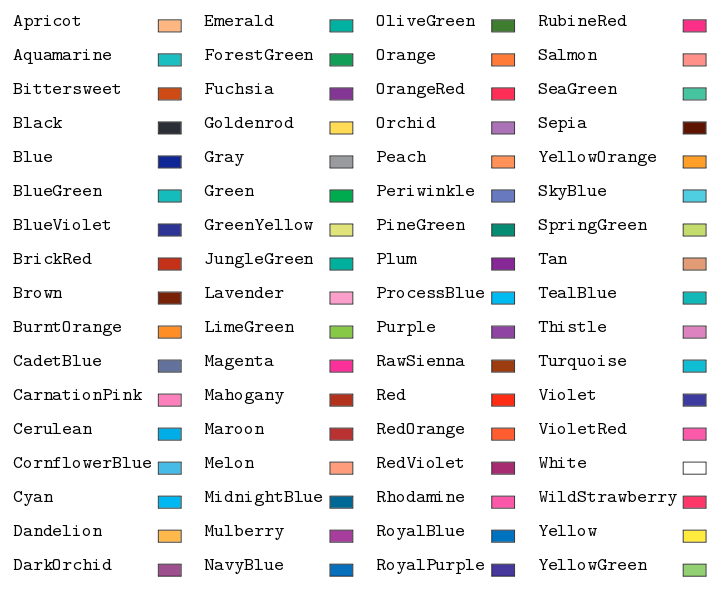
If you need access to dozens of additional professional-grade colors—such as forestgreen, midnightblue, or brickred—you can load the package with the dvipsnames option:
\usepackage[dvipsnames]{xcolor}Defining Custom Colors
Standard colors are great for quick drafts, but professional branding and academic publications often require precise color palettes. You can define your own custom colors using RGB, CMYK, or HTML-style hexadecimal codes.

Using HTML Hex Codes
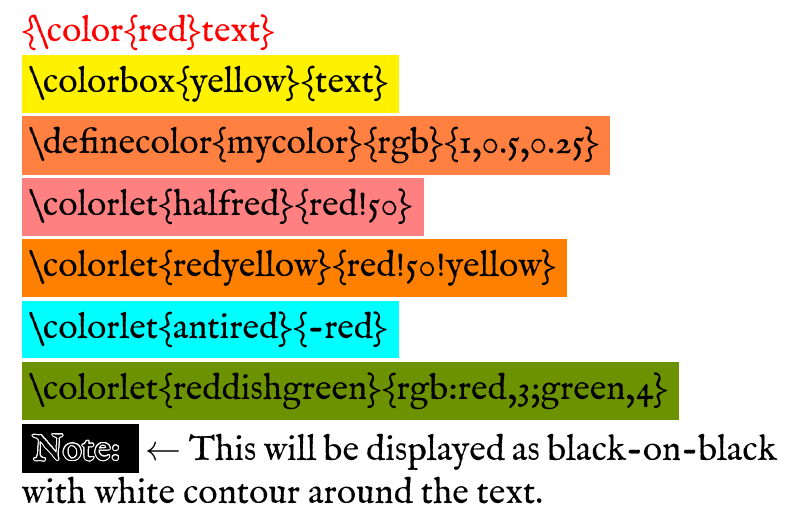
If you have a specific hex code from a web design project, you can enable HTML-style notation by passing the svgnames or HTML options, or by defining the color explicitly using the \definecolor command.
\definecolor{mycustomblue}{HTML}{1A5276}
\textcolor{mycustomblue}{This text uses a custom hex color.}
Using RGB Values
You can also define colors using standard Red-Green-Blue decimal values ranging from 0 to 1:
\definecolor{mygreen}{rgb}{0.1, 0.6, 0.2}
\textcolor{mygreen}{This text is styled with custom RGB values.}
Coloring Text in Math Mode
A common pitfall for beginners is attempting to use standard color commands inside mathematical environments. If you write $ \textcolor{red}{x + y} $, it usually works as expected. However, more complex mathematical structures or alignment matrices may sometimes ignore standard font color commands unless handled carefully.
To ensure variables and equations render properly in color, wrap the math elements inside the color declaration:
\begin{equation}
  \textcolor{blue}{E = mc^2}
\end{equation}
If you want an entire equation block to be colored without wrapping every single variable, you can declare a colored box or use amsmath formatting wrappers.
Coloring Backgrounds vs. Foreground Text
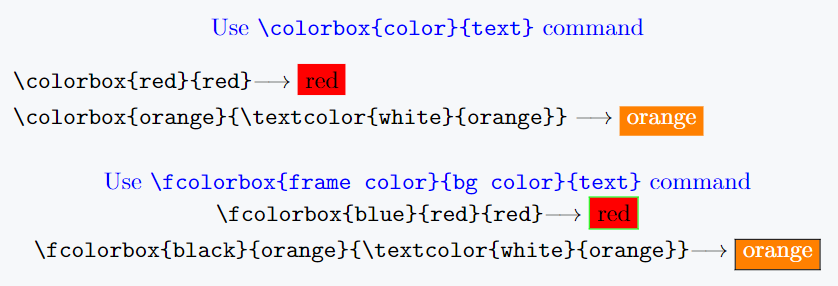
Sometimes changing the text color alone is not enough to make important notes or warnings stand out. You can combine text coloring with background highlighting using the \colorbox command.
\colorbox{yellow}{\textcolor{black}{This text has a yellow background.}}For larger blocks of text, multi-line notes, or theorem environments, consider using the tcolorbox package, which allows you to create professional framed and colored boxes with rounded corners and titles.
Troubleshooting Common Issues
As you experiment with color in LaTeX, keep these best practices in mind to avoid compilation errors:
- Package Conflicts: Avoid loading conflicting graphics or color packages multiple times in your preamble. Stick to
xcoloras it supersedes the oldercolorpackage. - Color Slashing: If your PDF viewer shows unexpected artifacts or bleeding colors when zooming in, ensure you are using an updated TeX distribution (like TeX Live or MiKTeX).
- Print Readability: Remember that vibrant colors like yellow or light green can be difficult to read when printed in black and white. Use dark, high-contrast colors for crucial body text.
By leveraging the xcolor package, custom color definitions, and proper math-mode syntax, you can transform plain documents into visually engaging, professionally styled papers and presentations.